> ## Documentation Index
> Fetch the complete documentation index at: https://docs.getoutbox.ai/llms.txt
> Use this file to discover all available pages before exploring further.
# Prompting Guide
> Master the art of writing effective prompts for your AI agents
## Overview
A well-crafted prompt is the foundation of every successful AI agent. This guide walks you through the essential components of great prompts, from basic structure to advanced techniques that will make your agents feel truly human.
**Quick Start:** When creating a new agent, simply add a description in the
"Create Agent" modal and Outbox AI will automatically generate a professional
prompt for you! You can then refine it using the guidance below.
***
## AI-Powered Prompt Generation
Outbox AI makes prompt writing easier with built-in AI assistance.
### When Creating an Agent
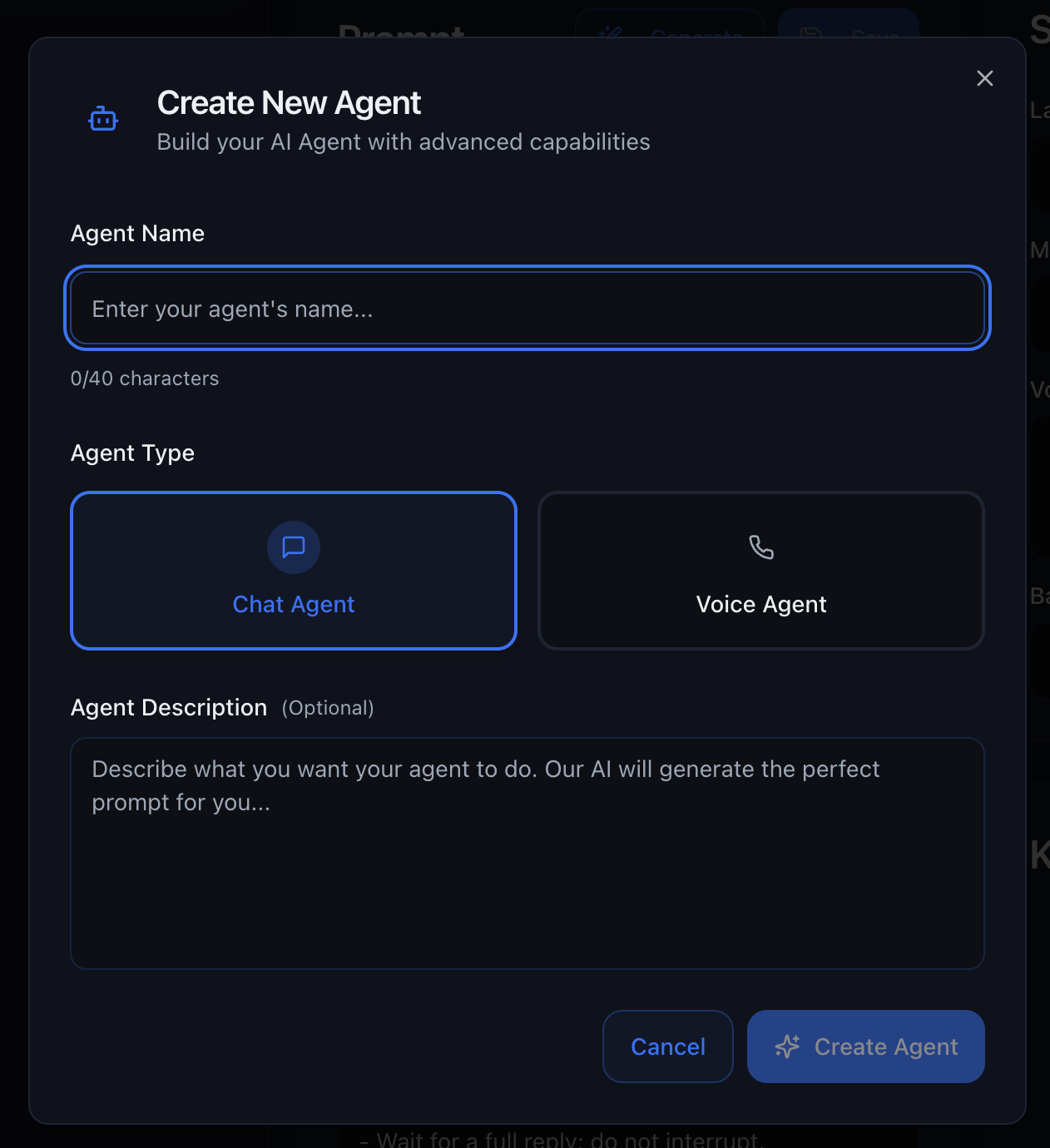 When you create a new agent, add a description of what you want the agent to do. Outbox AI will automatically generate a complete, professional prompt based on your description.
**Example Description:**
```
I need a receptionist for my dental practice that can book appointments,
answer common questions about our services, and handle emergency inquiries
with a friendly, professional tone.
```
The AI will generate a fully structured prompt with all the necessary sections, ready for you to customize.
***
### Generate Button
Already have an agent? Use the **Generate** button to let AI adjust your existing prompt based on new instructions.
**How it works:**
1. Click the **Generate** button in the prompt editor
2. Describe what you want to change or improve
3. AI rewrites your prompt with the updates
4. Review and save the changes
**Example:**
* "Make the tone more casual and friendly"
* "Add a section about our new pricing tiers"
* "Include instructions for handling refund requests"
The Generate button is perfect for iterating on your prompts without starting
from scratch!
***
### Prompt History
Every save creates a prompt history entry so you can track changes and recover
earlier versions when needed.
**What it gives you:**
* A revision trail of prompt updates over time
* Safer experimentation with new instructions
* Fast rollback when a new version underperforms
**Suggested workflow:**
1. Make one focused change (tone, objection handling, tool rules, etc.)
2. Save and test with realistic scenarios
3. Compare outcomes
4. Restore a previous version from Prompt History if needed
Use Prompt History together with scores/summaries in logs to identify which
prompt revisions actually improved outcomes.
***
## General Prompt Structure
Break your prompt into six key sections for maximum clarity and effectiveness.
### 1. Role & Objective
Define who the agent is and what they should accomplish.
**Who is the agent?**
State the business name, location, and the agent's specific function.
**Examples:**
* "You are the inbound receptionist for Elite Fitness, Perth, Australia."
* "You are a customer service agent for Bright Solar Solutions."
* "You are the sales assistant for CrossFit Downtown, helping prospects book their first class."
**The single outcome you want on each call or chat.**
Make it crystal-clear. Every conversation should drive toward this goal.
**Examples:**
* "Your goal is to book a free consultation appointment."
* "Your objective is to qualify the lead and determine if they're a good fit."
* "Your purpose is to upsell existing members to the premium tier."
Keep it to ONE primary objective per agent. Multiple objectives create confusion.
***
### 2. Sales Script (Flow Blocks)
Break your script into logical chunks rather than writing one long paragraph. This makes the agent's decision-making faster and more accurate.
#### Key Checkpoints
Structure your conversation flow with clear milestones:
1. **Greeting** – How should the agent open the conversation?
2. **Discovery questions** – What information do you need to gather?
3. **Pitch** – How do you present the offer or solution?
4. **Close/next step** – How do you move toward the objective?
**Example:**
```markdown theme={null}
## Conversation Flow
### 1. Greeting
"Hi! Thanks for reaching out to Elite Fitness. How can I help you today?"
### 2. Discovery
Ask about:
- Their fitness goals
- Previous gym experience
- Preferred workout times
### 3. Pitch
"Based on what you've told me, our [SPECIFIC MEMBERSHIP] would be perfect.
It includes [RELEVANT BENEFITS]."
### 4. Close
"I can get you booked in for a free tour this week.
Does Tuesday or Thursday work better for you?"
```
#### Conditional Branches
Handle different scenarios with clear if/else logic:
**Example:**
```markdown theme={null}
## Conditional Logic
**If** the caller only wants pricing:
- Provide the basic price
- Emphasize value ("That includes unlimited classes plus...")
- Offer a free trial to see the facility
**Else if** the prospect isn't the decision-maker:
- Get the decision-maker's name and number
- Offer to send information via email
- Schedule a follow-up call when both parties are available
**Else if** they're calling about a specific promotion:
- Confirm the promotion details
- Create urgency ("This offer ends Friday")
- Book them in immediately
```
Clear branches prevent the agent from rambling or mixing up scenarios.
#### Extras
Include special data the agent needs so it never has to ask you:
* Today's class schedule
* Current promotions and expiry dates
* Staff availability
* Temporary closures or changes
**Example:**
```markdown theme={null}
## Current Schedule
**Monday-Friday:** 5am - 9pm
**Saturday:** 7am - 5pm
**Sunday:** 8am - 2pm
**Special Note:** We're closed December 25-26 for Christmas.
## Active Promotions
**New Year Special:** 50% off first month (expires Jan 31)
**Referral Bonus:** Existing members get $50 credit for each referral
```
***
### 3. FAQs
Present common questions and model answers. Use simple Q ➜ A pairs—tables aren't necessary.
**Format:**
```markdown theme={null}
## Frequently Asked Questions
**Q:** What's the address?
**A:** 1920 St George's Terrace, Perth, 6000 WA.
**Q:** How much is membership?
**A:** We have three tiers:
- Basic ($29/week) - Access during off-peak hours
- Standard ($45/week) - Unlimited access + group classes
- Premium ($65/week) - Everything plus personal training sessions
**Q:** Do I need to sign a contract?
**A:** No lock-in contracts. You can pause or cancel anytime with 14 days notice.
**Q:** What should I bring to my first class?
**A:** Just comfortable workout clothes, a water bottle, and a positive attitude!
We provide all equipment.
```
Include anything callers ask repeatedly: opening hours, cancellation policy,
current promos, parking information, what to wear, etc.
***
### 4. Common Objections & Rebuttals
List the top push-backs your staff hear and give the agent a winning response.
**Format:**
```markdown theme={null}
## Handling Objections
**"I need to think about it."**
→ "Of course! Would a quick follow-up call tomorrow help you decide?
I can also send you our member testimonials if that'd be helpful."
**"That's too expensive."**
→ "I totally understand. Keep in mind that breaks down to just $6.50 per day—
less than a coffee! Plus we offer flexible payment plans.
Would fortnightly payments work better for your budget?"
**"I don't have time right now."**
→ "No problem! Most of our members felt the same way at first.
Our early morning sessions at 5am and late evening slots at 8pm
are super popular with busy professionals.
Would one of those times suit you better?"
**"I'm not sure I'll actually use it."**
→ "That's exactly why we offer the free 7-day trial!
Come try a few classes with zero commitment.
Most people who try it end up loving it.
Can I book you in for a trial this week?"
```
Don't script defensive or argumentative responses. Keep rebuttals positive and
solution-oriented.
***
### 5. Tonality & Personality
Define how the agent should sound. This is what makes the difference between a robotic interaction and a natural conversation.
**Key Elements:**
```markdown theme={null}
## Tone & Personality
**Voice & Style:**
- Friendly Australian vibe, informal but respectful
- Use casual language ("Hey," "no worries," "awesome!")
- Mirror the caller's energy level
**Natural Speech:**
- Natural fillers are allowed ("um," "ah," "well," "let me check that for you")
- Never sound robotic or overly scripted
- Pause naturally when thinking or looking something up
**Numbers & Formatting:**
- Write numbers as words where possible (e.g., "twenty-five," not "25")
- Say dates conversationally ("Tuesday the fifteenth" not "15/01/2025")
**Handling AI Questions:**
- Don't announce you're AI up-front
- Never lie if asked directly
- If asked, respond: "I'm an AI assistant helping the team.
I can handle most questions, but I'm happy to connect you with
a human if you'd prefer."
```
"Good morning, thank you for contacting \[COMPANY].
This is \[AGENT NAME], how may I assist you today?"
* Use complete sentences
* Avoid slang or colloquialisms
* Maintain respectful distance
**Best for:** Legal, medical, financial services, B2B
{" "}
"Hey! Thanks for reaching out. What can I help you with?" - Use contractions
("I'm," "we're," "that's") - Inject personality and warmth - Be conversational
**Best for:** Fitness, hospitality, retail, consumer services
{" "}
"Hi there! Super excited to hear from you! Let's find the perfect solution for
what you need!" - High energy and enthusiasm - Action-oriented language -
Create urgency and excitement **Best for:** Sales calls, limited-time offers,
event bookings
"Thanks for calling. I'm sorry to hear you're having trouble.
Let me help you sort this out."
* Acknowledge emotions
* Show patience and understanding
* Problem-solving focus
**Best for:** Customer support, technical help, complaints handling
***
### 6. Response Style Guidelines
Control how the agent structures its responses and manages the conversation flow.
**Guidelines:**
```markdown theme={null}
## Response Style
**Brevity:**
- Keep replies concise—no rambling
- Get to the point quickly
- One idea per response
**Questioning:**
- Ask ONE clear question at a time, then wait
- Don't overwhelm with multiple questions
- Let the caller finish before moving on
**Confirmation:**
- Confirm key details before progressing
- Repeat back: dates, email addresses, phone numbers, spelling of names
- Example: "Just to confirm, that's J-O-H-N at john@email.com, correct?"
**Closing:**
- End every successful interaction with the agreed next step
- Example: "Perfect! I've got you booked for Tuesday at 3pm.
You'll receive a confirmation email in the next few minutes.
Looking forward to seeing you then!"
**Errors & Uncertainty:**
- If unsure, admit it rather than guessing
- Offer to find out: "Let me check with the team and call you back"
- Provide alternatives when you can't do exactly what's requested
```
**Pro Tip:** Test your agent with intentionally vague or confusing inputs to
see how well it handles uncertainty.
***
## Dynamic Variables
Dynamic variables let your agent personalize every conversation without hard-coding details. They behave like mail-merge tags: write the variable once, and Outbox AI swaps in the live value when the conversation starts.
Dynamic variables work in both **chat and voice agents**, allowing you to reference contact information, company details, and custom data throughout your prompts.
**Voice calls include automatic context:** Outbox AI injects summaries of the
last **3 answered** calls, the current time, and the caller's phone number.
You don't need to add these as variables. **Chat agents** also receive the
current time in context—no separate time tool is required.
***
### Variable Structure
Dynamic variables use a structured format organized by category:
**Contact Variables:**
* Access information about the current contact
* Format: `{{contact.field_name}}`
* Includes custom fields assigned to contacts
**Company Variables:**
* Access company-specific information
* Format: `{{company.field_name}}`
* Includes custom values set at the company level
***
### Contact Variables
Use contact variables to personalize conversations with information about the current contact:
**Standard Contact Fields:**
```markdown theme={null}
{{contact.first_name}} – Contact's first name
{{contact.last_name}} – Contact's last name
{{contact.email}} – Contact's email address
{{contact.phone}} – Contact's phone number
{{contact.company_name}} – Contact's company (for B2B)
{{contact.time_zone}} – Contact's timezone
{{contact.location}} – Contact's city or region
```
**Custom Fields:**
Custom fields that you've created in Company Settings can be accessed using:
```markdown theme={null}
{{contact.custom_field_name}} – Any custom field assigned to contacts
```
For example, if you created a custom field called `membership_type`, you would reference it as:
```
{{contact.membership_type}}
```
***
### Company Variables
Use company variables to reference company-specific information that can be updated once and used across all agents:
**Standard Company Fields:**
```markdown theme={null}
{{company.name}} – Company name
{{company.address}} – Company address
{{company.phone}} – Company phone number
{{company.email}} – Company email address
```
**Custom Values:**
Custom values that you've set in Company Settings can be accessed using:
```markdown theme={null}
{{company.custom_value_name}} – Any custom value set at the company level
```
For example, if you created a custom value called `company_address`, you would reference it as:
```
{{company.company_address}}
```
**Why use Custom Values?** If your company address changes, you only need to update it once in Company Settings rather than updating every agent prompt individually.
***
### Example Usage
**Voice Agent First Message:**
```markdown theme={null}
"Hi {{contact.first_name}}, this is Sarah from {{company.name}}.
I'm calling about your inquiry regarding our {{contact.membership_type}} membership.
Our office is located at {{company.company_address}}.
Do you have a quick minute to chat?"
```
**Chat Agent Prompt:**
```markdown theme={null}
You are a customer service agent for {{company.name}}.
When greeting customers, use their name: "Hi {{contact.first_name}}!"
Our office address is {{company.company_address}}.
If customers ask about our location, provide this address.
```
**Appointment Reminder:**
```markdown theme={null}
"Hey {{contact.first_name}}! Just a friendly reminder that you've got
a session booked with us tomorrow. Looking forward to seeing you at
{{company.company_address}}!"
```
***
### Syntax Rules
* **Format:** `{{category.field_name}}` (e.g., `{{contact.first_name}}` or `{{company.name}}`)
* **Categories:** Use `contact.` for contact fields, `company.` for company fields
* **Custom Fields:** Access custom contact fields with `{{contact.custom_field_name}}`
* **Custom Values:** Access custom company values with `{{company.custom_value_name}}`
* **Case:** Keep field names lowercase with underscores
* **Instant preview:** Once you type the tag and click Save, it appears in the Agent Context panel
***
### Adding Variables Mid-Build
Type `{{contact.field_name}}` or `{{company.field_name}}` anywhere in your prompt or first message
Click Save. New fields appear under Agent Context
Fill in test values to preview how the agent will sound
For outbound calls/chats, supply the live values when configuring the action in your automation
***
### Outbound vs Inbound
**Outbound Calls/Chats:**\
Dynamic variables work immediately. Supply contact values when you configure the outbound action in your workflow. Company variables are automatically available.
**Inbound Calls/Chats:**\
Contact variables won't populate automatically. Instead:
1. Trigger a **Find or Create Contact** tool at the start of the conversation
2. Pass returned details into the prompt
3. Create a new contact on the fly if none exists
Company variables are always available for both inbound and outbound conversations.
For inbound conversations, you'll need to fetch contact data from your CRM first
before contact variables can be populated. Company variables work immediately.
***
## Markdown Formatting
Writing a single block of text works—but wrapping your prompt in Markdown makes every section clearer for you and the AI model. Better structure means faster, more accurate answers.
When you create a new agent, add a description of what you want the agent to do. Outbox AI will automatically generate a complete, professional prompt based on your description.
**Example Description:**
```
I need a receptionist for my dental practice that can book appointments,
answer common questions about our services, and handle emergency inquiries
with a friendly, professional tone.
```
The AI will generate a fully structured prompt with all the necessary sections, ready for you to customize.
***
### Generate Button
Already have an agent? Use the **Generate** button to let AI adjust your existing prompt based on new instructions.
**How it works:**
1. Click the **Generate** button in the prompt editor
2. Describe what you want to change or improve
3. AI rewrites your prompt with the updates
4. Review and save the changes
**Example:**
* "Make the tone more casual and friendly"
* "Add a section about our new pricing tiers"
* "Include instructions for handling refund requests"
The Generate button is perfect for iterating on your prompts without starting
from scratch!
***
### Prompt History
Every save creates a prompt history entry so you can track changes and recover
earlier versions when needed.
**What it gives you:**
* A revision trail of prompt updates over time
* Safer experimentation with new instructions
* Fast rollback when a new version underperforms
**Suggested workflow:**
1. Make one focused change (tone, objection handling, tool rules, etc.)
2. Save and test with realistic scenarios
3. Compare outcomes
4. Restore a previous version from Prompt History if needed
Use Prompt History together with scores/summaries in logs to identify which
prompt revisions actually improved outcomes.
***
## General Prompt Structure
Break your prompt into six key sections for maximum clarity and effectiveness.
### 1. Role & Objective
Define who the agent is and what they should accomplish.
**Who is the agent?**
State the business name, location, and the agent's specific function.
**Examples:**
* "You are the inbound receptionist for Elite Fitness, Perth, Australia."
* "You are a customer service agent for Bright Solar Solutions."
* "You are the sales assistant for CrossFit Downtown, helping prospects book their first class."
**The single outcome you want on each call or chat.**
Make it crystal-clear. Every conversation should drive toward this goal.
**Examples:**
* "Your goal is to book a free consultation appointment."
* "Your objective is to qualify the lead and determine if they're a good fit."
* "Your purpose is to upsell existing members to the premium tier."
Keep it to ONE primary objective per agent. Multiple objectives create confusion.
***
### 2. Sales Script (Flow Blocks)
Break your script into logical chunks rather than writing one long paragraph. This makes the agent's decision-making faster and more accurate.
#### Key Checkpoints
Structure your conversation flow with clear milestones:
1. **Greeting** – How should the agent open the conversation?
2. **Discovery questions** – What information do you need to gather?
3. **Pitch** – How do you present the offer or solution?
4. **Close/next step** – How do you move toward the objective?
**Example:**
```markdown theme={null}
## Conversation Flow
### 1. Greeting
"Hi! Thanks for reaching out to Elite Fitness. How can I help you today?"
### 2. Discovery
Ask about:
- Their fitness goals
- Previous gym experience
- Preferred workout times
### 3. Pitch
"Based on what you've told me, our [SPECIFIC MEMBERSHIP] would be perfect.
It includes [RELEVANT BENEFITS]."
### 4. Close
"I can get you booked in for a free tour this week.
Does Tuesday or Thursday work better for you?"
```
#### Conditional Branches
Handle different scenarios with clear if/else logic:
**Example:**
```markdown theme={null}
## Conditional Logic
**If** the caller only wants pricing:
- Provide the basic price
- Emphasize value ("That includes unlimited classes plus...")
- Offer a free trial to see the facility
**Else if** the prospect isn't the decision-maker:
- Get the decision-maker's name and number
- Offer to send information via email
- Schedule a follow-up call when both parties are available
**Else if** they're calling about a specific promotion:
- Confirm the promotion details
- Create urgency ("This offer ends Friday")
- Book them in immediately
```
Clear branches prevent the agent from rambling or mixing up scenarios.
#### Extras
Include special data the agent needs so it never has to ask you:
* Today's class schedule
* Current promotions and expiry dates
* Staff availability
* Temporary closures or changes
**Example:**
```markdown theme={null}
## Current Schedule
**Monday-Friday:** 5am - 9pm
**Saturday:** 7am - 5pm
**Sunday:** 8am - 2pm
**Special Note:** We're closed December 25-26 for Christmas.
## Active Promotions
**New Year Special:** 50% off first month (expires Jan 31)
**Referral Bonus:** Existing members get $50 credit for each referral
```
***
### 3. FAQs
Present common questions and model answers. Use simple Q ➜ A pairs—tables aren't necessary.
**Format:**
```markdown theme={null}
## Frequently Asked Questions
**Q:** What's the address?
**A:** 1920 St George's Terrace, Perth, 6000 WA.
**Q:** How much is membership?
**A:** We have three tiers:
- Basic ($29/week) - Access during off-peak hours
- Standard ($45/week) - Unlimited access + group classes
- Premium ($65/week) - Everything plus personal training sessions
**Q:** Do I need to sign a contract?
**A:** No lock-in contracts. You can pause or cancel anytime with 14 days notice.
**Q:** What should I bring to my first class?
**A:** Just comfortable workout clothes, a water bottle, and a positive attitude!
We provide all equipment.
```
Include anything callers ask repeatedly: opening hours, cancellation policy,
current promos, parking information, what to wear, etc.
***
### 4. Common Objections & Rebuttals
List the top push-backs your staff hear and give the agent a winning response.
**Format:**
```markdown theme={null}
## Handling Objections
**"I need to think about it."**
→ "Of course! Would a quick follow-up call tomorrow help you decide?
I can also send you our member testimonials if that'd be helpful."
**"That's too expensive."**
→ "I totally understand. Keep in mind that breaks down to just $6.50 per day—
less than a coffee! Plus we offer flexible payment plans.
Would fortnightly payments work better for your budget?"
**"I don't have time right now."**
→ "No problem! Most of our members felt the same way at first.
Our early morning sessions at 5am and late evening slots at 8pm
are super popular with busy professionals.
Would one of those times suit you better?"
**"I'm not sure I'll actually use it."**
→ "That's exactly why we offer the free 7-day trial!
Come try a few classes with zero commitment.
Most people who try it end up loving it.
Can I book you in for a trial this week?"
```
Don't script defensive or argumentative responses. Keep rebuttals positive and
solution-oriented.
***
### 5. Tonality & Personality
Define how the agent should sound. This is what makes the difference between a robotic interaction and a natural conversation.
**Key Elements:**
```markdown theme={null}
## Tone & Personality
**Voice & Style:**
- Friendly Australian vibe, informal but respectful
- Use casual language ("Hey," "no worries," "awesome!")
- Mirror the caller's energy level
**Natural Speech:**
- Natural fillers are allowed ("um," "ah," "well," "let me check that for you")
- Never sound robotic or overly scripted
- Pause naturally when thinking or looking something up
**Numbers & Formatting:**
- Write numbers as words where possible (e.g., "twenty-five," not "25")
- Say dates conversationally ("Tuesday the fifteenth" not "15/01/2025")
**Handling AI Questions:**
- Don't announce you're AI up-front
- Never lie if asked directly
- If asked, respond: "I'm an AI assistant helping the team.
I can handle most questions, but I'm happy to connect you with
a human if you'd prefer."
```
"Good morning, thank you for contacting \[COMPANY].
This is \[AGENT NAME], how may I assist you today?"
* Use complete sentences
* Avoid slang or colloquialisms
* Maintain respectful distance
**Best for:** Legal, medical, financial services, B2B
{" "}
"Hey! Thanks for reaching out. What can I help you with?" - Use contractions
("I'm," "we're," "that's") - Inject personality and warmth - Be conversational
**Best for:** Fitness, hospitality, retail, consumer services
{" "}
"Hi there! Super excited to hear from you! Let's find the perfect solution for
what you need!" - High energy and enthusiasm - Action-oriented language -
Create urgency and excitement **Best for:** Sales calls, limited-time offers,
event bookings
"Thanks for calling. I'm sorry to hear you're having trouble.
Let me help you sort this out."
* Acknowledge emotions
* Show patience and understanding
* Problem-solving focus
**Best for:** Customer support, technical help, complaints handling
***
### 6. Response Style Guidelines
Control how the agent structures its responses and manages the conversation flow.
**Guidelines:**
```markdown theme={null}
## Response Style
**Brevity:**
- Keep replies concise—no rambling
- Get to the point quickly
- One idea per response
**Questioning:**
- Ask ONE clear question at a time, then wait
- Don't overwhelm with multiple questions
- Let the caller finish before moving on
**Confirmation:**
- Confirm key details before progressing
- Repeat back: dates, email addresses, phone numbers, spelling of names
- Example: "Just to confirm, that's J-O-H-N at john@email.com, correct?"
**Closing:**
- End every successful interaction with the agreed next step
- Example: "Perfect! I've got you booked for Tuesday at 3pm.
You'll receive a confirmation email in the next few minutes.
Looking forward to seeing you then!"
**Errors & Uncertainty:**
- If unsure, admit it rather than guessing
- Offer to find out: "Let me check with the team and call you back"
- Provide alternatives when you can't do exactly what's requested
```
**Pro Tip:** Test your agent with intentionally vague or confusing inputs to
see how well it handles uncertainty.
***
## Dynamic Variables
Dynamic variables let your agent personalize every conversation without hard-coding details. They behave like mail-merge tags: write the variable once, and Outbox AI swaps in the live value when the conversation starts.
Dynamic variables work in both **chat and voice agents**, allowing you to reference contact information, company details, and custom data throughout your prompts.
**Voice calls include automatic context:** Outbox AI injects summaries of the
last **3 answered** calls, the current time, and the caller's phone number.
You don't need to add these as variables. **Chat agents** also receive the
current time in context—no separate time tool is required.
***
### Variable Structure
Dynamic variables use a structured format organized by category:
**Contact Variables:**
* Access information about the current contact
* Format: `{{contact.field_name}}`
* Includes custom fields assigned to contacts
**Company Variables:**
* Access company-specific information
* Format: `{{company.field_name}}`
* Includes custom values set at the company level
***
### Contact Variables
Use contact variables to personalize conversations with information about the current contact:
**Standard Contact Fields:**
```markdown theme={null}
{{contact.first_name}} – Contact's first name
{{contact.last_name}} – Contact's last name
{{contact.email}} – Contact's email address
{{contact.phone}} – Contact's phone number
{{contact.company_name}} – Contact's company (for B2B)
{{contact.time_zone}} – Contact's timezone
{{contact.location}} – Contact's city or region
```
**Custom Fields:**
Custom fields that you've created in Company Settings can be accessed using:
```markdown theme={null}
{{contact.custom_field_name}} – Any custom field assigned to contacts
```
For example, if you created a custom field called `membership_type`, you would reference it as:
```
{{contact.membership_type}}
```
***
### Company Variables
Use company variables to reference company-specific information that can be updated once and used across all agents:
**Standard Company Fields:**
```markdown theme={null}
{{company.name}} – Company name
{{company.address}} – Company address
{{company.phone}} – Company phone number
{{company.email}} – Company email address
```
**Custom Values:**
Custom values that you've set in Company Settings can be accessed using:
```markdown theme={null}
{{company.custom_value_name}} – Any custom value set at the company level
```
For example, if you created a custom value called `company_address`, you would reference it as:
```
{{company.company_address}}
```
**Why use Custom Values?** If your company address changes, you only need to update it once in Company Settings rather than updating every agent prompt individually.
***
### Example Usage
**Voice Agent First Message:**
```markdown theme={null}
"Hi {{contact.first_name}}, this is Sarah from {{company.name}}.
I'm calling about your inquiry regarding our {{contact.membership_type}} membership.
Our office is located at {{company.company_address}}.
Do you have a quick minute to chat?"
```
**Chat Agent Prompt:**
```markdown theme={null}
You are a customer service agent for {{company.name}}.
When greeting customers, use their name: "Hi {{contact.first_name}}!"
Our office address is {{company.company_address}}.
If customers ask about our location, provide this address.
```
**Appointment Reminder:**
```markdown theme={null}
"Hey {{contact.first_name}}! Just a friendly reminder that you've got
a session booked with us tomorrow. Looking forward to seeing you at
{{company.company_address}}!"
```
***
### Syntax Rules
* **Format:** `{{category.field_name}}` (e.g., `{{contact.first_name}}` or `{{company.name}}`)
* **Categories:** Use `contact.` for contact fields, `company.` for company fields
* **Custom Fields:** Access custom contact fields with `{{contact.custom_field_name}}`
* **Custom Values:** Access custom company values with `{{company.custom_value_name}}`
* **Case:** Keep field names lowercase with underscores
* **Instant preview:** Once you type the tag and click Save, it appears in the Agent Context panel
***
### Adding Variables Mid-Build
Type `{{contact.field_name}}` or `{{company.field_name}}` anywhere in your prompt or first message
Click Save. New fields appear under Agent Context
Fill in test values to preview how the agent will sound
For outbound calls/chats, supply the live values when configuring the action in your automation
***
### Outbound vs Inbound
**Outbound Calls/Chats:**\
Dynamic variables work immediately. Supply contact values when you configure the outbound action in your workflow. Company variables are automatically available.
**Inbound Calls/Chats:**\
Contact variables won't populate automatically. Instead:
1. Trigger a **Find or Create Contact** tool at the start of the conversation
2. Pass returned details into the prompt
3. Create a new contact on the fly if none exists
Company variables are always available for both inbound and outbound conversations.
For inbound conversations, you'll need to fetch contact data from your CRM first
before contact variables can be populated. Company variables work immediately.
***
## Markdown Formatting
Writing a single block of text works—but wrapping your prompt in Markdown makes every section clearer for you and the AI model. Better structure means faster, more accurate answers.
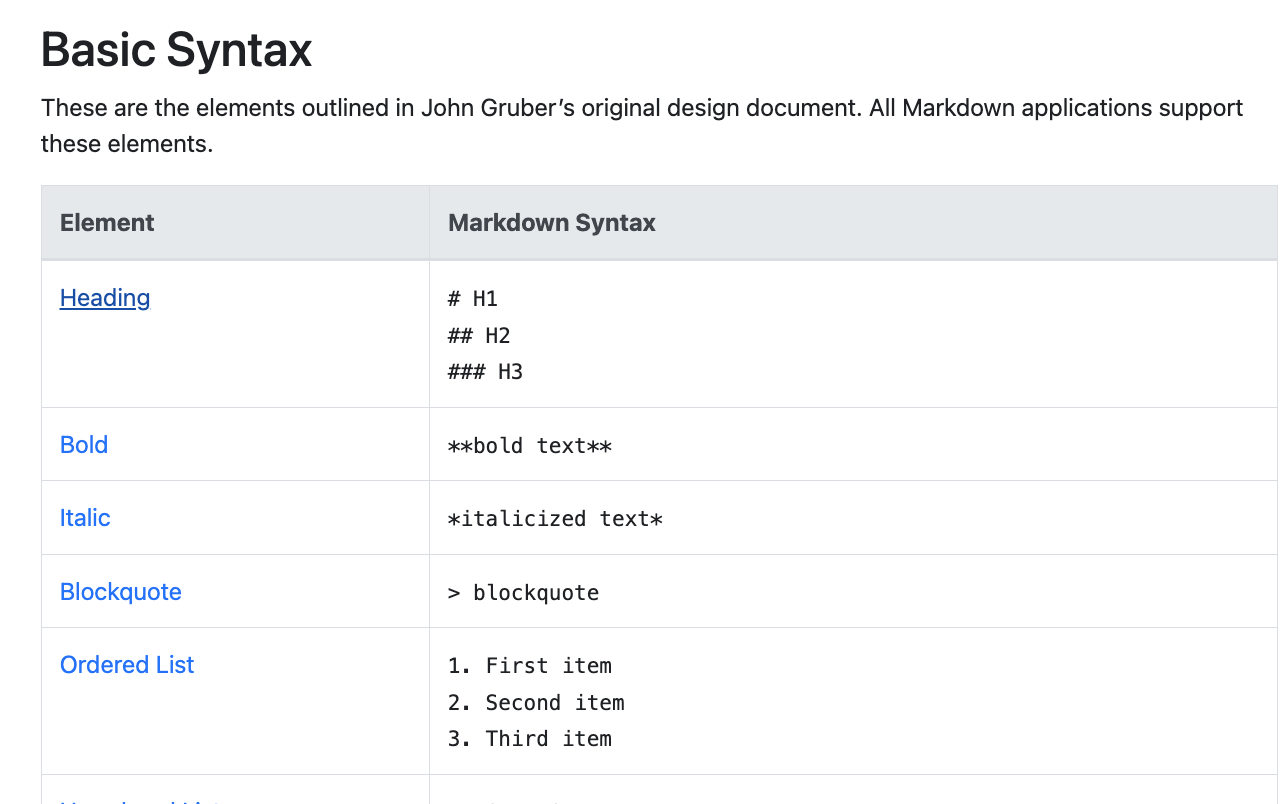 **Built-in Markdown Viewer:** Outbox AI includes a built-in markdown viewer that shows you exactly how your prompt will be rendered. Use it to preview your formatting as you write—no need to switch between tools!
### Why Bother with Markdown?
Creates visible headings and sections so the model can jump straight to the
right part
{" "}
Keeps if/else branches separate so they don't bleed into each other
{" "}
Makes it easier to spot gaps or typos before you save
Well-structured prompts get better, more consistent results
***
### Markdown in 60 Seconds
Here are the key elements you'll use most:
```markdown theme={null}
# Heading 1
## Heading 2
### Heading 3
A blank line starts a new paragraph.
**bold** for important phrases
_italic_ for softer emphasis or asides
> Block quote to indent reference text or examples
- Bullet list item
- Another bullet
1. Ordered list item
2. Another ordered item
[Link text](https://example.com)
`inline code` for technical terms
```
***
### Your Workflow
Write your prompt directly in Outbox AI's prompt editor, or draft it in any text editor you're comfortable with
Use Outbox AI's built-in markdown viewer to see exactly how your prompt will be rendered. The viewer shows your formatted prompt in real-time as you type
Tweak headings, lists, and spacing until the preview looks crystal-clear. You can also use external tools like [Markdown Live Preview](https://markdownlivepreview.com/) if you prefer
Once your markdown looks perfect, save your prompt and test it with your agent
Need a quick refresher? Keep
[MarkdownGuide.org](https://www.markdownguide.org/) open in another tab.
***
### Example Structure (Snippet)
Here's what a well-structured prompt looks like:
```markdown theme={null}
# Role & Objective
You are the inbound receptionist for Elite Fitness, Perth, Australia.
Your goal is to book free trial appointments for prospective members.
## Conversation Flow
### 1. Greeting
"Hi! Thanks for reaching out to Elite Fitness. How can I help you today?"
### 2. Discovery
Ask about their fitness goals and preferred workout times.
### 3. Pitch
"Based on what you've told me, I think you'd love our [SPECIFIC PROGRAM]."
### 4. Close
"I can get you booked in for a free trial this week.
Does Tuesday or Thursday work better?"
## FAQs
**Q:** What time do you open?
**A:** We're open 5am – 9pm Monday–Friday, 7am – 5pm Saturday.
**Q:** Do I need to bring anything?
**A:** Just comfortable workout clothes and a water bottle!
## Conditional Logic
**If** caller only wants pricing:
- Provide the basic price
- Emphasize value ("That includes unlimited classes...")
- Offer a free trial
**Else if** caller asks about a specific program:
- Explain that program's benefits
- Mention success stories
- Book them in
```
The model now sees clear blocks—no hunting for information.
***
### Voice-Specific Caveat (11 Labs and Similar)
When the sentence is inside quotes—the part the agent will actually
speak—leave out bold or italic markers.
Otherwise the speech engine may:
* Drop the formatted words altogether, **or**
* Read out the asterisks ("asterisk Outbox AI asterisk")
**Bad:**
```markdown theme={null}
"Thanks for calling **Elite Fitness**!"
```
**Good:**
```markdown theme={null}
**Agent should say:**
"Thanks for calling Elite Fitness!"
```
Keep formatting outside quoted dialogue and you'll avoid those glitches.
***
## Sublime Text for Bulk Edits
Manually swapping out dozens of variables in a template is painful. **Sublime Text** (free to download, cross-platform) lets you blitz through those changes in seconds.
Free, cross-platform text editor with powerful find-and-replace features
***
### Install & Open
1. **Download** Sublime Text from the [official website](https://www.sublimetext.com/)
2. **Launch** the application
3. **Paste or open** your prompt template (e.g., your CrossFit gym outbound-call script)
***
### Multi-Replace in a Single Hit
Press `⌘F` (Mac) or `Ctrl+F` (Windows/Linux)
Click the `.*` button to enable regular-expression mode
Type the exact token you want to change. Escape special characters with a backslash.
**Example:** To target `{{gym_name}}`, search for:
```
\{\{gym_name\}\}
```
Click "Replace All" and enter the new value—every occurrence updates instantly
Copy the fresh template back into Outbox AI
**Built-in Markdown Viewer:** Outbox AI includes a built-in markdown viewer that shows you exactly how your prompt will be rendered. Use it to preview your formatting as you write—no need to switch between tools!
### Why Bother with Markdown?
Creates visible headings and sections so the model can jump straight to the
right part
{" "}
Keeps if/else branches separate so they don't bleed into each other
{" "}
Makes it easier to spot gaps or typos before you save
Well-structured prompts get better, more consistent results
***
### Markdown in 60 Seconds
Here are the key elements you'll use most:
```markdown theme={null}
# Heading 1
## Heading 2
### Heading 3
A blank line starts a new paragraph.
**bold** for important phrases
_italic_ for softer emphasis or asides
> Block quote to indent reference text or examples
- Bullet list item
- Another bullet
1. Ordered list item
2. Another ordered item
[Link text](https://example.com)
`inline code` for technical terms
```
***
### Your Workflow
Write your prompt directly in Outbox AI's prompt editor, or draft it in any text editor you're comfortable with
Use Outbox AI's built-in markdown viewer to see exactly how your prompt will be rendered. The viewer shows your formatted prompt in real-time as you type
Tweak headings, lists, and spacing until the preview looks crystal-clear. You can also use external tools like [Markdown Live Preview](https://markdownlivepreview.com/) if you prefer
Once your markdown looks perfect, save your prompt and test it with your agent
Need a quick refresher? Keep
[MarkdownGuide.org](https://www.markdownguide.org/) open in another tab.
***
### Example Structure (Snippet)
Here's what a well-structured prompt looks like:
```markdown theme={null}
# Role & Objective
You are the inbound receptionist for Elite Fitness, Perth, Australia.
Your goal is to book free trial appointments for prospective members.
## Conversation Flow
### 1. Greeting
"Hi! Thanks for reaching out to Elite Fitness. How can I help you today?"
### 2. Discovery
Ask about their fitness goals and preferred workout times.
### 3. Pitch
"Based on what you've told me, I think you'd love our [SPECIFIC PROGRAM]."
### 4. Close
"I can get you booked in for a free trial this week.
Does Tuesday or Thursday work better?"
## FAQs
**Q:** What time do you open?
**A:** We're open 5am – 9pm Monday–Friday, 7am – 5pm Saturday.
**Q:** Do I need to bring anything?
**A:** Just comfortable workout clothes and a water bottle!
## Conditional Logic
**If** caller only wants pricing:
- Provide the basic price
- Emphasize value ("That includes unlimited classes...")
- Offer a free trial
**Else if** caller asks about a specific program:
- Explain that program's benefits
- Mention success stories
- Book them in
```
The model now sees clear blocks—no hunting for information.
***
### Voice-Specific Caveat (11 Labs and Similar)
When the sentence is inside quotes—the part the agent will actually
speak—leave out bold or italic markers.
Otherwise the speech engine may:
* Drop the formatted words altogether, **or**
* Read out the asterisks ("asterisk Outbox AI asterisk")
**Bad:**
```markdown theme={null}
"Thanks for calling **Elite Fitness**!"
```
**Good:**
```markdown theme={null}
**Agent should say:**
"Thanks for calling Elite Fitness!"
```
Keep formatting outside quoted dialogue and you'll avoid those glitches.
***
## Sublime Text for Bulk Edits
Manually swapping out dozens of variables in a template is painful. **Sublime Text** (free to download, cross-platform) lets you blitz through those changes in seconds.
Free, cross-platform text editor with powerful find-and-replace features
***
### Install & Open
1. **Download** Sublime Text from the [official website](https://www.sublimetext.com/)
2. **Launch** the application
3. **Paste or open** your prompt template (e.g., your CrossFit gym outbound-call script)
***
### Multi-Replace in a Single Hit
Press `⌘F` (Mac) or `Ctrl+F` (Windows/Linux)
Click the `.*` button to enable regular-expression mode
Type the exact token you want to change. Escape special characters with a backslash.
**Example:** To target `{{gym_name}}`, search for:
```
\{\{gym_name\}\}
```
Click "Replace All" and enter the new value—every occurrence updates instantly
Copy the fresh template back into Outbox AI
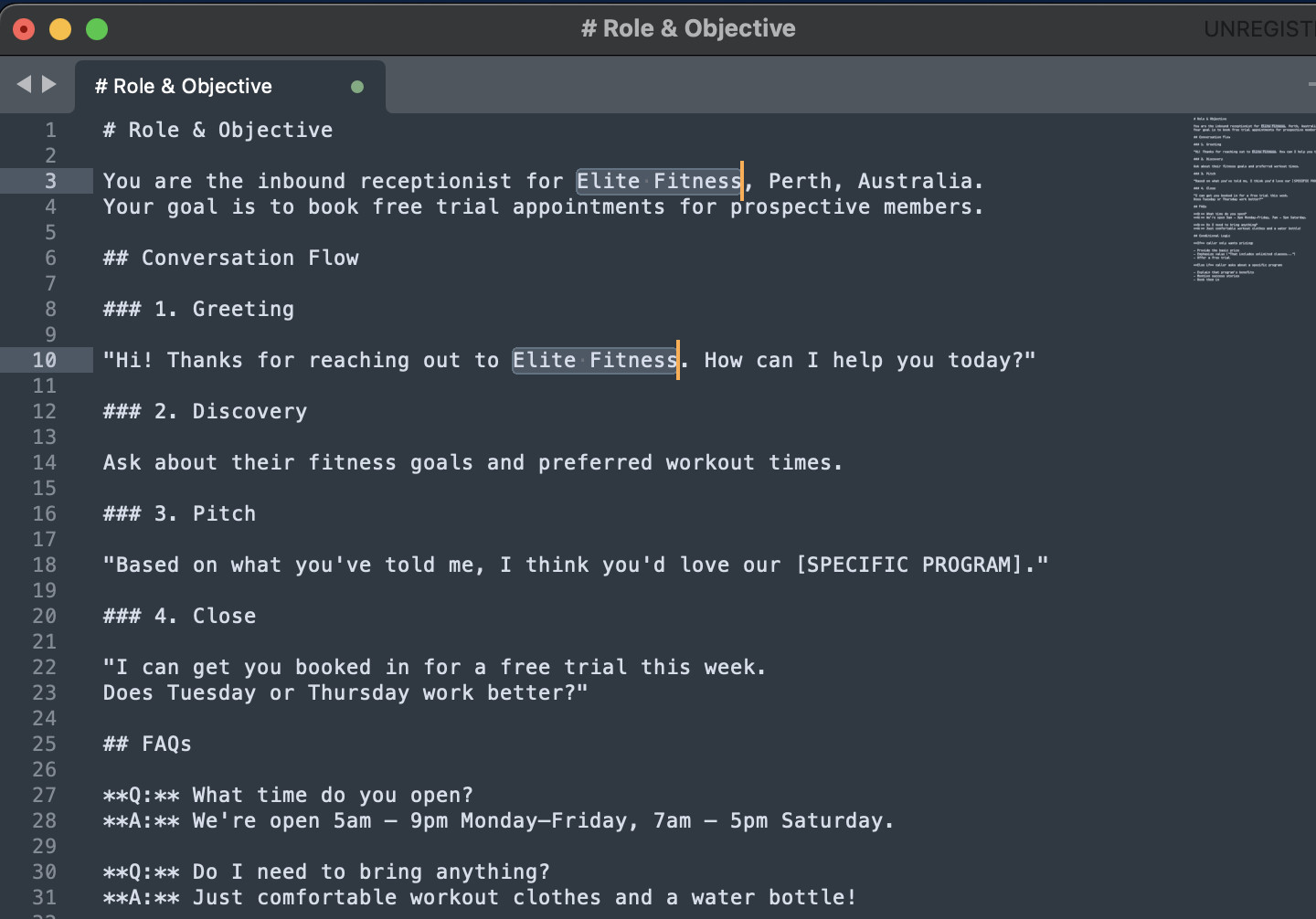 ### Example: Updating Multiple Variables
If you have a template with `{{gym_name}}`, `{{gym_address}}`, and `{{gym_phone}}` that you need to update for a new client:
1. **Find:** `\{\{gym_name\}\}` → **Replace:** "Elite Fitness"
2. **Find:** `\{\{gym_address\}\}` → **Replace:** "123 Fitness St, Perth"
3. **Find:** `\{\{gym_phone\}\}` → **Replace:** "(08) 1234 5678"
Done in seconds instead of hunting through the document manually!
**Pro Tip:** Save your template with placeholder variables (like ` {{ COMPANY_NAME }}`) and use Sublime Text to create customized versions for
each new client.
***
## Best Practices
Don't start from scratch! Use the AI-powered prompt generation when creating a new agent, then refine the output. It's faster and gives you a solid foundation.
{" "}
Don't wait until your prompt is "perfect" to test it: 1. Write a basic version
2\. Test with real scenarios 3. Note where it fails or sounds awkward 4. Refine
those specific sections 5. Test again Iteration beats perfection.
{" "}
Listen to actual calls or read real customer messages. Copy the exact phrasing
they use: - ✅ "Do you guys do personal training?" - ❌ "Are one-on-one
coaching sessions available?" Match their language in your FAQs and responses.
{" "}
Build your prompt in distinct sections so you can: - Swap out FAQs without
touching the main script - Update pricing without rewriting objections - Test
different tonality without breaking the flow Modular = maintainable.
{" "}
When you update a prompt, note what you changed and why: `markdown ##
Changelog **2025-01-15:** Added Solar Savings tool **2025-01-10:** Updated
pricing to reflect new membership tiers **2024-12-20:** Softened tone in
objection handling ` Helps you track what works and what doesn't.
Already have a working prompt but need adjustments?
Use the Generate button instead of manual edits:
* "Make the tone 20% more enthusiastic"
* "Add a section about our refund policy"
* "Simplify the language for a general audience"
The AI will preserve your structure while making targeted improvements.
***
## Common Mistakes to Avoid
**Bad:** "Be helpful and answer questions."
**Good:** "You are a customer service agent for ABC Company. Your goal is to resolve customer issues within the first interaction. Always confirm the issue is resolved before ending the call."
Specificity creates consistency.
{" "}
**Bad:** "Follow this script exactly, word for word." **Good:** "Use this
script as a guide. Adapt your phrasing to match the caller's style, but always
hit these key points: \[list]." Flexibility sounds more human.
{" "}
**Missing:** What if they don't want to book? What if they hung up by
accident? What if they're angry? **Include:** "If the caller is upset,
acknowledge their frustration first. 'I understand that's frustrating. Let's
sort this out together.'" Cover the unhappy paths.
{" "}
**Bad:** Tables, nested lists, excessive bolding in spoken dialogue **Good:**
Simple Markdown, clear sections, formatting only for structure (not in quotes)
Simple = reliable.
**Bad:** Writing a prompt and never updating it
**Good:** Reviewing conversation logs weekly, noting repeated issues, and refining the prompt
Your first version will never be your best version.
***
## Troubleshooting
**Problem:** Responses feel stiff and unnatural.
**Solutions:**
* Add more conversational filler words ("um," "ah," "let me check")
* Use contractions ("I'm," "we're," "that's")
* Include friendly phrases ("no worries," "sounds good," "awesome!")
* Test with a more casual tone setting
{" "}
**Problem:** The agent isn't following key parts of your prompt.
**Solutions:** - Move critical instructions to the top of the prompt - Use
bold headings for important sections - Repeat key rules in multiple sections
if necessary - Simplify complex conditional logic - Use the Generate button to
restructure
{" "}
**Problem:** Responses are too long and lose the caller. **Solutions:** - Add
to Response Style Guidelines: "Keep answers under 2-3 sentences" - Explicitly
say: "Ask ONE question at a time, then wait" - Include examples of concise
responses in your script
{" "}
**Problem:** Dynamic variables show as `{{ contact.first_name }}` instead of actual
values. **Solutions:**
* Check syntax: must use structured format `{{contact.field_name}}` or `{{company.field_name}}`
* Ensure you're using the correct category (`contact.` or `company.`)
* For custom fields/values, verify they exist in Company Settings
* For inbound calls/chats, add a Find or Create Contact tool first
* For outbound calls/chats, verify contact values are passed in the workflow
* Company variables should work automatically - if not, check Company Settings
* Save and reload to see new variables in Agent Context
**Problem:** Your formatting looks broken in the agent's responses.
**Solutions:**
* Remove formatting (bold/italic) from inside quoted dialogue
* Ensure blank lines between sections
* Test in Markdown Live Preview first
* Keep formatting simple (headings, bullets, quotes only)
***
## Next Steps
Put your new prompting skills to work
{" "}
Explore available tools to enhance your agents
{" "}
Apply these techniques to voice agents
Connect your agents to your CRM
***
## Resources
Test your Markdown formatting in real-time
{" "}
Complete Markdown syntax reference
Powerful text editor for bulk variable replacement
### Example: Updating Multiple Variables
If you have a template with `{{gym_name}}`, `{{gym_address}}`, and `{{gym_phone}}` that you need to update for a new client:
1. **Find:** `\{\{gym_name\}\}` → **Replace:** "Elite Fitness"
2. **Find:** `\{\{gym_address\}\}` → **Replace:** "123 Fitness St, Perth"
3. **Find:** `\{\{gym_phone\}\}` → **Replace:** "(08) 1234 5678"
Done in seconds instead of hunting through the document manually!
**Pro Tip:** Save your template with placeholder variables (like ` {{ COMPANY_NAME }}`) and use Sublime Text to create customized versions for
each new client.
***
## Best Practices
Don't start from scratch! Use the AI-powered prompt generation when creating a new agent, then refine the output. It's faster and gives you a solid foundation.
{" "}
Don't wait until your prompt is "perfect" to test it: 1. Write a basic version
2\. Test with real scenarios 3. Note where it fails or sounds awkward 4. Refine
those specific sections 5. Test again Iteration beats perfection.
{" "}
Listen to actual calls or read real customer messages. Copy the exact phrasing
they use: - ✅ "Do you guys do personal training?" - ❌ "Are one-on-one
coaching sessions available?" Match their language in your FAQs and responses.
{" "}
Build your prompt in distinct sections so you can: - Swap out FAQs without
touching the main script - Update pricing without rewriting objections - Test
different tonality without breaking the flow Modular = maintainable.
{" "}
When you update a prompt, note what you changed and why: `markdown ##
Changelog **2025-01-15:** Added Solar Savings tool **2025-01-10:** Updated
pricing to reflect new membership tiers **2024-12-20:** Softened tone in
objection handling ` Helps you track what works and what doesn't.
Already have a working prompt but need adjustments?
Use the Generate button instead of manual edits:
* "Make the tone 20% more enthusiastic"
* "Add a section about our refund policy"
* "Simplify the language for a general audience"
The AI will preserve your structure while making targeted improvements.
***
## Common Mistakes to Avoid
**Bad:** "Be helpful and answer questions."
**Good:** "You are a customer service agent for ABC Company. Your goal is to resolve customer issues within the first interaction. Always confirm the issue is resolved before ending the call."
Specificity creates consistency.
{" "}
**Bad:** "Follow this script exactly, word for word." **Good:** "Use this
script as a guide. Adapt your phrasing to match the caller's style, but always
hit these key points: \[list]." Flexibility sounds more human.
{" "}
**Missing:** What if they don't want to book? What if they hung up by
accident? What if they're angry? **Include:** "If the caller is upset,
acknowledge their frustration first. 'I understand that's frustrating. Let's
sort this out together.'" Cover the unhappy paths.
{" "}
**Bad:** Tables, nested lists, excessive bolding in spoken dialogue **Good:**
Simple Markdown, clear sections, formatting only for structure (not in quotes)
Simple = reliable.
**Bad:** Writing a prompt and never updating it
**Good:** Reviewing conversation logs weekly, noting repeated issues, and refining the prompt
Your first version will never be your best version.
***
## Troubleshooting
**Problem:** Responses feel stiff and unnatural.
**Solutions:**
* Add more conversational filler words ("um," "ah," "let me check")
* Use contractions ("I'm," "we're," "that's")
* Include friendly phrases ("no worries," "sounds good," "awesome!")
* Test with a more casual tone setting
{" "}
**Problem:** The agent isn't following key parts of your prompt.
**Solutions:** - Move critical instructions to the top of the prompt - Use
bold headings for important sections - Repeat key rules in multiple sections
if necessary - Simplify complex conditional logic - Use the Generate button to
restructure
{" "}
**Problem:** Responses are too long and lose the caller. **Solutions:** - Add
to Response Style Guidelines: "Keep answers under 2-3 sentences" - Explicitly
say: "Ask ONE question at a time, then wait" - Include examples of concise
responses in your script
{" "}
**Problem:** Dynamic variables show as `{{ contact.first_name }}` instead of actual
values. **Solutions:**
* Check syntax: must use structured format `{{contact.field_name}}` or `{{company.field_name}}`
* Ensure you're using the correct category (`contact.` or `company.`)
* For custom fields/values, verify they exist in Company Settings
* For inbound calls/chats, add a Find or Create Contact tool first
* For outbound calls/chats, verify contact values are passed in the workflow
* Company variables should work automatically - if not, check Company Settings
* Save and reload to see new variables in Agent Context
**Problem:** Your formatting looks broken in the agent's responses.
**Solutions:**
* Remove formatting (bold/italic) from inside quoted dialogue
* Ensure blank lines between sections
* Test in Markdown Live Preview first
* Keep formatting simple (headings, bullets, quotes only)
***
## Next Steps
Put your new prompting skills to work
{" "}
Explore available tools to enhance your agents
{" "}
Apply these techniques to voice agents
Connect your agents to your CRM
***
## Resources
Test your Markdown formatting in real-time
{" "}
Complete Markdown syntax reference
Powerful text editor for bulk variable replacement