> ## Documentation Index
> Fetch the complete documentation index at: https://docs.getoutbox.ai/llms.txt
> Use this file to discover all available pages before exploring further.
# Telephony
> Set up phone numbers and call routing with Twilio, Vonage, and Telnyx
## Overview
Outbox AI supports three carriers: **Twilio**, **Vonage**, and **Telnyx**. Each shines in different markets and price brackets. This guide will help you pick the right one for every client.
**Quick Recommendation:** - 🇺🇸 **US/Canada traffic?** Use Twilio (best
reliability and features) - 🌍 **International traffic?** Use Vonage
(per-second billing saves money) - 💰 **Cost-conscious international?** Use
Telnyx + Twilio combo (best rates in AU/UK/NZ/Europe)
***
## Choosing a Provider
Compare the three carriers to find the best fit for your use case.
**Best for:** United States (and Canada)
### Strengths
* ✅ Quick, self-serve setup—buy numbers in minutes
* ✅ High concurrency limits—perfect for large campaigns
* ✅ Built-in voicemail detection (saves wasted agent talk-time)
* ✅ **Verified Caller ID** lets you mask calls with a client's existing phone number
* ✅ Direct GoHighLevel SMS integration—same number for calls and texts
### Weak Points
* ❌ Charges **by the minute** (rounded up), so a 9-second voicemail costs a full minute
* ❌ Non-US pricing is steep—about **7¢ USD per minute** in Australia
**Rule of thumb:** If the traffic is US-centric, stick with Twilio every time.
**Best for:** Non-US regions where per-second billing matters
### Strengths
* ✅ **Bills per second**—a 30-second call costs half a minute
* ✅ Slightly cheaper headline rates than Twilio outside the US
### Weak Points
* ❌ No native voicemail detection (Outbox uses its own transcript-based fallback)
* ❌ No verified caller IDs
* ❌ **On-boarding is manual:** email a rep, fill in forms, wait for approval
* ❌ No GoHighLevel SMS tie-in, so you'll juggle separate SMS and voice numbers
**When to use:** Mid-size international campaigns where per-second pricing outweighs the admin hassle.
**Best for:** International markets (AU, UK, NZ, Europe) when cost is king and you still want Caller ID masking
### Strengths
* ✅ **Significantly cheaper than Twilio** in most international markets (40-60% savings)
* ✅ Supports **verified caller IDs**—pair it with a Twilio SMS number for a "one-number" experience
* ✅ Modern dashboard, good documentation
* ✅ Competitive rates in AU, UK, NZ, and European countries
### Weak Points
* ❌ Charges by the minute (no per-second savings)
* ❌ Occasional reliability quirks: sudden number blocks, quirky concurrency caps
* ❌ No built-in voicemail detection
* ❌ No direct GoHighLevel SMS integration (hence the Twilio-plus-Telnyx combo)
### Practical Hybrid Stack
Buy a Twilio number → connect to GoHighLevel for SMS + inbound voice
Buy a Telnyx number → set Twilio number as a verified caller ID
Make outbound calls via Telnyx and save 40-60% on international rates
**Works great in:** AU, UK, NZ, and most European countries
***
## Twilio Setup
Twilio is the gold standard for US/Canada traffic. Follow these steps to set up a number and connect it to Outbox AI.
### 1. Create (or Open) a Sub-Account
Visit [console.twilio.com](https://console.twilio.com)
Click your workspace name → **Sub-Accounts** → **Create new sub-account**
Name it after your client to keep billing and logs separate
 If Twilio shows multiple "regions", always leave it on **US1** so Outbox AI
can reach the logs.
***
### 2. Build the Regulatory "Bundle" (If Required)
Many countries require proof-of-business before you can purchase phone numbers. Twilio calls this a "regulatory bundle."
If Twilio shows multiple "regions", always leave it on **US1** so Outbox AI
can reach the logs.
***
### 2. Build the Regulatory "Bundle" (If Required)
Many countries require proof-of-business before you can purchase phone numbers. Twilio calls this a "regulatory bundle."
 **US/Canada toll-free and local numbers** typically don't require bundles.
**Mobile numbers** in most countries (including AU, UK, NZ) do require
compliance documentation.
In the left menu choose **Phone Numbers** → **Regulatory Compliance**
Click **Create Bundle** and fill in: - **Country:** Select your target
country - **Number Type:** Mobile, Local, or Toll-Free - **Business Type:**
Independent software vendor (or appropriate category)
Twilio typically asks for: - **Business name** - **Business address** -
**Business registration number** (ABN for AU, EIN for US, Companies House
for UK, NZBN for NZ) **Accepted documents:** - Utility bills - Lease
agreements - Business registration certificates - Tax documents Each file
must show at least two of the required data points; upload multiple files if
needed. **Registry Links:** - [ASIC
(Australia)](https://connectonline.asic.gov.au/) - [Companies House
(UK)](https://www.gov.uk/government/organisations/companies-house) - [New
Zealand Companies Office](https://www.companiesoffice.govt.nz/)
Submit; approval usually takes 24-48 hours depending on the country
***
### 3. Buy a Phone Number
After the bundle is approved (or immediately for US/Canada), go to **Phone
Numbers** → **Buy a number**
Filter for your **target country** and **Capabilities = Voice & SMS**
Select a number that matches your needs: - **Mobile** (AU: 614, UK: 447, NZ:
642\) - Best for SMS + voice - **Local** (US/Canada area codes) - Geographic
presence - **Toll-free** (US: 800/888, AU: 1800, UK: 0800) - Free for
callers
Click **Buy** to purchase the number
**US/Canada toll-free and local numbers** typically don't require bundles.
**Mobile numbers** in most countries (including AU, UK, NZ) do require
compliance documentation.
In the left menu choose **Phone Numbers** → **Regulatory Compliance**
Click **Create Bundle** and fill in: - **Country:** Select your target
country - **Number Type:** Mobile, Local, or Toll-Free - **Business Type:**
Independent software vendor (or appropriate category)
Twilio typically asks for: - **Business name** - **Business address** -
**Business registration number** (ABN for AU, EIN for US, Companies House
for UK, NZBN for NZ) **Accepted documents:** - Utility bills - Lease
agreements - Business registration certificates - Tax documents Each file
must show at least two of the required data points; upload multiple files if
needed. **Registry Links:** - [ASIC
(Australia)](https://connectonline.asic.gov.au/) - [Companies House
(UK)](https://www.gov.uk/government/organisations/companies-house) - [New
Zealand Companies Office](https://www.companiesoffice.govt.nz/)
Submit; approval usually takes 24-48 hours depending on the country
***
### 3. Buy a Phone Number
After the bundle is approved (or immediately for US/Canada), go to **Phone
Numbers** → **Buy a number**
Filter for your **target country** and **Capabilities = Voice & SMS**
Select a number that matches your needs: - **Mobile** (AU: 614, UK: 447, NZ:
642\) - Best for SMS + voice - **Local** (US/Canada area codes) - Geographic
presence - **Toll-free** (US: 800/888, AU: 1800, UK: 0800) - Free for
callers
Click **Buy** to purchase the number
 **Pricing Examples (per minute, rounded up):**
| Region | Outbound | Inbound |
| --------------- | -------- | ---------- |
| **US/Canada** | \~1¢ USD | \~0.5¢ USD |
| **UK** | \~3¢ USD | \~1¢ USD |
| **Australia** | \~7¢ USD | \~1¢ USD |
| **New Zealand** | \~6¢ USD | \~1¢ USD |
Check [Twilio's pricing page](https://www.twilio.com/en-us/voice/pricing) for
exact rates in your country.
***
### 4. A2P Registration (US SMS Only)
If you're sending SMS messages to US numbers, you **must** register for A2P (Application-to-Person) messaging. This is a US regulation to reduce spam.
**Required for US SMS:** Without A2P registration, your SMS messages to US
numbers will be blocked or heavily throttled (limited to \~5 messages per
minute).
**Pricing Examples (per minute, rounded up):**
| Region | Outbound | Inbound |
| --------------- | -------- | ---------- |
| **US/Canada** | \~1¢ USD | \~0.5¢ USD |
| **UK** | \~3¢ USD | \~1¢ USD |
| **Australia** | \~7¢ USD | \~1¢ USD |
| **New Zealand** | \~6¢ USD | \~1¢ USD |
Check [Twilio's pricing page](https://www.twilio.com/en-us/voice/pricing) for
exact rates in your country.
***
### 4. A2P Registration (US SMS Only)
If you're sending SMS messages to US numbers, you **must** register for A2P (Application-to-Person) messaging. This is a US regulation to reduce spam.
**Required for US SMS:** Without A2P registration, your SMS messages to US
numbers will be blocked or heavily throttled (limited to \~5 messages per
minute).
 #### What is A2P?
A2P (Application-to-Person) registration is required by US carriers for business SMS messaging. It verifies that you're a legitimate business sending approved content.
**Two Options:**
**Timeline:** 4-6 weeks\
**Cost:** \~\$15-50 one-time fee\
**Throughput:** Up to 4,500 messages per minute
**Requirements:**
* Business EIN (Employer Identification Number)
* Business website
* Business address
* Description of your SMS use case
* Sample message templates
Twilio Console → **Messaging** → **Regulatory Compliance** → **A2P 10DLC**
Submit your business information and EIN
Describe your brand and how you'll use SMS
Define your use case (appointment reminders, customer service, marketing, etc.)
Submit sample message templates
Approval typically takes 4-6 weeks. You'll receive email updates on progress
Once approved, assign your US numbers to the campaign
Start the A2P process **immediately** after buying your number. The 4-6 week wait is unavoidable, so don't delay!
**Timeline:** Instant\
**Cost:** Free\
**Throughput:** Only 5-10 messages per minute
If you're just testing or sending very low volumes, you can skip full A2P registration. However, your messages will be heavily throttled.
**Not suitable for production:** Low volume limits make this impractical for real campaigns. Only use for testing or tiny-scale operations.
#### Non-US Numbers
If you're **not** sending SMS to US numbers (e.g., AU → AU, UK → UK), you can skip A2P registration entirely. It's only required for US SMS traffic.
**International SMS:** Other countries have their own regulations, but most
don't require pre-registration like the US does. Always check local
requirements for your target market.
***
### 5. Copy Credentials into Outbox AI
#### What is A2P?
A2P (Application-to-Person) registration is required by US carriers for business SMS messaging. It verifies that you're a legitimate business sending approved content.
**Two Options:**
**Timeline:** 4-6 weeks\
**Cost:** \~\$15-50 one-time fee\
**Throughput:** Up to 4,500 messages per minute
**Requirements:**
* Business EIN (Employer Identification Number)
* Business website
* Business address
* Description of your SMS use case
* Sample message templates
Twilio Console → **Messaging** → **Regulatory Compliance** → **A2P 10DLC**
Submit your business information and EIN
Describe your brand and how you'll use SMS
Define your use case (appointment reminders, customer service, marketing, etc.)
Submit sample message templates
Approval typically takes 4-6 weeks. You'll receive email updates on progress
Once approved, assign your US numbers to the campaign
Start the A2P process **immediately** after buying your number. The 4-6 week wait is unavoidable, so don't delay!
**Timeline:** Instant\
**Cost:** Free\
**Throughput:** Only 5-10 messages per minute
If you're just testing or sending very low volumes, you can skip full A2P registration. However, your messages will be heavily throttled.
**Not suitable for production:** Low volume limits make this impractical for real campaigns. Only use for testing or tiny-scale operations.
#### Non-US Numbers
If you're **not** sending SMS to US numbers (e.g., AU → AU, UK → UK), you can skip A2P registration entirely. It's only required for US SMS traffic.
**International SMS:** Other countries have their own regulations, but most
don't require pre-registration like the US does. Always check local
requirements for your target market.
***
### 5. Copy Credentials into Outbox AI
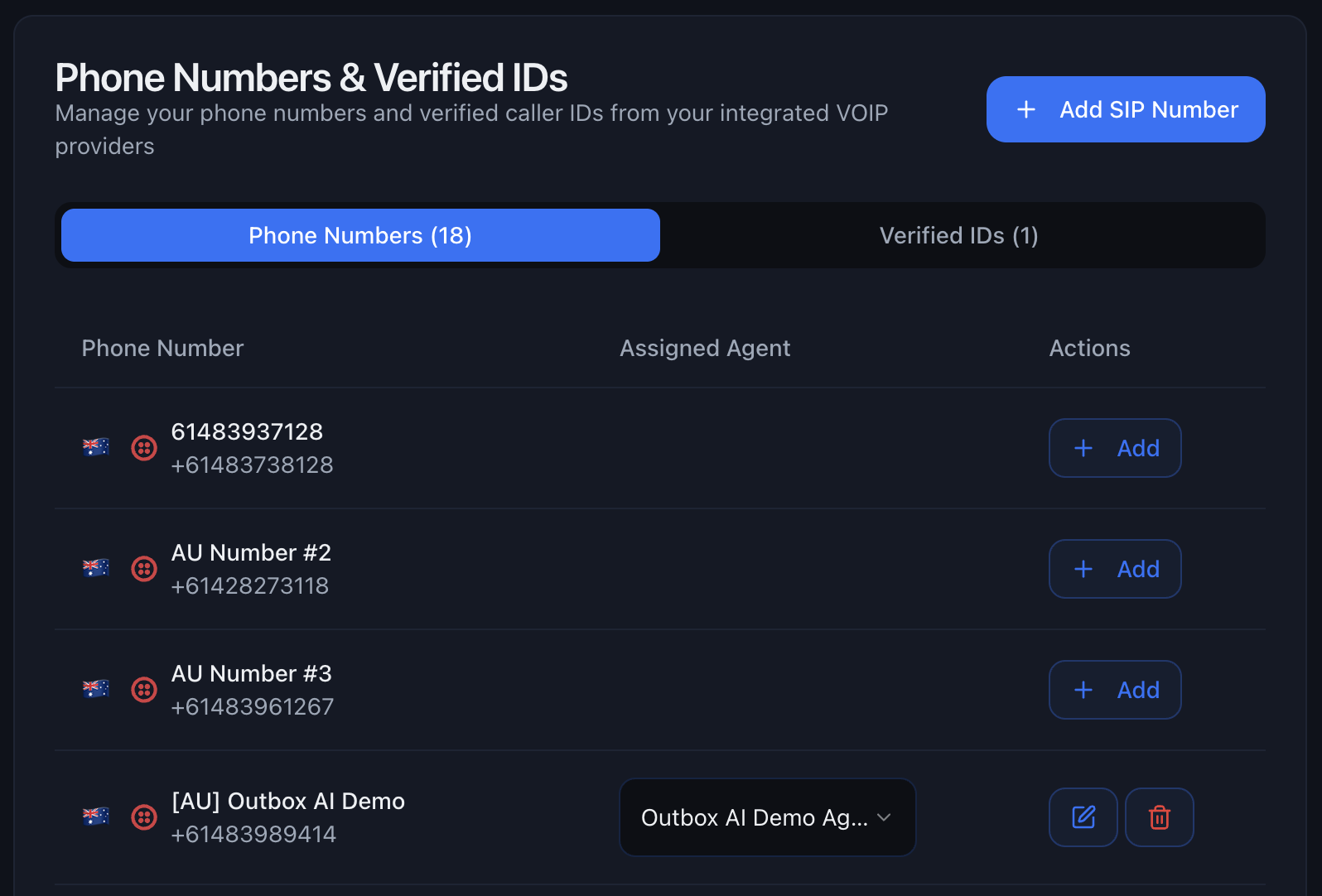
 Back in the Twilio console dashboard, copy **Account SID** and **Auth
Token**
In Outbox AI, open **Telephony** → **Twilio** and paste both values
The number you just bought appears in the list—select it for outbound voice
and SMS
Back in the Twilio console dashboard, copy **Account SID** and **Auth
Token**
In Outbox AI, open **Telephony** → **Twilio** and paste both values
The number you just bought appears in the list—select it for outbound voice
and SMS
 ***
### 6. (Optional) Add a Verified Caller ID for Masking
If your client wants calls to display their existing business line:
Twilio left menu → **Verified Caller IDs** → **Add new**
Enter the business number; Twilio sends an SMS or voice code for
verification
Once verified, you can choose that caller ID when launching campaigns
***
### 6. (Optional) Add a Verified Caller ID for Masking
If your client wants calls to display their existing business line:
Twilio left menu → **Verified Caller IDs** → **Add new**
Enter the business number; Twilio sends an SMS or voice code for
verification
Once verified, you can choose that caller ID when launching campaigns
 **Important:** Verified IDs work for **outbound only**; inbound calls still
land on the Twilio number.
***
## Vonage Setup
Vonage bills by the second and can be cheaper than Twilio outside the US, but the onboarding is more manual. Follow these steps to secure a number and connect it to Outbox AI.
### 1. Log In and Fund the Account
Visit [dashboard.nexmo.com](https://dashboard.nexmo.com) (same portal,
simply re-branded as Vonage)
Add a small balance—Vonage won't let you request numbers on a £0 wallet
***
### 2. Request a Phone Number
In the left sidebar, click **Phone Numbers** → **Buy Numbers**
Choose the target country and search
Click **Request**; instead of instant purchase, the portal creates a ticket
A Vonage rep emails you for supporting documents—usually: - Proof of
business name and address (utility bill, lease, ASIC extract, etc.) -
Business registration ID (ABN, Companies House number, EIN, etc.)
Email the files back; approval typically lands within 24–48 hours The number
appears in your dashboard under **My Numbers** once approved and billed
***
### 3. Grab Your API Credentials
From the top menu, choose **Settings** → **API Settings**
Copy the **API Key** and **API Secret**
**Important:** Verified IDs work for **outbound only**; inbound calls still
land on the Twilio number.
***
## Vonage Setup
Vonage bills by the second and can be cheaper than Twilio outside the US, but the onboarding is more manual. Follow these steps to secure a number and connect it to Outbox AI.
### 1. Log In and Fund the Account
Visit [dashboard.nexmo.com](https://dashboard.nexmo.com) (same portal,
simply re-branded as Vonage)
Add a small balance—Vonage won't let you request numbers on a £0 wallet
***
### 2. Request a Phone Number
In the left sidebar, click **Phone Numbers** → **Buy Numbers**
Choose the target country and search
Click **Request**; instead of instant purchase, the portal creates a ticket
A Vonage rep emails you for supporting documents—usually: - Proof of
business name and address (utility bill, lease, ASIC extract, etc.) -
Business registration ID (ABN, Companies House number, EIN, etc.)
Email the files back; approval typically lands within 24–48 hours The number
appears in your dashboard under **My Numbers** once approved and billed
***
### 3. Grab Your API Credentials
From the top menu, choose **Settings** → **API Settings**
Copy the **API Key** and **API Secret**
 ***
### 4. Connect Vonage to Outbox AI
In Outbox AI, open **Settings** → **Company** → **Integrations**
Select **Vonage**
Paste the **API Key** and **Secret**; click **Save**
Your purchased numbers populate in the list—assign as needed to voice agents
***
## Telnyx Setup
Telnyx often offers lower per-minute rates than Twilio in many international markets (especially AU, UK, and Europe), but it lacks GoHighLevel SMS integration and native voicemail detection.
**Use Twilio** for inbound and SMS (so everything lands in GoHighLevel) **Use
Telnyx** for outbound voice, masking the calls with the same Twilio number
through "verified caller ID" This gives you the best of both worlds: Twilio's
reliability + Telnyx's pricing.
**Popular in:** Australia, UK, New Zealand, and European markets where Telnyx
rates are significantly lower than Twilio.
### Step 1 – Secure a Twilio SMS / Inbound Line
Purchase a Twilio number in your target country, plug the **SID & Auth
Token** into Outbox AI, and connect it to GoHighLevel
Keep this number for **inbound calls** and **all texting**
Add this number into your GoHighLevel account if you want SMS Capabilities
***
### Step 2 – Buy a Telnyx Outbound Line
In Telnyx, choose **Numbers** → **Buy Numbers** and purchase a voice-capable
number in your target country
Complete the compliance prompts (business documents, address, registration
number, etc.)
***
### 4. Connect Vonage to Outbox AI
In Outbox AI, open **Settings** → **Company** → **Integrations**
Select **Vonage**
Paste the **API Key** and **Secret**; click **Save**
Your purchased numbers populate in the list—assign as needed to voice agents
***
## Telnyx Setup
Telnyx often offers lower per-minute rates than Twilio in many international markets (especially AU, UK, and Europe), but it lacks GoHighLevel SMS integration and native voicemail detection.
**Use Twilio** for inbound and SMS (so everything lands in GoHighLevel) **Use
Telnyx** for outbound voice, masking the calls with the same Twilio number
through "verified caller ID" This gives you the best of both worlds: Twilio's
reliability + Telnyx's pricing.
**Popular in:** Australia, UK, New Zealand, and European markets where Telnyx
rates are significantly lower than Twilio.
### Step 1 – Secure a Twilio SMS / Inbound Line
Purchase a Twilio number in your target country, plug the **SID & Auth
Token** into Outbox AI, and connect it to GoHighLevel
Keep this number for **inbound calls** and **all texting**
Add this number into your GoHighLevel account if you want SMS Capabilities
***
### Step 2 – Buy a Telnyx Outbound Line
In Telnyx, choose **Numbers** → **Buy Numbers** and purchase a voice-capable
number in your target country
Complete the compliance prompts (business documents, address, registration
number, etc.)
 ***
### Step 3 – Create a SIP Trunk
**Voice** → **SIP Trunks** → **Create SIP Connection**
Name it, choose **FQDN mode**, click **Create**
Leave **FQDN** empty and scroll down to **Outbound Calls Authentication** -
Set a unique **Username** (e.g., `outbox_user`) - Set a strong **Password**
* Click **Next**
Leave this screen as the defaults and click **Next**
Leave this screen as the defaults and click **Next**
Configure your outbound call settings: - **Localization Country** – Select
the country you'll be calling (e.g., Australia, US, UK) - **Caller ID
Override** – Paste the **Twilio number** you purchased in Step 1 This makes
outbound calls display your Twilio number instead of the raw Telnyx number.
Create or select a **Voice Profile** and whitelist the destinations you plan
to dial
Assign the Telnyx number to this SIP trunk
***
### Step 4 – Add Telnyx Number to Outbox AI
Now connect the Telnyx SIP trunk to Outbox AI.
In Outbox AI, go to **Company Settings** → **Phone Number** tab
Click **Add SIP Number**
Fill in the connection details: - **Name** – Label for this number (e.g.,
"Client Name - Telnyx Outbound") - **Phone Number** – The Telnyx number you
purchased (e.g., `+61412345678`) - **SIP Domain** – `sip.telnyx.com` (or
`192.76.120.10` if that doesn't work) - **SIP Username** – The username you
set in Step 3 - **SIP Password** – The password you set in Step 3
Set your billing preferences: - **Rebilling** – Toggle ON if you want to
charge clients for usage, OFF if you're covering costs - **Outbound Cost** –
Set to `0.033` (3.3¢ per minute for AU, adjust for other countries) -
**Billing Type** – Keep **Bill per minute** ON (Telnyx charges by the
minute)
Click **Save** to add the number to your account
***
### Step 3 – Create a SIP Trunk
**Voice** → **SIP Trunks** → **Create SIP Connection**
Name it, choose **FQDN mode**, click **Create**
Leave **FQDN** empty and scroll down to **Outbound Calls Authentication** -
Set a unique **Username** (e.g., `outbox_user`) - Set a strong **Password**
* Click **Next**
Leave this screen as the defaults and click **Next**
Leave this screen as the defaults and click **Next**
Configure your outbound call settings: - **Localization Country** – Select
the country you'll be calling (e.g., Australia, US, UK) - **Caller ID
Override** – Paste the **Twilio number** you purchased in Step 1 This makes
outbound calls display your Twilio number instead of the raw Telnyx number.
Create or select a **Voice Profile** and whitelist the destinations you plan
to dial
Assign the Telnyx number to this SIP trunk
***
### Step 4 – Add Telnyx Number to Outbox AI
Now connect the Telnyx SIP trunk to Outbox AI.
In Outbox AI, go to **Company Settings** → **Phone Number** tab
Click **Add SIP Number**
Fill in the connection details: - **Name** – Label for this number (e.g.,
"Client Name - Telnyx Outbound") - **Phone Number** – The Telnyx number you
purchased (e.g., `+61412345678`) - **SIP Domain** – `sip.telnyx.com` (or
`192.76.120.10` if that doesn't work) - **SIP Username** – The username you
set in Step 3 - **SIP Password** – The password you set in Step 3
Set your billing preferences: - **Rebilling** – Toggle ON if you want to
charge clients for usage, OFF if you're covering costs - **Outbound Cost** –
Set to `0.033` (3.3¢ per minute for AU, adjust for other countries) -
**Billing Type** – Keep **Bill per minute** ON (Telnyx charges by the
minute)
Click **Save** to add the number to your account
 **Rebilling:** If enabled, Outbox AI will automatically charge your clients
based on their call usage at the rate you set. Perfect for agency models!
***
### Result
✅ All outbound calls travel via Telnyx (typically 40-60% cheaper than Twilio in most markets)\
✅ The callee's phone displays the familiar Twilio number\
✅ Inbound calls and SMS still hit GoHighLevel through Twilio
**Estimated Savings:**
* **Australia:** \~3.3¢/min vs \~7¢/min (save \~50%)
* **UK:** \~2¢/min vs \~3¢/min (save \~33%)
* **Europe:** \~2-3¢/min vs \~4-5¢/min (save \~40%)
**Perfect for international agencies!** You get Twilio's reliability for SMS
and inbound, with Telnyx's pricing for outbound calls. The savings really add
up on high-volume campaigns.
***
### Cost-Control Reminders
Telnyx charges **by the minute** (unlike Vonage's per-second billing). A 61-second call costs 2 minutes.
{" "}
Telnyx occasionally rate-limits new numbers. If calls start failing, raise a
support ticket to increase limits.
{" "}
Keep an eye on "number blocked" errors mid-campaign. Swap a fresh Telnyx
number if needed.
With a multi-provider setup (Twilio + Telnyx), document which number does what so your team doesn't get confused.
***
## Best Practices
Don't try to set up all three at once. Pick the best fit for your primary market and master it first.
* **US/Canada clients?** Twilio
* **International clients (per-second billing)?** Vonage
* **Cost-conscious international (AU/UK/NZ/Europe)?** Telnyx + Twilio combo
{" "}
Create separate sub-accounts (Twilio) or labeled numbers (Vonage/Telnyx) for
each client. This makes billing tracking and troubleshooting 10x easier.
{" "}
Always send test calls before launching campaigns: 1. Test inbound and
outbound 2. Verify caller ID displays correctly 3. Check SMS delivery (if
applicable) 4. Confirm call quality and latency
{" "}
Set up billing alerts in your provider dashboard. Running out of credits
mid-campaign is embarrassing and costly.
Keep a spreadsheet of which client uses which caller ID, especially if you're managing multiple masked setups.
***
## Troubleshooting
**Problem:** You've bought a number but it's not showing up.
**Solutions:**
* Double-check credentials (SID, Auth Token, API Key) are correct
* Refresh the Outbox AI page
* For Twilio, ensure you're using the correct sub-account credentials
* For Telnyx SIP, verify the SIP domain is correct (`sip.telnyx.com` or `192.76.120.10`)
{" "}
**Problem:** Outbound calls aren't connecting. **Solutions:** - **Check
balance:** Ensure your provider account has sufficient funds - **Verify number
status:** Some numbers need activation or compliance approval - **Test with a
different number:** Rule out number-specific issues - **Check concurrency
limits:** You may have hit your max simultaneous calls - **Review error
logs:** Outbox AI shows detailed error messages in Call Logs
{" "}
**Problem:** The wrong number is showing on outbound calls. **Solutions:** -
**Twilio:** Verify the caller ID is properly verified in Verified Caller IDs -
**Telnyx:** Check the Caller ID Override is set correctly in the SIP trunk -
**Both:** Ensure you've selected the correct caller ID in Outbox AI when
setting up the campaign
{" "}
**Problem:** Text messages aren't sending or receiving. **Solutions:** -
**Twilio only:** SMS doesn't work with Vonage or Telnyx in GoHighLevel -
Verify the Twilio number has SMS capability enabled - Check that the number is
properly connected to GoHighLevel - Ensure you have A2P 10DLC registration if
sending to US numbers
{" "}
**Problem:** Calls have delays or sound choppy. **Solutions:** - **Check your
internet connection:** Voice requires stable bandwidth - **Test from a
different location:** Rule out local network issues - **Try a different SIP
region:** For Telnyx, switch to a closer POP - **Contact provider support:**
There may be routing issues on their end
**Problem:** Twilio rejected your compliance documents.
**Solutions:**
* Ensure documents show at least 2 of 3 required data points (name, address, registration number)
* Use recent documents (under 3 months old)
* Make sure text is legible (no blurry photos)
* Upload multiple documents if one doesn't cover all requirements
* Check the rejection email for specific issues
**Problem:** Your A2P 10DLC registration is taking too long or was rejected.
**Solutions:**
**If Stuck (over 6 weeks):**
* Contact Twilio support with your campaign ID
* Check for any pending actions in the A2P dashboard
* Verify your business EIN is valid and matches official records
**If Rejected:**
* Review the rejection reason carefully
* Common issues:
* Sample messages look like spam or scams
* Business website doesn't match your description
* Use case is unclear or too broad
* EIN doesn't match business name
* Revise your campaign description to be more specific
* Provide clearer sample message templates
* Resubmit with corrections
**Pro Tip:** Be very specific in your campaign description. Instead of "marketing messages," say "appointment reminders and booking confirmations for dental practice patients."
**Problem:** SMS messages are still slow even after A2P approval.
**Solutions:**
* Verify your phone number is actually assigned to the approved campaign
* Check campaign status—it may show "approved" but still be processing
* Allow 24-48 hours after approval for full throughput to activate
* Review your campaign's assigned throughput tier (some use cases get lower limits)
* Contact Twilio if throttling persists beyond 48 hours
***
## Next Steps
Set up voice agents to handle your calls
Connect your phone numbers to GoHighLevel
Set up SMS responses with chat agents
Write better prompts for your agents
**Rebilling:** If enabled, Outbox AI will automatically charge your clients
based on their call usage at the rate you set. Perfect for agency models!
***
### Result
✅ All outbound calls travel via Telnyx (typically 40-60% cheaper than Twilio in most markets)\
✅ The callee's phone displays the familiar Twilio number\
✅ Inbound calls and SMS still hit GoHighLevel through Twilio
**Estimated Savings:**
* **Australia:** \~3.3¢/min vs \~7¢/min (save \~50%)
* **UK:** \~2¢/min vs \~3¢/min (save \~33%)
* **Europe:** \~2-3¢/min vs \~4-5¢/min (save \~40%)
**Perfect for international agencies!** You get Twilio's reliability for SMS
and inbound, with Telnyx's pricing for outbound calls. The savings really add
up on high-volume campaigns.
***
### Cost-Control Reminders
Telnyx charges **by the minute** (unlike Vonage's per-second billing). A 61-second call costs 2 minutes.
{" "}
Telnyx occasionally rate-limits new numbers. If calls start failing, raise a
support ticket to increase limits.
{" "}
Keep an eye on "number blocked" errors mid-campaign. Swap a fresh Telnyx
number if needed.
With a multi-provider setup (Twilio + Telnyx), document which number does what so your team doesn't get confused.
***
## Best Practices
Don't try to set up all three at once. Pick the best fit for your primary market and master it first.
* **US/Canada clients?** Twilio
* **International clients (per-second billing)?** Vonage
* **Cost-conscious international (AU/UK/NZ/Europe)?** Telnyx + Twilio combo
{" "}
Create separate sub-accounts (Twilio) or labeled numbers (Vonage/Telnyx) for
each client. This makes billing tracking and troubleshooting 10x easier.
{" "}
Always send test calls before launching campaigns: 1. Test inbound and
outbound 2. Verify caller ID displays correctly 3. Check SMS delivery (if
applicable) 4. Confirm call quality and latency
{" "}
Set up billing alerts in your provider dashboard. Running out of credits
mid-campaign is embarrassing and costly.
Keep a spreadsheet of which client uses which caller ID, especially if you're managing multiple masked setups.
***
## Troubleshooting
**Problem:** You've bought a number but it's not showing up.
**Solutions:**
* Double-check credentials (SID, Auth Token, API Key) are correct
* Refresh the Outbox AI page
* For Twilio, ensure you're using the correct sub-account credentials
* For Telnyx SIP, verify the SIP domain is correct (`sip.telnyx.com` or `192.76.120.10`)
{" "}
**Problem:** Outbound calls aren't connecting. **Solutions:** - **Check
balance:** Ensure your provider account has sufficient funds - **Verify number
status:** Some numbers need activation or compliance approval - **Test with a
different number:** Rule out number-specific issues - **Check concurrency
limits:** You may have hit your max simultaneous calls - **Review error
logs:** Outbox AI shows detailed error messages in Call Logs
{" "}
**Problem:** The wrong number is showing on outbound calls. **Solutions:** -
**Twilio:** Verify the caller ID is properly verified in Verified Caller IDs -
**Telnyx:** Check the Caller ID Override is set correctly in the SIP trunk -
**Both:** Ensure you've selected the correct caller ID in Outbox AI when
setting up the campaign
{" "}
**Problem:** Text messages aren't sending or receiving. **Solutions:** -
**Twilio only:** SMS doesn't work with Vonage or Telnyx in GoHighLevel -
Verify the Twilio number has SMS capability enabled - Check that the number is
properly connected to GoHighLevel - Ensure you have A2P 10DLC registration if
sending to US numbers
{" "}
**Problem:** Calls have delays or sound choppy. **Solutions:** - **Check your
internet connection:** Voice requires stable bandwidth - **Test from a
different location:** Rule out local network issues - **Try a different SIP
region:** For Telnyx, switch to a closer POP - **Contact provider support:**
There may be routing issues on their end
**Problem:** Twilio rejected your compliance documents.
**Solutions:**
* Ensure documents show at least 2 of 3 required data points (name, address, registration number)
* Use recent documents (under 3 months old)
* Make sure text is legible (no blurry photos)
* Upload multiple documents if one doesn't cover all requirements
* Check the rejection email for specific issues
**Problem:** Your A2P 10DLC registration is taking too long or was rejected.
**Solutions:**
**If Stuck (over 6 weeks):**
* Contact Twilio support with your campaign ID
* Check for any pending actions in the A2P dashboard
* Verify your business EIN is valid and matches official records
**If Rejected:**
* Review the rejection reason carefully
* Common issues:
* Sample messages look like spam or scams
* Business website doesn't match your description
* Use case is unclear or too broad
* EIN doesn't match business name
* Revise your campaign description to be more specific
* Provide clearer sample message templates
* Resubmit with corrections
**Pro Tip:** Be very specific in your campaign description. Instead of "marketing messages," say "appointment reminders and booking confirmations for dental practice patients."
**Problem:** SMS messages are still slow even after A2P approval.
**Solutions:**
* Verify your phone number is actually assigned to the approved campaign
* Check campaign status—it may show "approved" but still be processing
* Allow 24-48 hours after approval for full throughput to activate
* Review your campaign's assigned throughput tier (some use cases get lower limits)
* Contact Twilio if throttling persists beyond 48 hours
***
## Next Steps
Set up voice agents to handle your calls
Connect your phone numbers to GoHighLevel
Set up SMS responses with chat agents
Write better prompts for your agents