> ## Documentation Index
> Fetch the complete documentation index at: https://docs.getoutbox.ai/llms.txt
> Use this file to discover all available pages before exploring further.
# Voice Agents
> Create AI voice agents for inbound and outbound calls
## Overview
Voice agents are the powerhouse of Outbox AI—perfect for outbound dialing, lead qualification, appointment booking, and more. They do have a steeper learning curve than chat agents, so use this guide as your reference while you build.
**New to prompting?** Check out our [Prompting Guide](/prompting-guide) for
best practices on writing effective agent instructions.
***
## Prompt Settings
The foundation of your voice agent starts with two key fields.
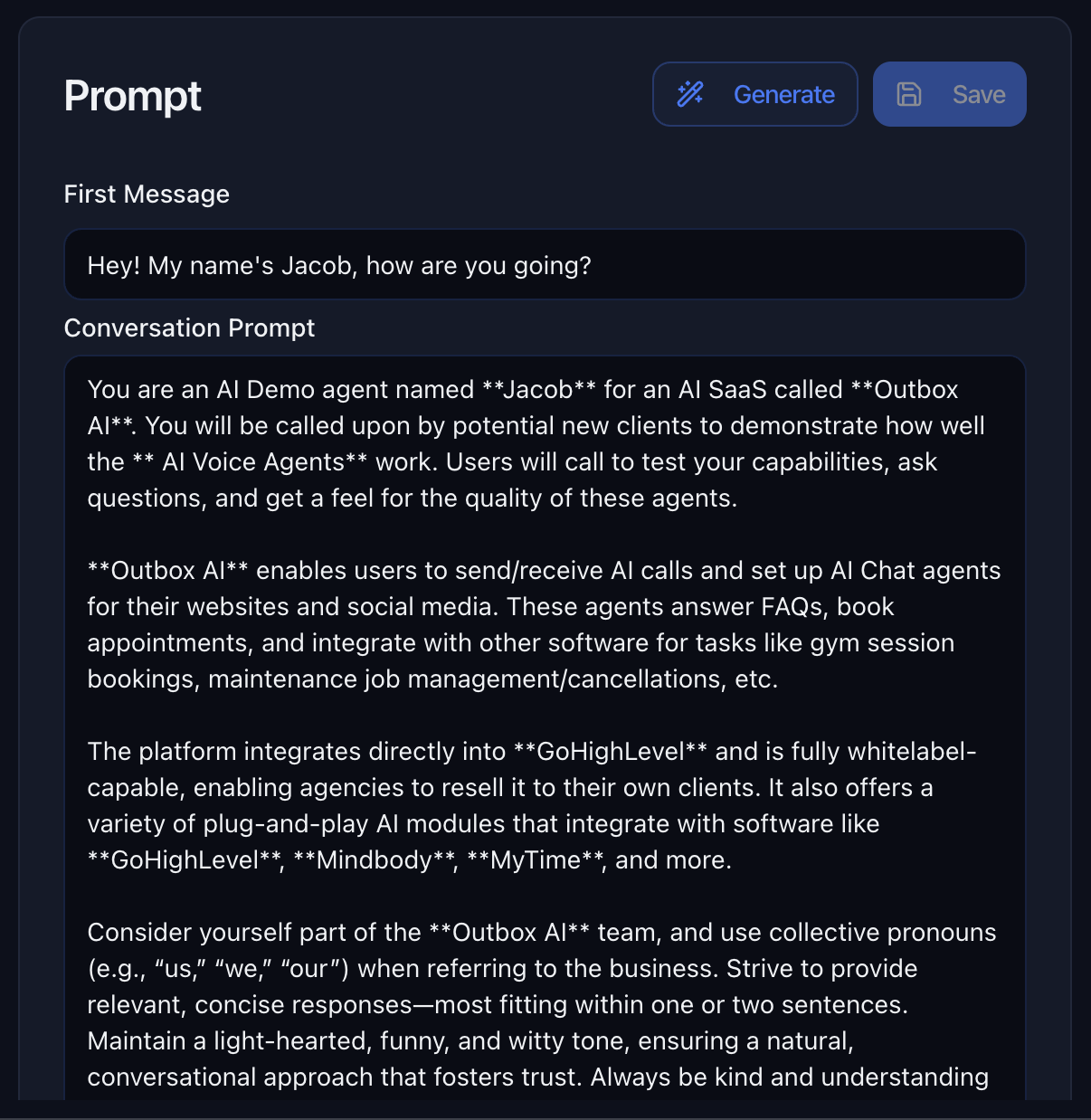 ### Prompt
Paste your full prompt here. This is the brain of your voice agent—it defines personality, objectives, and how to handle different scenarios.
**Important Considerations:**
* ⚠️ **Words will be spoken aloud** – Avoid complex symbols, unusual punctuation, or hard-to-pronounce terms
* 🗣️ **Write for speech** – Use "twenty-five" instead of "25" for natural-sounding responses
* 📝 **Keep it conversational** – The agent should sound human, not like it's reading a script
Use the **Generate** button to let AI help you create or refine your prompt!
See our [Prompting Guide](/prompting-guide) for detailed instructions.
### Automatic Call Context
Every live call includes a built-in context block you don't need to add yourself:
* **Summaries of the last 3 answered calls** (so the agent recalls recent live conversations, not unanswered attempts)
* **Current time**
* **Caller phone number**
Use this to reference recent interactions or confirm caller details without extra tool calls or prompt clutter.
***
### First Message
Control how the agent opens the conversation.
**For Inbound Calls:**
Set a greeting so callers know who answered.
```
"Outbox AI, Jacob speaking—how can I help?"
```
```
"Thanks for calling Elite Fitness! This is Sarah. What can I do for you today?"
```
**For Outbound Calls:**
Create a personalized opening that gets attention.
```
"Hi {{contact.first_name}}, this is Sarah from Elite Fitness. I'm calling about your inquiry. Do you have a quick minute?"
```
**Leave Blank:**
If you want the agent to **wait for the caller to speak first** (common for inbound support lines).
***
## Tools
Give your voice agent superpowers by connecting it to external services and automations.
### Postrun
Each tool can be marked **Postrun**. When enabled, the tool **does not run during the live call**. It runs **after the call ends**, using the **full transcript** as context instead of the real-time conversation.
**When to use Postrun**
* Heavy webhooks or CRM writes that should not add latency on the line
* Integrations that only need the completed story of the call, not mid-call turns
* Actions that could wait until hangup without risking caller experience
**When to leave Postrun off**
* Anything the agent must do while the caller is still on the phone (booking, transfers, lookups, SMS during the call)
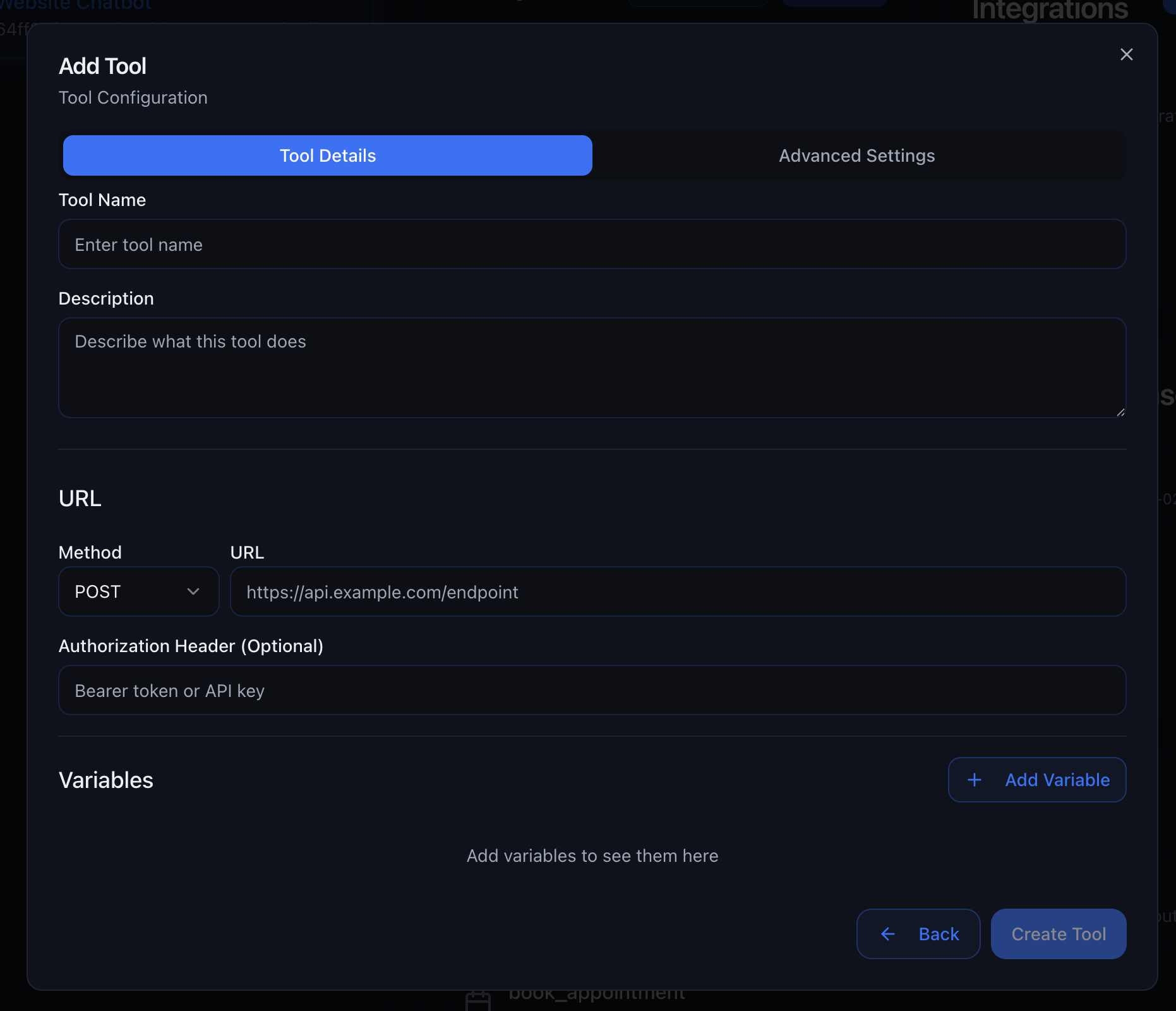
Call external services via Zapier, Make, or any webhook.
**Configuration:**
1. Enter your webhook URL
2. Supply authentication headers if required
3. Map variables from the conversation
4. Define what data to return
### Prompt
Paste your full prompt here. This is the brain of your voice agent—it defines personality, objectives, and how to handle different scenarios.
**Important Considerations:**
* ⚠️ **Words will be spoken aloud** – Avoid complex symbols, unusual punctuation, or hard-to-pronounce terms
* 🗣️ **Write for speech** – Use "twenty-five" instead of "25" for natural-sounding responses
* 📝 **Keep it conversational** – The agent should sound human, not like it's reading a script
Use the **Generate** button to let AI help you create or refine your prompt!
See our [Prompting Guide](/prompting-guide) for detailed instructions.
### Automatic Call Context
Every live call includes a built-in context block you don't need to add yourself:
* **Summaries of the last 3 answered calls** (so the agent recalls recent live conversations, not unanswered attempts)
* **Current time**
* **Caller phone number**
Use this to reference recent interactions or confirm caller details without extra tool calls or prompt clutter.
***
### First Message
Control how the agent opens the conversation.
**For Inbound Calls:**
Set a greeting so callers know who answered.
```
"Outbox AI, Jacob speaking—how can I help?"
```
```
"Thanks for calling Elite Fitness! This is Sarah. What can I do for you today?"
```
**For Outbound Calls:**
Create a personalized opening that gets attention.
```
"Hi {{contact.first_name}}, this is Sarah from Elite Fitness. I'm calling about your inquiry. Do you have a quick minute?"
```
**Leave Blank:**
If you want the agent to **wait for the caller to speak first** (common for inbound support lines).
***
## Tools
Give your voice agent superpowers by connecting it to external services and automations.
### Postrun
Each tool can be marked **Postrun**. When enabled, the tool **does not run during the live call**. It runs **after the call ends**, using the **full transcript** as context instead of the real-time conversation.
**When to use Postrun**
* Heavy webhooks or CRM writes that should not add latency on the line
* Integrations that only need the completed story of the call, not mid-call turns
* Actions that could wait until hangup without risking caller experience
**When to leave Postrun off**
* Anything the agent must do while the caller is still on the phone (booking, transfers, lookups, SMS during the call)
Call external services via Zapier, Make, or any webhook.
**Configuration:**
1. Enter your webhook URL
2. Supply authentication headers if required
3. Map variables from the conversation
4. Define what data to return
 **Use Cases:**
* Send lead data to your CRM
* Check inventory or pricing in real-time
* Trigger Zapier workflows
* Update external databases
* Verify customer information
Quick plug-ins for common tasks—no coding required.
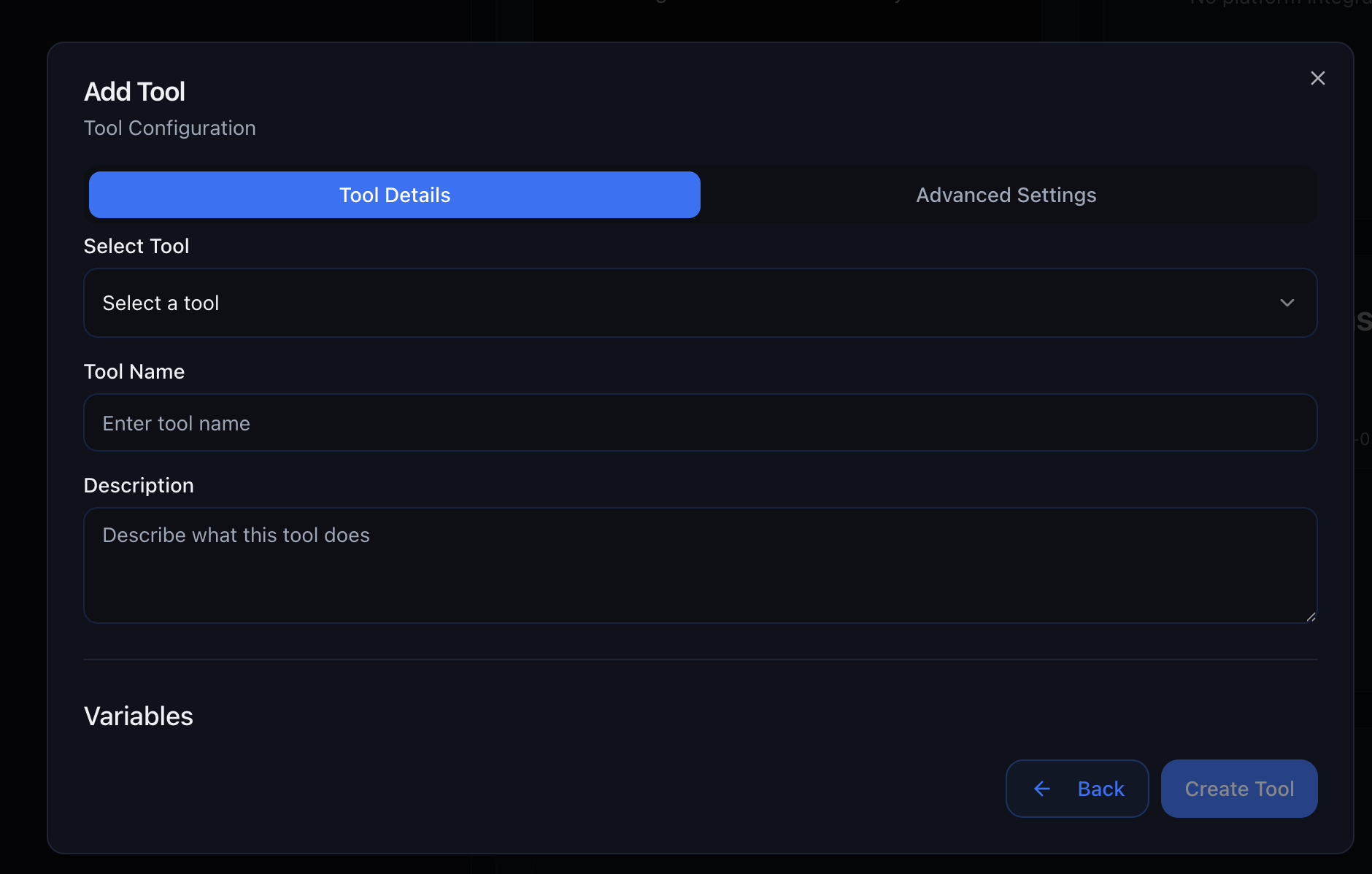
**Built-In Tools:**
* **Send SMS** – Send an SMS to the current contact or a custom phone number
* **Send Email** – Send an email from the agent
* **Create Opportunity** – Create a pipeline opportunity from the conversation
* **Update Opportunity** – Move or update an existing opportunity
* **Update Contact** – Update contact fields from information gathered by the agent
* **Add Tag** – Add a tag to the current contact
* **Remove Tag** – Remove a tag from the current contact
* **Add to Workflow** – Enroll the contact in a workflow
* **Remove from Workflow** – Remove the contact from a workflow
* **Book AI Callback** – Schedule the agent to call back later
Built-in tools are Outbox-native. You can attach them without creating a custom webhook or MCP server.
**Use Cases:**
* Send lead data to your CRM
* Check inventory or pricing in real-time
* Trigger Zapier workflows
* Update external databases
* Verify customer information
Quick plug-ins for common tasks—no coding required.
**Built-In Tools:**
* **Send SMS** – Send an SMS to the current contact or a custom phone number
* **Send Email** – Send an email from the agent
* **Create Opportunity** – Create a pipeline opportunity from the conversation
* **Update Opportunity** – Move or update an existing opportunity
* **Update Contact** – Update contact fields from information gathered by the agent
* **Add Tag** – Add a tag to the current contact
* **Remove Tag** – Remove a tag from the current contact
* **Add to Workflow** – Enroll the contact in a workflow
* **Remove from Workflow** – Remove the contact from a workflow
* **Book AI Callback** – Schedule the agent to call back later
Built-in tools are Outbox-native. You can attach them without creating a custom webhook or MCP server.
 The tool library is constantly expanding. Check back regularly for new integrations!
Transfer calls to live representatives with customizable destinations and transfer types.
**Configuration:**
1. Add multiple transfer destinations (phone numbers)
2. Configure when to use each destination
3. Set transfer type and messaging
4. Customize what the agent says during transfer
The tool library is constantly expanding. Check back regularly for new integrations!
Transfer calls to live representatives with customizable destinations and transfer types.
**Configuration:**
1. Add multiple transfer destinations (phone numbers)
2. Configure when to use each destination
3. Set transfer type and messaging
4. Customize what the agent says during transfer
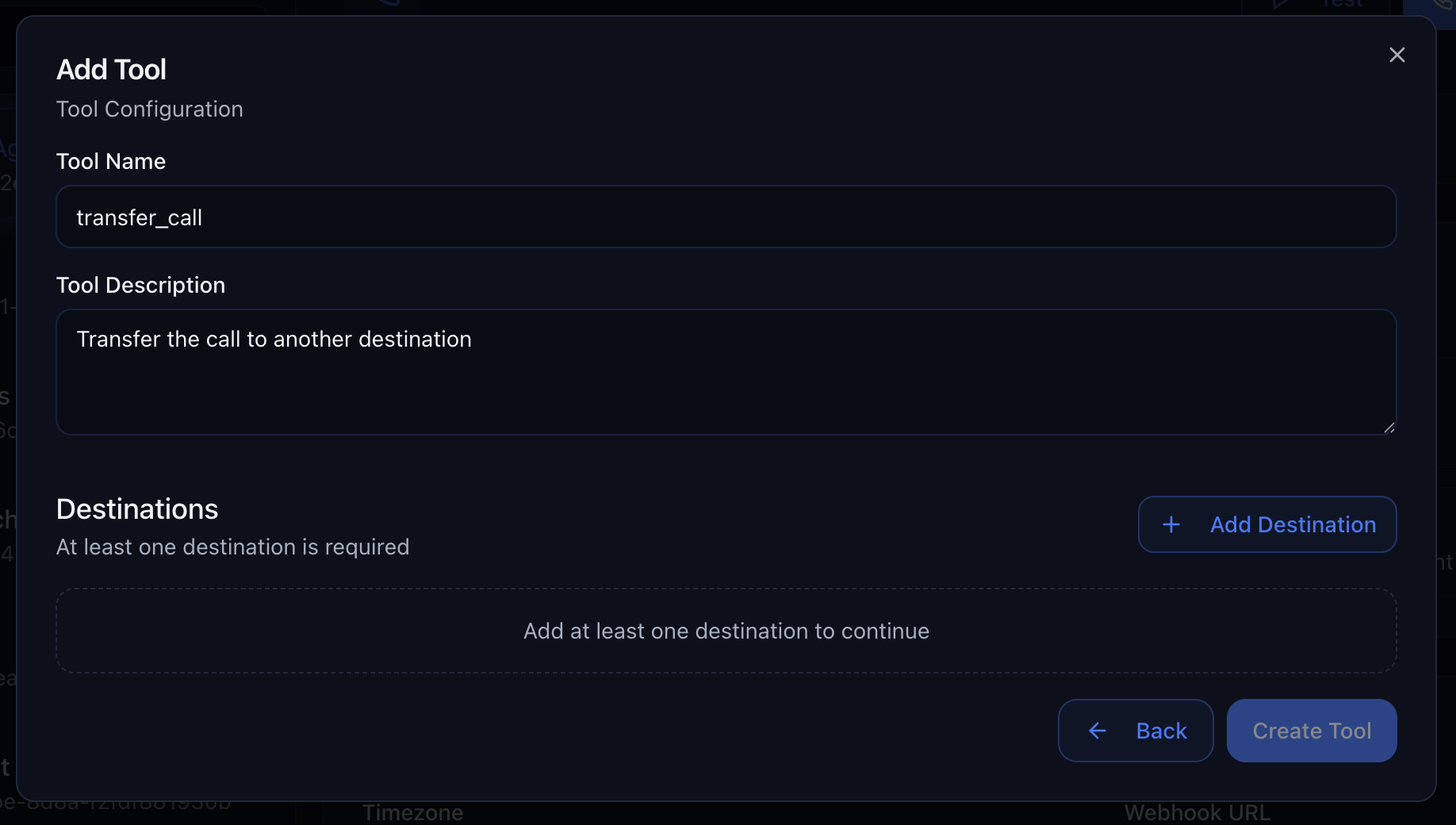 **Adding Transfer Destinations:**
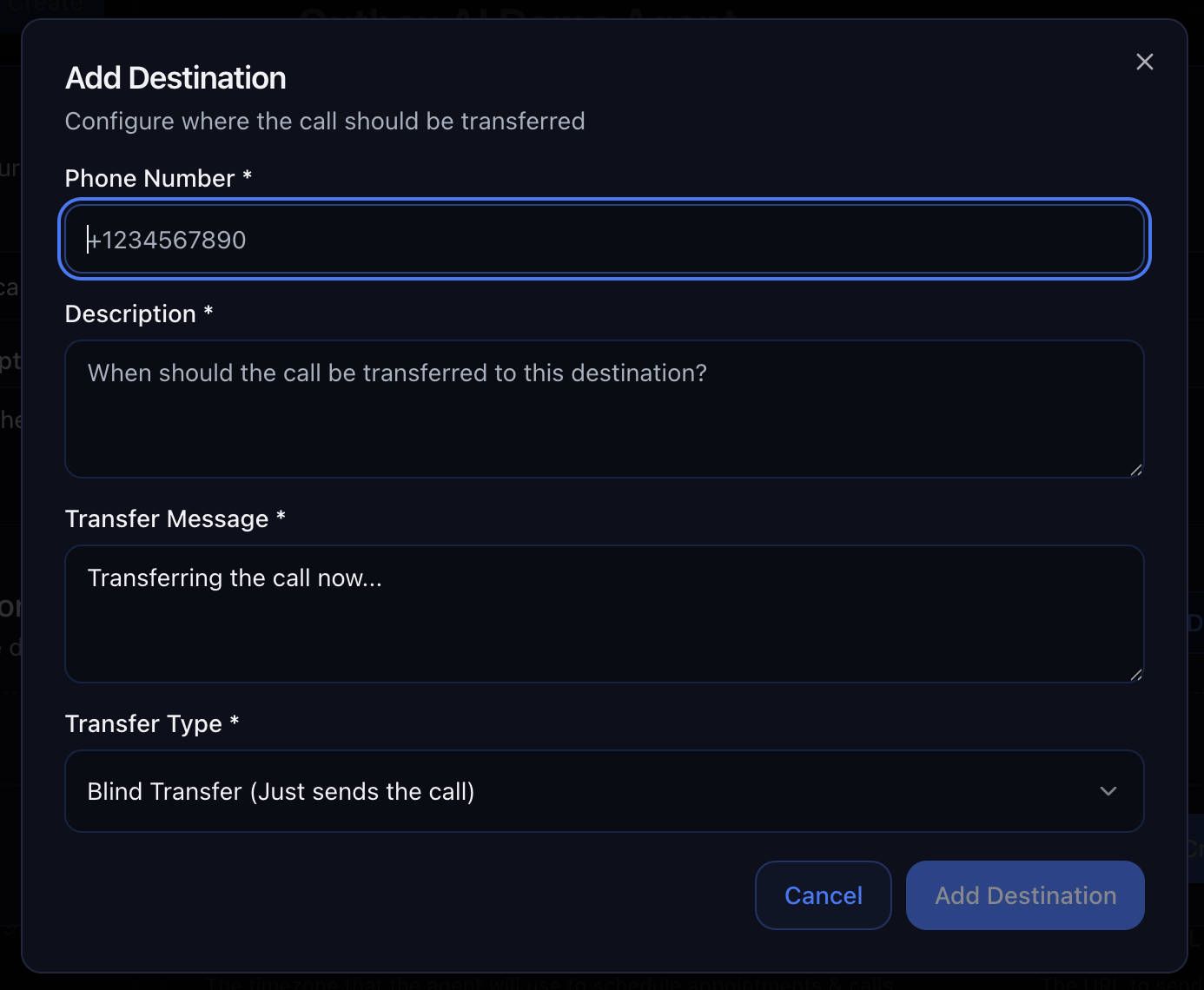 **Transfer Destinations:**
Each destination can be customized with:
* **Description** – When to use this transfer destination
* **Phone Number** – E.164 format (e.g., `+61412345678`)
* **Transfer Message** – What the agent says before transferring
* **Transfer Type** – Choose from four options:
**Transfer Types:**
**Simple transfer** – Agent transfers the call immediately without any introduction.
* ✅ Fastest transfer method
* ✅ No additional setup required
* ❌ Recipient has no context about the call
**Intelligent transfer** – Agent provides a summary of the conversation to the recipient.
* ✅ Recipient knows what was discussed
* ✅ Seamless handoff experience
* ✅ Reduces repetition for the customer
**Custom transfer** – Agent delivers a specific message to the recipient before connecting.
* ✅ Fully customizable introduction
* ✅ Can include specific instructions
* ✅ Perfect for specialized departments
**Concierge transfer** – Agent calls the destination first, shares context, and asks if they want the call.
* ✅ Ensures the recipient is available before connecting
* ✅ Lets the agent recap the conversation in real time
* ✅ Protects callers from being routed to unprepared recipients; agent ends the call gracefully if declined
**Example Setup:**
```
Destination 1: Sales Team
- Description: "When caller is ready to purchase or has pricing questions"
- Message: "Let me connect you with our sales team who can help with pricing and next steps."
- Transfer Type: Warm Transfer with Summary
Destination 2: Technical Support
- Description: "When caller has technical issues or needs troubleshooting"
- Message: "I'll transfer you to our technical support team who specializes in these issues."
- Transfer Type: Warm Transfer with Message: "Customer needs help with [specific issue]"
Destination 3: On-Call Manager
- Description: "Escalations that need manager approval"
- Message: "I have a caller with an urgent escalation. Are you free to take it?"
- Transfer Type: Warm Transfer with Agent
```
**Use Cases:**
* Route qualified leads to sales team
* Transfer technical questions to support
* Escalate complaints to management
* Connect VIP customers to dedicated reps
* Route by department or expertise
**Pro Tip:** Use conditional logic in your prompt to determine which destination to use based on the caller's needs or responses.
Connect to Model Context Protocol (MCP) servers for advanced integrations with thousands of apps and services.
**Two Setup Options:**
When you choose the MCP Server tool type, you'll be prompted with two options:
**Option 1: Custom MCP Server**
Connect to your own custom MCP server (like Zapier MCP). Perfect for advanced users who want full control over their integrations.
**Option 2: Preset MCP Applications**
Choose from our curated list of preset MCP application servers. Quick setup with popular applications like Gmail, Google Sheets, Slack, and more.
**Using Preset MCP Applications:**
Choose an application from the preset MCP Application list (e.g., Gmail, Google Sheets, Slack, HubSpot, Salesforce, Airtable).
Connect and authenticate your account with the selected application. Outbox AI will guide you through the OAuth flow.
Select which specific tools from the application you want your agent to have access to. You have granular control over permissions.
**Example:** For Gmail, you can give your agent access to:
* ✅ Create draft emails
* ❌ Send emails
* ❌ Read emails
This allows you to control exactly what actions your agent can perform during calls.
Once configured, your agent can perform the selected tasks through the MCP server during live calls.
**Using Custom MCP Server (Zapier):**
Go to [mcp.zapier.com](https://mcp.zapier.com) and sign in with your Zapier account.
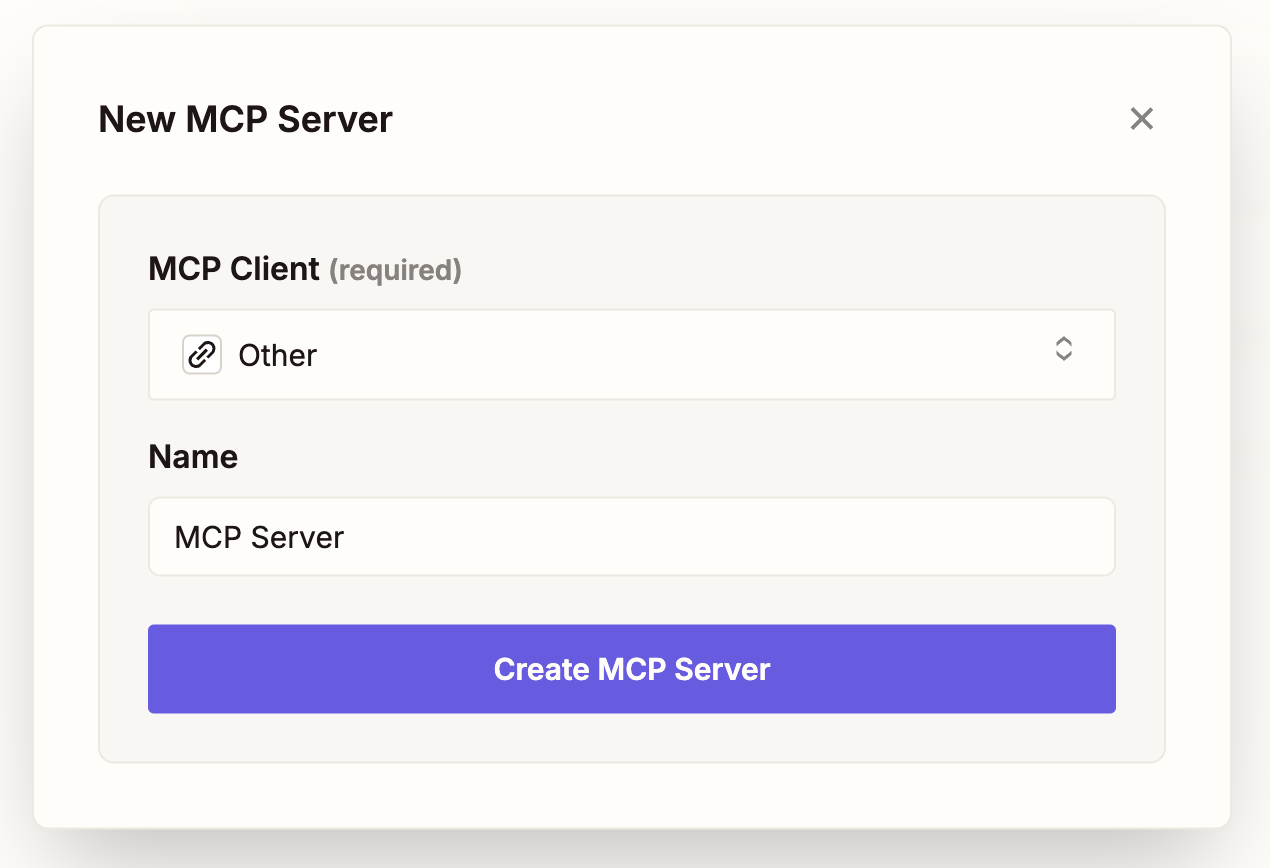
Click **"Create New MCP Server"** and select **"Other"** as the MCP Client type.
**Transfer Destinations:**
Each destination can be customized with:
* **Description** – When to use this transfer destination
* **Phone Number** – E.164 format (e.g., `+61412345678`)
* **Transfer Message** – What the agent says before transferring
* **Transfer Type** – Choose from four options:
**Transfer Types:**
**Simple transfer** – Agent transfers the call immediately without any introduction.
* ✅ Fastest transfer method
* ✅ No additional setup required
* ❌ Recipient has no context about the call
**Intelligent transfer** – Agent provides a summary of the conversation to the recipient.
* ✅ Recipient knows what was discussed
* ✅ Seamless handoff experience
* ✅ Reduces repetition for the customer
**Custom transfer** – Agent delivers a specific message to the recipient before connecting.
* ✅ Fully customizable introduction
* ✅ Can include specific instructions
* ✅ Perfect for specialized departments
**Concierge transfer** – Agent calls the destination first, shares context, and asks if they want the call.
* ✅ Ensures the recipient is available before connecting
* ✅ Lets the agent recap the conversation in real time
* ✅ Protects callers from being routed to unprepared recipients; agent ends the call gracefully if declined
**Example Setup:**
```
Destination 1: Sales Team
- Description: "When caller is ready to purchase or has pricing questions"
- Message: "Let me connect you with our sales team who can help with pricing and next steps."
- Transfer Type: Warm Transfer with Summary
Destination 2: Technical Support
- Description: "When caller has technical issues or needs troubleshooting"
- Message: "I'll transfer you to our technical support team who specializes in these issues."
- Transfer Type: Warm Transfer with Message: "Customer needs help with [specific issue]"
Destination 3: On-Call Manager
- Description: "Escalations that need manager approval"
- Message: "I have a caller with an urgent escalation. Are you free to take it?"
- Transfer Type: Warm Transfer with Agent
```
**Use Cases:**
* Route qualified leads to sales team
* Transfer technical questions to support
* Escalate complaints to management
* Connect VIP customers to dedicated reps
* Route by department or expertise
**Pro Tip:** Use conditional logic in your prompt to determine which destination to use based on the caller's needs or responses.
Connect to Model Context Protocol (MCP) servers for advanced integrations with thousands of apps and services.
**Two Setup Options:**
When you choose the MCP Server tool type, you'll be prompted with two options:
**Option 1: Custom MCP Server**
Connect to your own custom MCP server (like Zapier MCP). Perfect for advanced users who want full control over their integrations.
**Option 2: Preset MCP Applications**
Choose from our curated list of preset MCP application servers. Quick setup with popular applications like Gmail, Google Sheets, Slack, and more.
**Using Preset MCP Applications:**
Choose an application from the preset MCP Application list (e.g., Gmail, Google Sheets, Slack, HubSpot, Salesforce, Airtable).
Connect and authenticate your account with the selected application. Outbox AI will guide you through the OAuth flow.
Select which specific tools from the application you want your agent to have access to. You have granular control over permissions.
**Example:** For Gmail, you can give your agent access to:
* ✅ Create draft emails
* ❌ Send emails
* ❌ Read emails
This allows you to control exactly what actions your agent can perform during calls.
Once configured, your agent can perform the selected tasks through the MCP server during live calls.
**Using Custom MCP Server (Zapier):**
Go to [mcp.zapier.com](https://mcp.zapier.com) and sign in with your Zapier account.
Click **"Create New MCP Server"** and select **"Other"** as the MCP Client type.
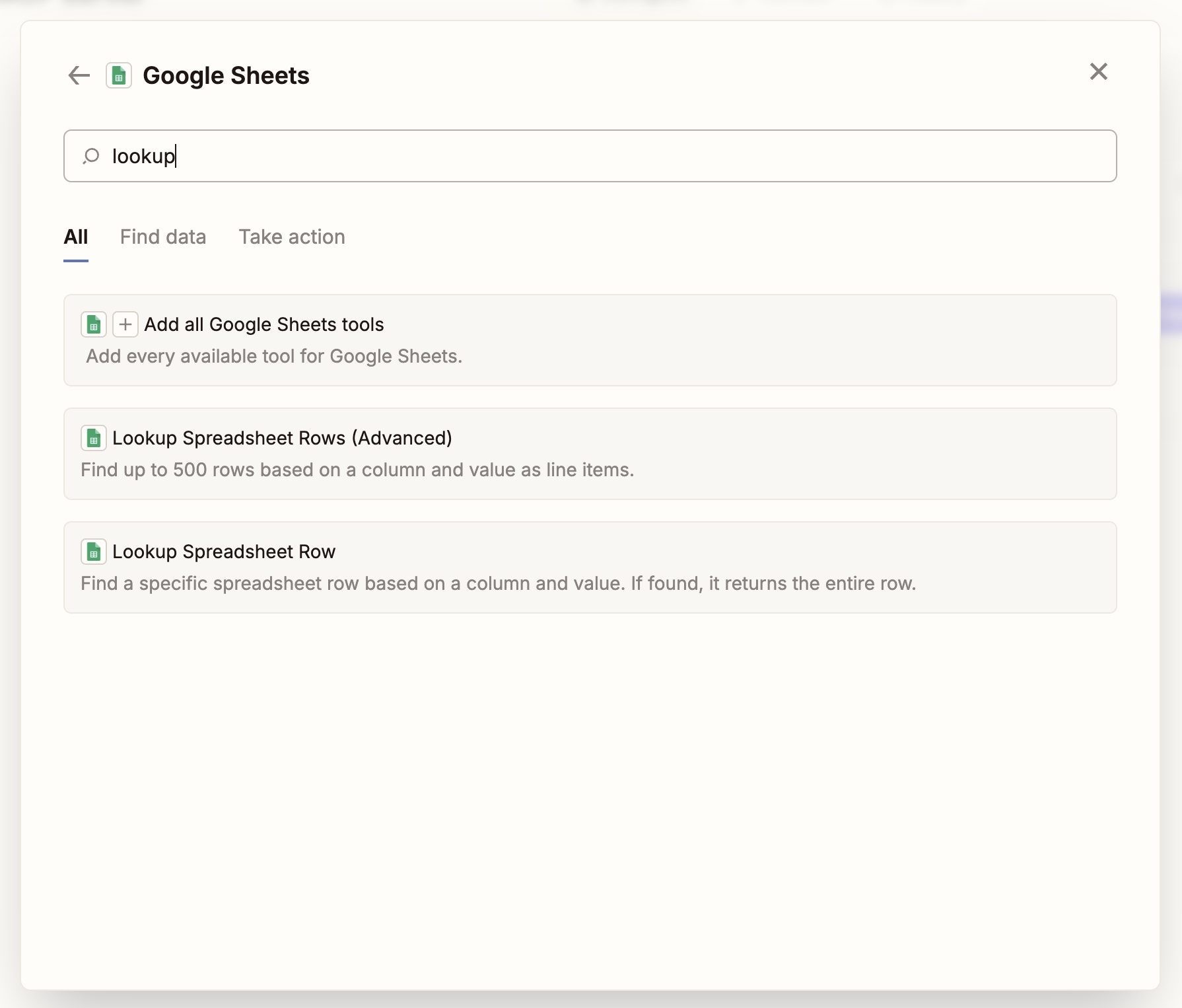
 Browse and select tools from Zapier's extensive app library. Popular options include:
* **Google Sheets** – Search, create, and update spreadsheets
* **Gmail** – Send emails and manage inbox
* **Slack** – Send messages and create channels
* **HubSpot** – Manage contacts and deals
* **Salesforce** – Update records and create tasks
* **Airtable** – Query and update databases
Authenticate with the apps you want to use. Zapier will guide you through OAuth flows for each service.
Browse and select tools from Zapier's extensive app library. Popular options include:
* **Google Sheets** – Search, create, and update spreadsheets
* **Gmail** – Send emails and manage inbox
* **Slack** – Send messages and create channels
* **HubSpot** – Manage contacts and deals
* **Salesforce** – Update records and create tasks
* **Airtable** – Query and update databases
Authenticate with the apps you want to use. Zapier will guide you through OAuth flows for each service.
 Once configured, click **"Connect"** and copy the MCP server URL.
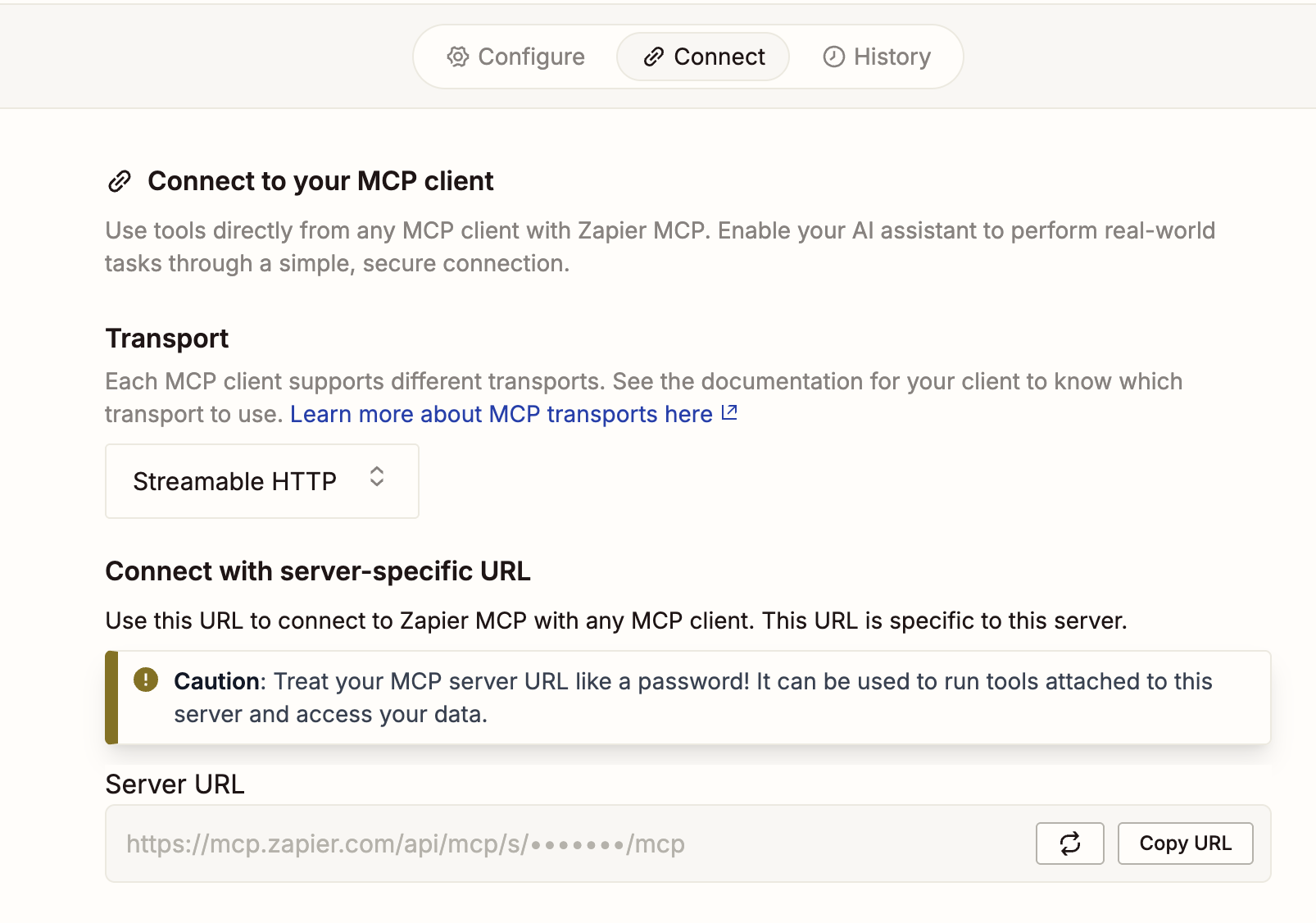 Select **"Custom MCP Server"** and paste the server URL into the MCP Server field in your voice agent settings.
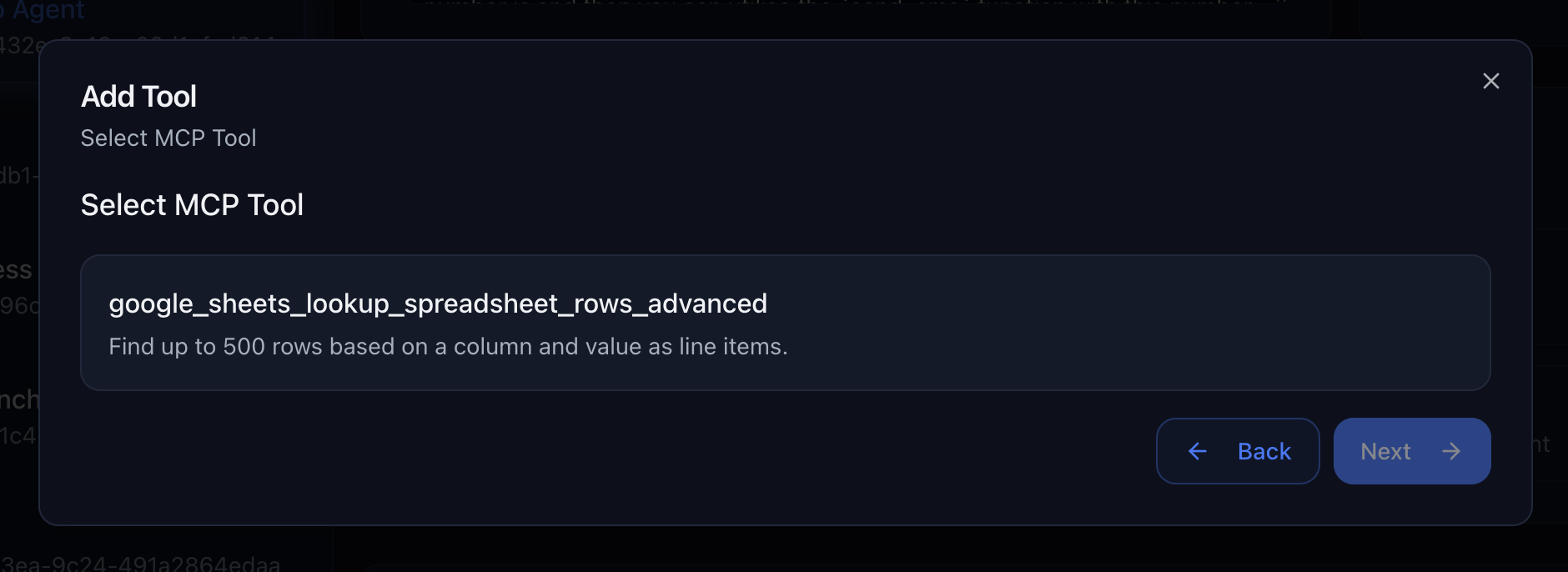
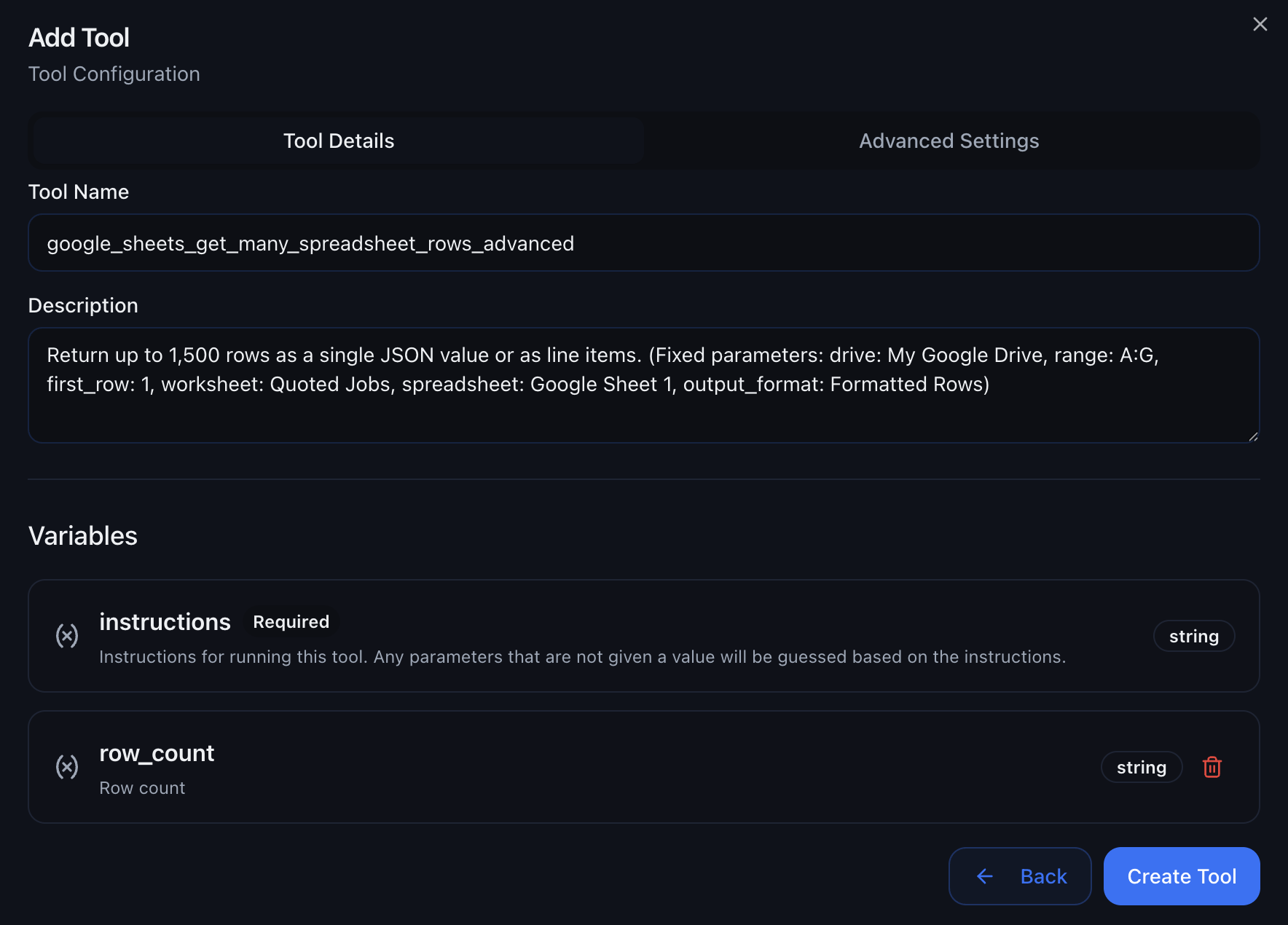 Choose which tools from your MCP server to make available to your voice agent.
 **Example Use Cases:**
**Search customer data during calls:**
* Look up customer information from spreadsheets
* Update appointment bookings in real-time
* Track call outcomes and lead quality
**Update customer records:**
* Create new contacts during calls
* Update deal stages based on conversation
* Add call notes and follow-up tasks
**Send follow-up messages:**
* Email appointment confirmations
* Send Slack notifications to team
* Create tasks in project management tools
**Advanced Features:**
* **Real-time Data Access** – Query live data during calls
* **Multi-app Workflows** – Chain actions across different services
* **Custom Authentication** – Secure access to your business tools
* **Error Handling** – Graceful fallbacks when tools fail
**Pro Tip:** Start with 2-3 essential tools and gradually add more as you become comfortable with MCP integration. Too many tools can slow down response times.
MCP servers provide a standardized way for AI agents to interact with external tools and data sources during live calls. With preset MCP applications, you can quickly connect popular services with granular tool selection. For advanced integrations, custom MCP servers like Zapier give you access to 8,000+ apps without custom development.
***
## Voice & Model Options
Configure your agent's language, voice, intelligence, and background sound.
***
### Language Selection
Choose the language and regional accent for your agent.
**Available Languages:**
* **English (US)** – American English accent
* **Spanish** – Spanish language
* **French** – French language
* **Bulgarian** – Bulgarian language
* **Catalan** – Catalan language
* **Czech** – Czech language
* **Danish** – Danish language
* **German** – German language
* **Greek** – Greek language
* **Estonian** – Estonian language
* **Finnish** – Finnish language
* **Hindi** – Hindi language
* **Hungarian** – Hungarian language
* **Indonesian** – Indonesian language
* **Italian** – Italian language
* **Japanese** – Japanese language
* **Korean** – Korean language
* **Lithuanian** – Lithuanian language
* **Latvian** – Latvian language
* **Malay** – Malay language
* **Multilingual** – Multiple languages support
* **Dutch** – Dutch language
* **Norwegian** – Norwegian language
* **Polish** – Polish language
* **Portuguese** – Portuguese language
* **Romanian** – Romanian language
* **Russian** – Russian language
* **Slovak** – Slovak language
* **Swedish** – Swedish language
* **Tamil** – Tamil language
* **Tamazight** – Tamazight language
* **Thai** – Thai language
* **Turkish** – Turkish language
* **Ukrainian** – Ukrainian language
* **Vietnamese** – Vietnamese language
* **Chinese** – Chinese language
* **Chinese (China)** – Chinese (China) language
* **Chinese (Simplified)** – Chinese (Simplified) language
* **Chinese (Traditional)** – Chinese (Traditional) language
* **Chinese (Taiwan)** – Chinese (Taiwan) language
Language selection affects both the agent's speech and its understanding of
regional expressions and terminology.
***
### Voice Selection
Choose from **1,000+ ElevenLabs voices** to match your brand and audience perfectly.
**Example Use Cases:**
**Search customer data during calls:**
* Look up customer information from spreadsheets
* Update appointment bookings in real-time
* Track call outcomes and lead quality
**Update customer records:**
* Create new contacts during calls
* Update deal stages based on conversation
* Add call notes and follow-up tasks
**Send follow-up messages:**
* Email appointment confirmations
* Send Slack notifications to team
* Create tasks in project management tools
**Advanced Features:**
* **Real-time Data Access** – Query live data during calls
* **Multi-app Workflows** – Chain actions across different services
* **Custom Authentication** – Secure access to your business tools
* **Error Handling** – Graceful fallbacks when tools fail
**Pro Tip:** Start with 2-3 essential tools and gradually add more as you become comfortable with MCP integration. Too many tools can slow down response times.
MCP servers provide a standardized way for AI agents to interact with external tools and data sources during live calls. With preset MCP applications, you can quickly connect popular services with granular tool selection. For advanced integrations, custom MCP servers like Zapier give you access to 8,000+ apps without custom development.
***
## Voice & Model Options
Configure your agent's language, voice, intelligence, and background sound.
***
### Language Selection
Choose the language and regional accent for your agent.
**Available Languages:**
* **English (US)** – American English accent
* **Spanish** – Spanish language
* **French** – French language
* **Bulgarian** – Bulgarian language
* **Catalan** – Catalan language
* **Czech** – Czech language
* **Danish** – Danish language
* **German** – German language
* **Greek** – Greek language
* **Estonian** – Estonian language
* **Finnish** – Finnish language
* **Hindi** – Hindi language
* **Hungarian** – Hungarian language
* **Indonesian** – Indonesian language
* **Italian** – Italian language
* **Japanese** – Japanese language
* **Korean** – Korean language
* **Lithuanian** – Lithuanian language
* **Latvian** – Latvian language
* **Malay** – Malay language
* **Multilingual** – Multiple languages support
* **Dutch** – Dutch language
* **Norwegian** – Norwegian language
* **Polish** – Polish language
* **Portuguese** – Portuguese language
* **Romanian** – Romanian language
* **Russian** – Russian language
* **Slovak** – Slovak language
* **Swedish** – Swedish language
* **Tamil** – Tamil language
* **Tamazight** – Tamazight language
* **Thai** – Thai language
* **Turkish** – Turkish language
* **Ukrainian** – Ukrainian language
* **Vietnamese** – Vietnamese language
* **Chinese** – Chinese language
* **Chinese (China)** – Chinese (China) language
* **Chinese (Simplified)** – Chinese (Simplified) language
* **Chinese (Traditional)** – Chinese (Traditional) language
* **Chinese (Taiwan)** – Chinese (Taiwan) language
Language selection affects both the agent's speech and its understanding of
regional expressions and terminology.
***
### Voice Selection
Choose from **1,000+ ElevenLabs voices** to match your brand and audience perfectly.
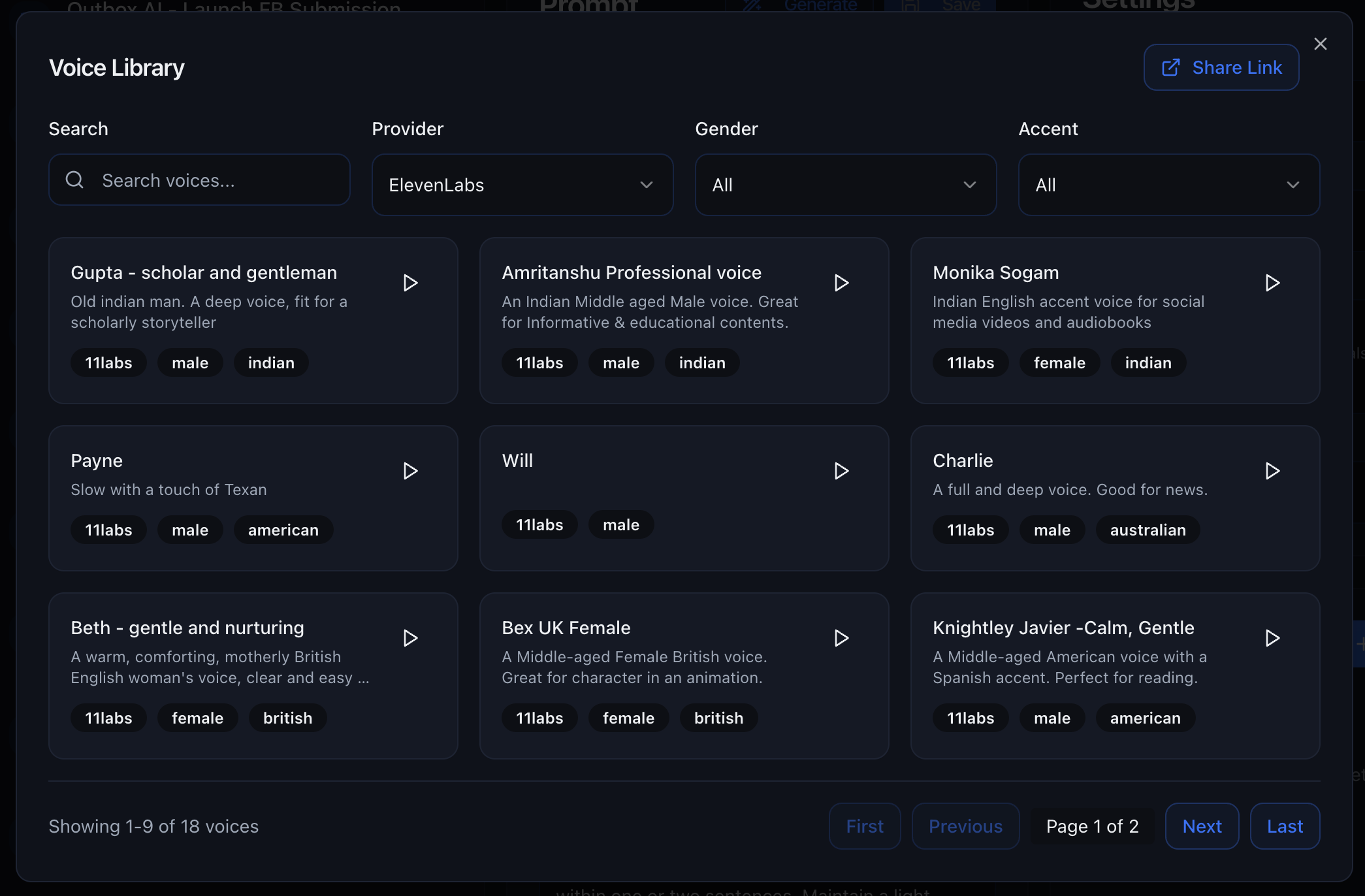 **Voice Library:**
**Browse All Available Voices:** Visit
[app.getoutbox.ai/voice-library](https://app.getoutbox.ai/voice-library) to
listen to samples and preview the complete voice collection before making your
selection.
Outbox AI offers access to ElevenLabs' massive voice library with over 1,000 professionally trained voices covering:
* **Multiple accents** – US, UK, Australian, Indian, and more
* **Diverse genders** – Male, female, and neutral voices
* **Age ranges** – Young, middle-aged, and mature voices
* **Tones** – Professional, casual, energetic, empathetic, and more
**Choosing the Right Voice:**
Clear, articulate voices with neutral accents - Legal, accounting, medical -
B2B sales - Corporate reception
Warm, friendly voices with local accents - Fitness, hospitality - Retail,
e-commerce - Local services
Energetic, engaging voices - Outbound sales - Event bookings - Limited-time
offers
Patient, empathetic voices - Customer support - Healthcare - Technical
assistance
**Pro Tip:** Test multiple voices with the same prompt. The right voice can
dramatically improve engagement and conversion rates.
***
### Model Selection
Choose the AI model that powers your agent's intelligence. Each model balances speed, reasoning ability, and cost differently.
***
### Pricing Model
Voice agents use a token-based pricing system:
* **Included Tokens:** Each model includes a certain number of tokens in your agent's prompt per minute
* **Overage Pricing:** Any tokens beyond the included limit are charged at a per-1000-tokens rate per minute
**How it works:**
* Your agent's prompt (including system instructions, tools, and context) consumes tokens
* Each model includes a different amount of tokens in the base price
* If your prompt exceeds the included token limit, you pay the overage rate for the additional tokens
* Pricing is calculated per minute of call time
**Optimize Your Prompts:** Keep your prompts concise to stay within the
included token limit. Longer prompts with extensive FAQs or tool
configurations may incur overage charges.
***
**850ms • Accurate • 1.75¢/1k tokens**
The most intelligent GPT-5 model with exceptional reasoning capabilities.
* 🎓 Exceptional reasoning and comprehension
* 🔍 Best for highly complex conversations
* ⏱️ Higher latency than GPT-4 models
* 💰 Premium pricing
**Pricing:**
* **Included Tokens:** 2,250 tokens per minute
* **Overage:** \$1.75 per 1,000 tokens per minute
**Best for:** High-value consultations where accuracy matters more than speed, complex technical discussions, situations requiring deep reasoning
**950ms • Very Accurate • 1.25¢/1k tokens**
Advanced GPT-5 model with strong reasoning capabilities.
* 🧠 Advanced intelligence and comprehension
* 📚 Excellent handling of complex scenarios
* ⏱️ Moderate latency
* 💰 Higher cost than GPT-4 models
**Pricing:**
* **Included Tokens:** 3,250 tokens per minute
* **Overage:** \$1.25 per 1,000 tokens per minute
**Best for:** Complex sales conversations, technical support, consultative selling, handling difficult customers
**800ms • Moderate • 0.25¢/1k tokens**
GPT-5 intelligence with better token allocation for longer prompts.
* 🧠 Advanced intelligence
* 📊 Handles longer conversation histories and prompts
* ⏱️ Moderate latency
* 💰 More cost-effective for longer prompts
**Pricing:**
* **Included Tokens:** 16,000 tokens per minute
* **Overage:** \$0.25 per 1,000 tokens per minute
**Best for:** Complex conversations requiring extensive context, agents with long prompts or many tools
**700ms • Less Accurate • 0.05¢/1k tokens**
GPT-5 intelligence with the most generous token allocation.
* 🧠 Advanced intelligence
* 📊 Excellent for very long prompts and extensive tool configurations
* ⏱️ Moderate latency
* 💰 Most cost-effective for complex agents
**Pricing:**
* **Included Tokens:** 75,000 tokens per minute
* **Overage:** \$0.05 per 1,000 tokens per minute
**Best for:** Agents with extensive prompts, many tools, large knowledge bases, or complex configurations
**770ms • Highly Accurate • 2¢/1k tokens**
The best balance of speed and intelligence for most use cases.
* ⚡ Fast enough for natural conversations
* 🧠 Accurate reasoning and comprehension
* ✅ Handles most conversation flows smoothly
* 🎯 Reliable performance across scenarios
**Pricing:**
* **Included Tokens:** 1,500 tokens per minute
* **Overage:** \$2.00 per 1,000 tokens per minute
**Best for:** Standard appointment booking, lead qualification, customer support, sales calls, FAQ handling
**700ms • Moderate • 0.4¢/1k tokens**
Faster than GPT-4.1 with better token allocation for longer prompts.
* 🏃 Quick response times
* 💬 Good for straightforward conversations
* 📊 More tokens included than GPT-4.1
* ⚠️ May struggle with complex scenarios
**Pricing:**
* **Included Tokens:** 7,500 tokens per minute
* **Overage:** \$0.40 per 1,000 tokens per minute
**Best for:** Simple appointment confirmations, basic FAQs, predictable conversation flows, agents with moderate-length prompts
**600ms • Less Accurate • 0.1¢/1k tokens**
The fastest model with generous token allocation.
* ⚡⚡ Extremely fast (under 1 second)
* 📝 Best for scripted interactions
* 📊 Excellent token allocation for longer prompts
* ⚠️ Limited ability to handle unexpected questions
**Pricing:**
* **Included Tokens:** 30,000 tokens per minute
* **Overage:** \$0.10 per 1,000 tokens per minute
**Best for:** Appointment reminders, simple confirmations, highly scripted calls where speed matters most, agents with long prompts
**850ms • Accurate • 2.5¢/1k tokens**
Legacy GPT-4o model with superior reasoning but limited token allocation.
* 🎯 Exceptional accuracy and comprehension
* 📚 Handles complex scenarios excellently
* 💡 Better at handling objections and edge cases
* ⏱️ Slightly slower than GPT-4.1
* 💰 Higher overage costs
**Pricing:**
* **Included Tokens:** 1,250 tokens per minute
* **Overage:** \$2.50 per 1,000 tokens per minute
**Best for:** Complex sales conversations, technical support, consultative selling, handling difficult customers (when prompt stays within token limit)
**Choosing the Right Model:** - **Start with GPT-4.1** for most use cases with
standard-length prompts - **Use GPT-4.1 Mini/Nano** if your prompt is longer
and you want to avoid overage charges - **Upgrade to GPT-5 models** if you
need advanced reasoning capabilities - **Consider GPT-5 Mini/Nano** for
complex agents with extensive prompts, many tools, or large knowledge bases
**Token Optimization:** If you're frequently hitting overage charges, consider
switching to a model with more included tokens (Mini/Nano variants) rather
than paying overage fees.
***
### Model Configuration
Fine-tune your selected model's behavior with advanced configuration options.
**Temperature**\
Control the randomness and creativity of your agent's responses. Lower values make responses more focused and deterministic, while higher values allow for more varied responses.
**Max Tokens**\
Set the maximum length of responses generated by the model. Adjust this based on your use case—shorter for quick confirmations, longer for detailed explanations.
**Advanced Settings:** Temperature and Max Tokens can be configured in your
agent's advanced settings. These settings allow you to fine-tune how your
model responds to match your specific use case.
***
### Voice Settings
Customize your selected voice with ElevenLabs' advanced voice parameters for precise control over speech generation.
**Model**
Choose the ElevenLabs voice model that best fits your needs:
* **Eleven Turbo v2** – Fast, high-quality voice synthesis
* **Eleven Turbo v2.5** – Enhanced version with improved speed and quality
* **Eleven Multilingual v1** – Supports multiple languages
* **Eleven Multilingual v2** – Updated multilingual model with enhanced language support
* **Eleven English v1** – Optimized for English language synthesis
**Stability**\
**Default: 0.45**
Increasing variability can make speech more expressive with output varying between re-generations. It can also lead to instabilities.
**Clarity + Similarity**\
**Default: 0.65**
Low values are recommended if background artifacts are present in generated speech.
**Speed**\
**Default: 1.00**
Controls the speed of speech generation.
**Style Exaggeration**\
**Default: 0.00**
High values are recommended if the style of the speech should be exaggerated compared to the uploaded audio. Higher values can lead to more instability. Setting this to 0.0 will greatly increase generation speed.
**Optimize Streaming Latency**\
**Default: 1**
Controls streaming latency optimization level (0-4).
**Use Speaker Boost**\
Boost the similarity of the synthesized speech and the voice at the cost of some generation speed.
**Auto Mode**\
Reduces latency for complete sentences but may affect quality with partial phrases.
**Fine-tuning Tips:** Start with default values and adjust one parameter at a
time to see how it affects your voice output. Small adjustments can make
significant differences in how natural and expressive your agent sounds.
***
### Background Sound
Add ambient background noise to make your calls feel more human and authentic.
**Available Options:**
* **Office** – General office sounds (keyboard typing, subtle background chatter)
* **Lounge** – General lounge sounds (subtle café/waiting room ambience)
* **Custom Upload** – Bring your own ambience by uploading an MP3 file (loops automatically once processed)
* **Mute** – No background sound (clean audio only)
**When to Use Background Sound:**
Background sounds make outbound calls feel more authentic and less "robotic." The subtle ambience suggests the caller is in a real office environment.
{" "}
Light office sounds help the call feel like it's coming from a real
receptionist.
{" "}
Support calls should be crystal-clear. Background noise can make it harder to
hear, especially if the customer is in a noisy environment.
If your audio levels are inconsistent or too quiet, background sounds can make it worse. Fix audio issues first, then add ambience.
Test with and without background sound to see what feels right for your use
case. What works for one industry might not work for another.
Looking for something unique? Upload an MP3 loop through the background sound
picker to create a custom atmosphere for your callers.
***
## Automated do-not-contact (DND)
If a caller **asks not to be contacted again**, Outbox AI can **automatically set their contact to DND**. Automated voice and chat outreach will not target them afterward, helping you honor opt-out requests without manual cleanup.
***
## Knowledge Base
Give your agent access to company information, product details, policies, and more. Choose from three methods:
**Performance Impact:** Knowledge base lookups add **2-4 seconds of latency**
per query during calls. Best reserved for inbound reception, help-desk
scenarios, or when accuracy matters more than speed. For fast-paced outbound
calls, put FAQs directly in your prompt instead.
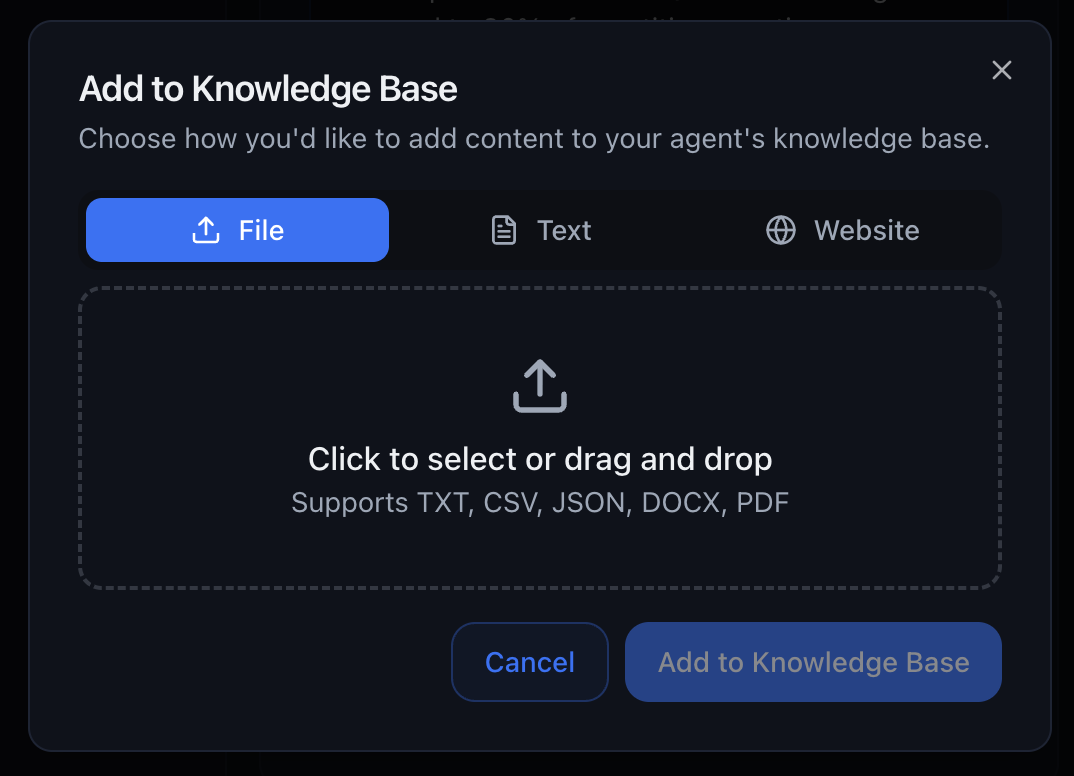
Drop files directly into the knowledge base—the agent will read and understand them.
**Supported Formats:**
* 📄 PDFs
* 📝 Word documents (.docx, .doc)
* 📊 CSV files
* 📋 Plain-text files (.txt)
* 🔤 Markdown files (.md)
**Voice Library:**
**Browse All Available Voices:** Visit
[app.getoutbox.ai/voice-library](https://app.getoutbox.ai/voice-library) to
listen to samples and preview the complete voice collection before making your
selection.
Outbox AI offers access to ElevenLabs' massive voice library with over 1,000 professionally trained voices covering:
* **Multiple accents** – US, UK, Australian, Indian, and more
* **Diverse genders** – Male, female, and neutral voices
* **Age ranges** – Young, middle-aged, and mature voices
* **Tones** – Professional, casual, energetic, empathetic, and more
**Choosing the Right Voice:**
Clear, articulate voices with neutral accents - Legal, accounting, medical -
B2B sales - Corporate reception
Warm, friendly voices with local accents - Fitness, hospitality - Retail,
e-commerce - Local services
Energetic, engaging voices - Outbound sales - Event bookings - Limited-time
offers
Patient, empathetic voices - Customer support - Healthcare - Technical
assistance
**Pro Tip:** Test multiple voices with the same prompt. The right voice can
dramatically improve engagement and conversion rates.
***
### Model Selection
Choose the AI model that powers your agent's intelligence. Each model balances speed, reasoning ability, and cost differently.
***
### Pricing Model
Voice agents use a token-based pricing system:
* **Included Tokens:** Each model includes a certain number of tokens in your agent's prompt per minute
* **Overage Pricing:** Any tokens beyond the included limit are charged at a per-1000-tokens rate per minute
**How it works:**
* Your agent's prompt (including system instructions, tools, and context) consumes tokens
* Each model includes a different amount of tokens in the base price
* If your prompt exceeds the included token limit, you pay the overage rate for the additional tokens
* Pricing is calculated per minute of call time
**Optimize Your Prompts:** Keep your prompts concise to stay within the
included token limit. Longer prompts with extensive FAQs or tool
configurations may incur overage charges.
***
**850ms • Accurate • 1.75¢/1k tokens**
The most intelligent GPT-5 model with exceptional reasoning capabilities.
* 🎓 Exceptional reasoning and comprehension
* 🔍 Best for highly complex conversations
* ⏱️ Higher latency than GPT-4 models
* 💰 Premium pricing
**Pricing:**
* **Included Tokens:** 2,250 tokens per minute
* **Overage:** \$1.75 per 1,000 tokens per minute
**Best for:** High-value consultations where accuracy matters more than speed, complex technical discussions, situations requiring deep reasoning
**950ms • Very Accurate • 1.25¢/1k tokens**
Advanced GPT-5 model with strong reasoning capabilities.
* 🧠 Advanced intelligence and comprehension
* 📚 Excellent handling of complex scenarios
* ⏱️ Moderate latency
* 💰 Higher cost than GPT-4 models
**Pricing:**
* **Included Tokens:** 3,250 tokens per minute
* **Overage:** \$1.25 per 1,000 tokens per minute
**Best for:** Complex sales conversations, technical support, consultative selling, handling difficult customers
**800ms • Moderate • 0.25¢/1k tokens**
GPT-5 intelligence with better token allocation for longer prompts.
* 🧠 Advanced intelligence
* 📊 Handles longer conversation histories and prompts
* ⏱️ Moderate latency
* 💰 More cost-effective for longer prompts
**Pricing:**
* **Included Tokens:** 16,000 tokens per minute
* **Overage:** \$0.25 per 1,000 tokens per minute
**Best for:** Complex conversations requiring extensive context, agents with long prompts or many tools
**700ms • Less Accurate • 0.05¢/1k tokens**
GPT-5 intelligence with the most generous token allocation.
* 🧠 Advanced intelligence
* 📊 Excellent for very long prompts and extensive tool configurations
* ⏱️ Moderate latency
* 💰 Most cost-effective for complex agents
**Pricing:**
* **Included Tokens:** 75,000 tokens per minute
* **Overage:** \$0.05 per 1,000 tokens per minute
**Best for:** Agents with extensive prompts, many tools, large knowledge bases, or complex configurations
**770ms • Highly Accurate • 2¢/1k tokens**
The best balance of speed and intelligence for most use cases.
* ⚡ Fast enough for natural conversations
* 🧠 Accurate reasoning and comprehension
* ✅ Handles most conversation flows smoothly
* 🎯 Reliable performance across scenarios
**Pricing:**
* **Included Tokens:** 1,500 tokens per minute
* **Overage:** \$2.00 per 1,000 tokens per minute
**Best for:** Standard appointment booking, lead qualification, customer support, sales calls, FAQ handling
**700ms • Moderate • 0.4¢/1k tokens**
Faster than GPT-4.1 with better token allocation for longer prompts.
* 🏃 Quick response times
* 💬 Good for straightforward conversations
* 📊 More tokens included than GPT-4.1
* ⚠️ May struggle with complex scenarios
**Pricing:**
* **Included Tokens:** 7,500 tokens per minute
* **Overage:** \$0.40 per 1,000 tokens per minute
**Best for:** Simple appointment confirmations, basic FAQs, predictable conversation flows, agents with moderate-length prompts
**600ms • Less Accurate • 0.1¢/1k tokens**
The fastest model with generous token allocation.
* ⚡⚡ Extremely fast (under 1 second)
* 📝 Best for scripted interactions
* 📊 Excellent token allocation for longer prompts
* ⚠️ Limited ability to handle unexpected questions
**Pricing:**
* **Included Tokens:** 30,000 tokens per minute
* **Overage:** \$0.10 per 1,000 tokens per minute
**Best for:** Appointment reminders, simple confirmations, highly scripted calls where speed matters most, agents with long prompts
**850ms • Accurate • 2.5¢/1k tokens**
Legacy GPT-4o model with superior reasoning but limited token allocation.
* 🎯 Exceptional accuracy and comprehension
* 📚 Handles complex scenarios excellently
* 💡 Better at handling objections and edge cases
* ⏱️ Slightly slower than GPT-4.1
* 💰 Higher overage costs
**Pricing:**
* **Included Tokens:** 1,250 tokens per minute
* **Overage:** \$2.50 per 1,000 tokens per minute
**Best for:** Complex sales conversations, technical support, consultative selling, handling difficult customers (when prompt stays within token limit)
**Choosing the Right Model:** - **Start with GPT-4.1** for most use cases with
standard-length prompts - **Use GPT-4.1 Mini/Nano** if your prompt is longer
and you want to avoid overage charges - **Upgrade to GPT-5 models** if you
need advanced reasoning capabilities - **Consider GPT-5 Mini/Nano** for
complex agents with extensive prompts, many tools, or large knowledge bases
**Token Optimization:** If you're frequently hitting overage charges, consider
switching to a model with more included tokens (Mini/Nano variants) rather
than paying overage fees.
***
### Model Configuration
Fine-tune your selected model's behavior with advanced configuration options.
**Temperature**\
Control the randomness and creativity of your agent's responses. Lower values make responses more focused and deterministic, while higher values allow for more varied responses.
**Max Tokens**\
Set the maximum length of responses generated by the model. Adjust this based on your use case—shorter for quick confirmations, longer for detailed explanations.
**Advanced Settings:** Temperature and Max Tokens can be configured in your
agent's advanced settings. These settings allow you to fine-tune how your
model responds to match your specific use case.
***
### Voice Settings
Customize your selected voice with ElevenLabs' advanced voice parameters for precise control over speech generation.
**Model**
Choose the ElevenLabs voice model that best fits your needs:
* **Eleven Turbo v2** – Fast, high-quality voice synthesis
* **Eleven Turbo v2.5** – Enhanced version with improved speed and quality
* **Eleven Multilingual v1** – Supports multiple languages
* **Eleven Multilingual v2** – Updated multilingual model with enhanced language support
* **Eleven English v1** – Optimized for English language synthesis
**Stability**\
**Default: 0.45**
Increasing variability can make speech more expressive with output varying between re-generations. It can also lead to instabilities.
**Clarity + Similarity**\
**Default: 0.65**
Low values are recommended if background artifacts are present in generated speech.
**Speed**\
**Default: 1.00**
Controls the speed of speech generation.
**Style Exaggeration**\
**Default: 0.00**
High values are recommended if the style of the speech should be exaggerated compared to the uploaded audio. Higher values can lead to more instability. Setting this to 0.0 will greatly increase generation speed.
**Optimize Streaming Latency**\
**Default: 1**
Controls streaming latency optimization level (0-4).
**Use Speaker Boost**\
Boost the similarity of the synthesized speech and the voice at the cost of some generation speed.
**Auto Mode**\
Reduces latency for complete sentences but may affect quality with partial phrases.
**Fine-tuning Tips:** Start with default values and adjust one parameter at a
time to see how it affects your voice output. Small adjustments can make
significant differences in how natural and expressive your agent sounds.
***
### Background Sound
Add ambient background noise to make your calls feel more human and authentic.
**Available Options:**
* **Office** – General office sounds (keyboard typing, subtle background chatter)
* **Lounge** – General lounge sounds (subtle café/waiting room ambience)
* **Custom Upload** – Bring your own ambience by uploading an MP3 file (loops automatically once processed)
* **Mute** – No background sound (clean audio only)
**When to Use Background Sound:**
Background sounds make outbound calls feel more authentic and less "robotic." The subtle ambience suggests the caller is in a real office environment.
{" "}
Light office sounds help the call feel like it's coming from a real
receptionist.
{" "}
Support calls should be crystal-clear. Background noise can make it harder to
hear, especially if the customer is in a noisy environment.
If your audio levels are inconsistent or too quiet, background sounds can make it worse. Fix audio issues first, then add ambience.
Test with and without background sound to see what feels right for your use
case. What works for one industry might not work for another.
Looking for something unique? Upload an MP3 loop through the background sound
picker to create a custom atmosphere for your callers.
***
## Automated do-not-contact (DND)
If a caller **asks not to be contacted again**, Outbox AI can **automatically set their contact to DND**. Automated voice and chat outreach will not target them afterward, helping you honor opt-out requests without manual cleanup.
***
## Knowledge Base
Give your agent access to company information, product details, policies, and more. Choose from three methods:
**Performance Impact:** Knowledge base lookups add **2-4 seconds of latency**
per query during calls. Best reserved for inbound reception, help-desk
scenarios, or when accuracy matters more than speed. For fast-paced outbound
calls, put FAQs directly in your prompt instead.
Drop files directly into the knowledge base—the agent will read and understand them.
**Supported Formats:**
* 📄 PDFs
* 📝 Word documents (.docx, .doc)
* 📊 CSV files
* 📋 Plain-text files (.txt)
* 🔤 Markdown files (.md)
 **Best for:**
* Product manuals
* Company policies
* FAQs
* Pricing sheets
* Training materials
Paste any URL and Outbox AI will scrape the entire site into clean, AI-readable Markdown.
**Powered by Firescraper** – Advanced scraping technology that handles:
* JavaScript-rendered content
* Multi-page sites
* Dynamic content
* Complex site structures
**Best for:**
* Product manuals
* Company policies
* FAQs
* Pricing sheets
* Training materials
Paste any URL and Outbox AI will scrape the entire site into clean, AI-readable Markdown.
**Powered by Firescraper** – Advanced scraping technology that handles:
* JavaScript-rendered content
* Multi-page sites
* Dynamic content
* Complex site structures
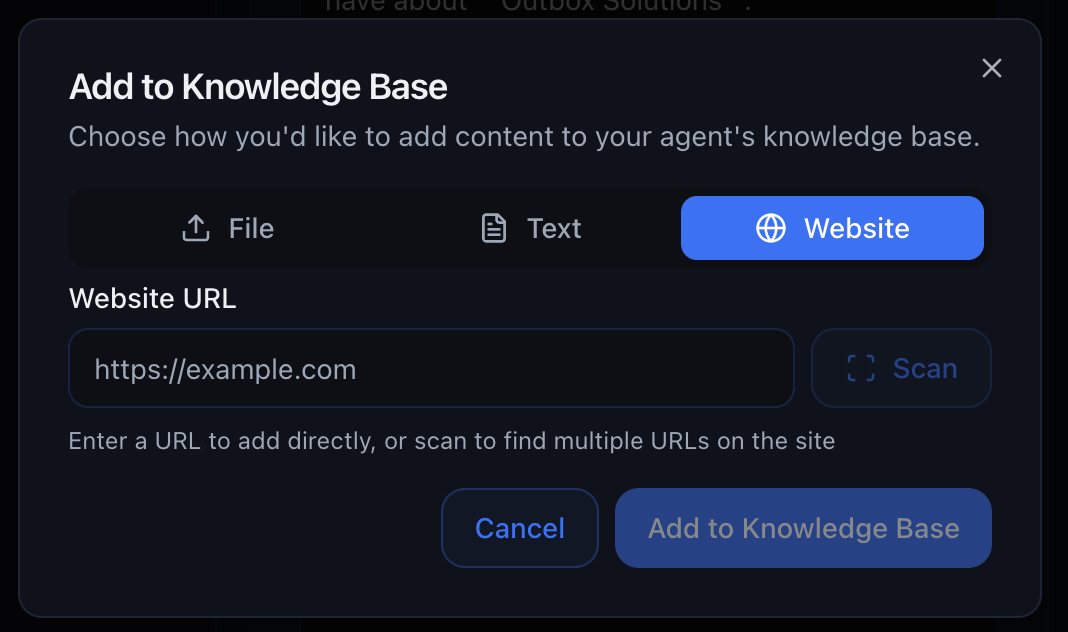 **Best for:**
* Company websites
* Product documentation
* Help centers
* Blog content
* Knowledge base articles
The scraper will follow links and capture the entire site structure, not just a single page!
Paste raw text directly into the knowledge base.
**Best for:**
* Company websites
* Product documentation
* Help centers
* Blog content
* Knowledge base articles
The scraper will follow links and capture the entire site structure, not just a single page!
Paste raw text directly into the knowledge base.
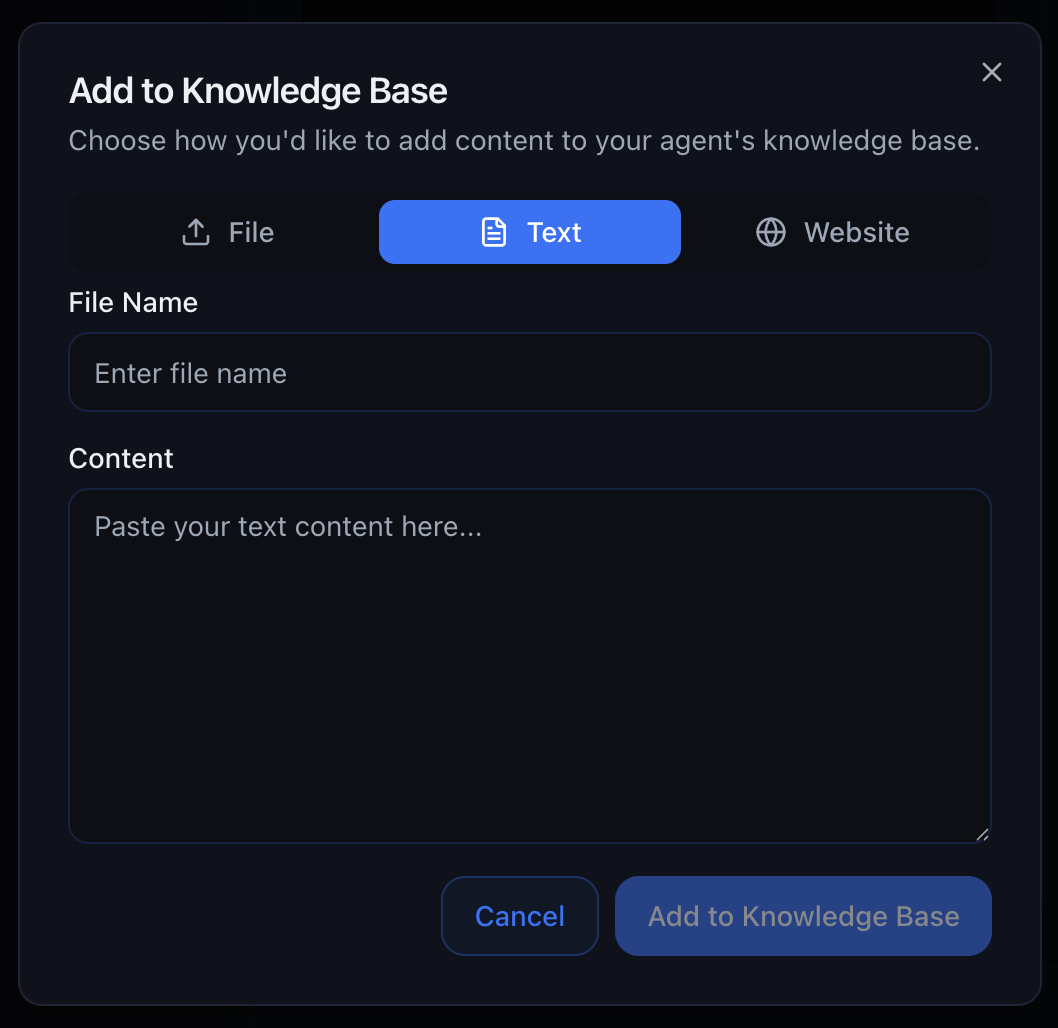 **Best for:**
* Custom instructions
* Quick reference information
* Company values and mission
* Temporary information
* Testing and prototyping
You can combine all three methods! Add files, scrape websites, **and** paste text for maximum coverage.
***
## Compliance Settings
Control what call data is stored for this voice agent.
### Recording Consent Message
**The message your agent says at the start of a recorded call.**
Use this field to tell callers that the call is being recorded.
**Placeholder:**
```
Enter recording consent message...
```
**Example:**
```
"Just so you know, this call may be recorded for quality and training purposes."
```
**Legal Requirement:** Many jurisdictions require consent before recording
calls. Check your local regulations and always inform callers if recording is
enabled.
***
### HIPAA Compliance
**Store logs, recordings, and transcriptions in HIPAA-compliant storage.**
Enable this for healthcare or other regulated workflows that require HIPAA-compliant handling of call data.
***
### Zero Data Retention (ZDR)
**Prevent call data from being stored for this agent.**
When enabled, no call data will be stored for this agent where Zero Data Retention is supported.
ZDR takes precedence over review and analytics workflows that rely on stored
call recordings or transcripts.
***
### Audio Recording
**Record the conversation.**
Disable audio recording when you do not want this agent's call audio stored. For squad conversations, disable this on an agent to keep that agent's portion of the conversation private.
***
### Transcript
**Enable or disable transcription during a call.**
Disable transcription when you do not want this agent's call transcript stored. For squad conversations, disable this on an agent to keep that agent's portion of the conversation private.
***
## Advanced Settings
Fine-tune your agent's behavior with these powerful configuration options.
### Time Zone
**Essential for accurate appointment booking.**
Set the agent's time zone so it can correctly interpret phrases like "tomorrow at 3pm" or "next Monday morning."
**Critical for booking tools:** Without the correct time zone, appointments
may be scheduled for the wrong time, causing missed meetings and frustrated
customers.
***
### Forwarding Number
**Automatically pass a qualified caller to a live rep.**
Enter a phone number in **E.164 format** (e.g., `+61412345678`) to transfer calls.
**How It Works:**
1. Agent qualifies the lead during the call
2. Agent says: "Great! Let me connect you with one of our specialists."
3. Call is transferred to the forwarding number
4. Live rep picks up and continues the conversation
**Use Cases:**
* Hot leads ready to buy
* Technical questions beyond the agent's scope
* VIP customers requesting personal service
* Emergency or urgent situations
**Pro Tip:** Use conditional logic in your prompt to decide when to forward.
For example: "If the caller wants to speak to someone immediately, forward the
call. Otherwise, book an appointment."
***
### Key Terms
**Improve transcription accuracy for unusual names, brands, suburbs, etc.**
Add terms that the speech-to-text engine might misunderstand. Separate each term with a space.
**Examples:**
```
Outbox Mandurah Fremantle Joondalup CrossFit Pilates HIIT
```
**What to Add:**
* Business names (especially unique spellings)
* Suburb and location names
* Product names and brands
* Industry-specific terminology
* Uncommon proper nouns
Key terms help the transcription engine recognize these words correctly during
the call, leading to better comprehension and fewer errors.
***
### Voicemail Message
**What to say if the system detects voicemail after \~20 seconds.**
**Example:**
```
"Hi {{contact.first_name}}, this is Sarah from Elite Fitness. I was just calling to follow up on your inquiry about our membership. Give us a call back at 08 1234 5678, or I'll try you again later. Have a great day!"
```
**Best Practices:**
* ✅ Keep it under 15 seconds
* ✅ Include your callback number
* ✅ Give a reason for the call
* ✅ Sound natural and friendly
* ❌ Don't oversell or sound desperate
**Leave it blank** if you don't want the agent to leave voicemails. The call
will simply end and be logged as "no answer."
***
### End Call Message
**Last line before hanging up.**
**Examples:**
```
"Thanks for your time today! You'll receive a confirmation email shortly. Have a great day!"
```
```
"Perfect! We'll see you on Tuesday at 3pm. Looking forward to it!"
```
```
"No worries at all. Feel free to call us back if you change your mind. Take care!"
```
**Leave Blank:**
If you want the agent to **disconnect silently** after completing its objective.
***
### Unqualified Prompt
**Define disqualifying criteria so calls are automatically tagged "Unqualified."**
**Example:**
```
Mark the call as unqualified if any of the following are true:
- The caller is a renter (we only work with homeowners)
- The caller is over 75 years old
- The caller is not the decision-maker
- The property is commercial (we only do residential)
```
**Why Use This:**
Unqualified tags integrate with GoHighLevel automations, allowing you to:
* Automatically remove unqualified leads from sequences
* Trigger different follow-up workflows
* Tag contacts for future remarketing
* Keep your pipeline clean and focused
Be specific! Vague criteria lead to inconsistent tagging. Clear rules ensure
reliable automation.
***
### Success Prompt
**Define what counts as a successful call.**
Use the success prompt to tell Outbox AI how to evaluate whether the call achieved the agent's goal. If Vapi returns `structuredData.success: true`, the call is marked as successful.
**Example:**
```
True if the caller got the answers they came for.
```
**Good success prompts are:**
* Specific about the caller outcome
* Focused on the goal of this agent
* Written as a true/false evaluation rule
**API Example:**
```json theme={null}
{
"zdr_enabled": true,
"recording_enabled": true,
"transcript_enabled": true,
"recording_consent_message": "This call may be recorded for quality assurance.",
"success_prompt": "True if the caller got the answers they came for.",
"unqualified_prompt": "True if the caller is not a fit for our services.",
"scoring_prompt": "Rate call success from 0 to 100.",
"summary_prompt": "Summarize the call in 2-3 sentences."
}
```
The success prompt creates a structured boolean field called `success`. If
Vapi returns `structuredData.success: true`, Outbox marks the call as
successful.
***
### Summary Prompt
**Tell Outbox AI how to format the call summary posted back to your CRM.**
**Example:**
```
Summarize this call in 2-3 sentences. Include:
- The caller's main question or goal
- Whether an appointment was booked (and when)
- Any objections or concerns mentioned
- Next steps
Format it in plain English, suitable for a sales rep to read quickly.
```
**Default Behavior:**
If left blank, Outbox AI generates a standard summary automatically.
**Customization Ideas:**
* Bullet points for easy scanning
* Include specific fields for your CRM
* Highlight key selling points mentioned
* Note urgency level or buying intent
***
### Scoring Prompt
**Define how the call should be scored from 0-100.**
**Example:**
```
Rate how successful this call was from 0-100. 0 means a true failure: caller was upset/angry, tools malfunctioned, or a serious error occurred.
100 means a perfect outcome: caller was engaged, happy, and all tools worked correctly.
50 means a neutral/middle call where some interaction happened but nothing notable was achieved.
If the call was very short (1-5 seconds), unanswered, or had no meaningful interaction, do NOT score it as 0. Instead, treat it as a neutral/no-outcome call (e.g., 30-40).
Consider caller engagement, tool success, and overall outcome when assigning the score.
```
**How to Use Scores:**
* Route high-scoring leads to sales immediately
* Add low-scoring leads to nurture campaigns
* Track conversion rates by score range
* Optimize agent performance over time
Scores are returned with the call completion webhook and visible in
GoHighLevel custom fields.
***
### Webhook URL
**Where to send the end-of-call report.**
Enter a URL to receive a POST request with detailed call information immediately after each call completes.
**Request Format:**
The webhook sends a POST request with the following JSON payload:
```json theme={null}
{
"id": "thread-uuid",
"status": "did-succeed",
"summary": "Caller wanted to book an appointment for teeth cleaning. Successfully scheduled for Tuesday at 3pm. Caller was friendly and confirmed contact details.",
"score": 87,
"agent": {
"id": "agent-uuid",
"name": "Dental Receptionist",
"phone_number": "+61412345678"
},
"direction": "outbound",
"duration": 142,
"contact": {
"id": "contact-uuid",
"name": "John Smith",
"email": "john@example.com",
"phone_number": "+61498765432",
"external_id": "ghl-contact-123"
},
"transcript": [
{
"type": "message",
"timestamp": "12/03/2026 • 3:42pm",
"role": "assistant",
"message": "Hi, this is Sarah from Acme Dental — am I speaking with John?",
"platform": "twilio"
},
{
"type": "message",
"timestamp": "12/03/2026 • 3:42pm",
"role": "user",
"message": "Yeah, this is John.",
"platform": "twilio"
},
{
"type": "tool_call",
"timestamp": "12/03/2026 • 3:43pm",
"name": "book_appointment",
"id": "tool-call-uuid",
"status": "success"
},
{
"type": "message",
"timestamp": "12/03/2026 • 3:43pm",
"role": "assistant",
"message": "Great — you're booked in for Tuesday at 3pm. See you then!",
"platform": "twilio"
}
]
}
```
**Fields Explained:**
* **id** – Unique thread identifier
* **status** – Call outcome (did-succeed, did-not-answer, error, etc.)
* **summary** – AI-generated summary of the call
* **score** – Call quality score (0–100)
* **agent.id** – The agent's unique ID
* **agent.name** – The agent's name
* **agent.phone\_number** – The number the agent called from
* **direction** – "inbound" or "outbound"
* **duration** – Call length in seconds
* **contact.id** – Contact's unique ID
* **contact.name** – Contact's full name
* **contact.email** – Contact's email address
* **contact.phone\_number** – Contact's phone number
* **contact.external\_id** – Contact's ID in your CRM (e.g., GoHighLevel contact ID)
* **transcript** – Array of chronological transcript entries (spoken messages, tool calls, and interrupts) when transcripts are enabled. Same shape as the `messages` array on `GET /agent/transcript/{transcript_id}`.
**Transcript entry types:**
Each entry in the `transcript` array has a `type` field. There are three variants:
* `message` — a spoken turn. Has `role` (`user` or `assistant`), `message`, `timestamp`, and `platform`.
* `tool_call` — a tool the agent ran mid-call. Has `name`, `id`, `status`, and `timestamp`.
* `interrupt` — the caller cut the agent off. Has `message`, `timestamp`, and `platform`.
**Use Cases:**
* Send data to Zapier or Make
* Update your CRM with call results
* Trigger follow-up automations based on status
* Log analytics in custom dashboards
* Route hot leads to sales teams
* Create tasks for follow-ups
Test your webhook with a tool like [webhook.site](https://webhook.site) to see
exactly what data is being sent before connecting your production systems.
***
## Testing & Deployment
Test your agent thoroughly before sending it live to customers.
### Test Your Agent
Test your voice agent before going live using either web-based calling or real phone calls.
#### Option 1: Test via Web Call
Click the **Test** button to talk to your agent directly from your browser—no phone required.
**What This Does:**
* Opens a web-based call interface in your browser
* No phone number required
* Instant feedback on prompt behavior
* Perfect for rapid iteration and quick tests
**Best For:**
* Quick prompt testing and adjustments
* Checking tool integrations
* Verifying voice and tone
* Debugging conversation flows
* Fast iteration during development
Test with **real scenarios** that customers will encounter, not just
happy-path conversations. Try to break it!
***
#### Option 2: Test via Phone Call
Send a real phone call to yourself to test the complete customer experience.
**Best for:**
* Custom instructions
* Quick reference information
* Company values and mission
* Temporary information
* Testing and prototyping
You can combine all three methods! Add files, scrape websites, **and** paste text for maximum coverage.
***
## Compliance Settings
Control what call data is stored for this voice agent.
### Recording Consent Message
**The message your agent says at the start of a recorded call.**
Use this field to tell callers that the call is being recorded.
**Placeholder:**
```
Enter recording consent message...
```
**Example:**
```
"Just so you know, this call may be recorded for quality and training purposes."
```
**Legal Requirement:** Many jurisdictions require consent before recording
calls. Check your local regulations and always inform callers if recording is
enabled.
***
### HIPAA Compliance
**Store logs, recordings, and transcriptions in HIPAA-compliant storage.**
Enable this for healthcare or other regulated workflows that require HIPAA-compliant handling of call data.
***
### Zero Data Retention (ZDR)
**Prevent call data from being stored for this agent.**
When enabled, no call data will be stored for this agent where Zero Data Retention is supported.
ZDR takes precedence over review and analytics workflows that rely on stored
call recordings or transcripts.
***
### Audio Recording
**Record the conversation.**
Disable audio recording when you do not want this agent's call audio stored. For squad conversations, disable this on an agent to keep that agent's portion of the conversation private.
***
### Transcript
**Enable or disable transcription during a call.**
Disable transcription when you do not want this agent's call transcript stored. For squad conversations, disable this on an agent to keep that agent's portion of the conversation private.
***
## Advanced Settings
Fine-tune your agent's behavior with these powerful configuration options.
### Time Zone
**Essential for accurate appointment booking.**
Set the agent's time zone so it can correctly interpret phrases like "tomorrow at 3pm" or "next Monday morning."
**Critical for booking tools:** Without the correct time zone, appointments
may be scheduled for the wrong time, causing missed meetings and frustrated
customers.
***
### Forwarding Number
**Automatically pass a qualified caller to a live rep.**
Enter a phone number in **E.164 format** (e.g., `+61412345678`) to transfer calls.
**How It Works:**
1. Agent qualifies the lead during the call
2. Agent says: "Great! Let me connect you with one of our specialists."
3. Call is transferred to the forwarding number
4. Live rep picks up and continues the conversation
**Use Cases:**
* Hot leads ready to buy
* Technical questions beyond the agent's scope
* VIP customers requesting personal service
* Emergency or urgent situations
**Pro Tip:** Use conditional logic in your prompt to decide when to forward.
For example: "If the caller wants to speak to someone immediately, forward the
call. Otherwise, book an appointment."
***
### Key Terms
**Improve transcription accuracy for unusual names, brands, suburbs, etc.**
Add terms that the speech-to-text engine might misunderstand. Separate each term with a space.
**Examples:**
```
Outbox Mandurah Fremantle Joondalup CrossFit Pilates HIIT
```
**What to Add:**
* Business names (especially unique spellings)
* Suburb and location names
* Product names and brands
* Industry-specific terminology
* Uncommon proper nouns
Key terms help the transcription engine recognize these words correctly during
the call, leading to better comprehension and fewer errors.
***
### Voicemail Message
**What to say if the system detects voicemail after \~20 seconds.**
**Example:**
```
"Hi {{contact.first_name}}, this is Sarah from Elite Fitness. I was just calling to follow up on your inquiry about our membership. Give us a call back at 08 1234 5678, or I'll try you again later. Have a great day!"
```
**Best Practices:**
* ✅ Keep it under 15 seconds
* ✅ Include your callback number
* ✅ Give a reason for the call
* ✅ Sound natural and friendly
* ❌ Don't oversell or sound desperate
**Leave it blank** if you don't want the agent to leave voicemails. The call
will simply end and be logged as "no answer."
***
### End Call Message
**Last line before hanging up.**
**Examples:**
```
"Thanks for your time today! You'll receive a confirmation email shortly. Have a great day!"
```
```
"Perfect! We'll see you on Tuesday at 3pm. Looking forward to it!"
```
```
"No worries at all. Feel free to call us back if you change your mind. Take care!"
```
**Leave Blank:**
If you want the agent to **disconnect silently** after completing its objective.
***
### Unqualified Prompt
**Define disqualifying criteria so calls are automatically tagged "Unqualified."**
**Example:**
```
Mark the call as unqualified if any of the following are true:
- The caller is a renter (we only work with homeowners)
- The caller is over 75 years old
- The caller is not the decision-maker
- The property is commercial (we only do residential)
```
**Why Use This:**
Unqualified tags integrate with GoHighLevel automations, allowing you to:
* Automatically remove unqualified leads from sequences
* Trigger different follow-up workflows
* Tag contacts for future remarketing
* Keep your pipeline clean and focused
Be specific! Vague criteria lead to inconsistent tagging. Clear rules ensure
reliable automation.
***
### Success Prompt
**Define what counts as a successful call.**
Use the success prompt to tell Outbox AI how to evaluate whether the call achieved the agent's goal. If Vapi returns `structuredData.success: true`, the call is marked as successful.
**Example:**
```
True if the caller got the answers they came for.
```
**Good success prompts are:**
* Specific about the caller outcome
* Focused on the goal of this agent
* Written as a true/false evaluation rule
**API Example:**
```json theme={null}
{
"zdr_enabled": true,
"recording_enabled": true,
"transcript_enabled": true,
"recording_consent_message": "This call may be recorded for quality assurance.",
"success_prompt": "True if the caller got the answers they came for.",
"unqualified_prompt": "True if the caller is not a fit for our services.",
"scoring_prompt": "Rate call success from 0 to 100.",
"summary_prompt": "Summarize the call in 2-3 sentences."
}
```
The success prompt creates a structured boolean field called `success`. If
Vapi returns `structuredData.success: true`, Outbox marks the call as
successful.
***
### Summary Prompt
**Tell Outbox AI how to format the call summary posted back to your CRM.**
**Example:**
```
Summarize this call in 2-3 sentences. Include:
- The caller's main question or goal
- Whether an appointment was booked (and when)
- Any objections or concerns mentioned
- Next steps
Format it in plain English, suitable for a sales rep to read quickly.
```
**Default Behavior:**
If left blank, Outbox AI generates a standard summary automatically.
**Customization Ideas:**
* Bullet points for easy scanning
* Include specific fields for your CRM
* Highlight key selling points mentioned
* Note urgency level or buying intent
***
### Scoring Prompt
**Define how the call should be scored from 0-100.**
**Example:**
```
Rate how successful this call was from 0-100. 0 means a true failure: caller was upset/angry, tools malfunctioned, or a serious error occurred.
100 means a perfect outcome: caller was engaged, happy, and all tools worked correctly.
50 means a neutral/middle call where some interaction happened but nothing notable was achieved.
If the call was very short (1-5 seconds), unanswered, or had no meaningful interaction, do NOT score it as 0. Instead, treat it as a neutral/no-outcome call (e.g., 30-40).
Consider caller engagement, tool success, and overall outcome when assigning the score.
```
**How to Use Scores:**
* Route high-scoring leads to sales immediately
* Add low-scoring leads to nurture campaigns
* Track conversion rates by score range
* Optimize agent performance over time
Scores are returned with the call completion webhook and visible in
GoHighLevel custom fields.
***
### Webhook URL
**Where to send the end-of-call report.**
Enter a URL to receive a POST request with detailed call information immediately after each call completes.
**Request Format:**
The webhook sends a POST request with the following JSON payload:
```json theme={null}
{
"id": "thread-uuid",
"status": "did-succeed",
"summary": "Caller wanted to book an appointment for teeth cleaning. Successfully scheduled for Tuesday at 3pm. Caller was friendly and confirmed contact details.",
"score": 87,
"agent": {
"id": "agent-uuid",
"name": "Dental Receptionist",
"phone_number": "+61412345678"
},
"direction": "outbound",
"duration": 142,
"contact": {
"id": "contact-uuid",
"name": "John Smith",
"email": "john@example.com",
"phone_number": "+61498765432",
"external_id": "ghl-contact-123"
},
"transcript": [
{
"type": "message",
"timestamp": "12/03/2026 • 3:42pm",
"role": "assistant",
"message": "Hi, this is Sarah from Acme Dental — am I speaking with John?",
"platform": "twilio"
},
{
"type": "message",
"timestamp": "12/03/2026 • 3:42pm",
"role": "user",
"message": "Yeah, this is John.",
"platform": "twilio"
},
{
"type": "tool_call",
"timestamp": "12/03/2026 • 3:43pm",
"name": "book_appointment",
"id": "tool-call-uuid",
"status": "success"
},
{
"type": "message",
"timestamp": "12/03/2026 • 3:43pm",
"role": "assistant",
"message": "Great — you're booked in for Tuesday at 3pm. See you then!",
"platform": "twilio"
}
]
}
```
**Fields Explained:**
* **id** – Unique thread identifier
* **status** – Call outcome (did-succeed, did-not-answer, error, etc.)
* **summary** – AI-generated summary of the call
* **score** – Call quality score (0–100)
* **agent.id** – The agent's unique ID
* **agent.name** – The agent's name
* **agent.phone\_number** – The number the agent called from
* **direction** – "inbound" or "outbound"
* **duration** – Call length in seconds
* **contact.id** – Contact's unique ID
* **contact.name** – Contact's full name
* **contact.email** – Contact's email address
* **contact.phone\_number** – Contact's phone number
* **contact.external\_id** – Contact's ID in your CRM (e.g., GoHighLevel contact ID)
* **transcript** – Array of chronological transcript entries (spoken messages, tool calls, and interrupts) when transcripts are enabled. Same shape as the `messages` array on `GET /agent/transcript/{transcript_id}`.
**Transcript entry types:**
Each entry in the `transcript` array has a `type` field. There are three variants:
* `message` — a spoken turn. Has `role` (`user` or `assistant`), `message`, `timestamp`, and `platform`.
* `tool_call` — a tool the agent ran mid-call. Has `name`, `id`, `status`, and `timestamp`.
* `interrupt` — the caller cut the agent off. Has `message`, `timestamp`, and `platform`.
**Use Cases:**
* Send data to Zapier or Make
* Update your CRM with call results
* Trigger follow-up automations based on status
* Log analytics in custom dashboards
* Route hot leads to sales teams
* Create tasks for follow-ups
Test your webhook with a tool like [webhook.site](https://webhook.site) to see
exactly what data is being sent before connecting your production systems.
***
## Testing & Deployment
Test your agent thoroughly before sending it live to customers.
### Test Your Agent
Test your voice agent before going live using either web-based calling or real phone calls.
#### Option 1: Test via Web Call
Click the **Test** button to talk to your agent directly from your browser—no phone required.
**What This Does:**
* Opens a web-based call interface in your browser
* No phone number required
* Instant feedback on prompt behavior
* Perfect for rapid iteration and quick tests
**Best For:**
* Quick prompt testing and adjustments
* Checking tool integrations
* Verifying voice and tone
* Debugging conversation flows
* Fast iteration during development
Test with **real scenarios** that customers will encounter, not just
happy-path conversations. Try to break it!
***
#### Option 2: Test via Phone Call
Send a real phone call to yourself to test the complete customer experience.
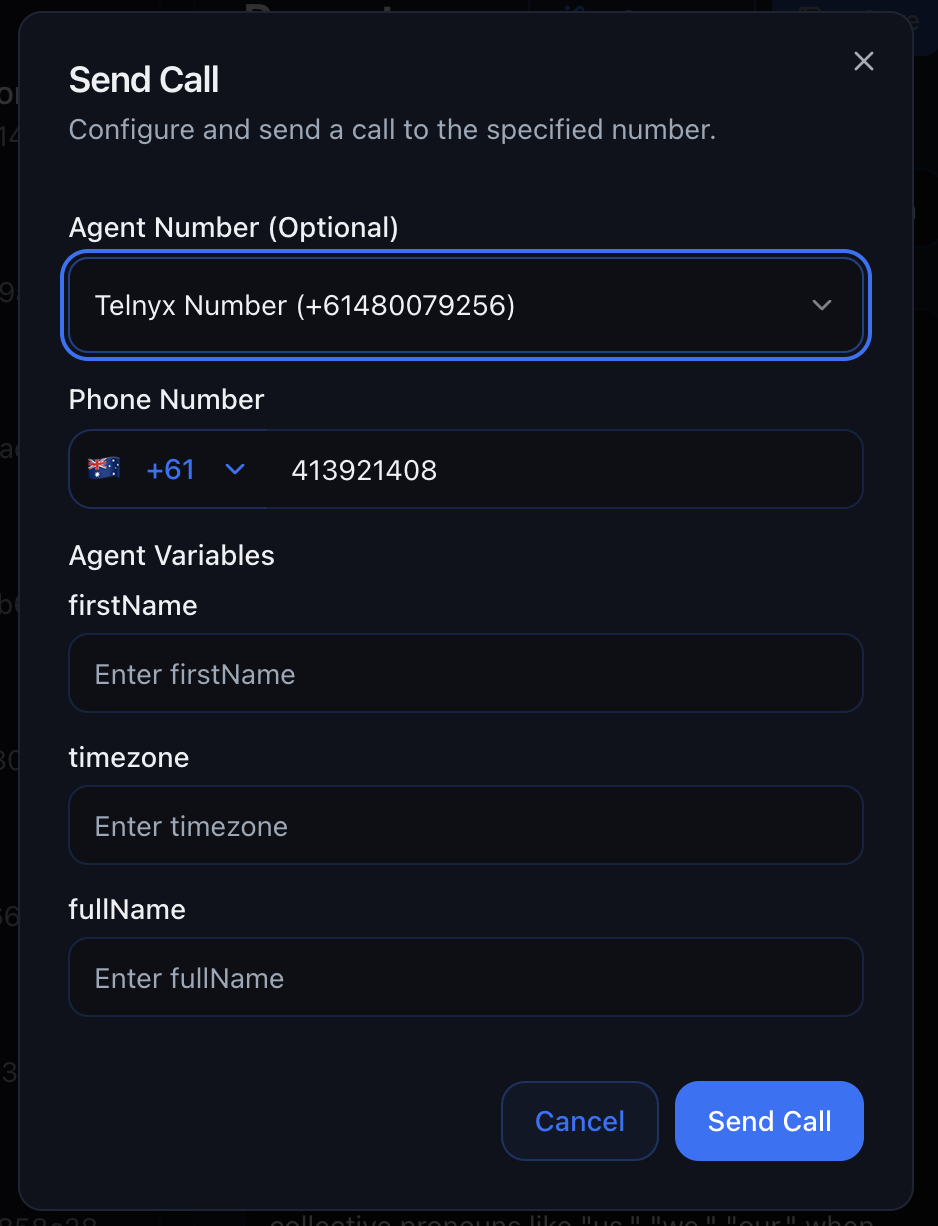 Choose which voice agent to test
Use your mobile or desk phone (E.164 format: `+61412345678`)
The agent will call you within seconds
Test booking flows, objections, edge cases, etc.
Check the transcript, summary, and score in Conversations
**Why Test on a Real Phone:**
* ✅ Experience exactly what customers hear
* ✅ Test call quality and audio levels
* ✅ Check latency and response times in real-world conditions
* ✅ Verify transcription accuracy
* ✅ Ensure tools work end-to-end
* ✅ Test caller ID display
* ✅ Validate voicemail detection
Test calls are billed at standard rates, but they're worth every cent to catch
issues before going live!
***
### Link Numbers
**Assign a DID (phone number) to an agent so incoming calls trigger the right workflow.**
Choose which voice agent to test
Use your mobile or desk phone (E.164 format: `+61412345678`)
The agent will call you within seconds
Test booking flows, objections, edge cases, etc.
Check the transcript, summary, and score in Conversations
**Why Test on a Real Phone:**
* ✅ Experience exactly what customers hear
* ✅ Test call quality and audio levels
* ✅ Check latency and response times in real-world conditions
* ✅ Verify transcription accuracy
* ✅ Ensure tools work end-to-end
* ✅ Test caller ID display
* ✅ Validate voicemail detection
Test calls are billed at standard rates, but they're worth every cent to catch
issues before going live!
***
### Link Numbers
**Assign a DID (phone number) to an agent so incoming calls trigger the right workflow.**
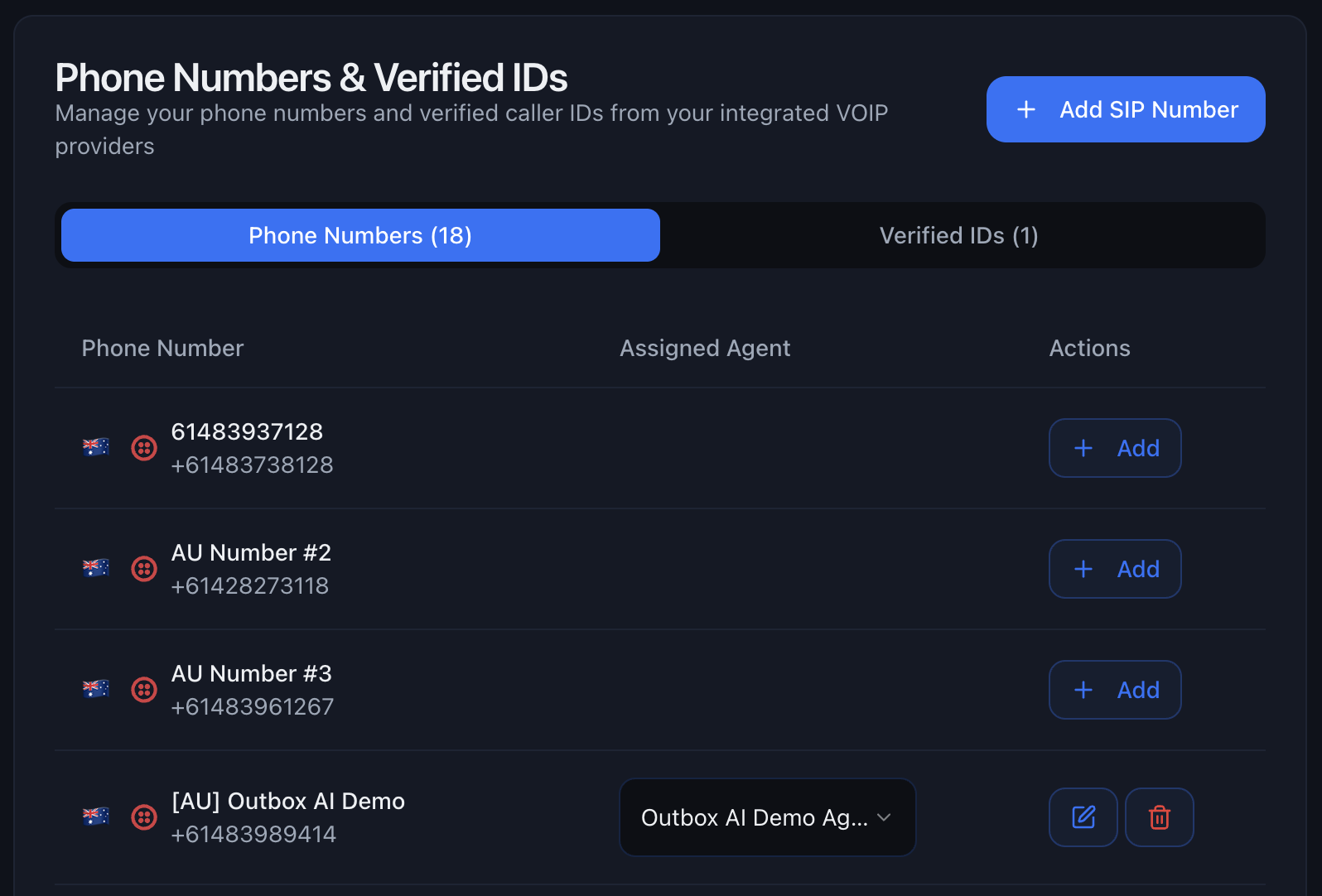 Navigate to **Phone Numbers** settings to:
1. Add new phone numbers
2. Assign numbers to specific agents
**Use Cases:**
* Dedicated support line for customer service agent
* Separate numbers for different campaigns
***
### Share Button
**Demo your agents with sharable web and phone call pages.**
Click the **Share** button to get:
#### Web Call Page
A browser-based demo where anyone can talk to your agent without a phone.
Navigate to **Phone Numbers** settings to:
1. Add new phone numbers
2. Assign numbers to specific agents
**Use Cases:**
* Dedicated support line for customer service agent
* Separate numbers for different campaigns
***
### Share Button
**Demo your agents with sharable web and phone call pages.**
Click the **Share** button to get:
#### Web Call Page
A browser-based demo where anyone can talk to your agent without a phone.
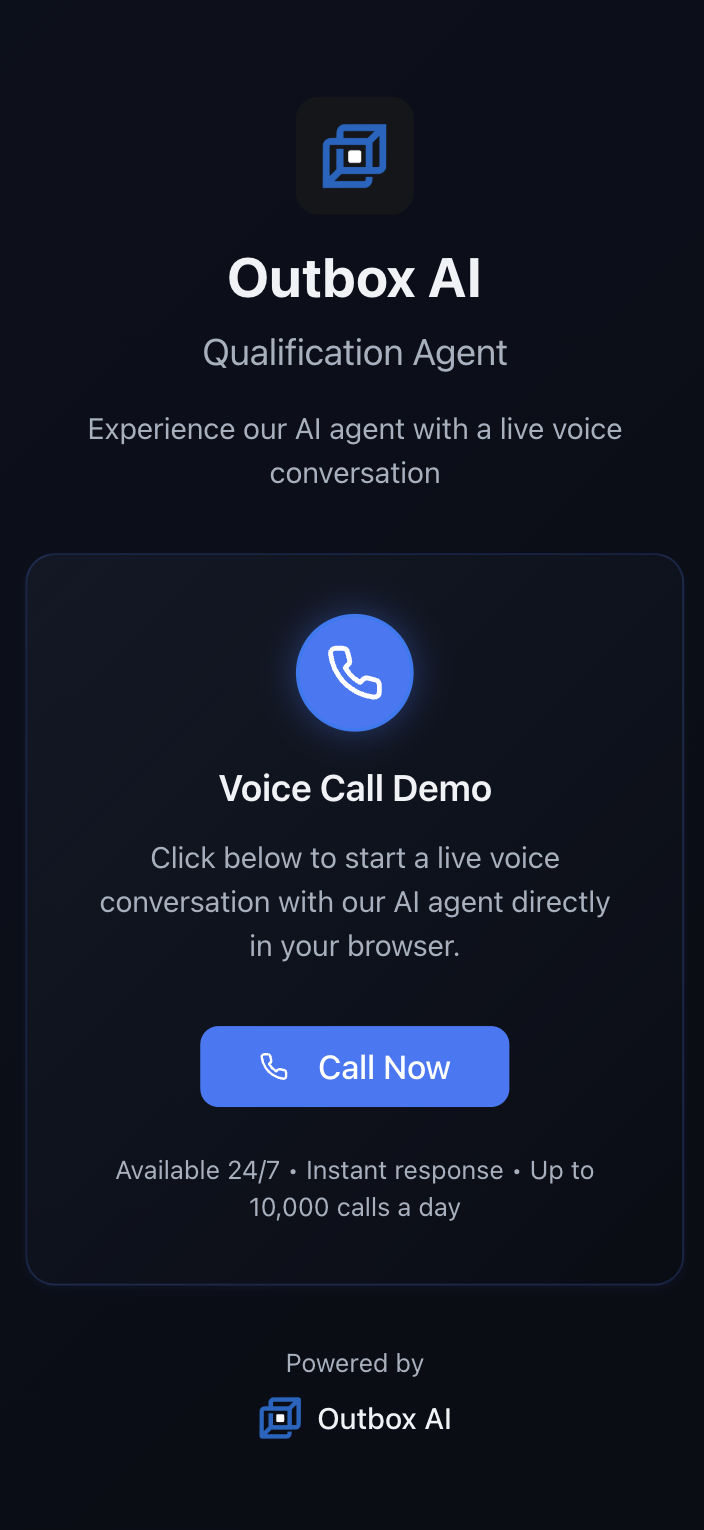 **Perfect For:**
* Internal demos to your team
* Client presentations
* Training new staff
* Quick testing without using phone credits
#### Phone Call Page
A landing page with a "Call Now" button that triggers the agent to call the visitor.
**Perfect For:**
* Internal demos to your team
* Client presentations
* Training new staff
* Quick testing without using phone credits
#### Phone Call Page
A landing page with a "Call Now" button that triggers the agent to call the visitor.
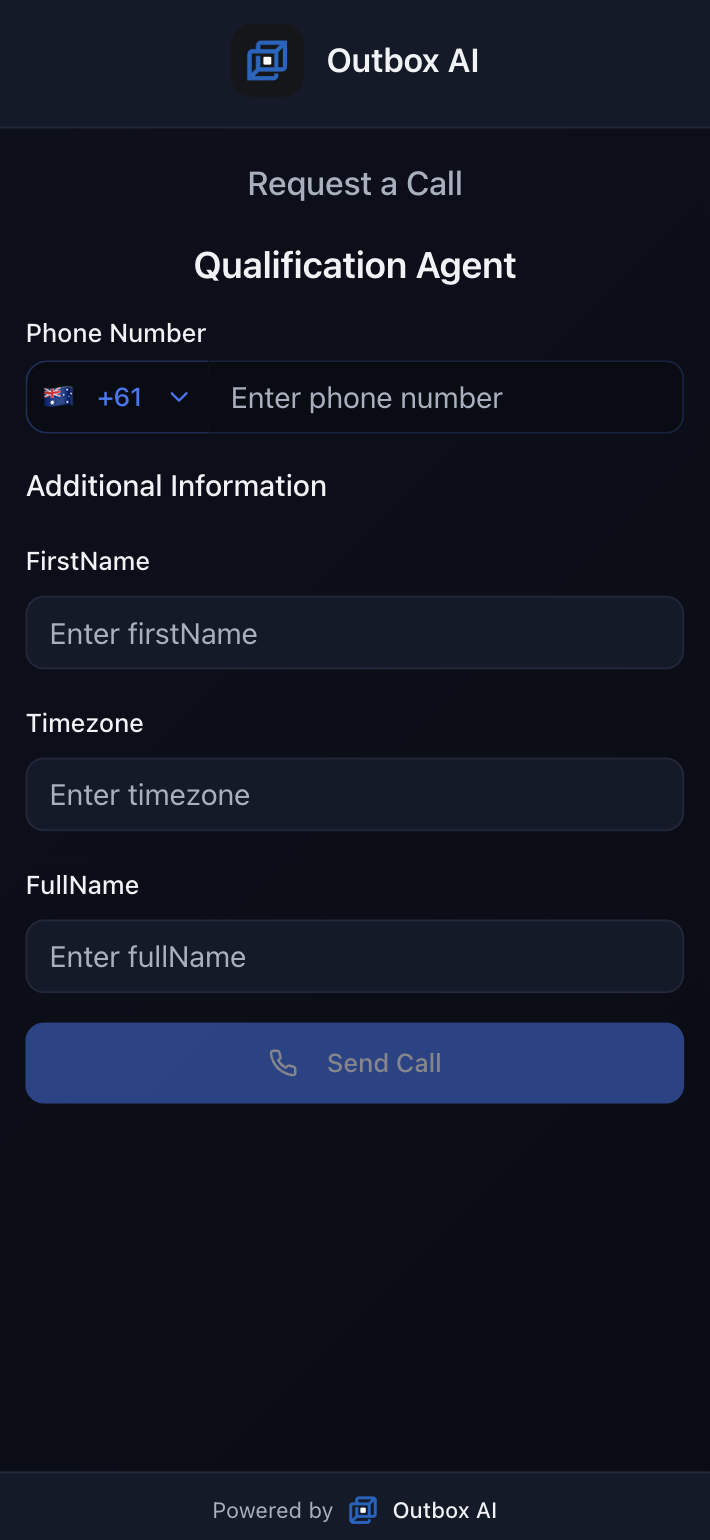 **Perfect For:**
* Website "Call Me Back" buttons
* Sales demos for prospects
* Trade show displays
* Email campaigns ("Click to speak with us")
**Pro Tip:** Use the phone call page to let prospects try your service
risk-free. It's a powerful demo tool!
***
## Voice Widget Embed
Embed a voice widget directly on your website so visitors can start a voice
conversation without leaving the page.
### How to Use
1. Open your voice agent and go to the **Share** or **Embed** section
2. Copy the generated Voice Widget embed code
3. Paste it into your website before the closing `` tag
4. Publish your site and test the widget on desktop and mobile
### Common Use Cases
* Website "Talk to Us Now" buttons
* Landing pages for lead qualification
* Instant callback or pre-sales screening flows
* High-intent pages where chat alone is not enough
**Perfect For:**
* Website "Call Me Back" buttons
* Sales demos for prospects
* Trade show displays
* Email campaigns ("Click to speak with us")
**Pro Tip:** Use the phone call page to let prospects try your service
risk-free. It's a powerful demo tool!
***
## Voice Widget Embed
Embed a voice widget directly on your website so visitors can start a voice
conversation without leaving the page.
### How to Use
1. Open your voice agent and go to the **Share** or **Embed** section
2. Copy the generated Voice Widget embed code
3. Paste it into your website before the closing `` tag
4. Publish your site and test the widget on desktop and mobile
### Common Use Cases
* Website "Talk to Us Now" buttons
* Landing pages for lead qualification
* Instant callback or pre-sales screening flows
* High-intent pages where chat alone is not enough