> ## Documentation Index
> Fetch the complete documentation index at: https://docs.getoutbox.ai/llms.txt
> Use this file to discover all available pages before exploring further.
# Whitelabelling
> Customize Outbox AI with your own branding
## Overview
White-label Outbox AI to present the platform as your own product. Replace logos, brand names, domains, and email addresses so clients only see your agency's branding.
**Perfect for agencies:** Build your brand while using Outbox AI's
infrastructure behind the scenes.
***
## Access White-Label Settings
Navigate to your agency's white-label configuration.
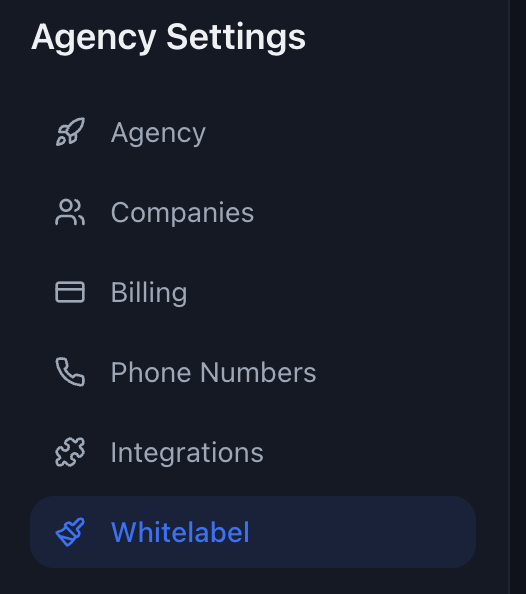 Log in to Outbox AI and click on your agency workspace
Go to **Settings** → **White-label** tab
***
## Configure Your Branding
Set up your agency's branding in five key fields.
Log in to Outbox AI and click on your agency workspace
Go to **Settings** → **White-label** tab
***
## Configure Your Branding
Set up your agency's branding in five key fields.
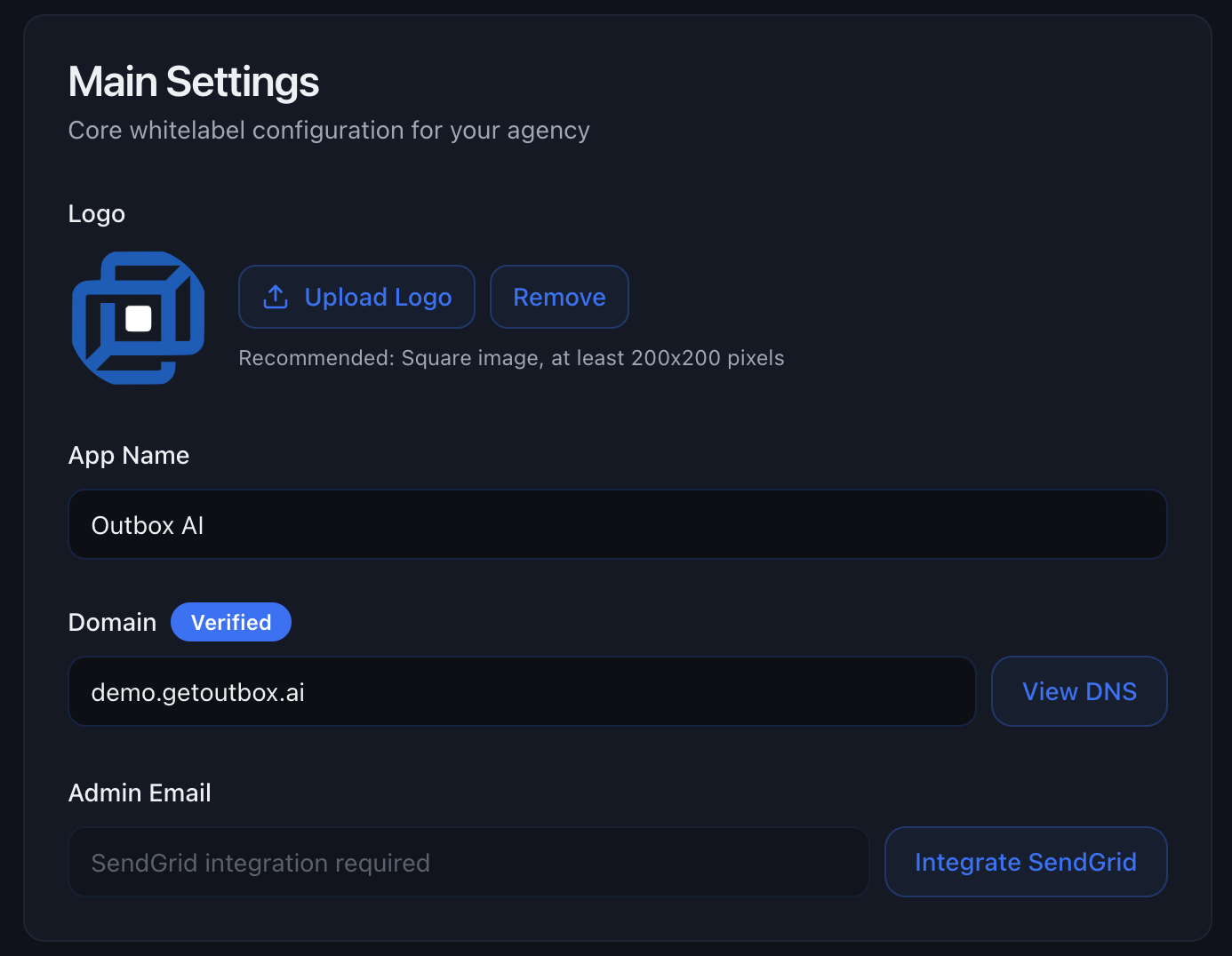 ### 1. Logo
Upload your agency logo (PNG or SVG, square, 512×512px minimum).
**Where it appears:**
* Sidebar navigation
* Login screen
* Email invitations
* Browser favicon
***
### 2. Brand Name
Enter your agency or product name.
**Where it appears:**
* Browser tab title
* Login screen heading
* Email subject lines
* Platform footer
**Example:** "Acme Marketing Platform", "Digital Solutions Hub"
***
### 3. J.A.R.V.I.S Name
Set the assistant name your clients see across the platform.
**Where it appears:**
* J.A.R.V.I.S page title and assistant headers
* Subaccount settings and help text
* Internal references shown to client users
**Example names:** "Atlas", "Ops Copilot", "Agency AI Assistant"
This is a display-only white-label setting. Renaming J.A.R.V.I.S does not
change any underlying automation behavior.
***
### 4. Custom Domain
Enter your custom domain (e.g., `portal.youragency.com`).
**How it works:**
1. Enter your subdomain (e.g., `app` or `portal`)
2. Outbox AI provides 3 DNS records to add
3. Add these records at your DNS provider (GoDaddy, Cloudflare, etc.)
4. Wait for DNS propagation (usually 1-2 hours)
5. Your portal becomes accessible at your custom domain
**Example DNS Records:**
If you enter `app.youragency.com`, you'll add these records:
| Type | Name | Value |
| ----- | --------- | ----------------------- |
| CNAME | `app` | `cname.vercel-dns.com` |
| CNAME | `www.app` | `cname.vercel-dns.com` |
| TXT | `_vercel` | `[vercel_verification]` |
**Use a subdomain:** `portal.youragency.com` or `app.youragency.com` works
best. Avoid using your root domain. The exact TXT verification value will be
unique to your account.
***
### 5. Email Address
Set your sender email for system notifications and invites (e.g., `noreply@youragency.com`).
**Requirements:**
1. **Connect SendGrid** – Add your SendGrid API key
2. **Verify sender email** – SendGrid will send a verification link
3. **Set as default** – Choose this email for all notifications
**SendGrid required:** You need a SendGrid account to send emails from your
domain. Sign up at [SendGrid.com](https://sendgrid.com) if you don't have one.
**Common email addresses:**
* `noreply@youragency.com` – Automated notifications
* `support@youragency.com` – Support emails
* `team@youragency.com` – Team invites
***
## Dashboard Color Branding
**Available on Growth/Scale plans:** Dashboard color customization is available
on Growth and Scale. If you need this feature, upgrade to **Growth**.
Users on the **Growth** or **Scale** plan can now brand their dashboard with 3 colors to match their brand identity:
* **Background colour** – Main background color for the dashboard
* **Secondary colour** – Secondary UI elements and accents
* **Accent colour** – Highlight color for buttons, links, and interactive elements
### 1. Logo
Upload your agency logo (PNG or SVG, square, 512×512px minimum).
**Where it appears:**
* Sidebar navigation
* Login screen
* Email invitations
* Browser favicon
***
### 2. Brand Name
Enter your agency or product name.
**Where it appears:**
* Browser tab title
* Login screen heading
* Email subject lines
* Platform footer
**Example:** "Acme Marketing Platform", "Digital Solutions Hub"
***
### 3. J.A.R.V.I.S Name
Set the assistant name your clients see across the platform.
**Where it appears:**
* J.A.R.V.I.S page title and assistant headers
* Subaccount settings and help text
* Internal references shown to client users
**Example names:** "Atlas", "Ops Copilot", "Agency AI Assistant"
This is a display-only white-label setting. Renaming J.A.R.V.I.S does not
change any underlying automation behavior.
***
### 4. Custom Domain
Enter your custom domain (e.g., `portal.youragency.com`).
**How it works:**
1. Enter your subdomain (e.g., `app` or `portal`)
2. Outbox AI provides 3 DNS records to add
3. Add these records at your DNS provider (GoDaddy, Cloudflare, etc.)
4. Wait for DNS propagation (usually 1-2 hours)
5. Your portal becomes accessible at your custom domain
**Example DNS Records:**
If you enter `app.youragency.com`, you'll add these records:
| Type | Name | Value |
| ----- | --------- | ----------------------- |
| CNAME | `app` | `cname.vercel-dns.com` |
| CNAME | `www.app` | `cname.vercel-dns.com` |
| TXT | `_vercel` | `[vercel_verification]` |
**Use a subdomain:** `portal.youragency.com` or `app.youragency.com` works
best. Avoid using your root domain. The exact TXT verification value will be
unique to your account.
***
### 5. Email Address
Set your sender email for system notifications and invites (e.g., `noreply@youragency.com`).
**Requirements:**
1. **Connect SendGrid** – Add your SendGrid API key
2. **Verify sender email** – SendGrid will send a verification link
3. **Set as default** – Choose this email for all notifications
**SendGrid required:** You need a SendGrid account to send emails from your
domain. Sign up at [SendGrid.com](https://sendgrid.com) if you don't have one.
**Common email addresses:**
* `noreply@youragency.com` – Automated notifications
* `support@youragency.com` – Support emails
* `team@youragency.com` – Team invites
***
## Dashboard Color Branding
**Available on Growth/Scale plans:** Dashboard color customization is available
on Growth and Scale. If you need this feature, upgrade to **Growth**.
Users on the **Growth** or **Scale** plan can now brand their dashboard with 3 colors to match their brand identity:
* **Background colour** – Main background color for the dashboard
* **Secondary colour** – Secondary UI elements and accents
* **Accent colour** – Highlight color for buttons, links, and interactive elements
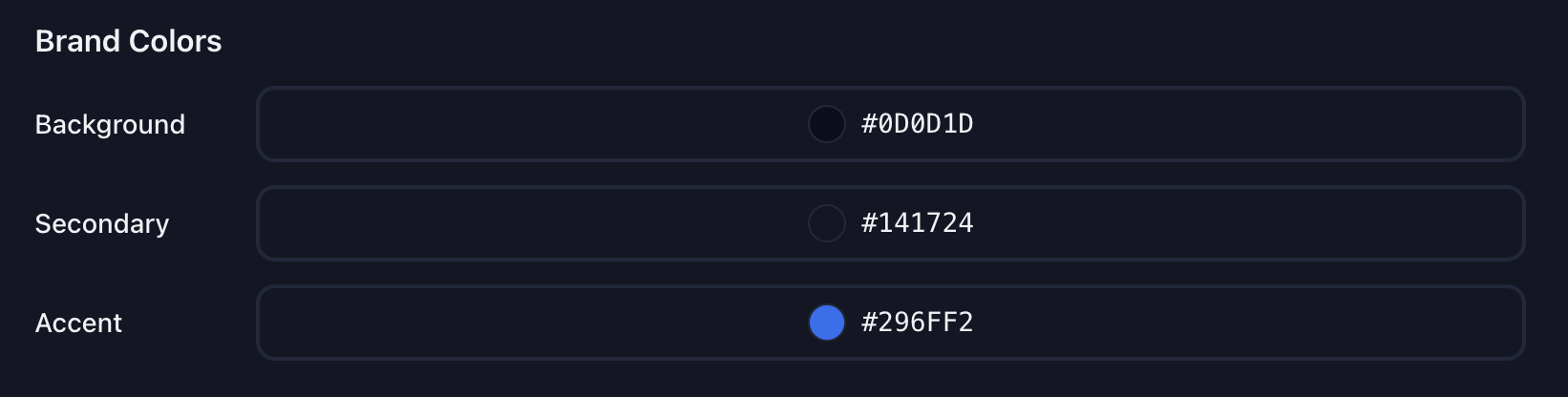 Customize your dashboard's appearance to align with your brand colors for a fully cohesive white-label experience.
***
## API Domain Whitelabeling
**Available on Scale plan:** API domain whitelabeling is available on Scale
only. If you need this feature, upgrade to **Scale**.
Users on the **Scale** plan can whitelabel the API domain so that API calls are made to their custom domain, and their own API endpoint is shown in their clients' Twilio accounts and other integrations.
**What this enables:**
* API calls are made to your custom domain (e.g., `api.youragency.com`)
* Your API endpoint appears in your clients' Twilio accounts
* Complete white-label API experience across all integrations
**Setup is not immediate:** This change requires DNS record configuration and
will require us to reach out to you to add the necessary DNS records. Allow
24-48 hours for the API domain whitelabeling to be fully configured and
activated.
***
## White-Label GoHighLevel
If you run a white-label GoHighLevel instance, you can replace GoHighLevel branding throughout Outbox AI.
Customize your dashboard's appearance to align with your brand colors for a fully cohesive white-label experience.
***
## API Domain Whitelabeling
**Available on Scale plan:** API domain whitelabeling is available on Scale
only. If you need this feature, upgrade to **Scale**.
Users on the **Scale** plan can whitelabel the API domain so that API calls are made to their custom domain, and their own API endpoint is shown in their clients' Twilio accounts and other integrations.
**What this enables:**
* API calls are made to your custom domain (e.g., `api.youragency.com`)
* Your API endpoint appears in your clients' Twilio accounts
* Complete white-label API experience across all integrations
**Setup is not immediate:** This change requires DNS record configuration and
will require us to reach out to you to add the necessary DNS records. Allow
24-48 hours for the API domain whitelabeling to be fully configured and
activated.
***
## White-Label GoHighLevel
If you run a white-label GoHighLevel instance, you can replace GoHighLevel branding throughout Outbox AI.
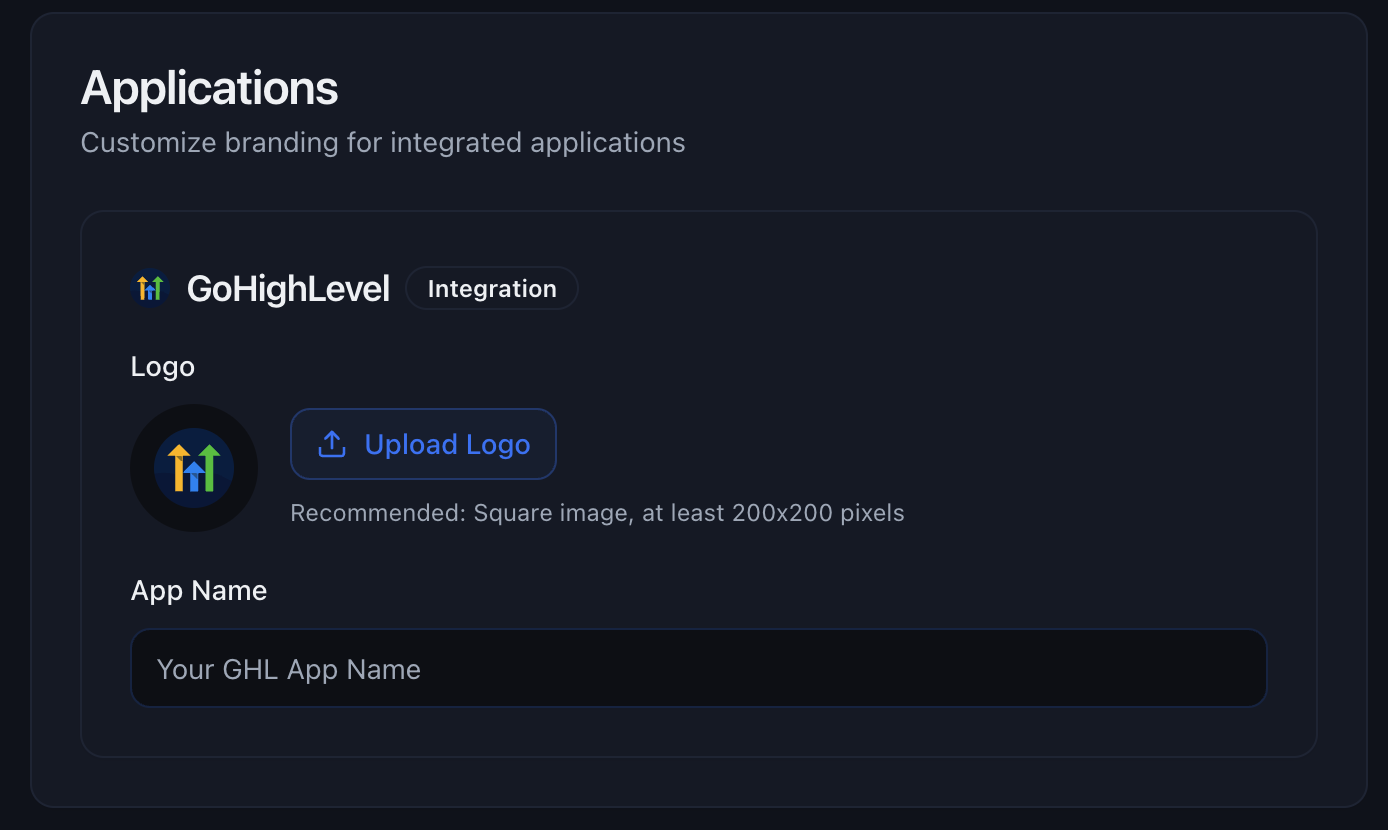 ### What to Configure
**1. GoHighLevel Logo**\
Upload your white-labeled GHL logo (square PNG/SVG, 256×256px minimum)
**2. GoHighLevel Account Name**\
Enter your GHL white-label name (e.g., "Acme CRM" instead of "GoHighLevel")
### What Gets Replaced
✅ All "GoHighLevel" text becomes your brand name\
✅ GoHighLevel logo replaced with your logo\
✅ Integration cards show your branding\
✅ Settings and help text reference your CRM name
**Example:**
| Before | After |
| ------------------------- | ---------------------- |
| "Connect to GoHighLevel" | "Connect to Acme CRM" |
| GoHighLevel logo | Your CRM logo |
| "GoHighLevel Integration" | "Acme CRM Integration" |
This only affects **display** in Outbox AI. Your actual GoHighLevel
white-label setup remains unchanged.
***
## Testing Your Setup
After configuring your white-label settings:
Open your custom domain in an incognito/private window
Verify your logo and brand name appear
Invite a test email and confirm it shows your branding
Log in and verify no "Outbox AI" branding is visible
**Use incognito mode** to see exactly what clients see without your cached
login session.
***
## Troubleshooting
**Problem:** Your domain shows an error or won't load.
**Solutions:**
* Check all 3 DNS records are added correctly (no typos)
* Verify DNS has propagated using [DNS Checker](https://dnschecker.org)
* Wait up to 48 hours for full propagation
* Contact support if still not working after 48 hours
{" "}
**Problem:** Invites or notifications aren't being received. **Solutions:** -
Verify SendGrid API key has Full Access permissions - Confirm sender email
shows "Verified" in SendGrid - Check recipient's spam/junk folder - Test
sending an email directly from SendGrid dashboard - Set up SPF/DKIM records
for better deliverability
{" "}
**Problem:** Your logo doesn't look sharp. **Solutions:** - Upload higher
resolution (at least 512×512px, preferably 1024×1024px) - Use square
dimensions (non-square logos get stretched) - Try SVG format for perfect
scaling - Ensure transparent background for dark/light mode compatibility
{" "}
**Problem:** "Outbox AI" still appears somewhere. **Solutions:** - Clear your
browser cache (Cmd+Shift+R on Mac, Ctrl+Shift+R on Windows) - Test in
incognito/private mode - Ensure all fields are saved in white-label settings -
Take screenshots of where you see it and contact support
**Problem:** GoHighLevel logo/name not replaced.
**Solutions:**
* Verify both GHL logo AND name are set
* Refresh the page after saving
* Check the GoHighLevel white-label toggle is ON
* Clear cache and test in incognito mode
***
## Best Practices
If using US SMS, start your A2P 10DLC registration immediately. It takes 4-6 weeks to approve.
See the [Telephony guide](/telephony) for A2P setup instructions.
{" "}
Use the same logo and styling from your main website for consistent branding
across all client touchpoints.
{" "}
Before showing clients: - Test login at custom domain - Send invites to test
emails - Check mobile and desktop views - Verify no Outbox AI branding
anywhere
Keep a record of:
* SendGrid API key location
* DNS records and provider
* Verified sender emails
* Custom domain URL
***
## Next Steps
Configure phone numbers with white-labeled caller IDs
Connect your white-labeled GHL instance
Create agents for your white-labeled platform
Set up voice agents with your branding
***
## Resources
SendGrid API key documentation
Check DNS propagation status
Best practices for email delivery
### What to Configure
**1. GoHighLevel Logo**\
Upload your white-labeled GHL logo (square PNG/SVG, 256×256px minimum)
**2. GoHighLevel Account Name**\
Enter your GHL white-label name (e.g., "Acme CRM" instead of "GoHighLevel")
### What Gets Replaced
✅ All "GoHighLevel" text becomes your brand name\
✅ GoHighLevel logo replaced with your logo\
✅ Integration cards show your branding\
✅ Settings and help text reference your CRM name
**Example:**
| Before | After |
| ------------------------- | ---------------------- |
| "Connect to GoHighLevel" | "Connect to Acme CRM" |
| GoHighLevel logo | Your CRM logo |
| "GoHighLevel Integration" | "Acme CRM Integration" |
This only affects **display** in Outbox AI. Your actual GoHighLevel
white-label setup remains unchanged.
***
## Testing Your Setup
After configuring your white-label settings:
Open your custom domain in an incognito/private window
Verify your logo and brand name appear
Invite a test email and confirm it shows your branding
Log in and verify no "Outbox AI" branding is visible
**Use incognito mode** to see exactly what clients see without your cached
login session.
***
## Troubleshooting
**Problem:** Your domain shows an error or won't load.
**Solutions:**
* Check all 3 DNS records are added correctly (no typos)
* Verify DNS has propagated using [DNS Checker](https://dnschecker.org)
* Wait up to 48 hours for full propagation
* Contact support if still not working after 48 hours
{" "}
**Problem:** Invites or notifications aren't being received. **Solutions:** -
Verify SendGrid API key has Full Access permissions - Confirm sender email
shows "Verified" in SendGrid - Check recipient's spam/junk folder - Test
sending an email directly from SendGrid dashboard - Set up SPF/DKIM records
for better deliverability
{" "}
**Problem:** Your logo doesn't look sharp. **Solutions:** - Upload higher
resolution (at least 512×512px, preferably 1024×1024px) - Use square
dimensions (non-square logos get stretched) - Try SVG format for perfect
scaling - Ensure transparent background for dark/light mode compatibility
{" "}
**Problem:** "Outbox AI" still appears somewhere. **Solutions:** - Clear your
browser cache (Cmd+Shift+R on Mac, Ctrl+Shift+R on Windows) - Test in
incognito/private mode - Ensure all fields are saved in white-label settings -
Take screenshots of where you see it and contact support
**Problem:** GoHighLevel logo/name not replaced.
**Solutions:**
* Verify both GHL logo AND name are set
* Refresh the page after saving
* Check the GoHighLevel white-label toggle is ON
* Clear cache and test in incognito mode
***
## Best Practices
If using US SMS, start your A2P 10DLC registration immediately. It takes 4-6 weeks to approve.
See the [Telephony guide](/telephony) for A2P setup instructions.
{" "}
Use the same logo and styling from your main website for consistent branding
across all client touchpoints.
{" "}
Before showing clients: - Test login at custom domain - Send invites to test
emails - Check mobile and desktop views - Verify no Outbox AI branding
anywhere
Keep a record of:
* SendGrid API key location
* DNS records and provider
* Verified sender emails
* Custom domain URL
***
## Next Steps
Configure phone numbers with white-labeled caller IDs
Connect your white-labeled GHL instance
Create agents for your white-labeled platform
Set up voice agents with your branding
***
## Resources
SendGrid API key documentation
Check DNS propagation status
Best practices for email delivery