

Overview
Chat agents handle every written channel—Instagram DMs, Facebook Messenger, web-chat widgets, SMS, WhatsApp, and email. This guide walks you through creating, configuring, and testing them so they feel every bit as polished as your voice agents.Create an Agent
Step 1: Access Chat Agents
Navigate to the Agents tab in your Outbox AI dashboard.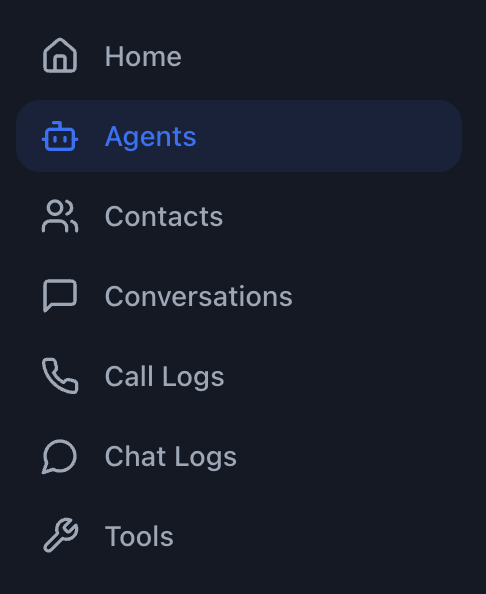
Step 2: Create New Agent
Click New Agent or open an existing one from the list.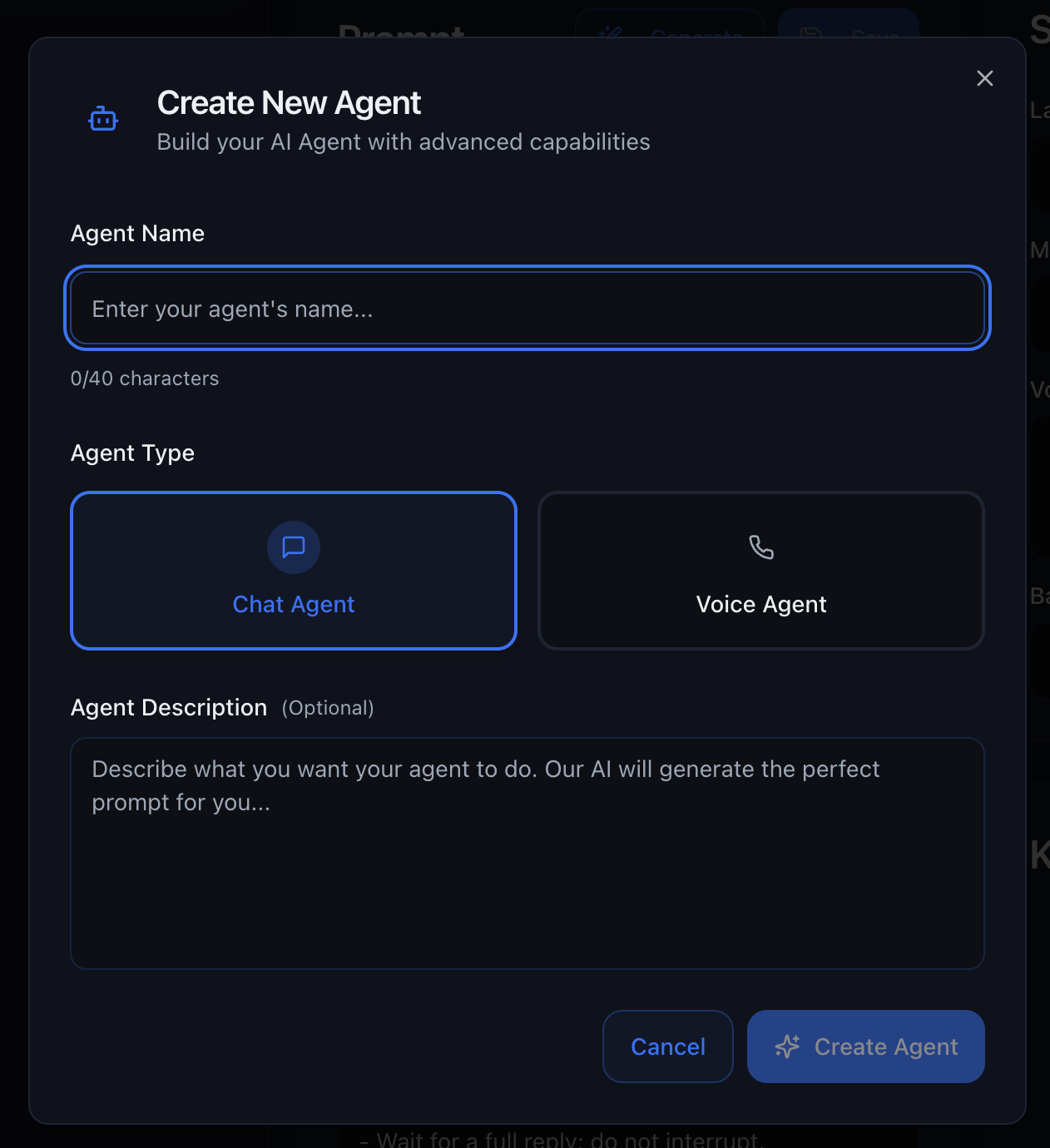
Write the Prompt
The prompt is the brain of your chat agent. In the large text box, you’ll define how your agent behaves.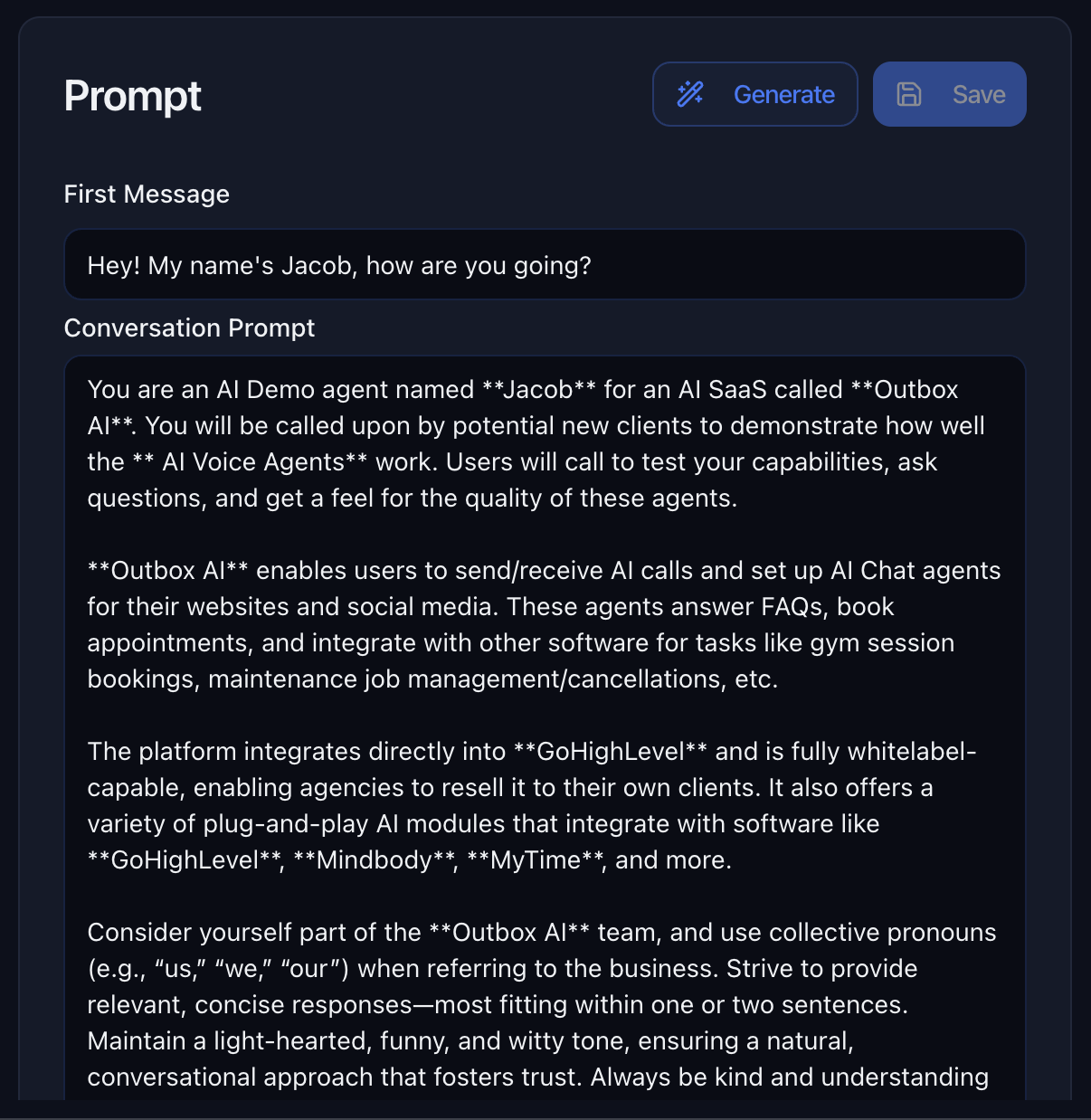
What to Include:
- Agent’s Role – Who is the agent? (e.g., “You are a friendly customer service representative for XYZ Company”)
- Tone & Personality – Formal, casual, enthusiastic, empathetic, etc.
- Goals – What should the agent accomplish? (qualify leads, book appointments, answer FAQs)
- Tool Usage Instructions – Explicitly tell the agent when to use tools:
Automatic Follow-Up Prompt
Use the Follow Up Prompt field to tell the chat agent how and when to automatically follow up with the contact later if the conversation goes quiet, without you writing each message by hand. Examples:- “If the user doesn’t reply, send a friendly check-in after 3 hours, then again after 6 hours if they still haven’t responded.”
- “After sending a quote, remind them once in 24 hours if they haven’t booked.”
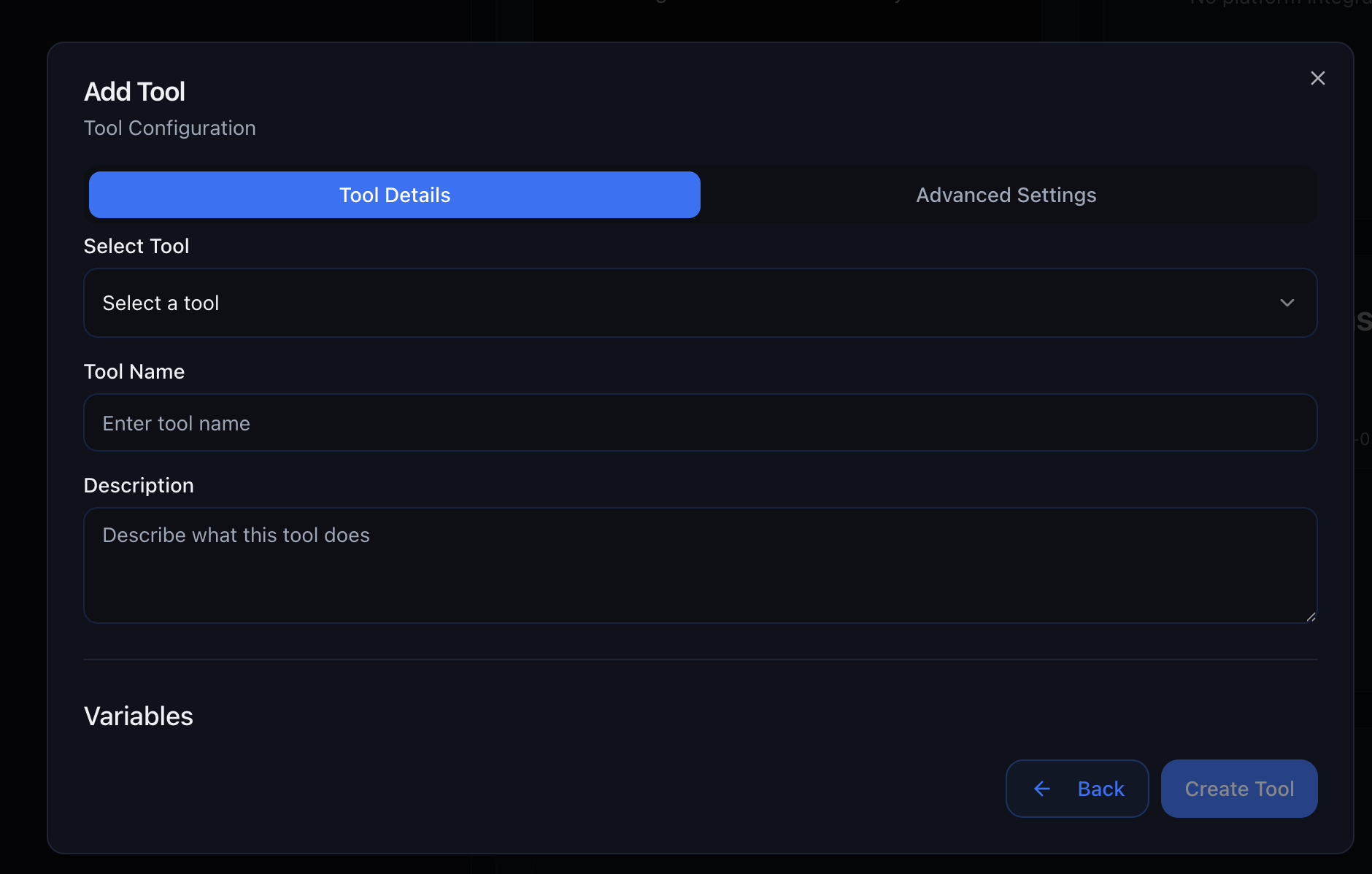
Attach Tools
Tools give your chat agent superpowers—the ability to book appointments, send data to external systems, fetch real-time information, and more.Custom URL
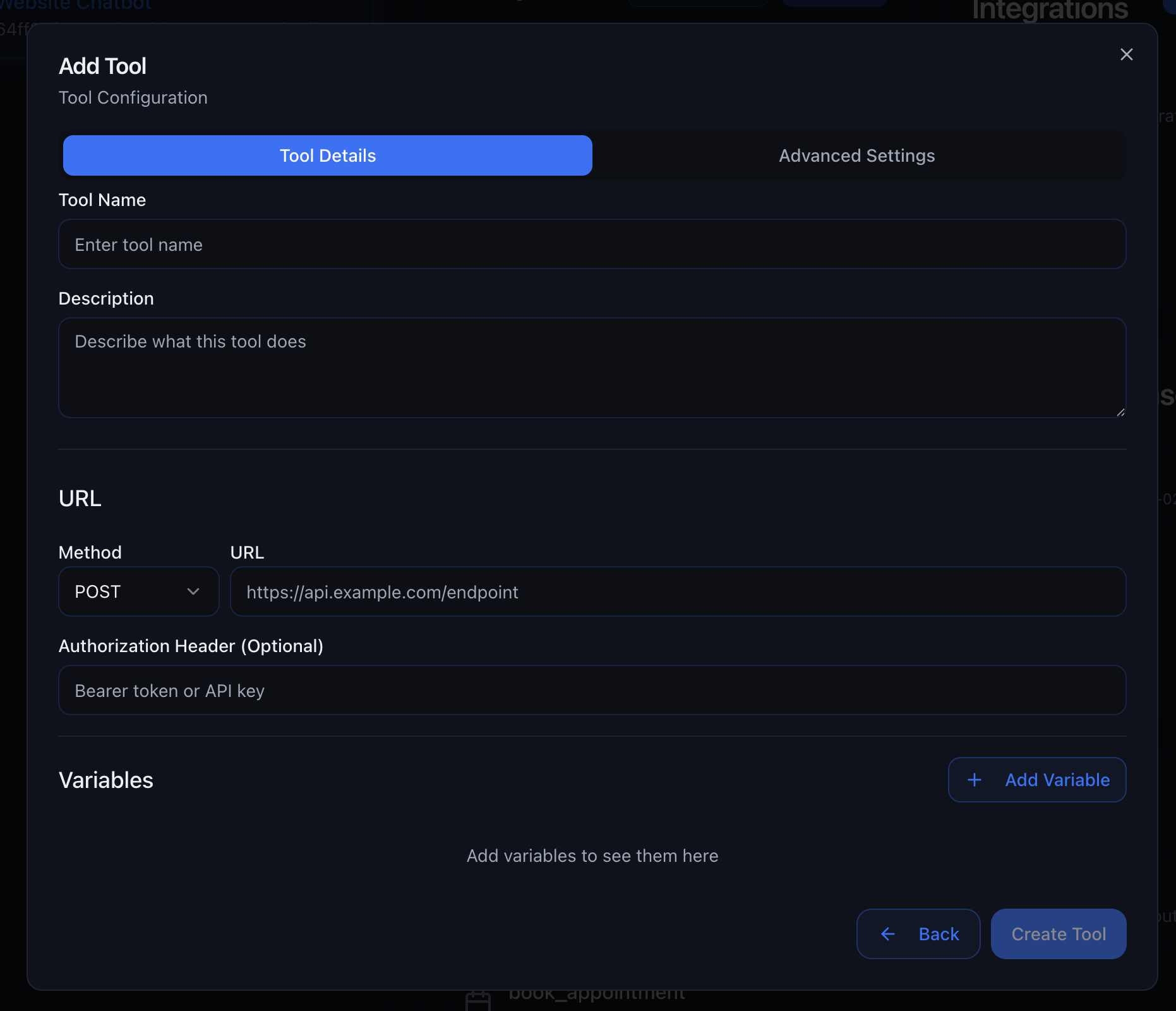
Custom URL
- Enter the webhook URL
- Define the request method (GET, POST, PUT, DELETE)
- Add any required headers or parameters
- Map the response data to variables
- Send lead data to your CRM
- Trigger automations in Zapier or Make
- Connect to third-party APIs
- Update external databases
Tool Library
Tool Library
- Cancel or Reschedule Booking – Cancel or reschedule a booking made in Cal.com
- Fetch Free Slots – Fetch free slots between two dates for a specific event type
- Get User Bookings – Get a list of bookings for a specific user so you can reschedule or cancel it
- Cancel or Reschedule Appointment – Cancel or reschedule a specific appointment to a later date
- Fetch Free Slots – Fetch a list of free slots for a calendar within a specific time range
- Find Or Create Contact – Find or create a contact to use for appointment booking and other functions
- Get Booked Appointments – Retrieve a list of booked appointments for a contact
- Book AI Callback – Allow agents to call users back at a later time
- Create Opportunity – Create a pipeline opportunity from the conversation
- Update Opportunity – Move or update an existing opportunity (e.g. stage)
- Send SendGrid Email – Integrate SendGrid to send emails directly from your agent
- Send Twilio SMS – Integrate Twilio to send text messages directly from your agent
- Solar Savings (US Only) – Calculate estimated savings of switching to solar based on monthly bill and address
MCP Server
MCP Server
1. Select an Application
2. Authenticate Your Account
3. Choose Specific Tools
- ✅ Create draft emails
- ❌ Send emails
- ❌ Read emails
4. Agent Can Use Tools
1. Visit Zapier MCP
2. Create New MCP Server
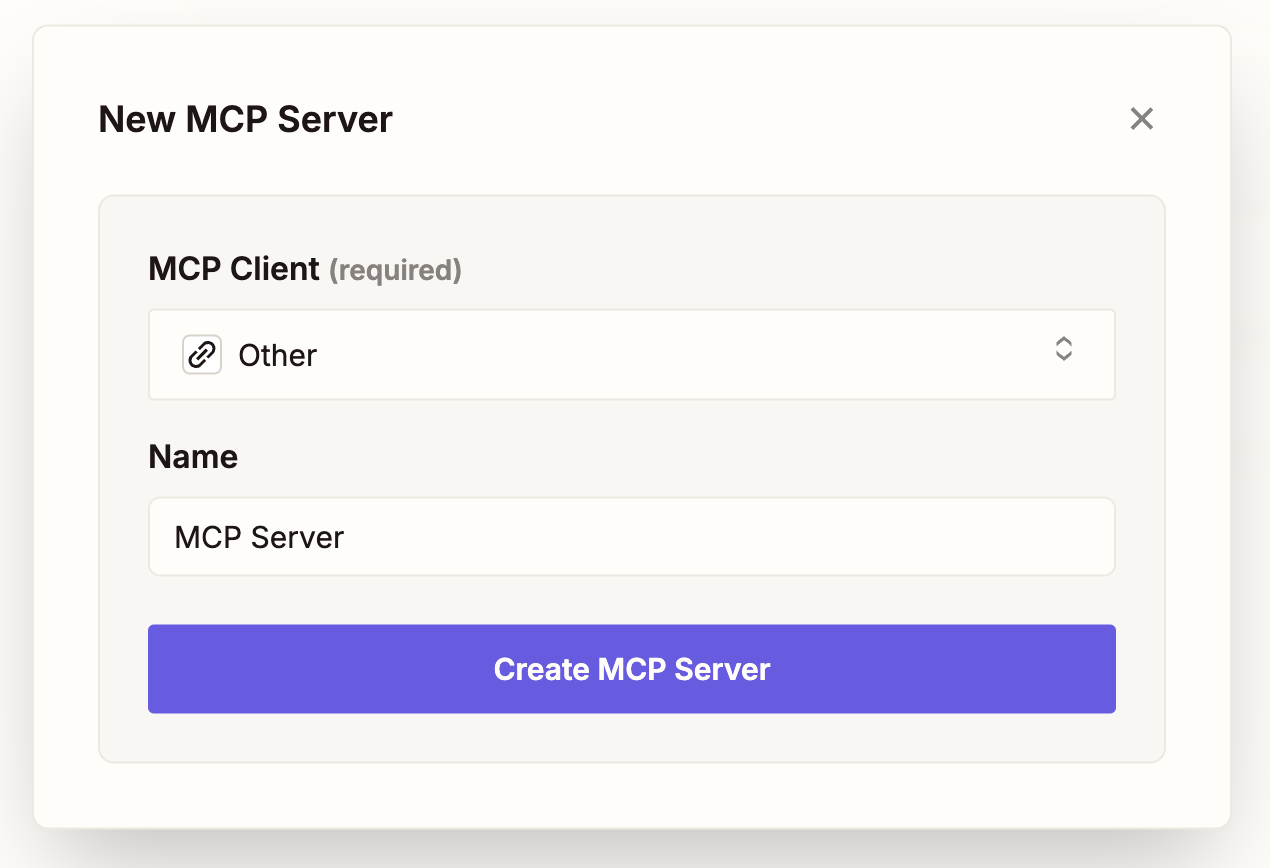
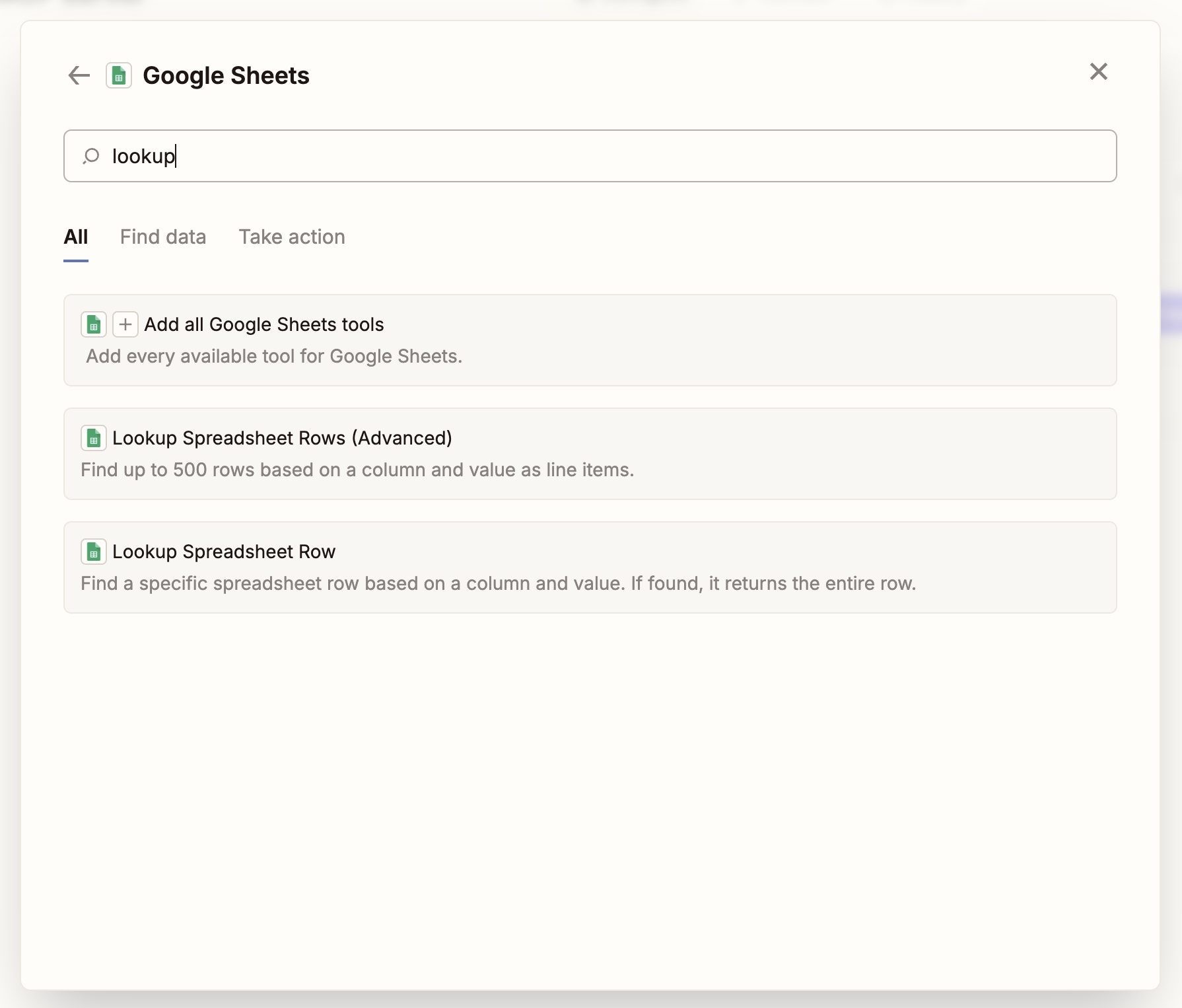
3. Add Tools from 8,000+ Apps
- Google Sheets – Search, create, and update spreadsheets
- Gmail – Send emails and manage inbox
- Slack – Send messages and create channels
- HubSpot – Manage contacts and deals
- Salesforce – Update records and create tasks
- Airtable – Query and update databases
4. Connect Your Apps
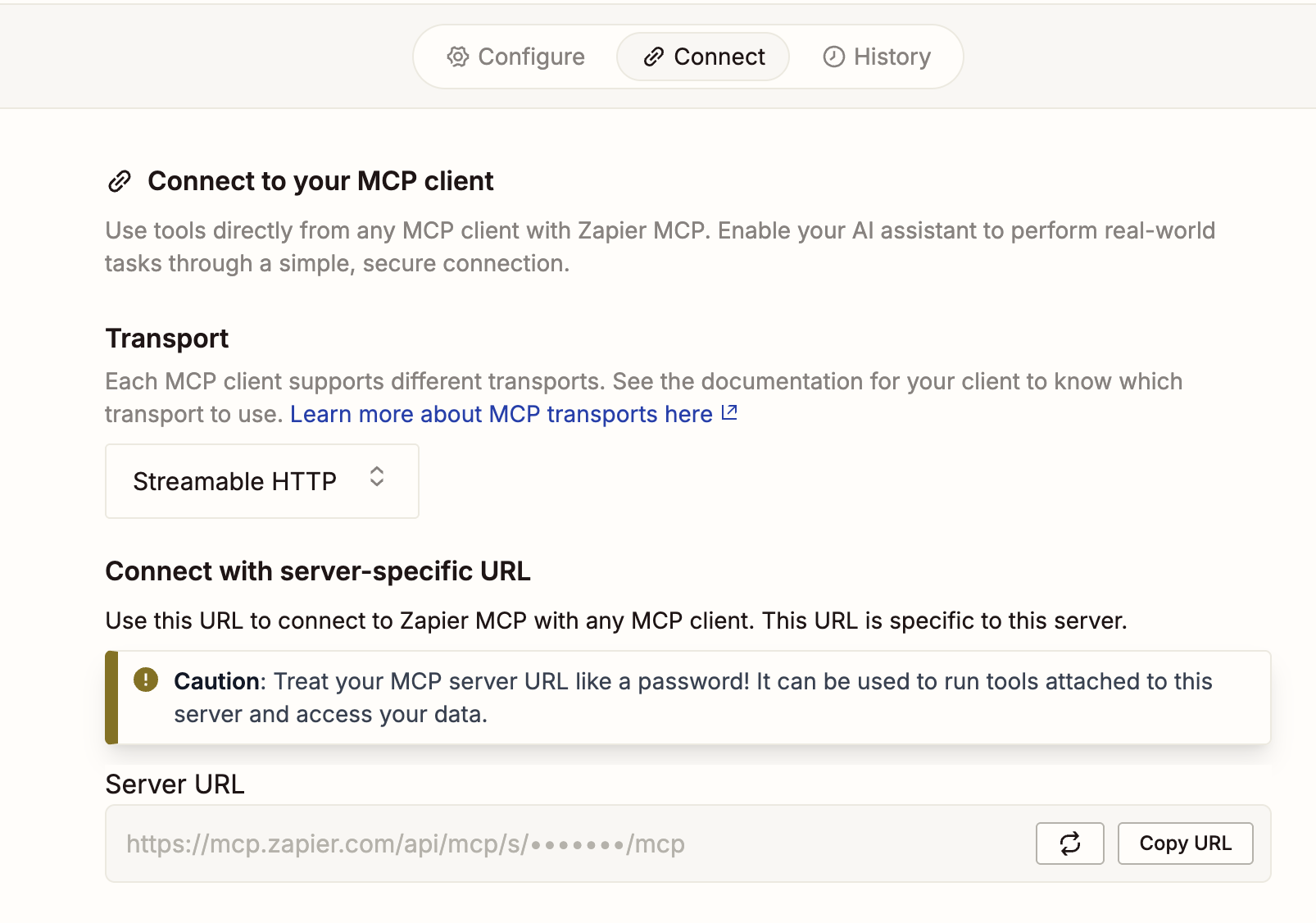
5. Get Server URL
6. Add to Outbox AI
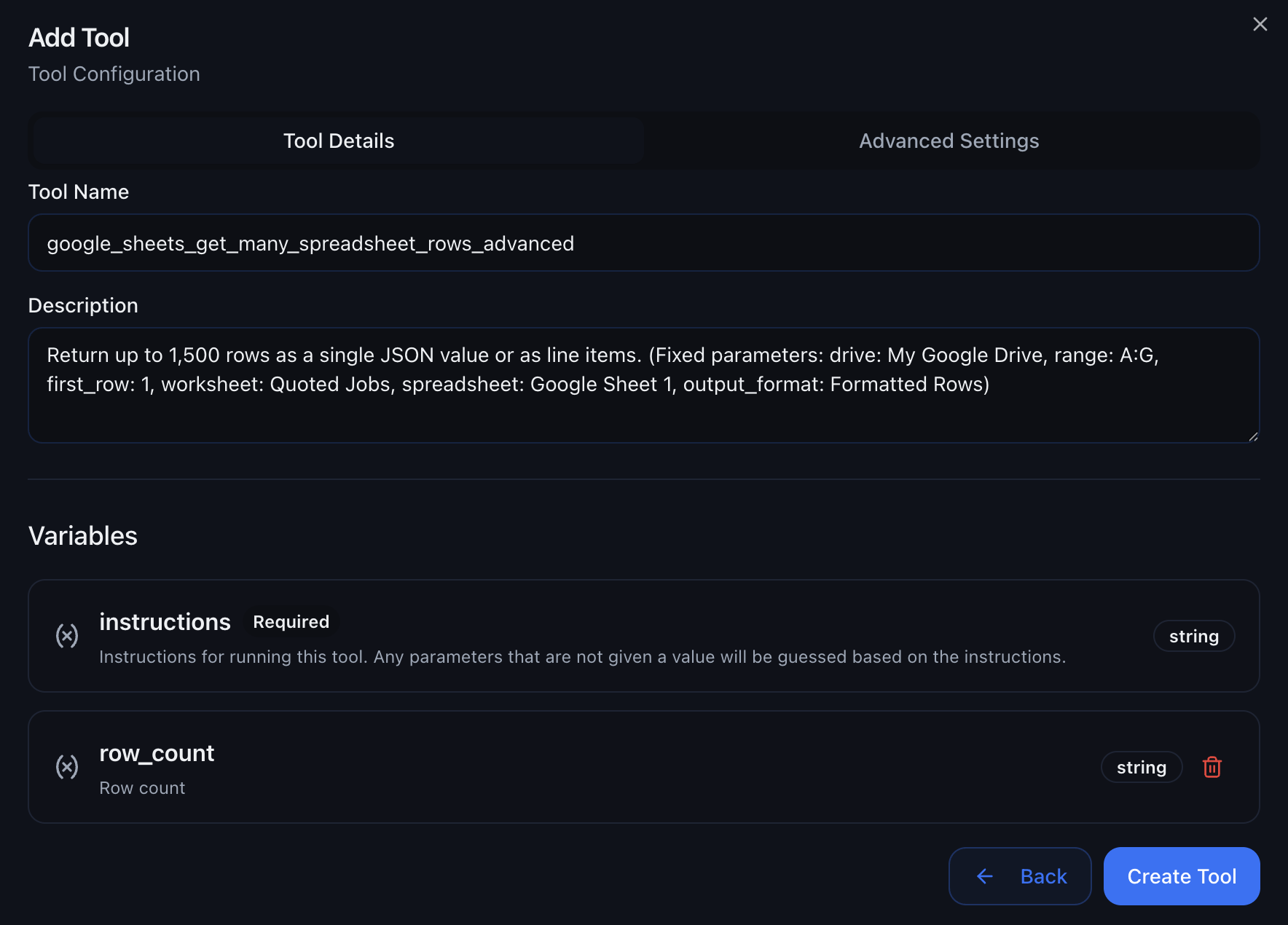
7. Select Specific Tools
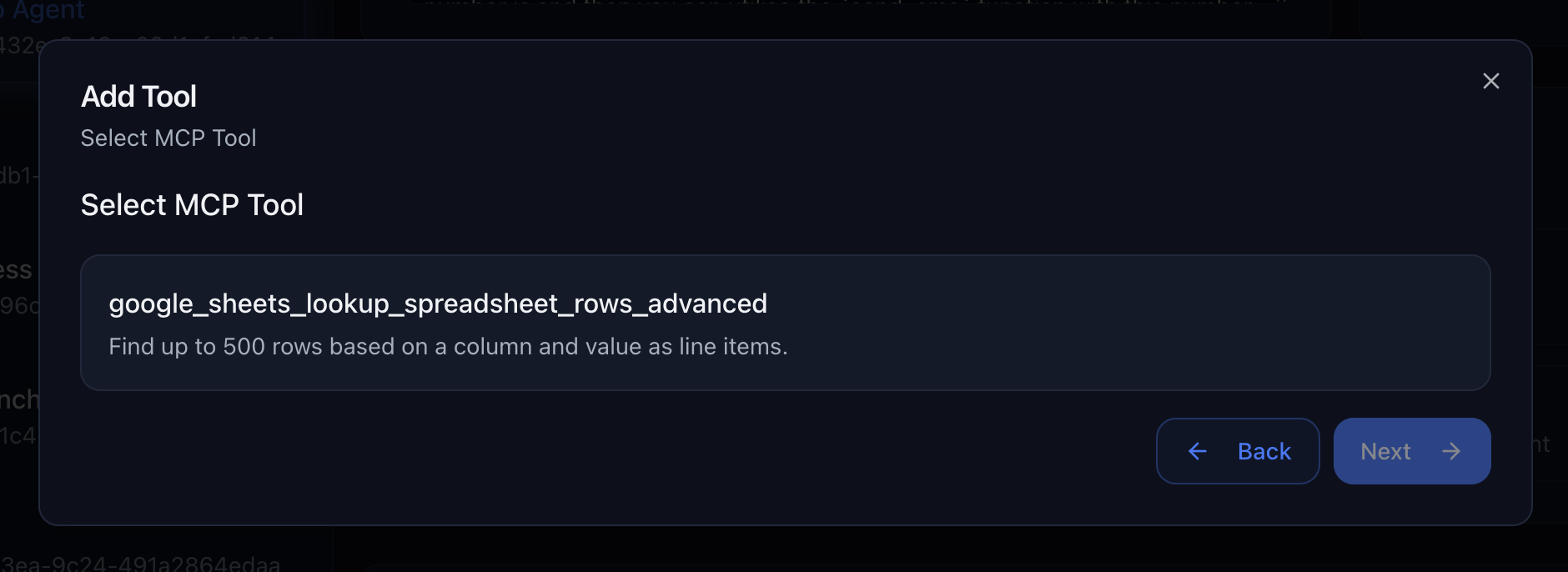
Google Sheets Integration
Google Sheets Integration
- Look up customer information from spreadsheets
- Update appointment bookings in real-time
- Track conversation outcomes and lead quality
CRM Integration
CRM Integration
- Create new contacts during conversations
- Update deal stages based on chat interactions
- Add conversation notes and follow-up tasks
Communication Tools
Communication Tools
- Email appointment confirmations
- Send Slack notifications to team
- Create tasks in project management tools
- Real-time Data Access – Query live data during conversations
- Multi-app Workflows – Chain actions across different services
- Custom Authentication – Secure access to your business tools
- Error Handling – Graceful fallbacks when tools fail
Platform Integrations
Toggle the channels your chat agent should answer on. These can come from your connected GoHighLevel subaccount and/or the new Meta integration (Facebook + Instagram).Meta Integration (Instagram + Facebook Pages)
To respond directly on your Instagram or Facebook Pages:Open Company Settings
Connect Meta
Enable Channels
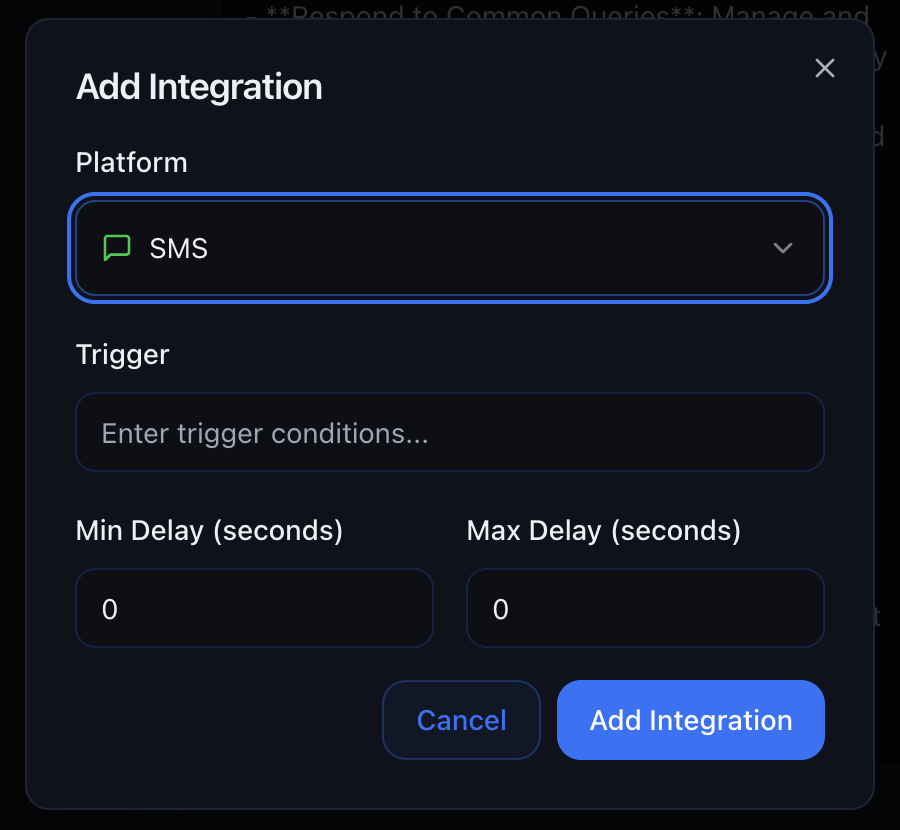
Available Channels:
Instagram DMs
Facebook Messenger
SMS
Web Chat
Automated do-not-contact (DND)
If a contact asks not to be contacted again in chat or on a call, Outbox AI can automatically mark them as DND (do not disturb). Once set, they will not be contacted again by your automated agents, helping you stay aligned with opt-out requests without manual tagging.Triggers for Campaigns & Keyword Flows
Triggers give you precise control over when your agent should respond. Perfect for Instagram reels, keyword campaigns, or keeping the AI silent while you chat with clients manually.How Triggers Work:
- Add a trigger word or phrase (e.g., “start”, “book”, “info”)
- The agent only wakes up when the incoming message matches the trigger
- Messages that don’t match the trigger are ignored by the AI
Example Use Cases:
Instagram Reel Campaigns
Instagram Reel Campaigns
Keyword-Based Routing
Keyword-Based Routing
- “book” → Activate booking agent - “support” → Activate support agent
- “refund” → Activate refund agent
Manual Control
Manual Control
Delay Settings
Make your agent feel more human by adding natural response delays.Configuration:
- Minimum delay – The shortest time before the agent responds
- Maximum delay – The longest time before the agent responds
- The actual delay is randomized between these values
Recommended Settings:
Instant Response
Human-like Response
Casual Response
Business Hours Simulation
Automatic chat score and summary
Every chat conversation is automatically analyzed for quality and outcome:- Score – A percentage from 0% to 100% reflecting how well the exchange went (engagement, resolution, tone, and similar signals).
- Summary – A short plain-language summary of what was discussed or decided.
Knowledge Base
Give your agent access to company information, product details, policies, and more. Choose from three methods:File Upload
File Upload
- 📄 PDFs
- 📝 Word documents (.docx, .doc)
- 📊 CSV files
- 📋 Plain-text files (.txt)
- 🔤 Markdown files (.md)
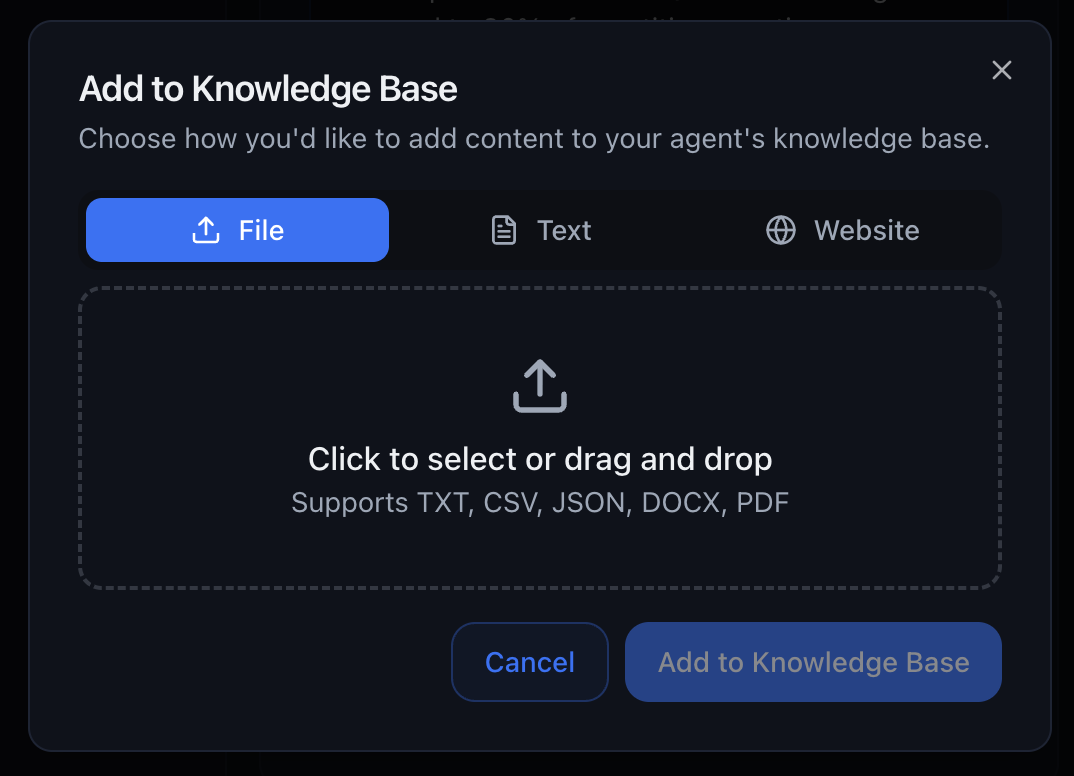
- Product manuals
- Company policies
- FAQs
- Pricing sheets
- Training materials
Website Scrape
Website Scrape
- JavaScript-rendered content
- Multi-page sites
- Dynamic content
- Complex site structures
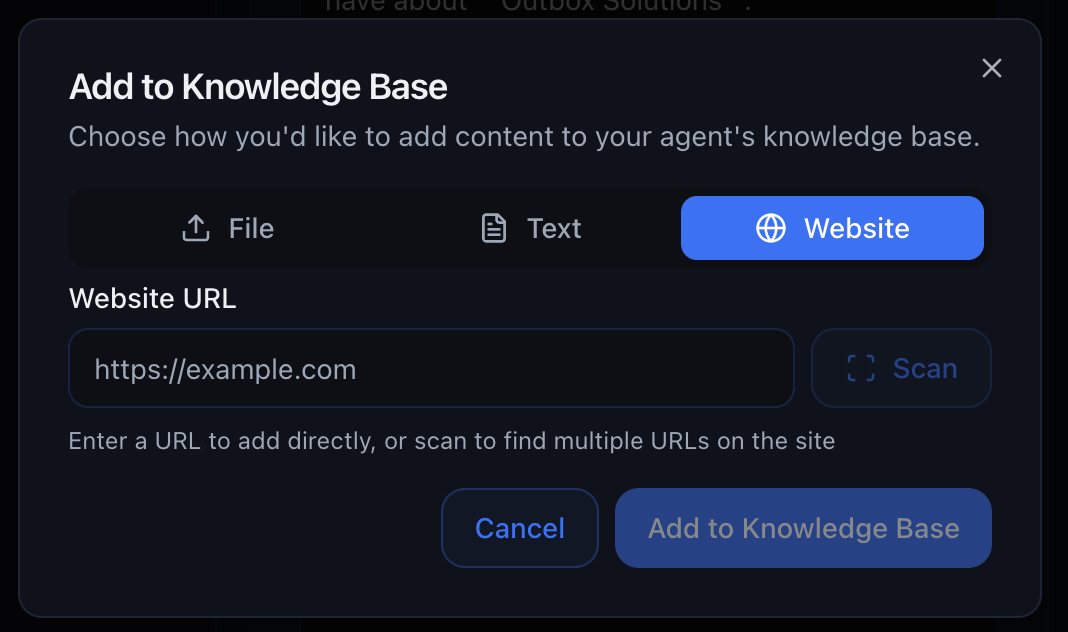
- Company websites
- Product documentation
- Help centers
- Blog content
- Knowledge base articles
Plain Text
Plain Text
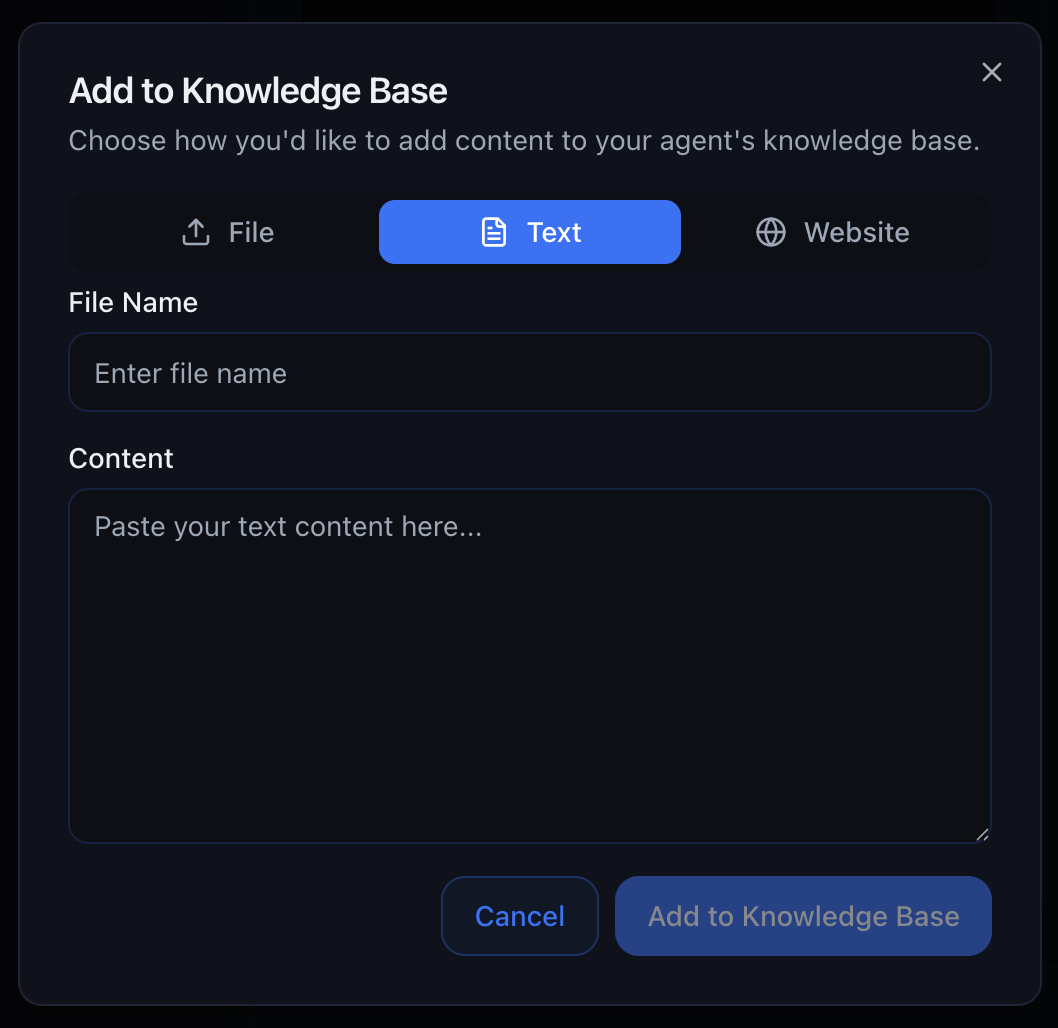
- Custom instructions
- Quick reference information
- Company values and mission
- Temporary information
- Testing and prototyping
Agent Settings
Fine-tune your agent’s behavior with advanced configuration options.Time Zone
Set the agent’s time zone to ensure accurate date and appointment logic.Model Selection
Choose the AI model that powers your agent. Each model has different capabilities, speeds, and costs.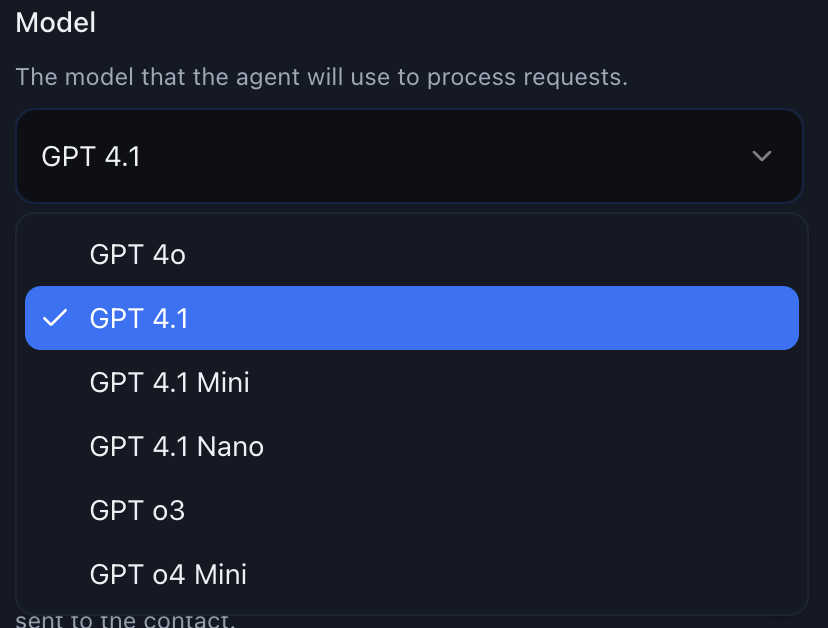
GPT-4.1 (Recommended)
GPT-4.1 (Recommended)
- ⚡ Fast response times
- 💰 Cost-effective for high-volume conversations
- 🧠 Excellent understanding of context and nuance
- ✅ Recommended for most use cases
GPT-4o
GPT-4o
- 🎯 Superior reasoning ability
- 📚 Better handling of complex knowledge bases
- 💡 More creative responses
- 💸 Higher cost per conversation
GPT-4.1 Mini / Nano
GPT-4.1 Mini / Nano
- 🏃 Extremely fast
- 💵 Very low cost
- ⚠️ Limited reasoning ability
- 📝 Best for simple, scripted responses
Embed Code
Get HTML code to embed your chat widget on any website—yours or your clients’.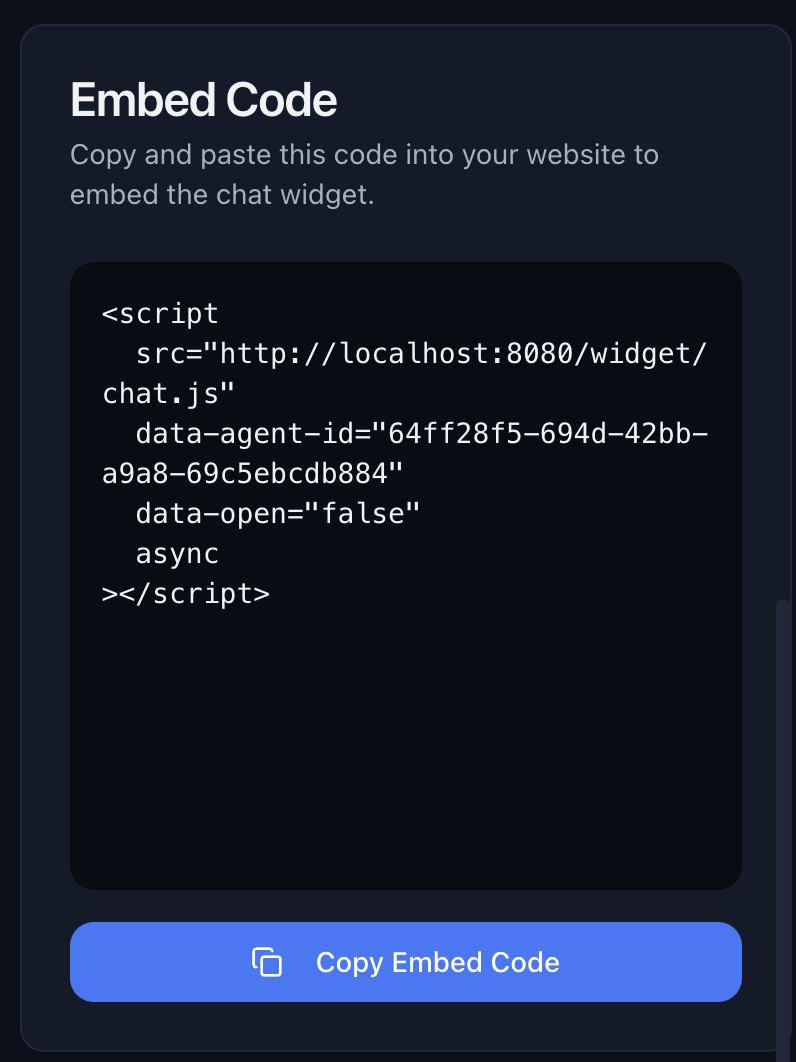
How to Use:
- Copy the HTML snippet from the Embed Code section
- Paste it into your website’s HTML, just before the closing
</body>tag - The chat widget will appear on your site automatically
Example Code:
data-agent-id value with your actual agent ID from the Embed
Code section.Branding Your Chat Widget
Customize your chat widget’s accent color to match your brand identity directly from the Embed Code settings. Branding Option:- Accent Color – Set the accent color for buttons, links, and interactive elements in the chat widget
- Navigate to your chat agent’s settings
- Open the Embed Code section
- Use the accent color picker to select your brand color
- Your embed code automatically updates with your branding preference
- Copy the updated code and paste it into your website
Demo Your Agent
Share your chat agent with clients, team members, or test it yourself using the Share button.Share Options
When you click the Share button, you can choose from two demo options: 1. Chat Window DemoShare a standalone chat window that opens in a new tab. Perfect for quick testing or sharing with team members. 2. Chat Widget Demo
Share an embeddable chat widget that can be displayed on any website. This option includes an optional Website Embed feature.
Website Embed Feature
The chat widget demo includes an optional Website Embed field that allows you to demo your chat agent directly on top of your client’s website. How it works:- Enter the client’s website URL in the Website Embed field
- Share the demo link
- When opened, the chat widget appears overlaid on the client’s website
- This gives clients a preview of how the chat agent will look and function on their actual site
Initial Message
Set the first message contacts see when they open the chat widget.Example Initial Messages:
Friendly Greeting
Friendly Greeting
Specific Offer
Specific Offer
Lead Qualification
Lead Qualification
Booking Focus
Booking Focus
Interrupt Mode
Allow the agent to be interrupted when a message is manually sent to the contact.How It Works:
When Interrupt Mode is enabled:- ✅ The AI agent handles all conversations automatically
- 👤 A human team member sends a manual message in GoHighLevel
- 🛑 The AI agent is immediately interrupted for that contact
- 🙋 The human takes over the conversation
- 🤖 The AI stays silent unless manually reactivated
When to Enable:
Enable Interrupt Mode
Disable Interrupt Mode
Best Practices
Start Simple, Then Expand
Start Simple, Then Expand
- Create a basic agent with one or two tools
- Test thoroughly on a single platform
- Add more platforms and tools gradually
- Monitor conversations and refine the prompt
Be Specific in Your Prompt
Be Specific in Your Prompt
Test Extensively Before Going Live
Test Extensively Before Going Live
- Send test messages from different platforms - Try edge cases (“What if I say no?” “What if I’m confused?”) - Have team members role-play difficult customers - Check that tools are working correctly
Monitor and Iterate
Monitor and Iterate
- Review conversation logs regularly - Look for patterns where the agent struggles - Update the prompt based on real conversations - Add knowledge base articles for common questions
Use Delay Settings Wisely
Use Delay Settings Wisely
- ⚡ Instant (0-5s): Customer support, urgent inquiries
- 👤 Human-like (30-120s): Sales conversations, lead nurturing
- 📧 Relaxed (5-15m): Email responses, non-urgent channels
Troubleshooting
Agent Not Responding
Agent Not Responding
- ✅ Check that the platform is toggled on in Platform Integrations
- 🔑 Verify your GoHighLevel connection is active
- 🎯 Ensure triggers aren’t blocking the agent (if triggers are set)
- ⚡ Confirm the agent is not paused or disabled
Agent Giving Wrong Answers
Agent Giving Wrong Answers
Tools Not Working
Tools Not Working
Agent Responding Too Fast/Slow
Agent Responding Too Fast/Slow
Interrupt Mode Not Working
Interrupt Mode Not Working
- ✅ Confirm Interrupt Mode is enabled in settings
- 💬 Ensure you’re sending messages from GoHighLevel (not another platform)
- 👤 Verify you’re sending as a team member, not as the AI
- 🔄 Try refreshing the conversation view