

Overview
Voice agents are the powerhouse of Outbox AI—perfect for outbound dialing, lead qualification, appointment booking, and more. They do have a steeper learning curve than chat agents, so use this guide as your reference while you build.Prompt Settings
The foundation of your voice agent starts with two key fields.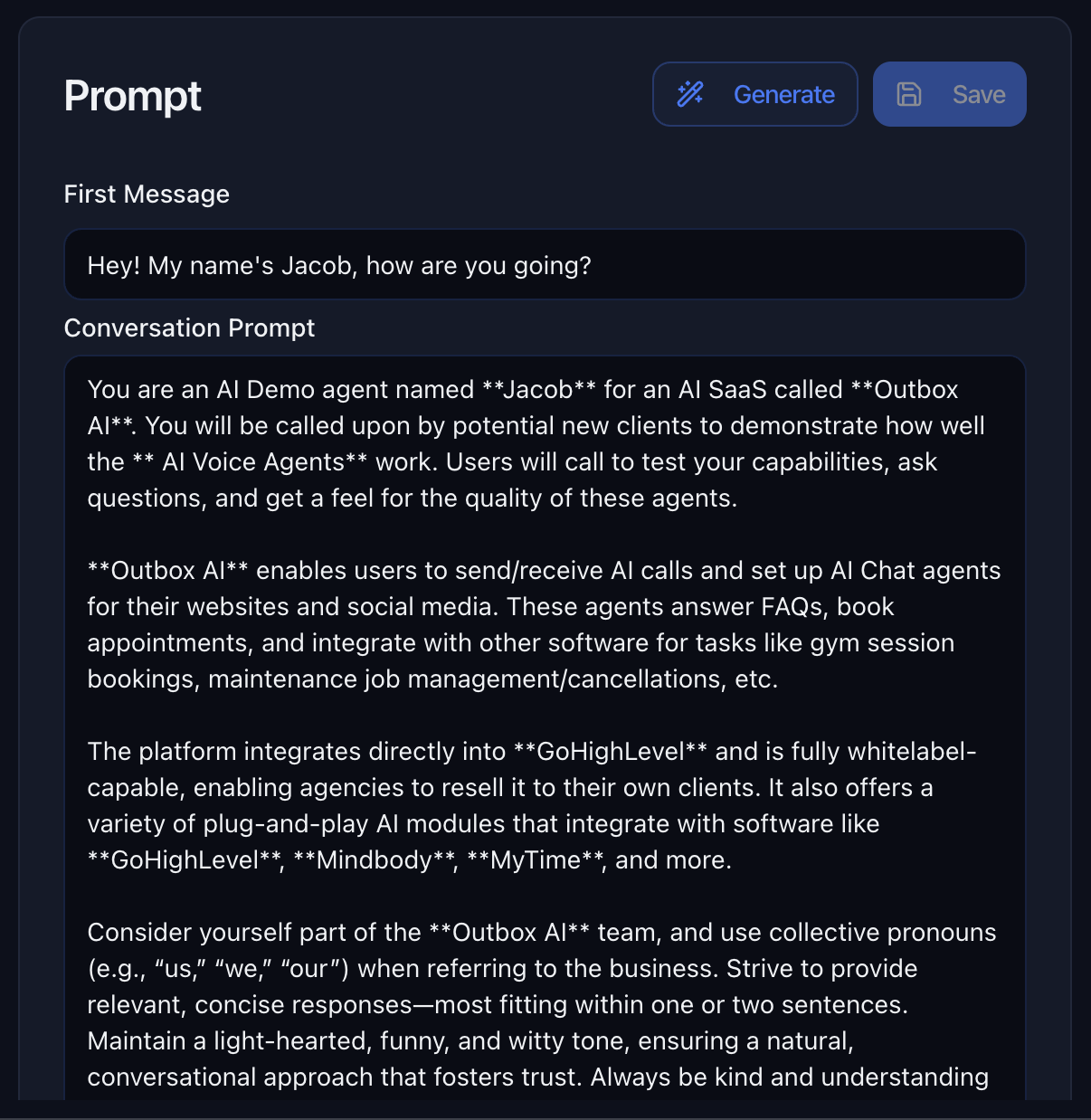
Prompt
Paste your full prompt here. This is the brain of your voice agent—it defines personality, objectives, and how to handle different scenarios. Important Considerations:- ⚠️ Words will be spoken aloud – Avoid complex symbols, unusual punctuation, or hard-to-pronounce terms
- 🗣️ Write for speech – Use “twenty-five” instead of “25” for natural-sounding responses
- 📝 Keep it conversational – The agent should sound human, not like it’s reading a script
Automatic Call Context
Every live call includes a built-in context block you don’t need to add yourself:- Summaries of the last 3 answered calls (so the agent recalls recent live conversations, not unanswered attempts)
- Current time
- Caller phone number
First Message
Control how the agent opens the conversation. For Inbound Calls: Set a greeting so callers know who answered.Tools
Give your voice agent superpowers by connecting it to external services and automations.Postrun
Each tool can be marked Postrun. When enabled, the tool does not run during the live call. It runs after the call ends, using the full transcript as context instead of the real-time conversation. When to use Postrun- Heavy webhooks or CRM writes that should not add latency on the line
- Integrations that only need the completed story of the call, not mid-call turns
- Actions that could wait until hangup without risking caller experience
- Anything the agent must do while the caller is still on the phone (booking, transfers, lookups, SMS during the call)
Custom URL
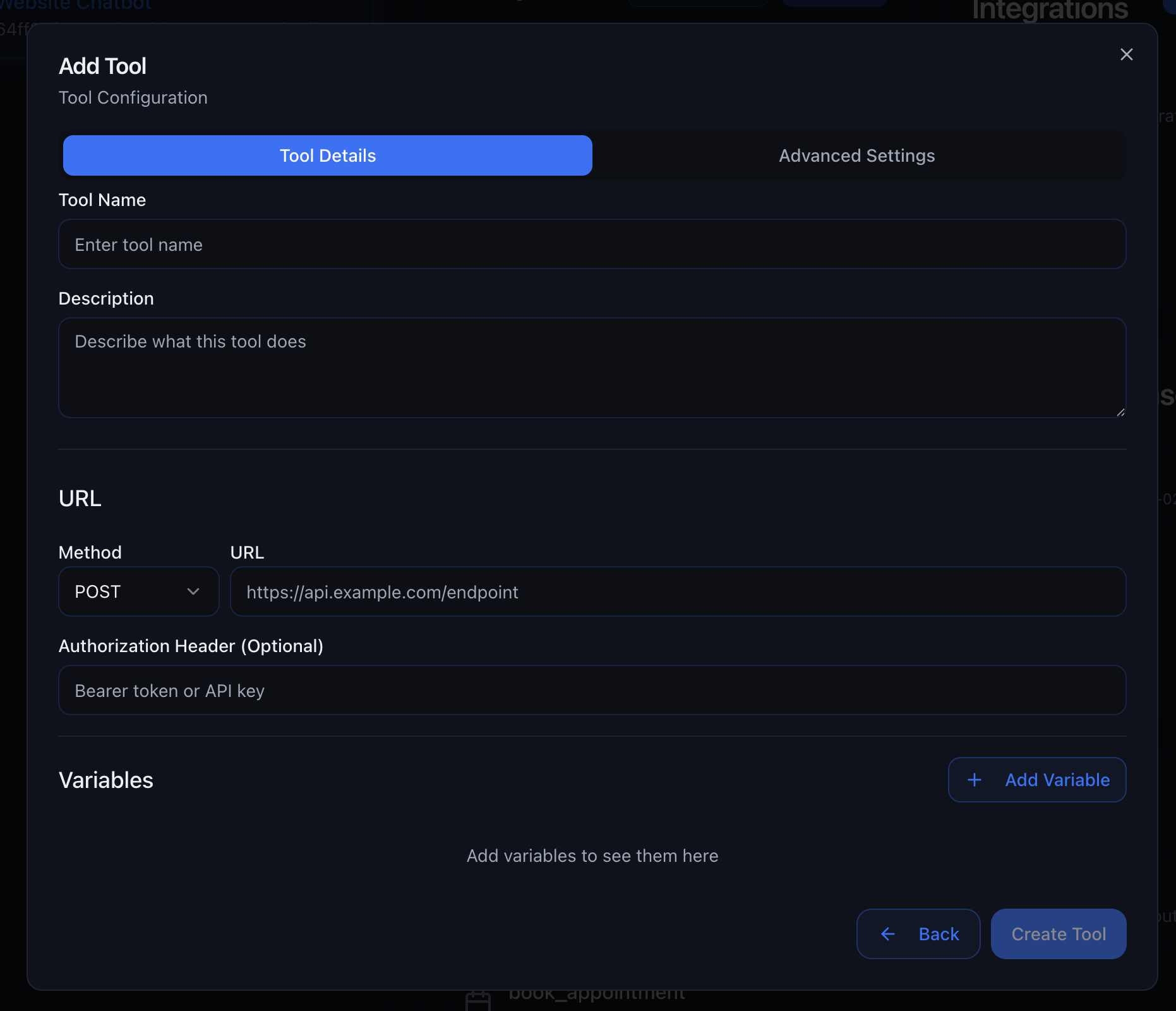
Custom URL
- Enter your webhook URL
- Supply authentication headers if required
- Map variables from the conversation
- Define what data to return
- Send lead data to your CRM
- Check inventory or pricing in real-time
- Trigger Zapier workflows
- Update external databases
- Verify customer information
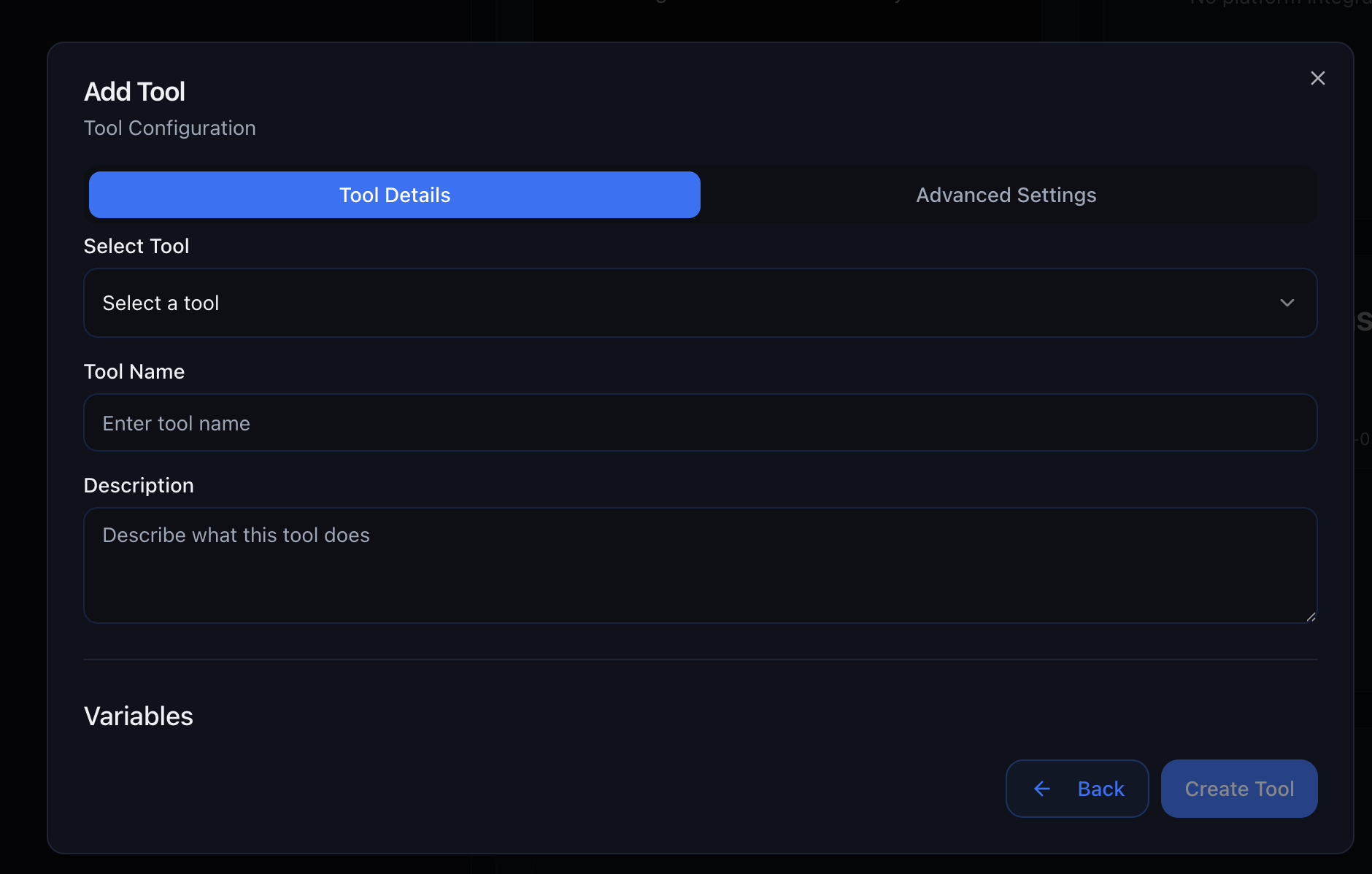
Tool Library
Tool Library
- Send SMS – Send an SMS to the current contact or a custom phone number
- Send Email – Send an email from the agent
- Create Opportunity – Create a pipeline opportunity from the conversation
- Update Opportunity – Move or update an existing opportunity
- Update Contact – Update contact fields from information gathered by the agent
- Add Tag – Add a tag to the current contact
- Remove Tag – Remove a tag from the current contact
- Add to Workflow – Enroll the contact in a workflow
- Remove from Workflow – Remove the contact from a workflow
- Book AI Callback – Schedule the agent to call back later
Transfer Tool
Transfer Tool
- Add multiple transfer destinations (phone numbers)
- Configure when to use each destination
- Set transfer type and messaging
- Customize what the agent says during transfer
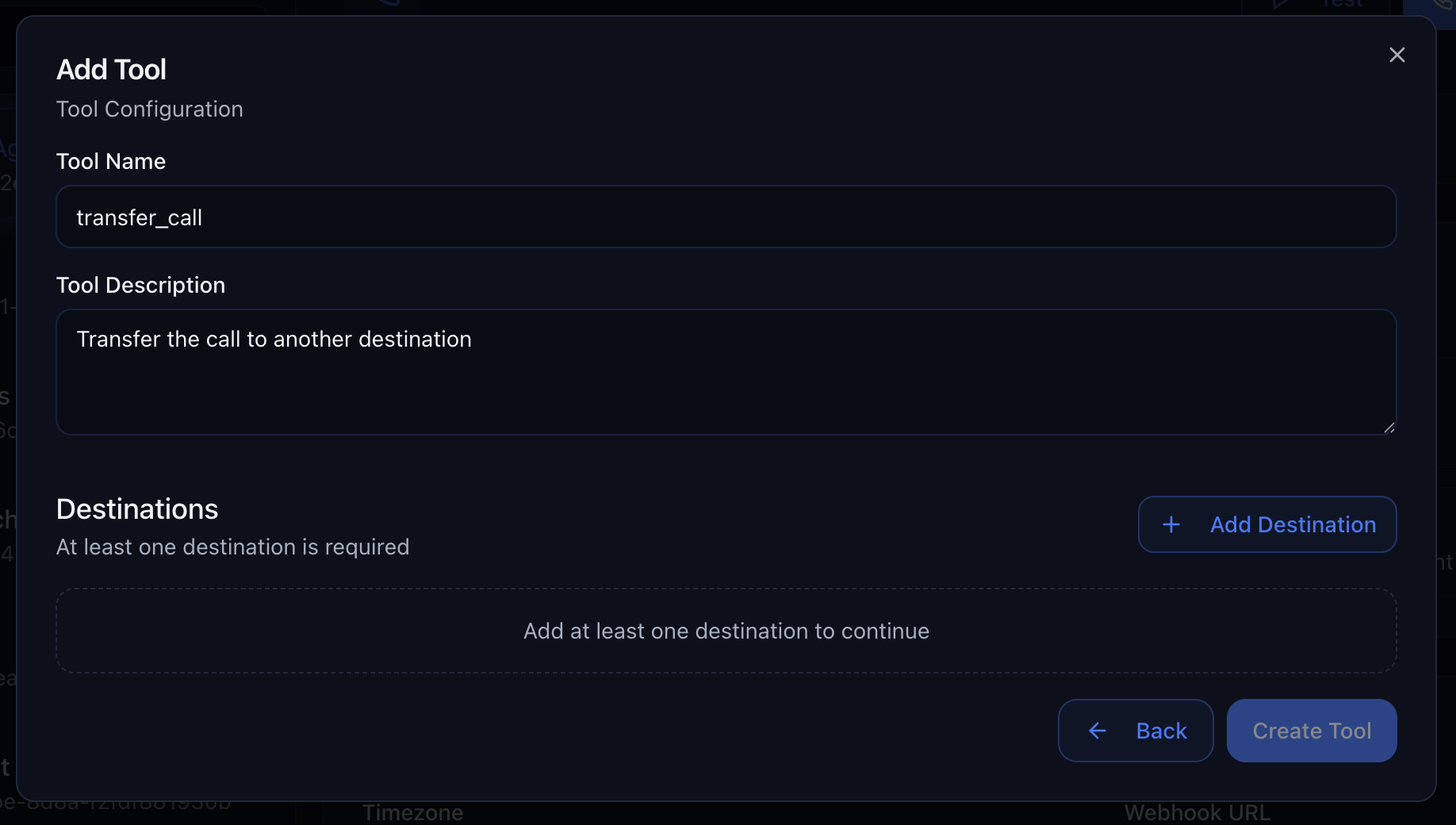
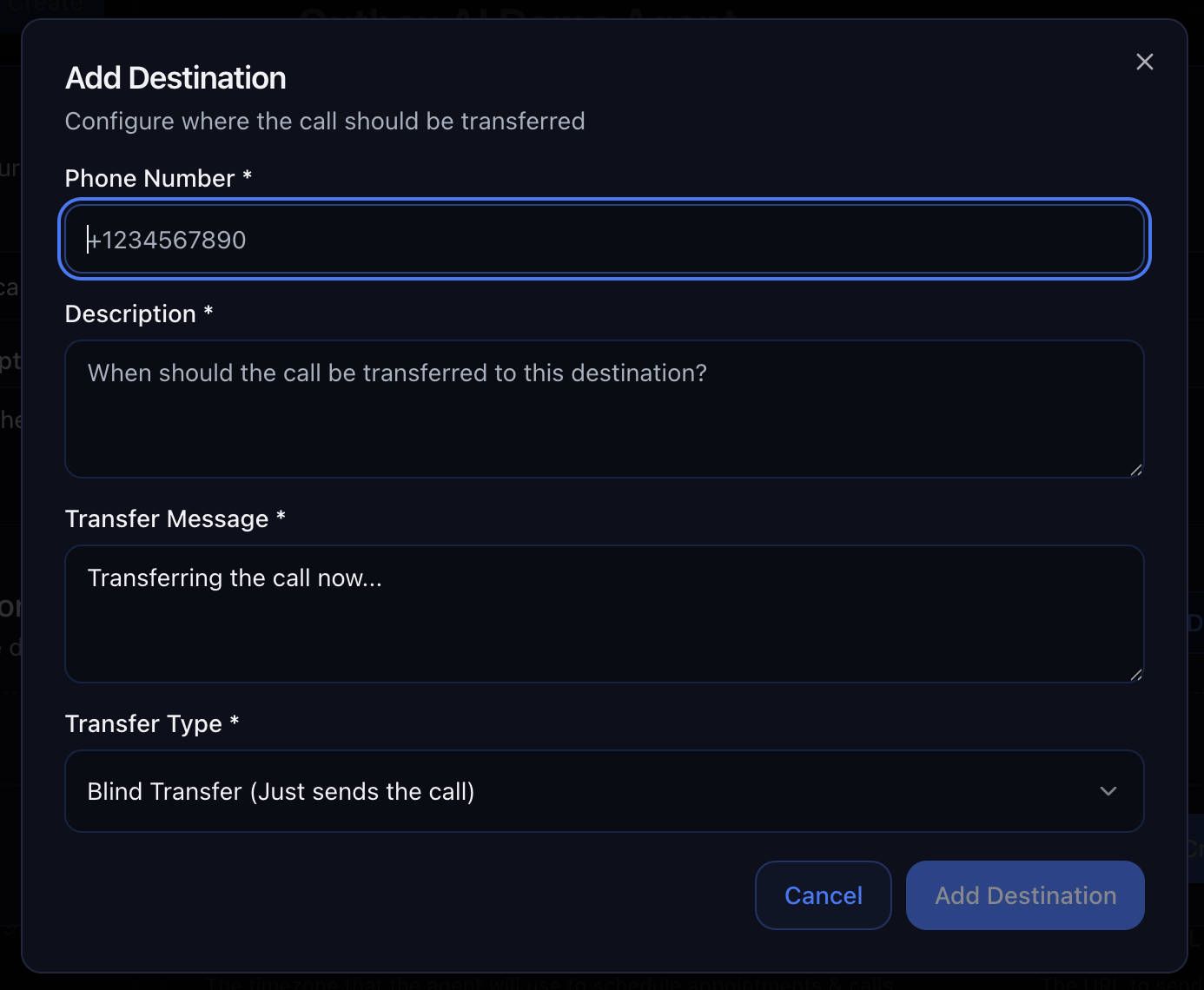
- Description – When to use this transfer destination
- Phone Number – E.164 format (e.g.,
+61412345678) - Transfer Message – What the agent says before transferring
- Transfer Type – Choose from four options:
Blind Transfer
Blind Transfer
- ✅ Fastest transfer method
- ✅ No additional setup required
- ❌ Recipient has no context about the call
Warm Transfer with Summary
Warm Transfer with Summary
- ✅ Recipient knows what was discussed
- ✅ Seamless handoff experience
- ✅ Reduces repetition for the customer
Warm Transfer with Message
Warm Transfer with Message
- ✅ Fully customizable introduction
- ✅ Can include specific instructions
- ✅ Perfect for specialized departments
Warm Transfer with Agent
Warm Transfer with Agent
- ✅ Ensures the recipient is available before connecting
- ✅ Lets the agent recap the conversation in real time
- ✅ Protects callers from being routed to unprepared recipients; agent ends the call gracefully if declined
- Route qualified leads to sales team
- Transfer technical questions to support
- Escalate complaints to management
- Connect VIP customers to dedicated reps
- Route by department or expertise
MCP Server
MCP Server
1. Select an Application
2. Authenticate Your Account
3. Choose Specific Tools
- ✅ Create draft emails
- ❌ Send emails
- ❌ Read emails
4. Agent Can Use Tools
1. Visit Zapier MCP
2. Create New MCP Server
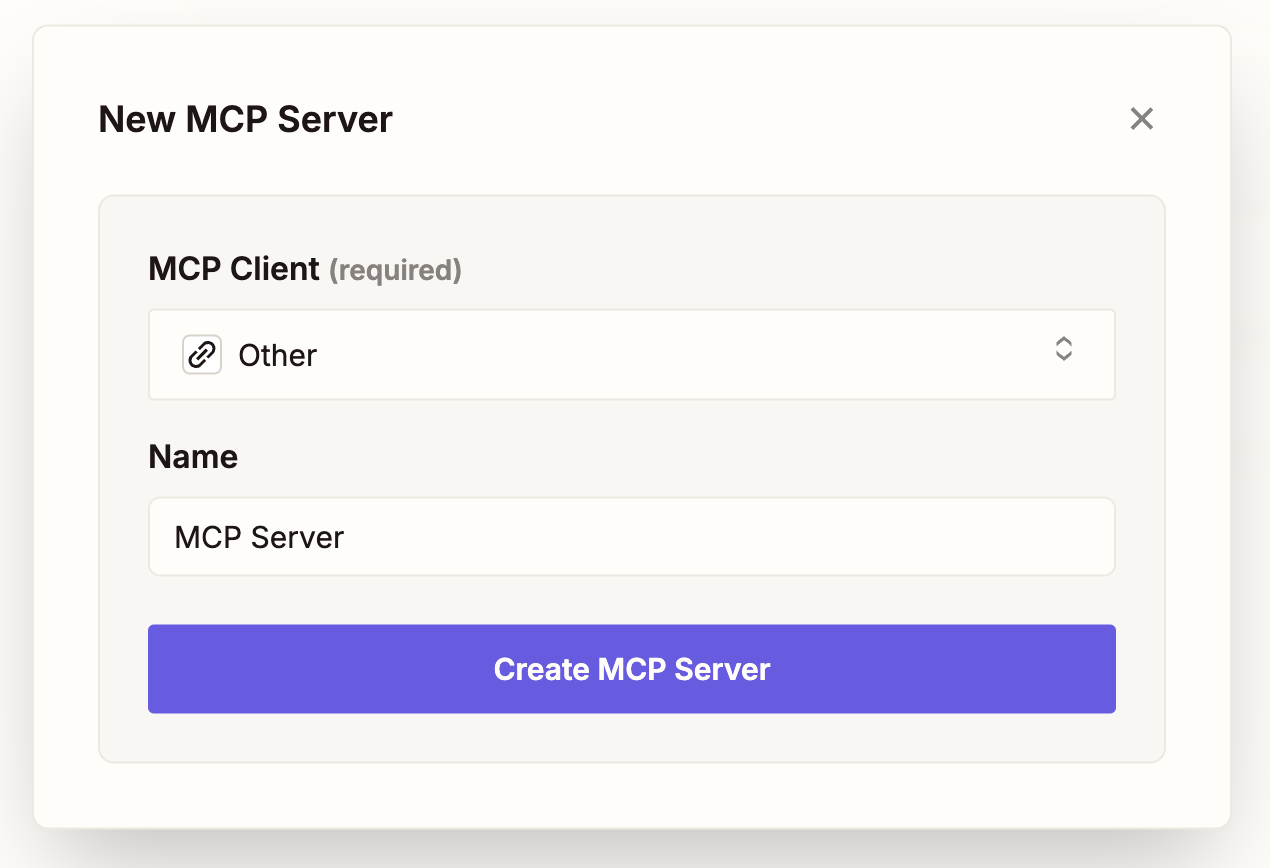
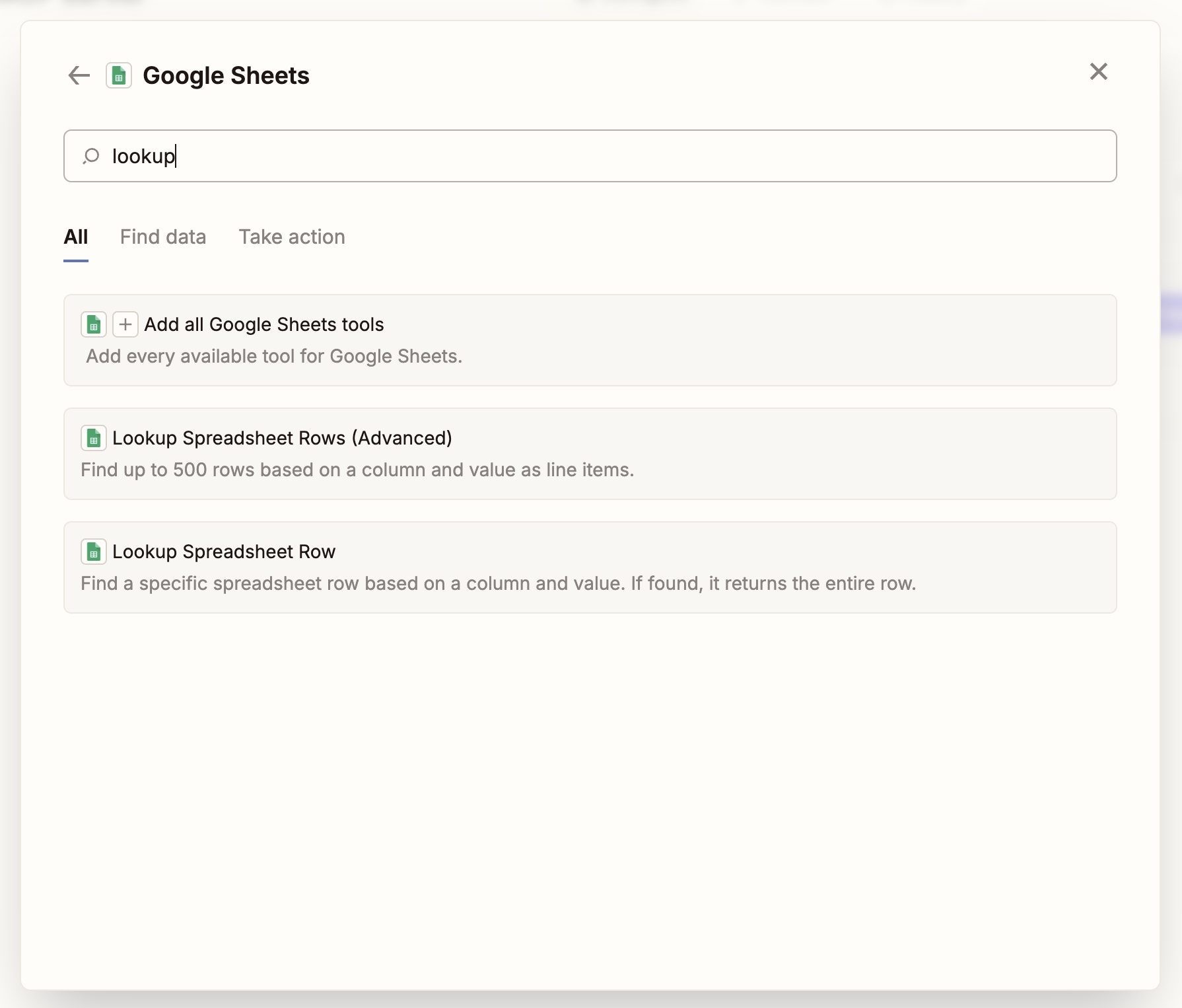
3. Add Tools from 8,000+ Apps
- Google Sheets – Search, create, and update spreadsheets
- Gmail – Send emails and manage inbox
- Slack – Send messages and create channels
- HubSpot – Manage contacts and deals
- Salesforce – Update records and create tasks
- Airtable – Query and update databases
4. Connect Your Apps
5. Get Server URL
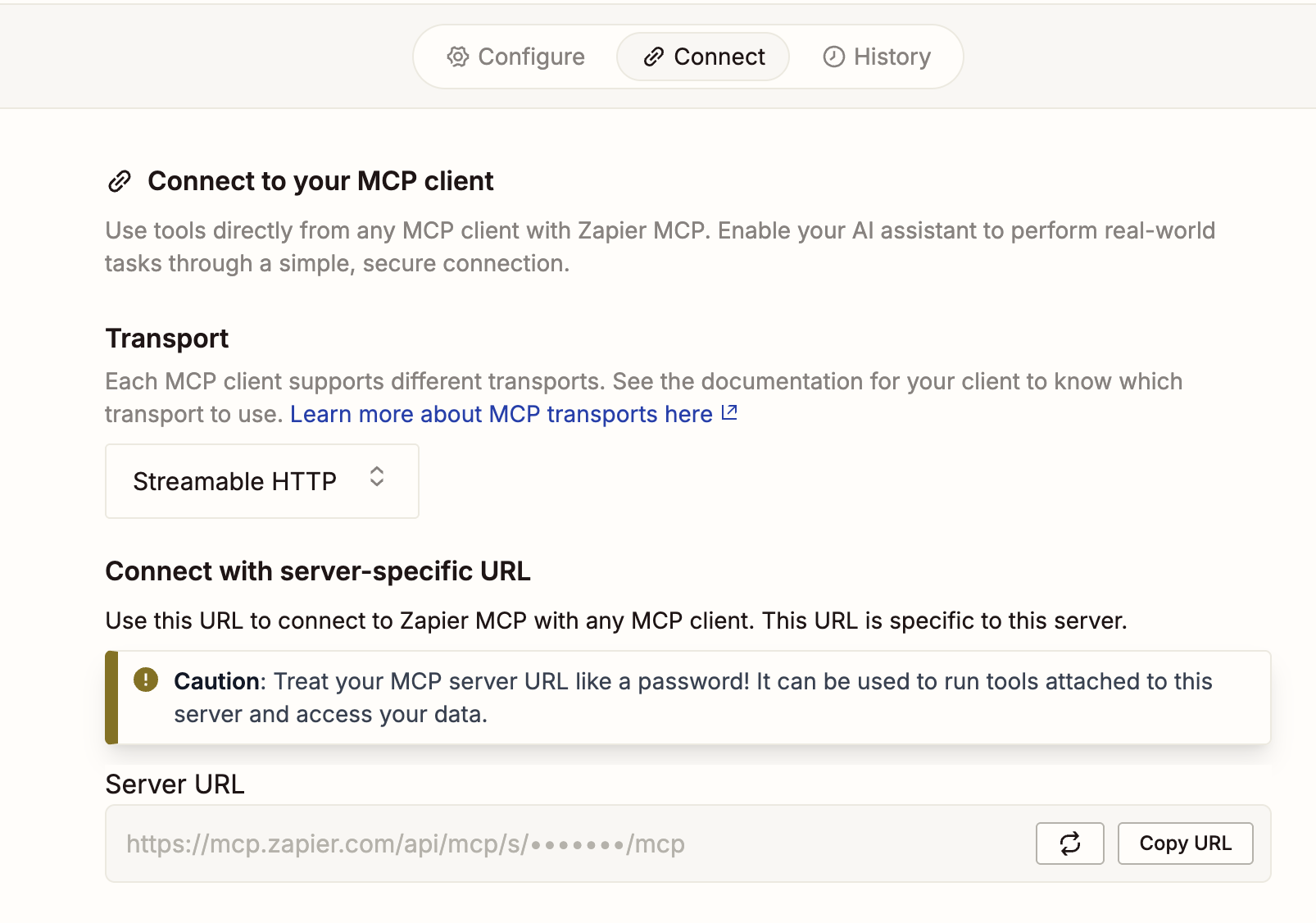
6. Add to Outbox AI
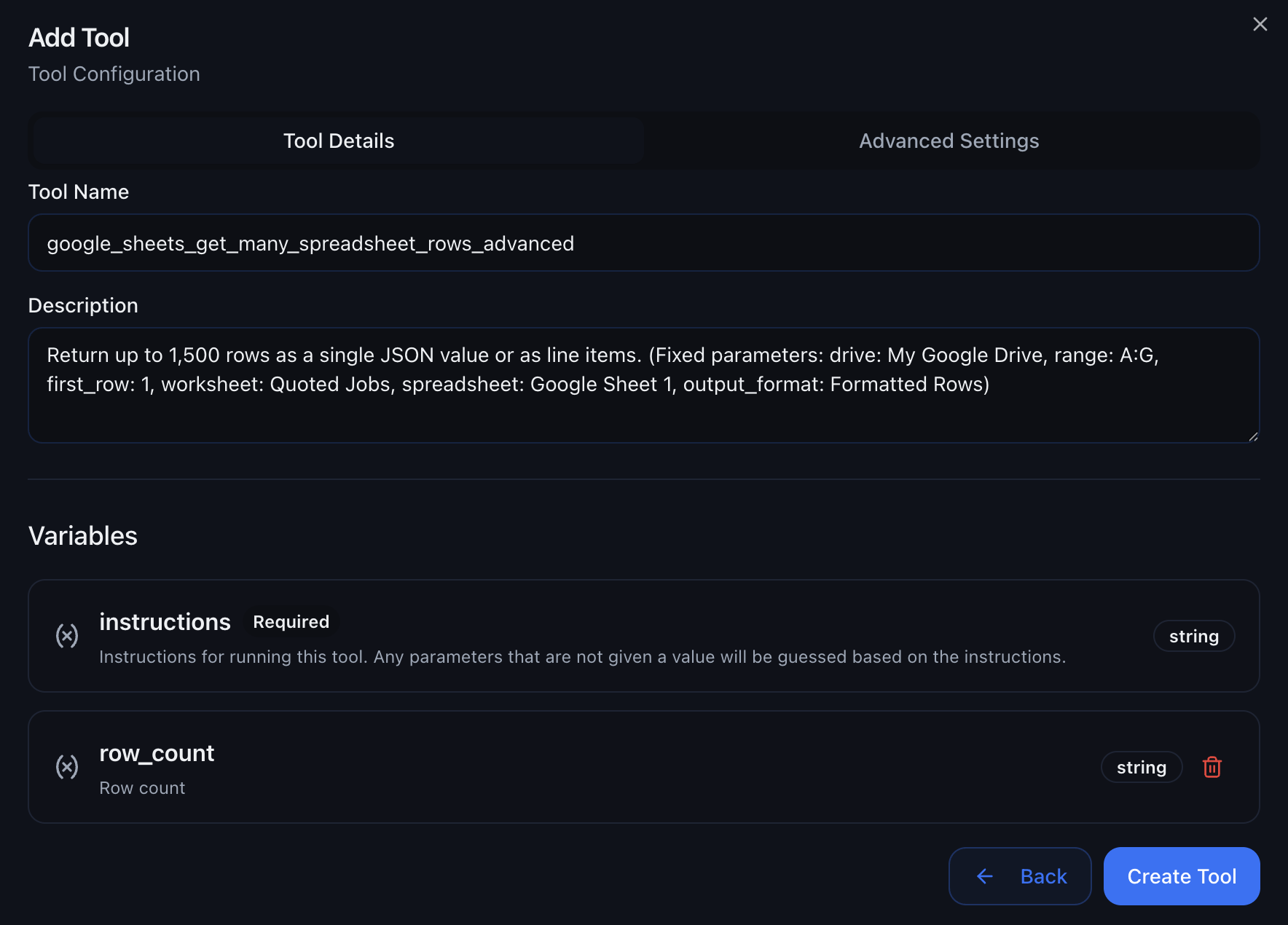
7. Select Specific Tools
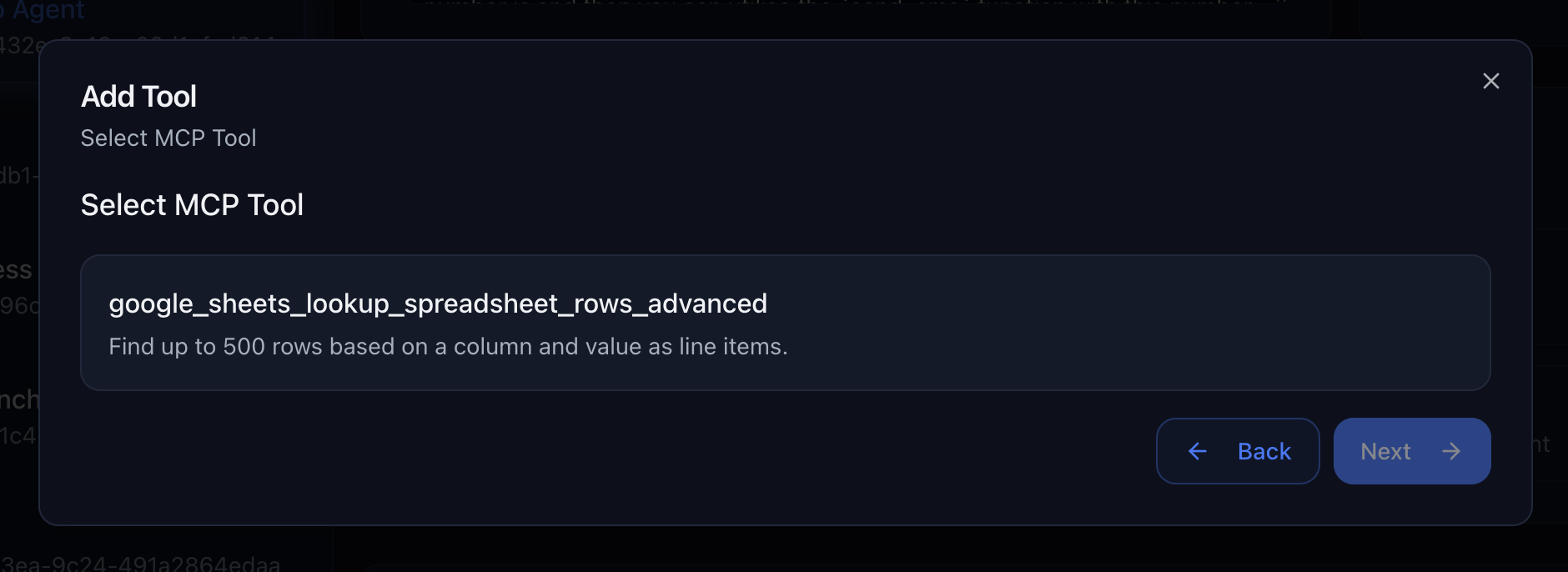
Google Sheets Integration
Google Sheets Integration
- Look up customer information from spreadsheets
- Update appointment bookings in real-time
- Track call outcomes and lead quality
CRM Integration
CRM Integration
- Create new contacts during calls
- Update deal stages based on conversation
- Add call notes and follow-up tasks
Communication Tools
Communication Tools
- Email appointment confirmations
- Send Slack notifications to team
- Create tasks in project management tools
- Real-time Data Access – Query live data during calls
- Multi-app Workflows – Chain actions across different services
- Custom Authentication – Secure access to your business tools
- Error Handling – Graceful fallbacks when tools fail
Voice & Model Options
Configure your agent’s language, voice, intelligence, and background sound.Language Selection
Choose the language and regional accent for your agent. Available Languages:- English (US) – American English accent
- Spanish – Spanish language
- French – French language
- Bulgarian – Bulgarian language
- Catalan – Catalan language
- Czech – Czech language
- Danish – Danish language
- German – German language
- Greek – Greek language
- Estonian – Estonian language
- Finnish – Finnish language
- Hindi – Hindi language
- Hungarian – Hungarian language
- Indonesian – Indonesian language
- Italian – Italian language
- Japanese – Japanese language
- Korean – Korean language
- Lithuanian – Lithuanian language
- Latvian – Latvian language
- Malay – Malay language
- Multilingual – Multiple languages support
- Dutch – Dutch language
- Norwegian – Norwegian language
- Polish – Polish language
- Portuguese – Portuguese language
- Romanian – Romanian language
- Russian – Russian language
- Slovak – Slovak language
- Swedish – Swedish language
- Tamil – Tamil language
- Tamazight – Tamazight language
- Thai – Thai language
- Turkish – Turkish language
- Ukrainian – Ukrainian language
- Vietnamese – Vietnamese language
- Chinese – Chinese language
- Chinese (China) – Chinese (China) language
- Chinese (Simplified) – Chinese (Simplified) language
- Chinese (Traditional) – Chinese (Traditional) language
- Chinese (Taiwan) – Chinese (Taiwan) language
Voice Selection
Choose from 1,000+ ElevenLabs voices to match your brand and audience perfectly.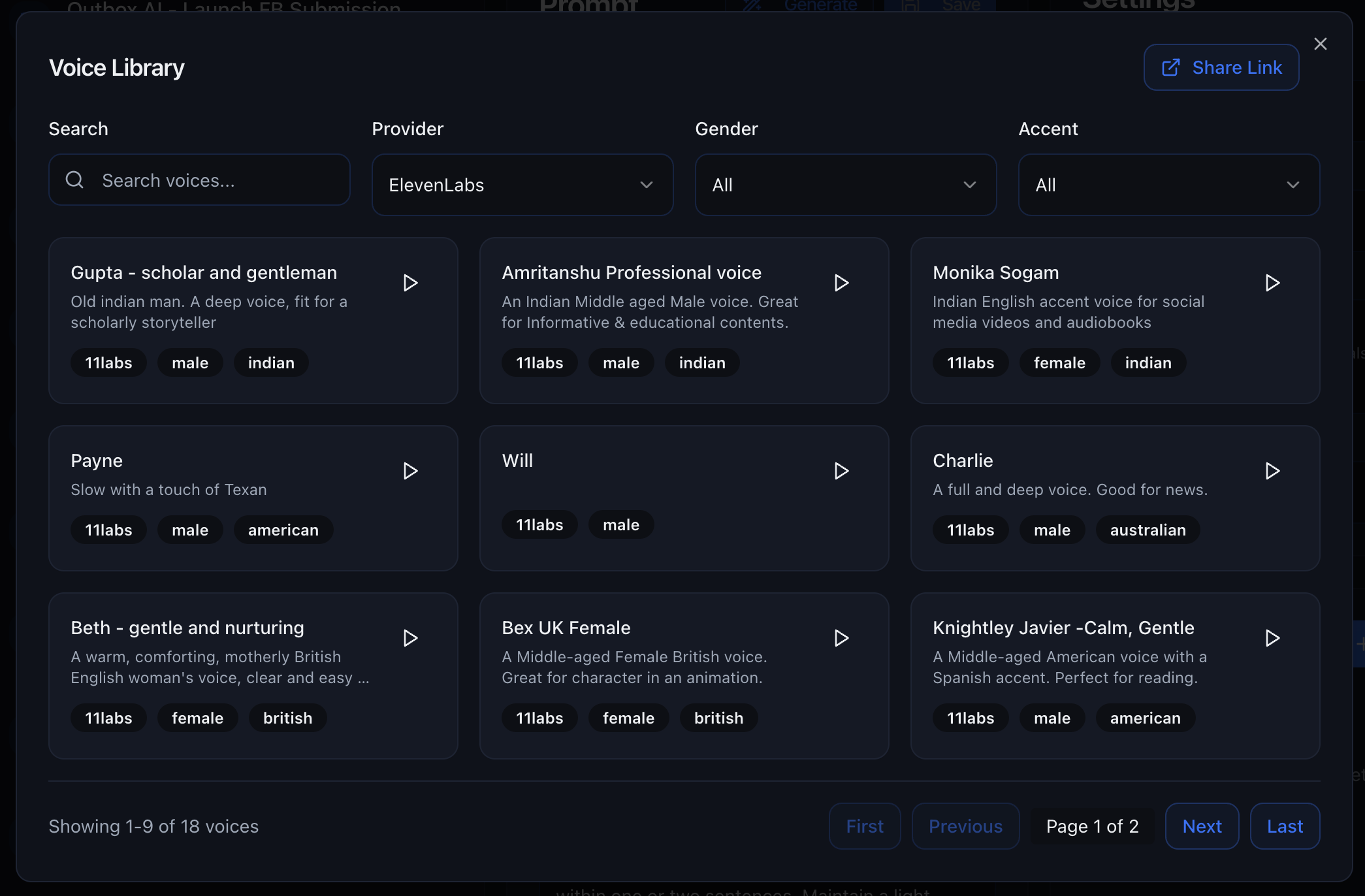
- Multiple accents – US, UK, Australian, Indian, and more
- Diverse genders – Male, female, and neutral voices
- Age ranges – Young, middle-aged, and mature voices
- Tones – Professional, casual, energetic, empathetic, and more
Professional Services
Consumer Services
Sales & Marketing
Support & Care
Model Selection
Choose the AI model that powers your agent’s intelligence. Each model balances speed, reasoning ability, and cost differently.Pricing Model
Voice agents use a token-based pricing system:- Included Tokens: Each model includes a certain number of tokens in your agent’s prompt per minute
- Overage Pricing: Any tokens beyond the included limit are charged at a per-1000-tokens rate per minute
- Your agent’s prompt (including system instructions, tools, and context) consumes tokens
- Each model includes a different amount of tokens in the base price
- If your prompt exceeds the included token limit, you pay the overage rate for the additional tokens
- Pricing is calculated per minute of call time
GPT-5.2
GPT-5.2
- 🎓 Exceptional reasoning and comprehension
- 🔍 Best for highly complex conversations
- ⏱️ Higher latency than GPT-4 models
- 💰 Premium pricing
- Included Tokens: 2,250 tokens per minute
- Overage: $1.75 per 1,000 tokens per minute
GPT-5.1 (Recommended)
GPT-5.1 (Recommended)
- 🧠 Advanced intelligence and comprehension
- 📚 Excellent handling of complex scenarios
- ⏱️ Moderate latency
- 💰 Higher cost than GPT-4 models
- Included Tokens: 3,250 tokens per minute
- Overage: $1.25 per 1,000 tokens per minute
GPT-5 Mini
GPT-5 Mini
- 🧠 Advanced intelligence
- 📊 Handles longer conversation histories and prompts
- ⏱️ Moderate latency
- 💰 More cost-effective for longer prompts
- Included Tokens: 16,000 tokens per minute
- Overage: $0.25 per 1,000 tokens per minute
GPT-5 Nano
GPT-5 Nano
- 🧠 Advanced intelligence
- 📊 Excellent for very long prompts and extensive tool configurations
- ⏱️ Moderate latency
- 💰 Most cost-effective for complex agents
- Included Tokens: 75,000 tokens per minute
- Overage: $0.05 per 1,000 tokens per minute
GPT-4.1
GPT-4.1
- ⚡ Fast enough for natural conversations
- 🧠 Accurate reasoning and comprehension
- ✅ Handles most conversation flows smoothly
- 🎯 Reliable performance across scenarios
- Included Tokens: 1,500 tokens per minute
- Overage: $2.00 per 1,000 tokens per minute
GPT-4.1 Mini
GPT-4.1 Mini
- 🏃 Quick response times
- 💬 Good for straightforward conversations
- 📊 More tokens included than GPT-4.1
- ⚠️ May struggle with complex scenarios
- Included Tokens: 7,500 tokens per minute
- Overage: $0.40 per 1,000 tokens per minute
GPT-4.1 Nano
GPT-4.1 Nano
- ⚡⚡ Extremely fast (under 1 second)
- 📝 Best for scripted interactions
- 📊 Excellent token allocation for longer prompts
- ⚠️ Limited ability to handle unexpected questions
- Included Tokens: 30,000 tokens per minute
- Overage: $0.10 per 1,000 tokens per minute
GPT-4o
GPT-4o
- 🎯 Exceptional accuracy and comprehension
- 📚 Handles complex scenarios excellently
- 💡 Better at handling objections and edge cases
- ⏱️ Slightly slower than GPT-4.1
- 💰 Higher overage costs
- Included Tokens: 1,250 tokens per minute
- Overage: $2.50 per 1,000 tokens per minute
Model Configuration
Fine-tune your selected model’s behavior with advanced configuration options. TemperatureControl the randomness and creativity of your agent’s responses. Lower values make responses more focused and deterministic, while higher values allow for more varied responses. Max Tokens
Set the maximum length of responses generated by the model. Adjust this based on your use case—shorter for quick confirmations, longer for detailed explanations.
Voice Settings
Customize your selected voice with ElevenLabs’ advanced voice parameters for precise control over speech generation. Model Choose the ElevenLabs voice model that best fits your needs:- Eleven Turbo v2 – Fast, high-quality voice synthesis
- Eleven Turbo v2.5 – Enhanced version with improved speed and quality
- Eleven Multilingual v1 – Supports multiple languages
- Eleven Multilingual v2 – Updated multilingual model with enhanced language support
- Eleven English v1 – Optimized for English language synthesis
Default: 0.45 Increasing variability can make speech more expressive with output varying between re-generations. It can also lead to instabilities. Clarity + Similarity
Default: 0.65 Low values are recommended if background artifacts are present in generated speech. Speed
Default: 1.00 Controls the speed of speech generation. Style Exaggeration
Default: 0.00 High values are recommended if the style of the speech should be exaggerated compared to the uploaded audio. Higher values can lead to more instability. Setting this to 0.0 will greatly increase generation speed. Optimize Streaming Latency
Default: 1 Controls streaming latency optimization level (0-4). Use Speaker Boost
Boost the similarity of the synthesized speech and the voice at the cost of some generation speed. Auto Mode
Reduces latency for complete sentences but may affect quality with partial phrases.
Background Sound
Add ambient background noise to make your calls feel more human and authentic. Available Options:- Office – General office sounds (keyboard typing, subtle background chatter)
- Lounge – General lounge sounds (subtle café/waiting room ambience)
- Custom Upload – Bring your own ambience by uploading an MP3 file (loops automatically once processed)
- Mute – No background sound (clean audio only)
✅ Use for Outbound Sales
✅ Use for Outbound Sales
✅ Use for Appointment Reminders
✅ Use for Appointment Reminders
❌ Avoid for Customer Support
❌ Avoid for Customer Support
❌ Avoid if Volume is an Issue
❌ Avoid if Volume is an Issue
Automated do-not-contact (DND)
If a caller asks not to be contacted again, Outbox AI can automatically set their contact to DND. Automated voice and chat outreach will not target them afterward, helping you honor opt-out requests without manual cleanup.Knowledge Base
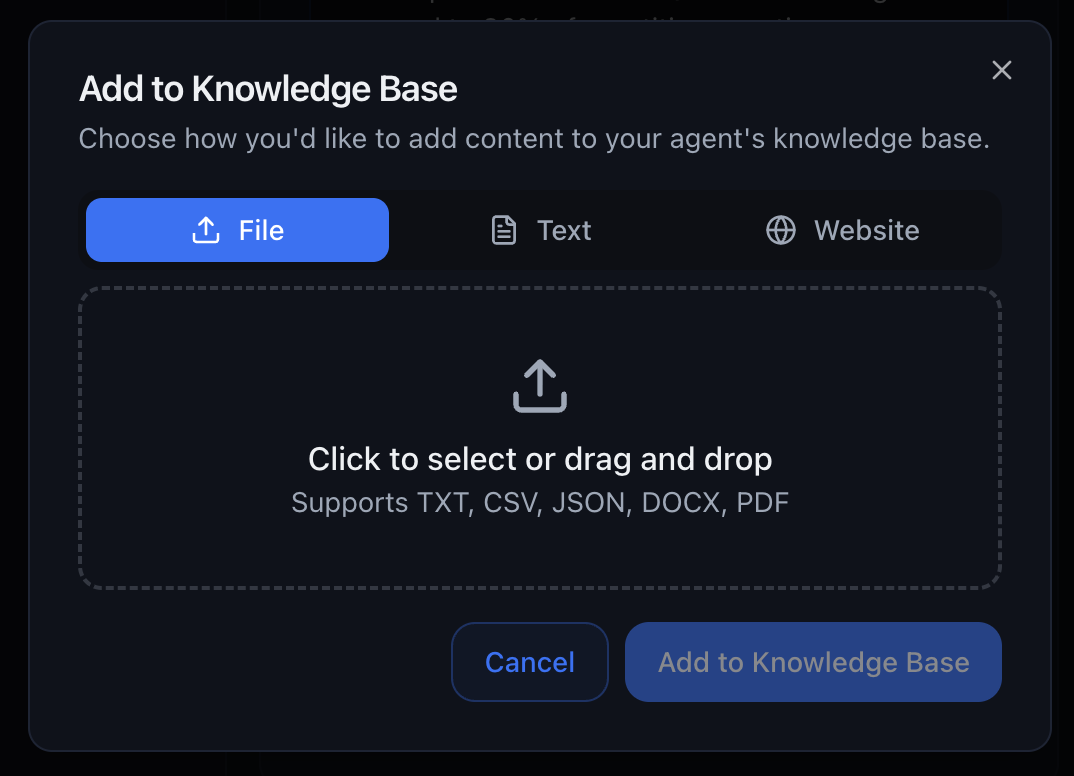
Give your agent access to company information, product details, policies, and more. Choose from three methods:File Upload
File Upload
- 📄 PDFs
- 📝 Word documents (.docx, .doc)
- 📊 CSV files
- 📋 Plain-text files (.txt)
- 🔤 Markdown files (.md)
- Product manuals
- Company policies
- FAQs
- Pricing sheets
- Training materials
Website Scrape
Website Scrape
- JavaScript-rendered content
- Multi-page sites
- Dynamic content
- Complex site structures
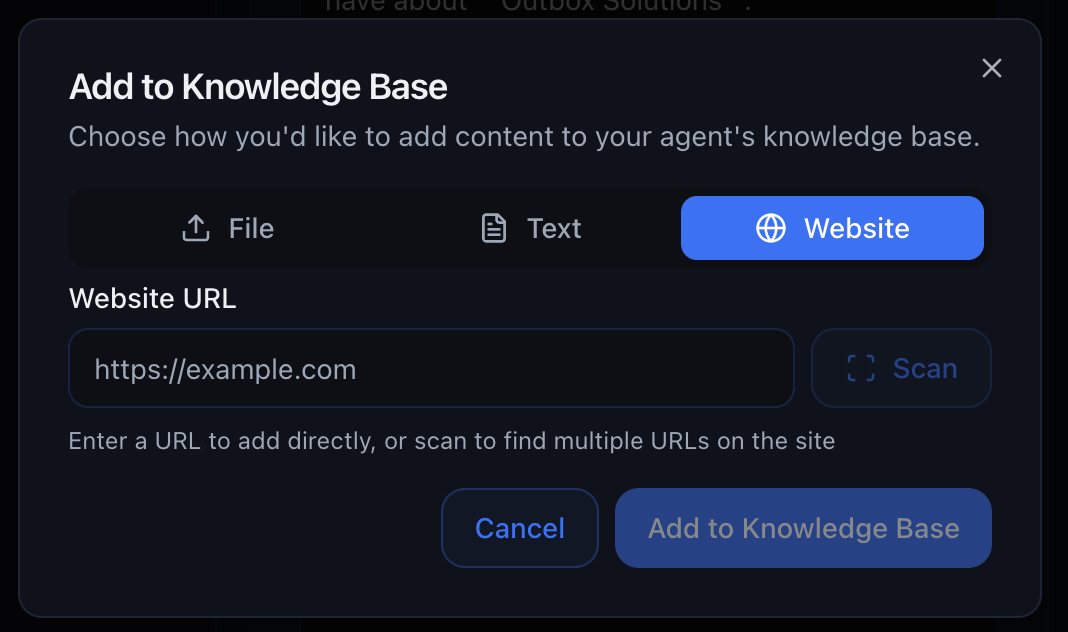
- Company websites
- Product documentation
- Help centers
- Blog content
- Knowledge base articles
Plain Text
Plain Text
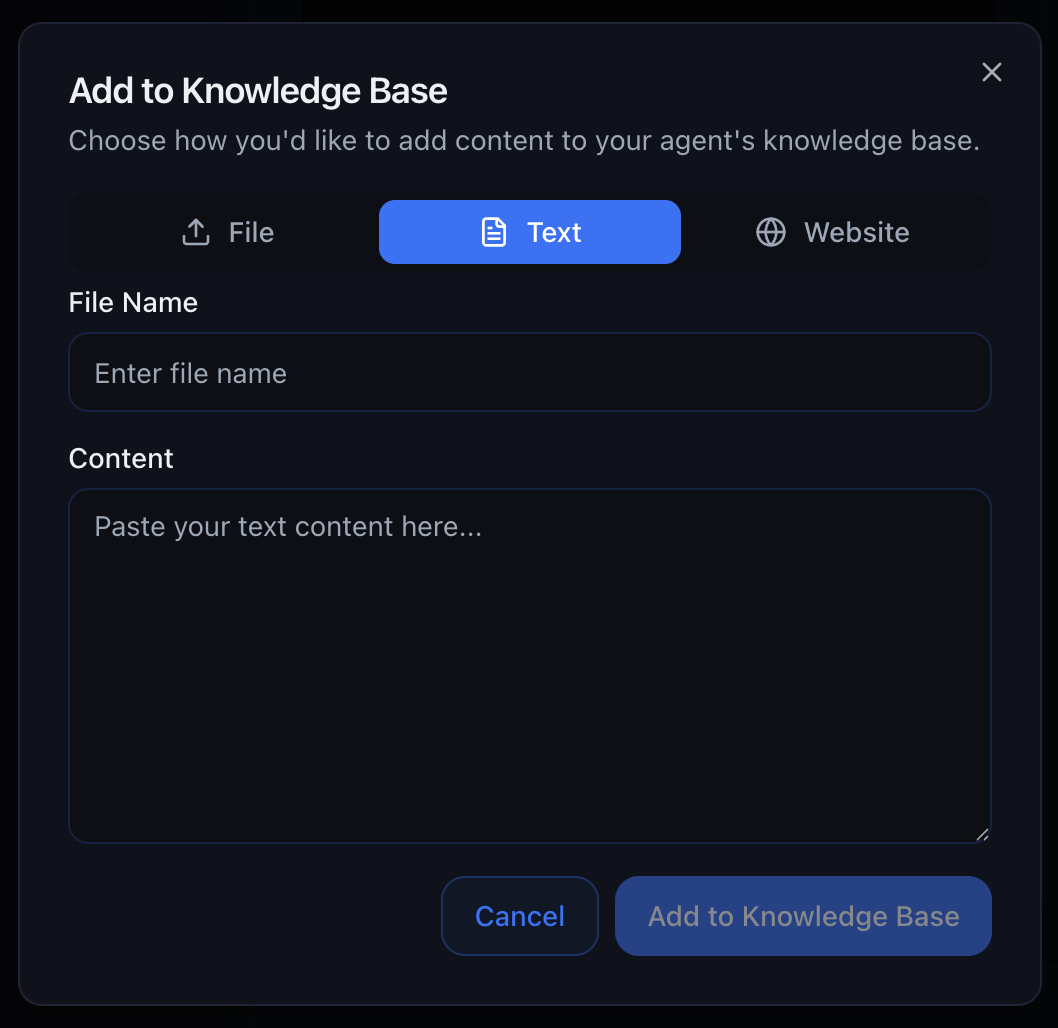
- Custom instructions
- Quick reference information
- Company values and mission
- Temporary information
- Testing and prototyping
Compliance Settings
Control what call data is stored for this voice agent.Recording Consent Message
The message your agent says at the start of a recorded call. Use this field to tell callers that the call is being recorded. Placeholder:HIPAA Compliance
Store logs, recordings, and transcriptions in HIPAA-compliant storage. Enable this for healthcare or other regulated workflows that require HIPAA-compliant handling of call data.Zero Data Retention (ZDR)
Prevent call data from being stored for this agent. When enabled, no call data will be stored for this agent where Zero Data Retention is supported.Audio Recording
Record the conversation. Disable audio recording when you do not want this agent’s call audio stored. For squad conversations, disable this on an agent to keep that agent’s portion of the conversation private.Transcript
Enable or disable transcription during a call. Disable transcription when you do not want this agent’s call transcript stored. For squad conversations, disable this on an agent to keep that agent’s portion of the conversation private.Advanced Settings
Fine-tune your agent’s behavior with these powerful configuration options.Time Zone
Essential for accurate appointment booking. Set the agent’s time zone so it can correctly interpret phrases like “tomorrow at 3pm” or “next Monday morning.”Forwarding Number
Automatically pass a qualified caller to a live rep. Enter a phone number in E.164 format (e.g.,+61412345678) to transfer calls.
How It Works:
- Agent qualifies the lead during the call
- Agent says: “Great! Let me connect you with one of our specialists.”
- Call is transferred to the forwarding number
- Live rep picks up and continues the conversation
- Hot leads ready to buy
- Technical questions beyond the agent’s scope
- VIP customers requesting personal service
- Emergency or urgent situations
Key Terms
Improve transcription accuracy for unusual names, brands, suburbs, etc. Add terms that the speech-to-text engine might misunderstand. Separate each term with a space. Examples:- Business names (especially unique spellings)
- Suburb and location names
- Product names and brands
- Industry-specific terminology
- Uncommon proper nouns
Voicemail Message
What to say if the system detects voicemail after ~20 seconds. Example:- ✅ Keep it under 15 seconds
- ✅ Include your callback number
- ✅ Give a reason for the call
- ✅ Sound natural and friendly
- ❌ Don’t oversell or sound desperate
End Call Message
Last line before hanging up. Examples:Unqualified Prompt
Define disqualifying criteria so calls are automatically tagged “Unqualified.” Example:- Automatically remove unqualified leads from sequences
- Trigger different follow-up workflows
- Tag contacts for future remarketing
- Keep your pipeline clean and focused
Success Prompt
Define what counts as a successful call. Use the success prompt to tell Outbox AI how to evaluate whether the call achieved the agent’s goal. If Vapi returnsstructuredData.success: true, the call is marked as successful.
Example:
- Specific about the caller outcome
- Focused on the goal of this agent
- Written as a true/false evaluation rule
success. If
Vapi returns structuredData.success: true, Outbox marks the call as
successful.Summary Prompt
Tell Outbox AI how to format the call summary posted back to your CRM. Example:- Bullet points for easy scanning
- Include specific fields for your CRM
- Highlight key selling points mentioned
- Note urgency level or buying intent
Scoring Prompt
Define how the call should be scored from 0-100. Example:- Route high-scoring leads to sales immediately
- Add low-scoring leads to nurture campaigns
- Track conversion rates by score range
- Optimize agent performance over time
Webhook URL
Where to send the end-of-call report. Enter a URL to receive a POST request with detailed call information immediately after each call completes. Request Format: The webhook sends a POST request with the following JSON payload:- id – Unique thread identifier
- status – Call outcome (did-succeed, did-not-answer, error, etc.)
- summary – AI-generated summary of the call
- score – Call quality score (0–100)
- agent.id – The agent’s unique ID
- agent.name – The agent’s name
- agent.phone_number – The number the agent called from
- direction – “inbound” or “outbound”
- duration – Call length in seconds
- contact.id – Contact’s unique ID
- contact.name – Contact’s full name
- contact.email – Contact’s email address
- contact.phone_number – Contact’s phone number
- contact.external_id – Contact’s ID in your CRM (e.g., GoHighLevel contact ID)
- transcript – Array of chronological transcript entries (spoken messages, tool calls, and interrupts) when transcripts are enabled. Same shape as the
messagesarray onGET /agent/transcript/{transcript_id}.
transcript array has a type field. There are three variants:
message— a spoken turn. Hasrole(userorassistant),message,timestamp, andplatform.tool_call— a tool the agent ran mid-call. Hasname,id,status, andtimestamp.interrupt— the caller cut the agent off. Hasmessage,timestamp, andplatform.
- Send data to Zapier or Make
- Update your CRM with call results
- Trigger follow-up automations based on status
- Log analytics in custom dashboards
- Route hot leads to sales teams
- Create tasks for follow-ups
Testing & Deployment
Test your agent thoroughly before sending it live to customers.Test Your Agent
Test your voice agent before going live using either web-based calling or real phone calls.Option 1: Test via Web Call
Click the Test button to talk to your agent directly from your browser—no phone required. What This Does:- Opens a web-based call interface in your browser
- No phone number required
- Instant feedback on prompt behavior
- Perfect for rapid iteration and quick tests
- Quick prompt testing and adjustments
- Checking tool integrations
- Verifying voice and tone
- Debugging conversation flows
- Fast iteration during development
Option 2: Test via Phone Call
Send a real phone call to yourself to test the complete customer experience.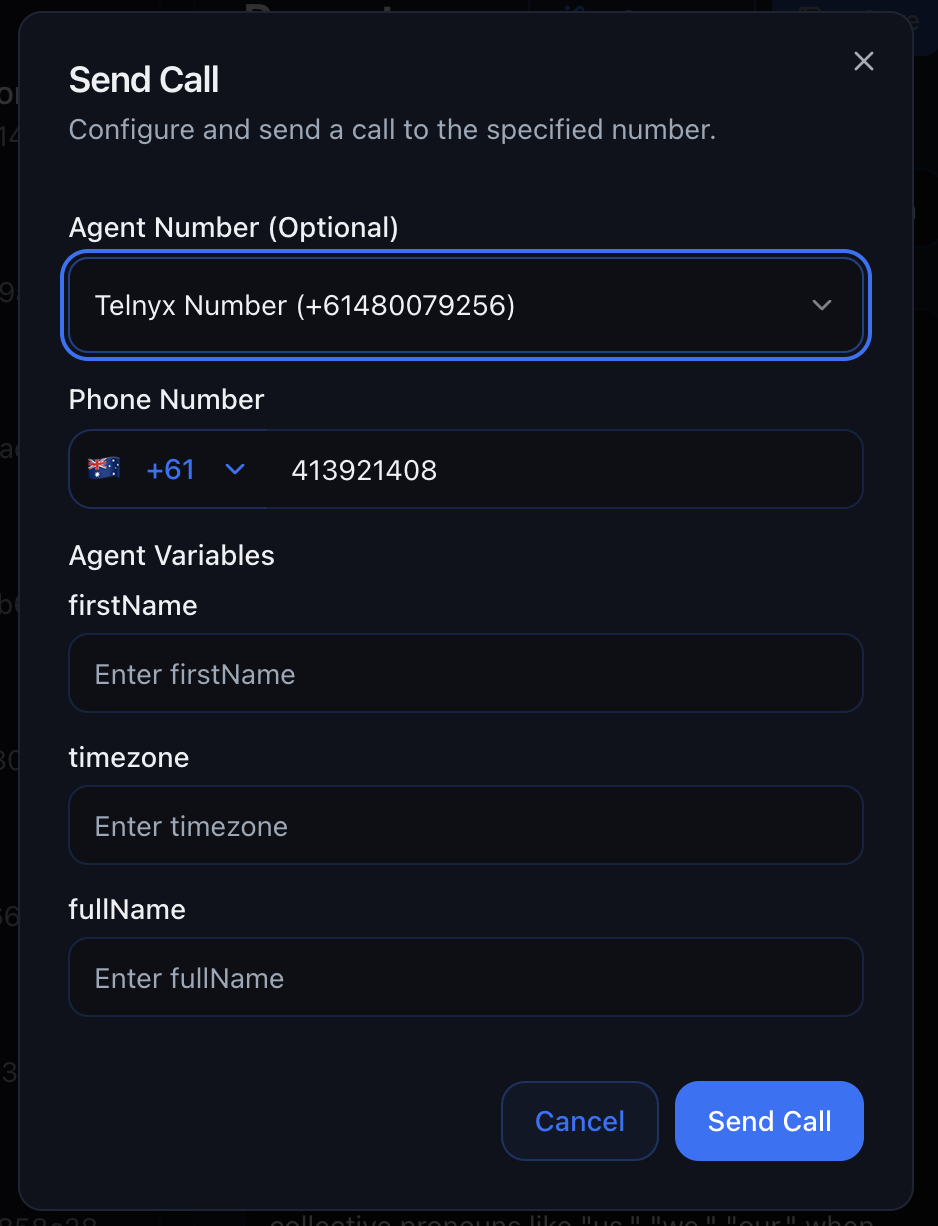
Select Your Agent
Enter Your Phone Number
+61412345678)Click Send Test Call
Have a Conversation
Review the Call
- ✅ Experience exactly what customers hear
- ✅ Test call quality and audio levels
- ✅ Check latency and response times in real-world conditions
- ✅ Verify transcription accuracy
- ✅ Ensure tools work end-to-end
- ✅ Test caller ID display
- ✅ Validate voicemail detection
Link Numbers
Assign a DID (phone number) to an agent so incoming calls trigger the right workflow.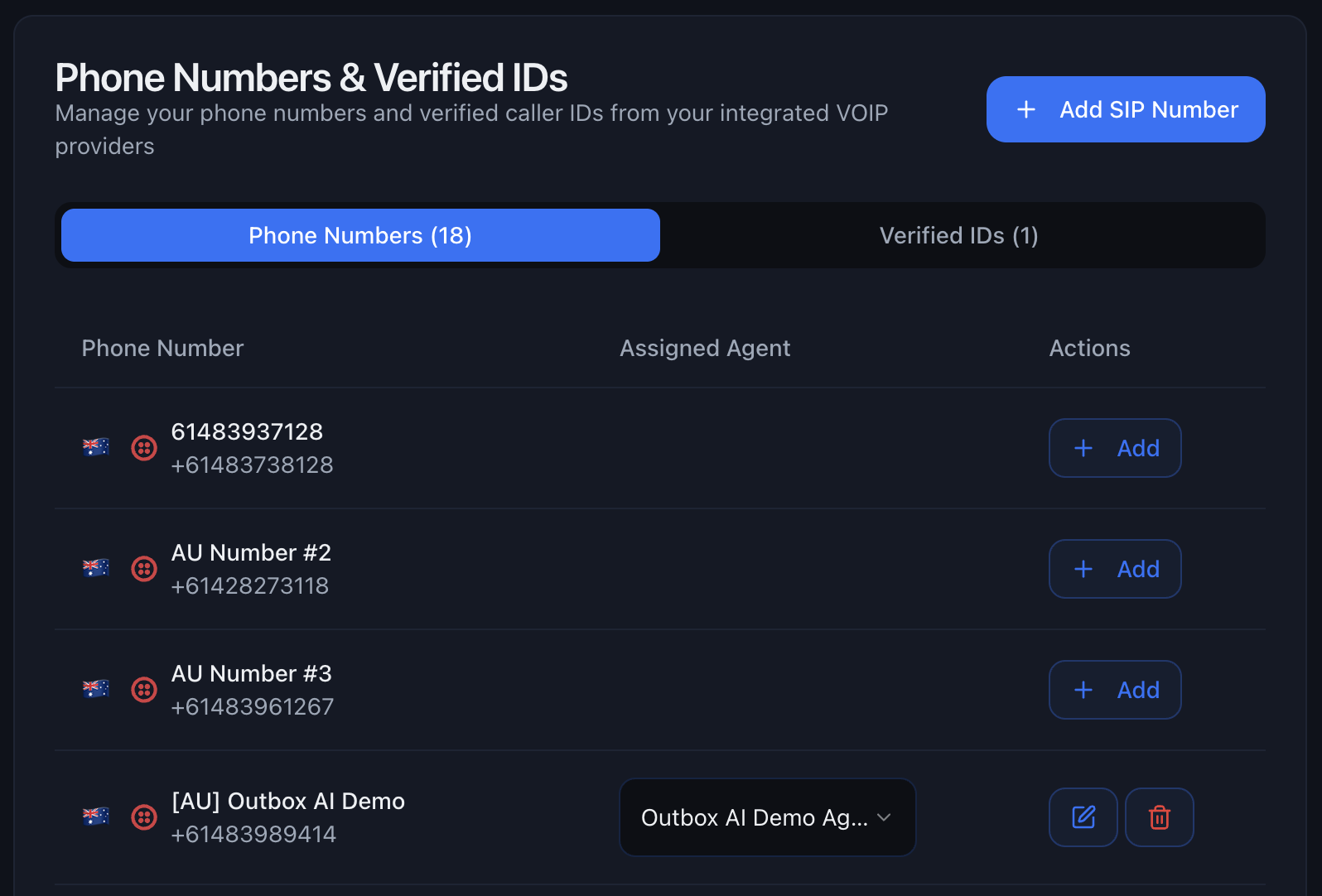
- Add new phone numbers
- Assign numbers to specific agents
- Dedicated support line for customer service agent
- Separate numbers for different campaigns
Share Button
Demo your agents with sharable web and phone call pages. Click the Share button to get:Web Call Page
A browser-based demo where anyone can talk to your agent without a phone.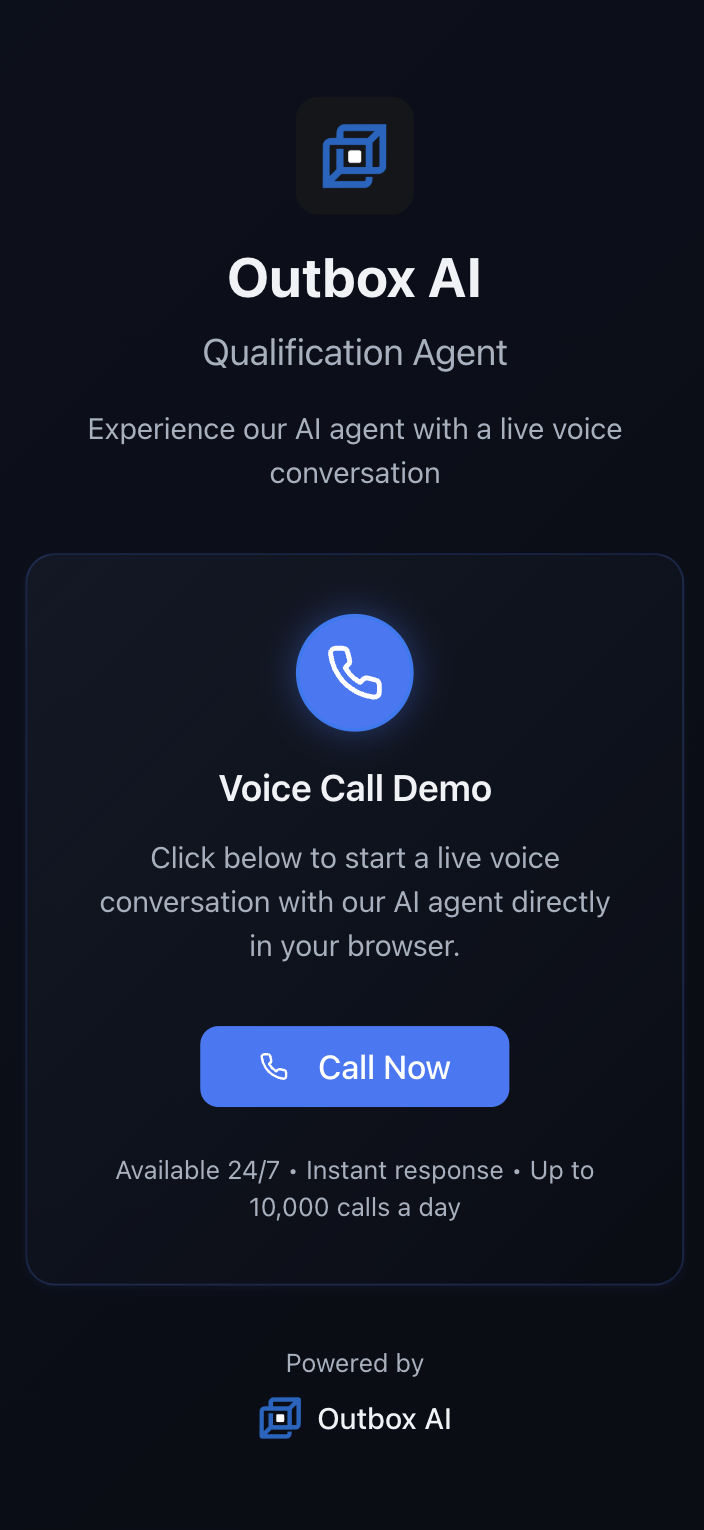
- Internal demos to your team
- Client presentations
- Training new staff
- Quick testing without using phone credits
Phone Call Page
A landing page with a “Call Now” button that triggers the agent to call the visitor.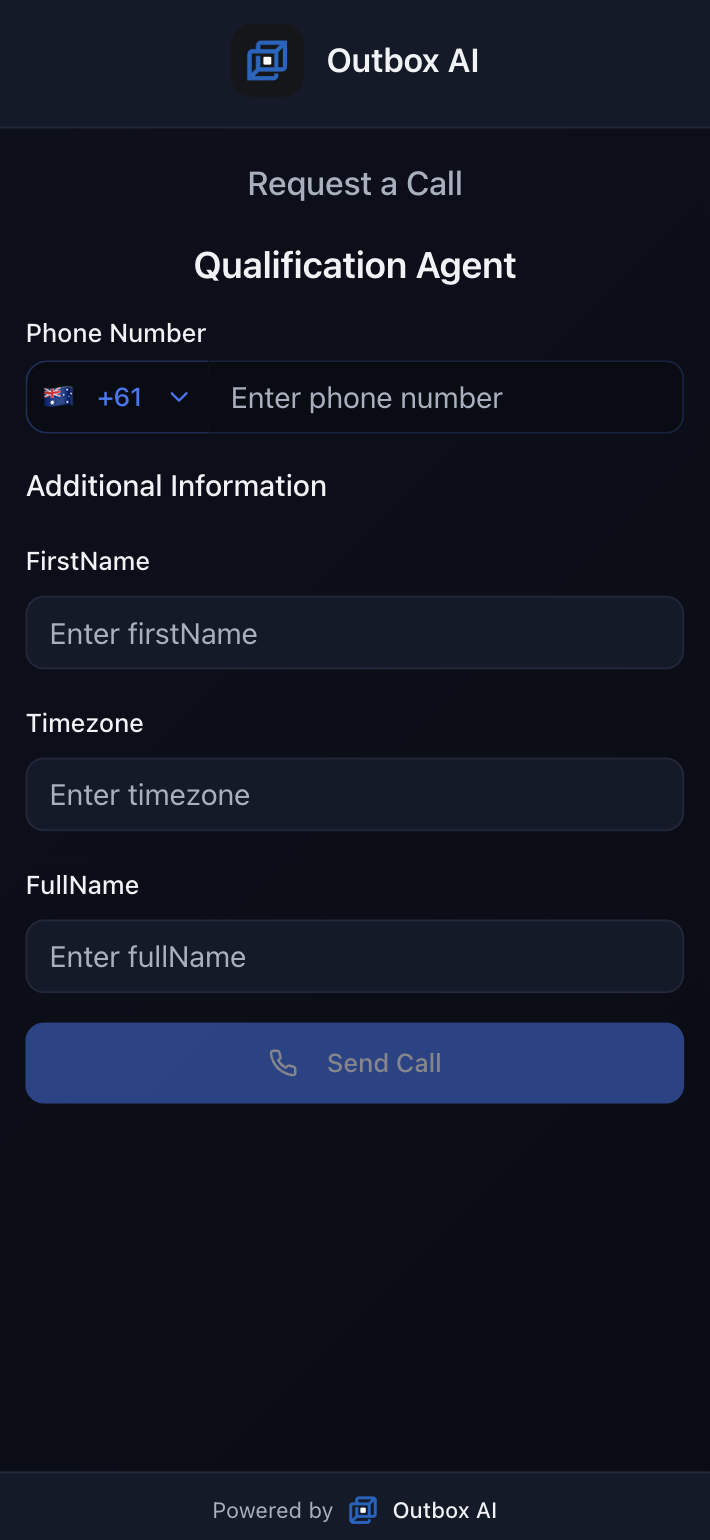
- Website “Call Me Back” buttons
- Sales demos for prospects
- Trade show displays
- Email campaigns (“Click to speak with us”)
Voice Widget Embed
Embed a voice widget directly on your website so visitors can start a voice conversation without leaving the page.How to Use
- Open your voice agent and go to the Share or Embed section
- Copy the generated Voice Widget embed code
- Paste it into your website before the closing
</body>tag - Publish your site and test the widget on desktop and mobile
Common Use Cases
- Website “Talk to Us Now” buttons
- Landing pages for lead qualification
- Instant callback or pre-sales screening flows
- High-intent pages where chat alone is not enough
Monitor Results
Track performance and identify issues across three key views.Conversations
Only connected calls – View text, audio, duration, and cost.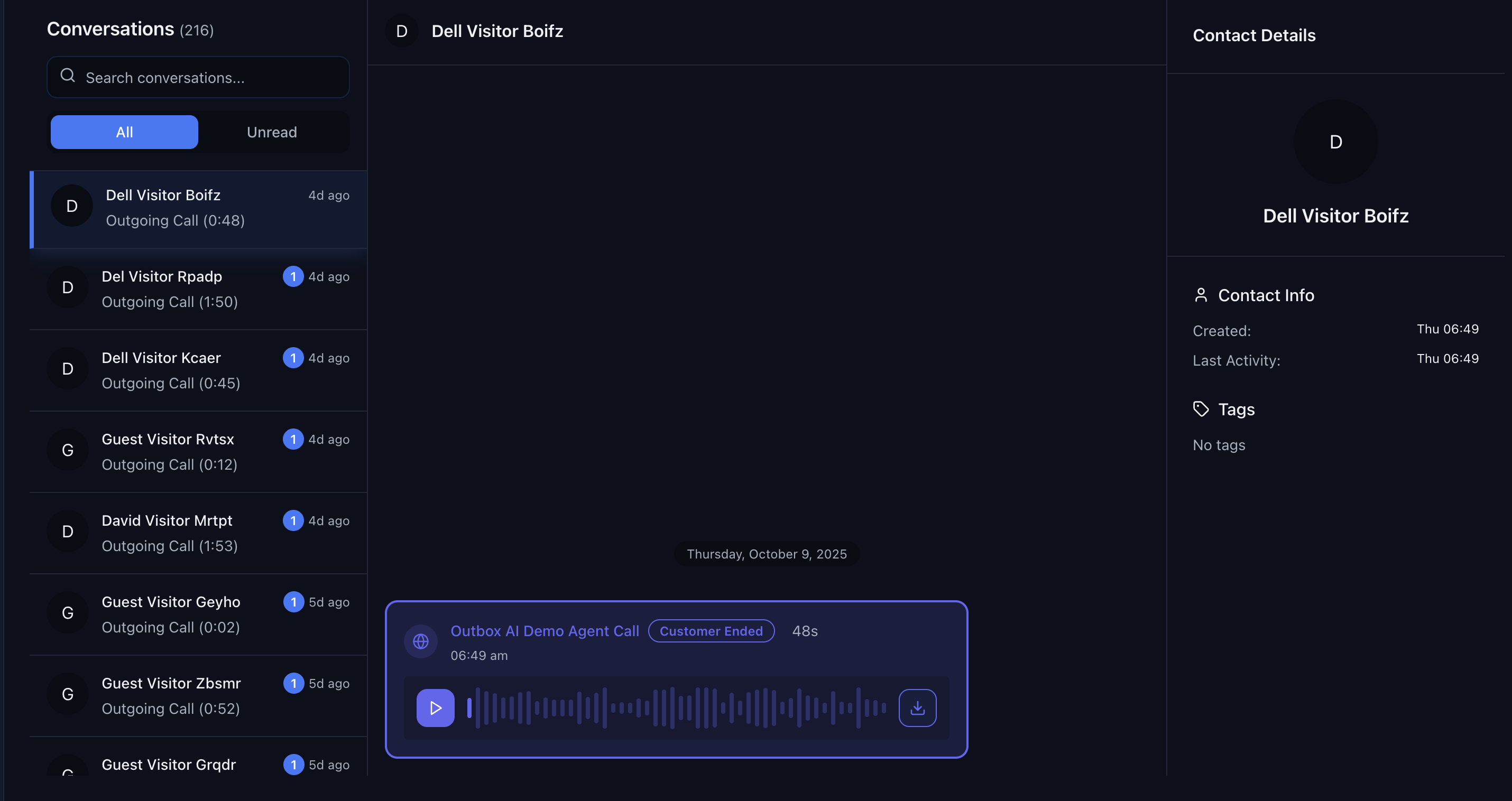
- 📝 Full transcript of the conversation, if transcripts are enabled
- 🎧 Audio recording playback, if audio recording is enabled
- ⏱️ Call duration and timestamps
- 💰 Cost per call
- 📊 Call score (0-100)
- ✅ Status (completed, unqualified, forwarded, etc.)
- 🏷️ Summary and notes
- Review successful calls for training
- Identify what’s working well
- Spot patterns in customer questions
- Improve your prompt based on real conversations
Call Logs
Every attempt, including voicemail and errors.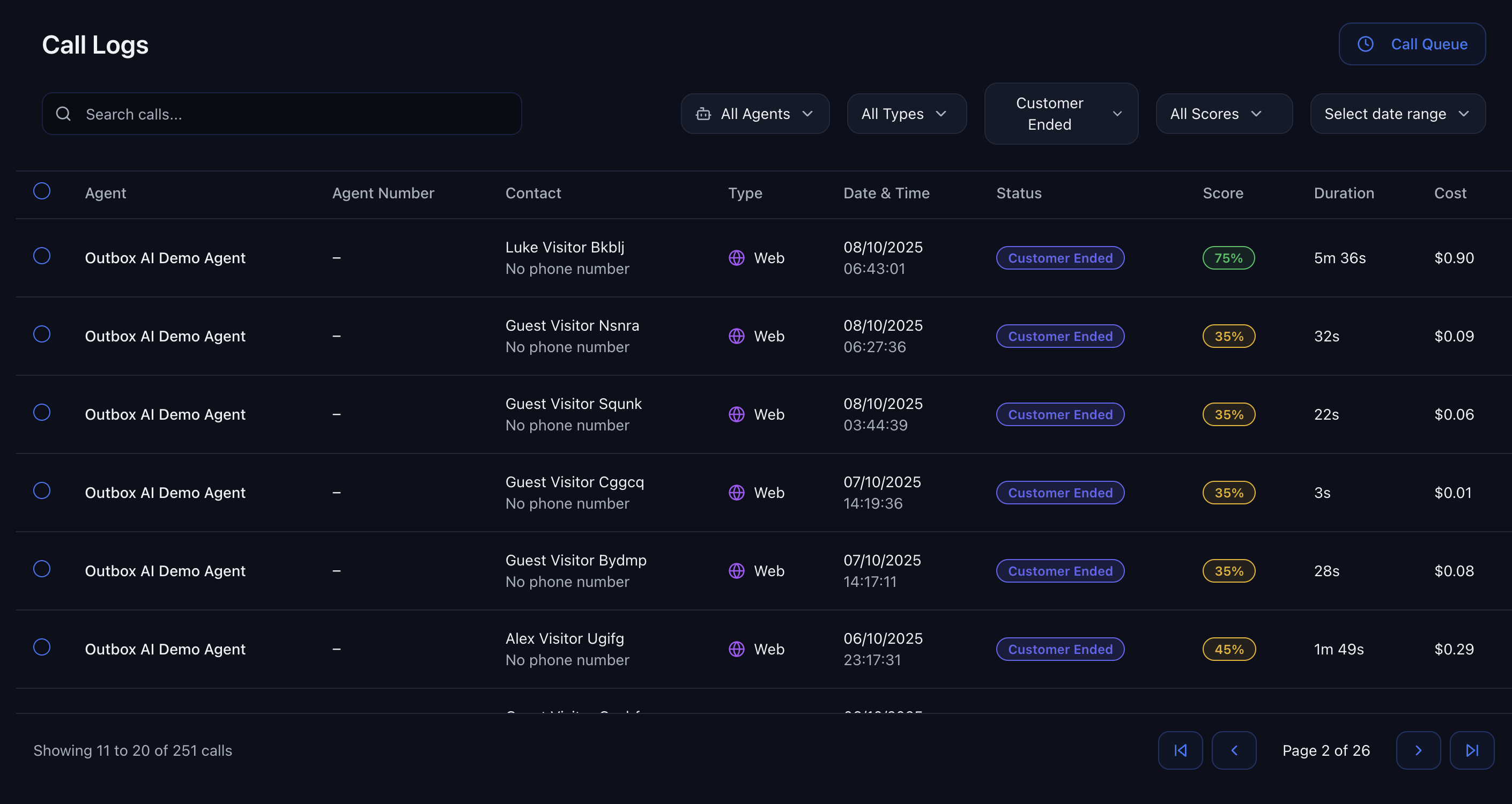
- All outbound call attempts
- Inbound calls (answered and missed)
- Voicemails detected
- Failed calls (wrong number, carrier issues, etc.)
- No-answer scenarios
- ✅ Completed – Call connected and finished successfully
- 📞 Forwarded – Call transferred to a human
- 📧 Voicemail – Agent left a message
- ❌ Error – Technical failure
- ⏭️ No Answer – Contact didn’t pick up
- 🚫 Unqualified – Prospect didn’t meet criteria
- Track call success rates
- Identify problematic phone numbers
- Monitor voicemail detection accuracy
- Spot systematic errors or issues
Call Queue
Overflow when concurrency is maxed, scheduled callbacks, or when wallet credit is low.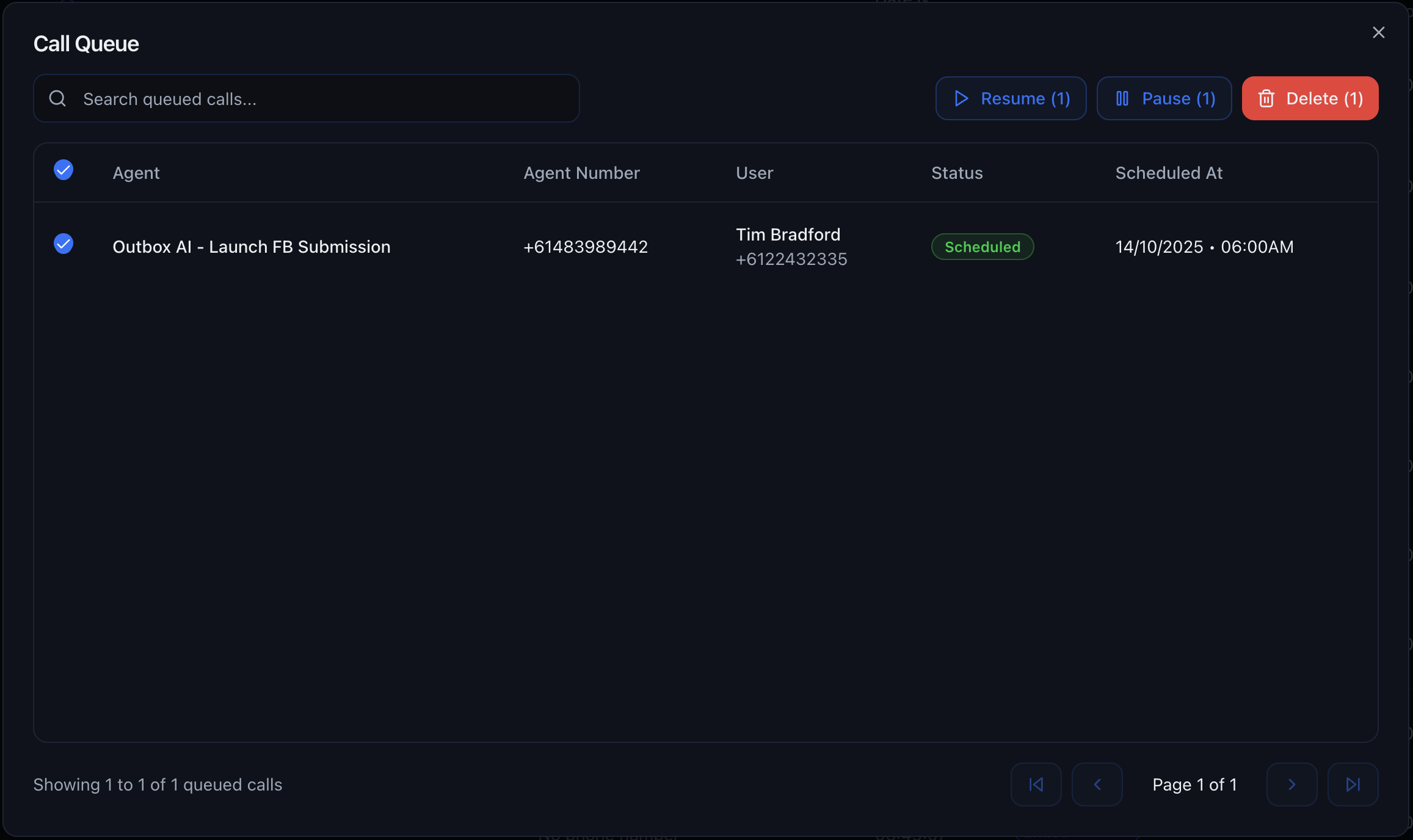
- ⏳ All concurrent call slots are full
- 📅 Call is scheduled for a future time (callbacks)
- 💳 Wallet balance is too low to place the call
- 🔄 Retry attempts are pending
- ▶️ Resume – Process queued calls immediately
- ⏸️ Pause – Hold calls in queue without processing
- ❌ Cancel – Remove calls from queue entirely
- See how many calls are waiting
- Identify why calls are queued
- Prioritize urgent callbacks
- Top up credits if needed
Best Practices
Start with GPT-4.1
Start with GPT-4.1
- If your prompt is longer than ~1,500 tokens, consider GPT-4.1 Mini (7,500 included tokens) or GPT-4.1 Nano (30,000 included tokens) to avoid overage charges
- For very complex agents with extensive prompts, many tools, or large knowledge bases, GPT-5 Mini or GPT-5 Nano offer generous token allocations
- Monitor your token usage and switch models if you’re frequently hitting overage charges
Test Voice Quality First
Test Voice Quality First
- Create a simple “Hello, this is a test” agent
- Call yourself
- Evaluate clarity, tone, and professionalism
- Try 2-3 different voices
- Pick the winner, then build your prompt
Keep First Messages Short
Keep First Messages Short
Use Key Terms Liberally
Use Key Terms Liberally
Monitor Latency
Monitor Latency
- Remove knowledge base (adds 2-4s per query)
- Switch to a faster model (GPT-5 models → GPT-4.1 or GPT-4.1 Mini/Nano)
- Simplify tool complexity
- Shorten your prompt to reduce token processing time
Review Conversations Weekly
Review Conversations Weekly
- What objections keep coming up?
- Where does the agent get confused?
- What questions can’t it answer?
- Where do people hang up?
Troubleshooting
Agent Sounds Robotic
Agent Sounds Robotic
- Enable Background Sound (Office or Lounge)
- Add filler words to your prompt (“um,” “ah,” “let me check”)
- Use contractions (“I’m” not “I am,” “we’re” not “we are”)
- Test a different voice with more personality
- Avoid overly formal language in your prompt
Poor Call Quality
Poor Call Quality
- Test a different voice provider
- Disable background sound if volume is low
- Check that the caller’s connection is stable
- Verify you’re not exceeding concurrent call limits
- Contact support if issue persists across multiple calls
Agent Taking Too Long to Respond
Agent Taking Too Long to Respond
- Disable knowledge base if enabled
- Switch to a faster model (GPT-5 models → GPT-4.1 or GPT-4.1 Mini/Nano)
- Simplify tool logic and reduce API calls
- Shorten your prompt to reduce token processing time
- Remove complex conditional logic
Tools Not Triggering
Tools Not Triggering
- Make tool usage explicit in your prompt: “When the caller wants to book, use the book_appointment tool”
- Test the tool manually to ensure it’s working
- Check API keys and authentication
- Review tool logs for error messages
- Simplify the tool trigger conditions
Transcription Errors
Transcription Errors
- Add problematic words to Key Terms
- Use phonetic spelling if needed (e.g., “Mandjoogoordap” for “Mandogalup”)
- Test in a quiet environment first
- Ensure the caller speaks clearly
- Switch to a model with better transcription (GPT-5.2, GPT-5.1 Chat Latest, or ChatGPT-4o Latest)
Calls Going to Queue
Calls Going to Queue
High Token Overage Charges
High Token Overage Charges
- Switch to a model with more included tokens: If you’re using GPT-4.1 (1,500 tokens), consider GPT-4.1 Mini (7,500 tokens) or GPT-4.1 Nano (30,000 tokens)
- For complex agents: Use GPT-5 Mini (16,000 tokens) or GPT-5 Nano (75,000 tokens) for agents with extensive prompts, many tools, or large knowledge bases
- Optimize your prompt: Remove unnecessary content, consolidate FAQs, simplify tool descriptions
- Review your prompt length: Check how many tokens your prompt consumes and compare to your model’s included token limit
- Monitor usage: Track which agents are hitting overage charges most frequently
- GPT-4.1: 1,500 included tokens, $2.00 per 1K overage
- GPT-4.1 Nano: 30,000 included tokens, $0.10 per 1K overage