

Overview
White-label Outbox AI to present the platform as your own product. Replace logos, brand names, domains, and email addresses so clients only see your agency’s branding.Access White-Label Settings
Navigate to your agency’s white-label configuration.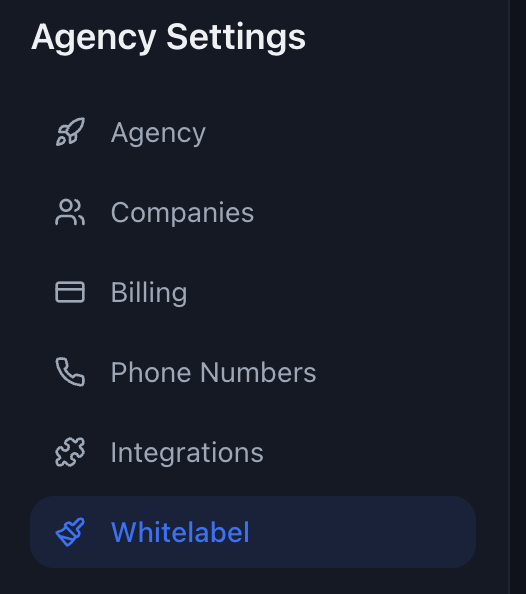
1
Open Agency Settings
Log in to Outbox AI and click on your agency workspace
2
Navigate to White-label Tab
Go to Settings → White-label tab
Configure Your Branding
Set up your agency’s branding in five key fields.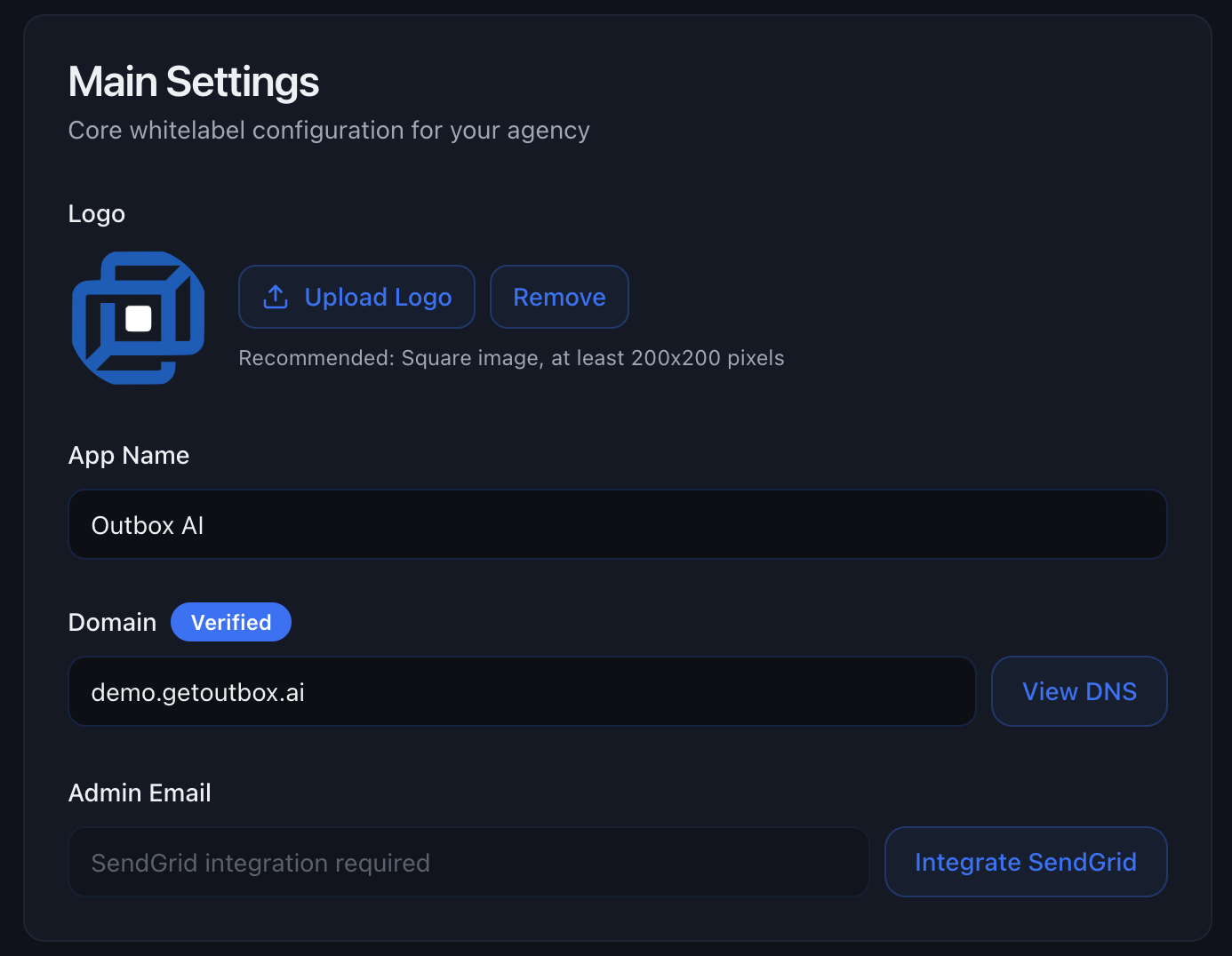
1. Logo
Upload your agency logo (PNG or SVG, square, 512×512px minimum). Where it appears:- Sidebar navigation
- Login screen
- Email invitations
- Browser favicon
2. Brand Name
Enter your agency or product name. Where it appears:- Browser tab title
- Login screen heading
- Email subject lines
- Platform footer
3. J.A.R.V.I.S Name
Set the assistant name your clients see across the platform. Where it appears:- J.A.R.V.I.S page title and assistant headers
- Subaccount settings and help text
- Internal references shown to client users
This is a display-only white-label setting. Renaming J.A.R.V.I.S does not
change any underlying automation behavior.
4. Custom Domain
Enter your custom domain (e.g.,portal.youragency.com).
How it works:
- Enter your subdomain (e.g.,
apporportal) - Outbox AI provides 3 DNS records to add
- Add these records at your DNS provider (GoDaddy, Cloudflare, etc.)
- Wait for DNS propagation (usually 1-2 hours)
- Your portal becomes accessible at your custom domain
app.youragency.com, you’ll add these records:
Use a subdomain:
portal.youragency.com or app.youragency.com works
best. Avoid using your root domain. The exact TXT verification value will be
unique to your account.5. Email Address
Set your sender email for system notifications and invites (e.g.,noreply@youragency.com).
Requirements:
- Connect SendGrid – Add your SendGrid API key
- Verify sender email – SendGrid will send a verification link
- Set as default – Choose this email for all notifications
noreply@youragency.com– Automated notificationssupport@youragency.com– Support emailsteam@youragency.com– Team invites
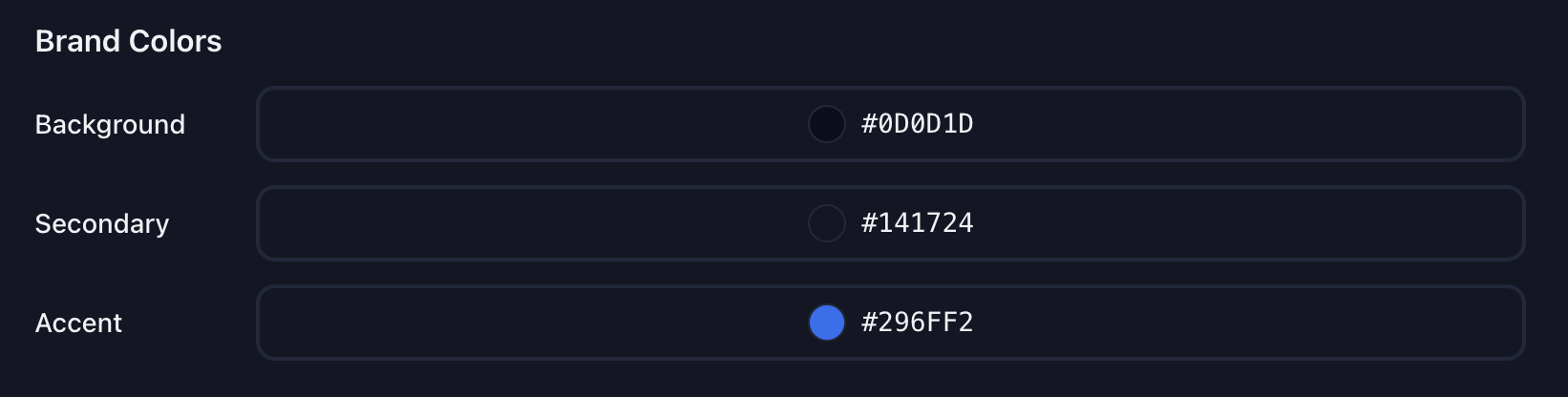
Dashboard Color Branding
Available on Growth/Scale plans: Dashboard color customization is available
on Growth and Scale. If you need this feature, upgrade to Growth.
- Background colour – Main background color for the dashboard
- Secondary colour – Secondary UI elements and accents
- Accent colour – Highlight color for buttons, links, and interactive elements
API Domain Whitelabeling
Available on Scale plan: API domain whitelabeling is available on Scale
only. If you need this feature, upgrade to Scale.
- API calls are made to your custom domain (e.g.,
api.youragency.com) - Your API endpoint appears in your clients’ Twilio accounts
- Complete white-label API experience across all integrations
White-Label GoHighLevel
If you run a white-label GoHighLevel instance, you can replace GoHighLevel branding throughout Outbox AI.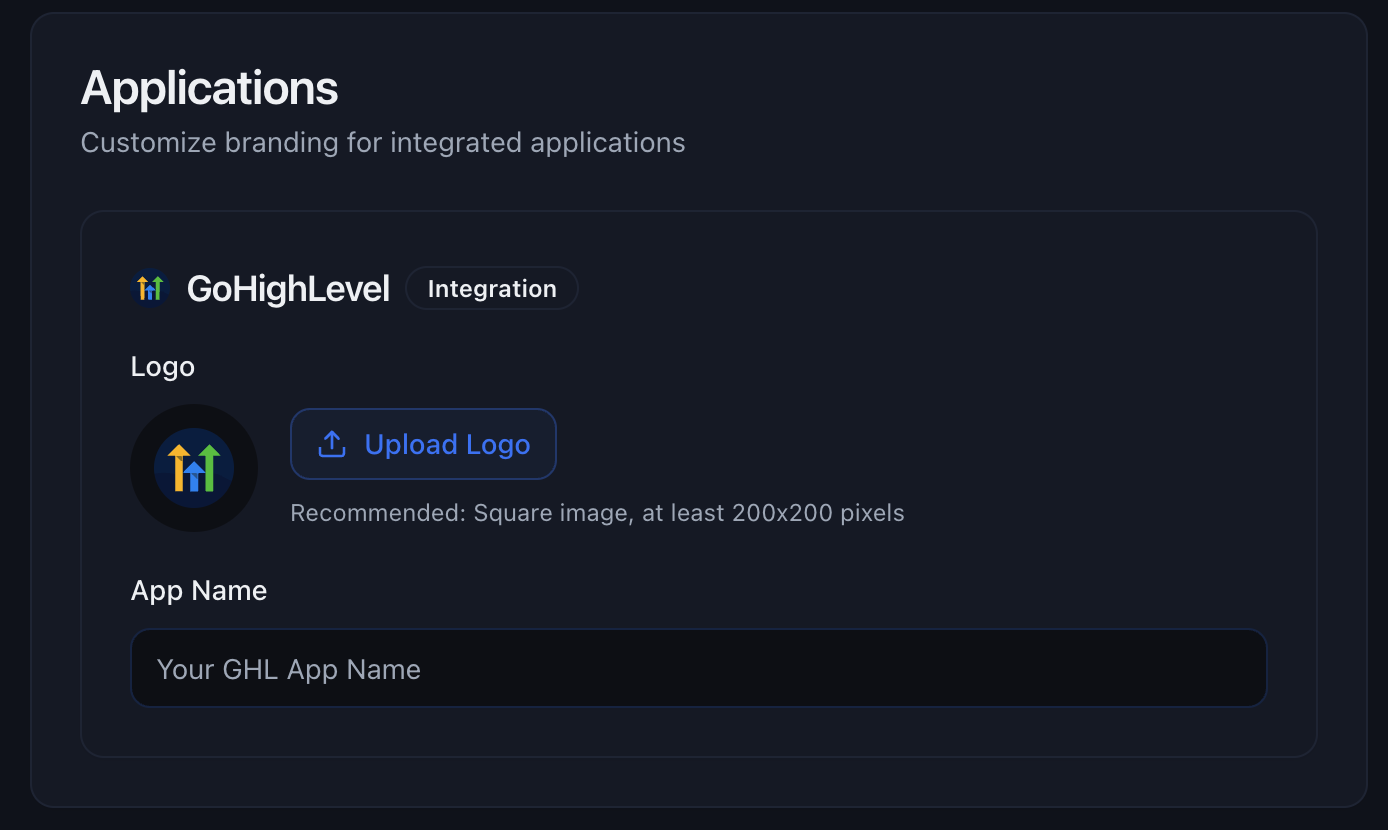
What to Configure
1. GoHighLevel LogoUpload your white-labeled GHL logo (square PNG/SVG, 256×256px minimum) 2. GoHighLevel Account Name
Enter your GHL white-label name (e.g., “Acme CRM” instead of “GoHighLevel”)
What Gets Replaced
✅ All “GoHighLevel” text becomes your brand name✅ GoHighLevel logo replaced with your logo
✅ Integration cards show your branding
✅ Settings and help text reference your CRM name Example:
This only affects display in Outbox AI. Your actual GoHighLevel
white-label setup remains unchanged.
Testing Your Setup
After configuring your white-label settings:1
Visit Your Custom Domain
Open your custom domain in an incognito/private window
2
Check Login Screen
Verify your logo and brand name appear
3
Send Test Invite
Invite a test email and confirm it shows your branding
4
Review All Pages
Log in and verify no “Outbox AI” branding is visible
Troubleshooting
Custom Domain Not Loading
Custom Domain Not Loading
Problem: Your domain shows an error or won’t load.Solutions:
- Check all 3 DNS records are added correctly (no typos)
- Verify DNS has propagated using DNS Checker
- Wait up to 48 hours for full propagation
- Contact support if still not working after 48 hours
Emails Not Sending
Emails Not Sending
Problem: Invites or notifications aren’t being received. Solutions: -
Verify SendGrid API key has Full Access permissions - Confirm sender email
shows “Verified” in SendGrid - Check recipient’s spam/junk folder - Test
sending an email directly from SendGrid dashboard - Set up SPF/DKIM records
for better deliverability
Logo Looks Blurry
Logo Looks Blurry
Problem: Your logo doesn’t look sharp. Solutions: - Upload higher
resolution (at least 512×512px, preferably 1024×1024px) - Use square
dimensions (non-square logos get stretched) - Try SVG format for perfect
scaling - Ensure transparent background for dark/light mode compatibility
Still Seeing Outbox AI Branding
Still Seeing Outbox AI Branding
Problem: “Outbox AI” still appears somewhere. Solutions: - Clear your
browser cache (Cmd+Shift+R on Mac, Ctrl+Shift+R on Windows) - Test in
incognito/private mode - Ensure all fields are saved in white-label settings -
Take screenshots of where you see it and contact support
GoHighLevel Branding Still Showing
GoHighLevel Branding Still Showing
Problem: GoHighLevel logo/name not replaced.Solutions:
- Verify both GHL logo AND name are set
- Refresh the page after saving
- Check the GoHighLevel white-label toggle is ON
- Clear cache and test in incognito mode
Best Practices
Start A2P Early (US SMS)
Start A2P Early (US SMS)
If using US SMS, start your A2P 10DLC registration immediately. It takes 4-6 weeks to approve.See the Telephony guide for A2P setup instructions.
Match Your Website
Match Your Website
Use the same logo and styling from your main website for consistent branding
across all client touchpoints.
Test Thoroughly
Test Thoroughly
Before showing clients: - Test login at custom domain - Send invites to test
emails - Check mobile and desktop views - Verify no Outbox AI branding
anywhere
Document Your Setup
Document Your Setup
Keep a record of:
- SendGrid API key location
- DNS records and provider
- Verified sender emails
- Custom domain URL
Next Steps
Telephony Setup
Configure phone numbers with white-labeled caller IDs
GoHighLevel Integration
Connect your white-labeled GHL instance
Chat Agents
Create agents for your white-labeled platform
Voice Agents
Set up voice agents with your branding
Resources
SendGrid Setup
SendGrid API key documentation
DNS Checker
Check DNS propagation status
Email Deliverability
Best practices for email delivery