

Overview
Workflows let you automate follow-ups and routing across voice, chat, and external systems. Triggers can fire on call outcomes, Meta lead forms, inbound webhooks, and more—then actions run automatically (calls, SMS, webhooks, chat handoffs, and beyond).Automated Campaigns
Create multi-step campaigns that automatically follow up based on call results
Smart Routing
Route contacts to different paths based on call status, score, or duration
Multi-Channel Follow-Up
Send SMS, emails, and additional calls based on conversation outcomes
Contact Management
Automatically tag contacts, add them to sequences, or remove them from workflows
How Workflows Work
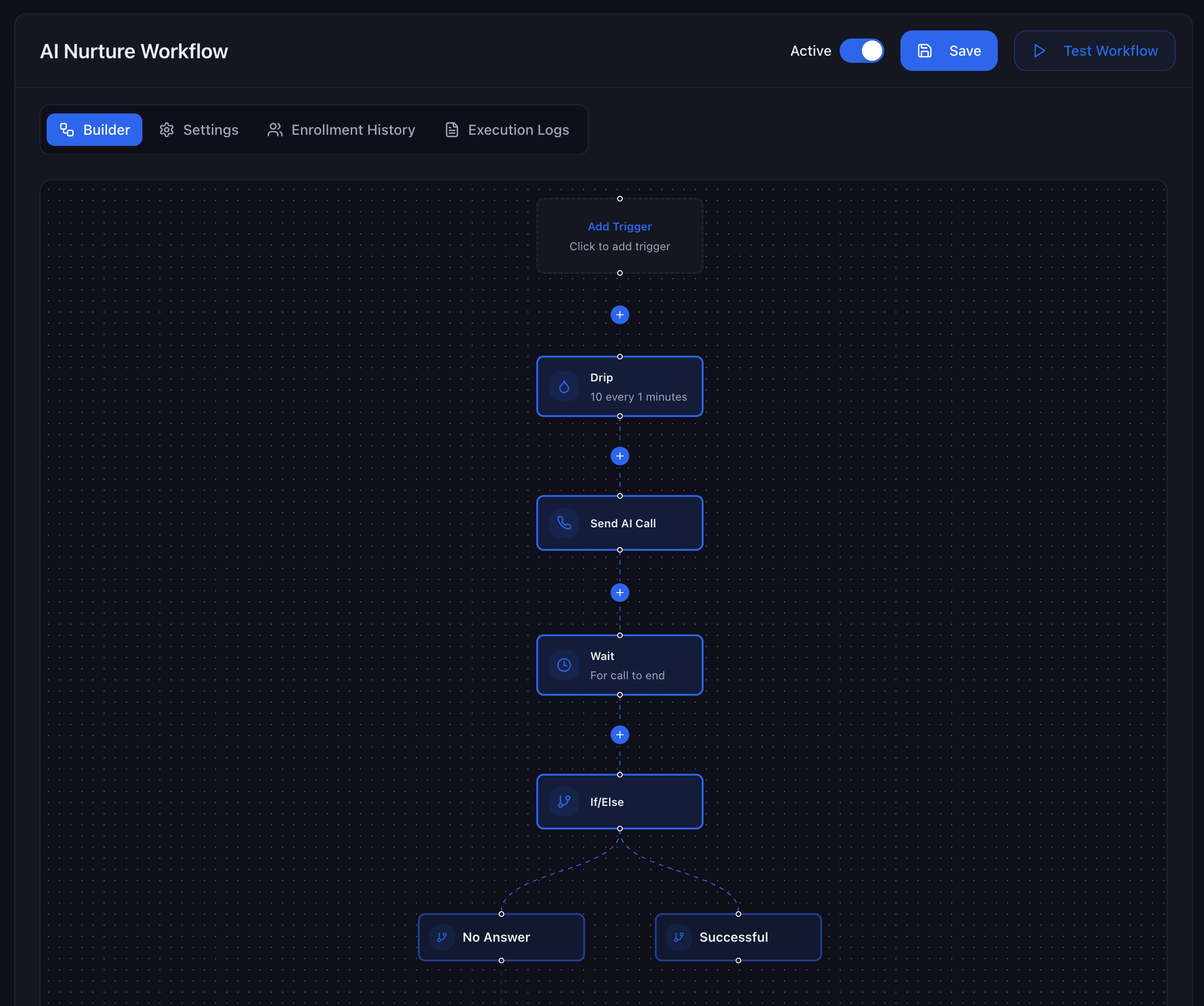
Workflows consist of triggers and actions:- Trigger: An event that starts the workflow (e.g., AI call completed, Meta form submitted, inbound webhook)
- Filters: Conditions that determine which calls should trigger the workflow
- Actions: Steps that execute automatically (send calls, SMS, emails, etc.)
- Branches: Conditional logic that routes contacts down different paths
Triggers
AI Call Completed
The primary trigger for outbound call workflows. This trigger fires when an AI call finishes, allowing you to respond immediately to call outcomes.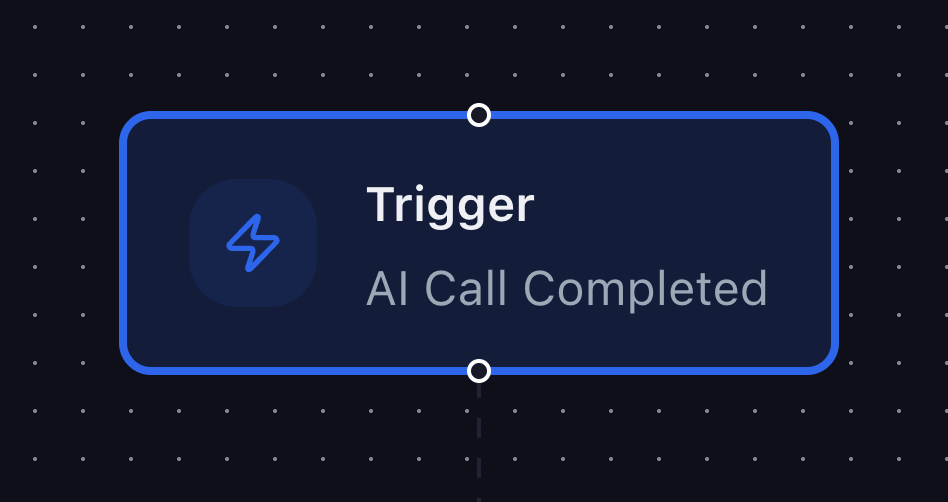
Meta Ad Form Submitted
Trigger a workflow the moment a lead submits a Meta ad lead form (Facebook or Instagram). Ideal for speed-to-lead campaigns where every minute counts. Common Uses:- Call new leads within seconds of submission
- Send an instant SMS or email confirmation
- Route leads to different workflows based on campaign or form
Requires the Meta Integration to be connected in Settings → Company →
Integrations.
Inbound Webhook
Start a workflow when an external system sends an HTTP request to your workflow’s inbound webhook URL. Use this to connect custom apps, landing pages, other SaaS tools, or middleware that can POST JSON payloads into Outbox AI. Common uses:- Fire automations from your own backend or a serverless function
- Chain tools like Zapier, Make, or n8n into Outbox workflows
- Kick off contact-specific sequences from product or billing events
Configure the webhook URL and authentication in the workflow trigger settings.
Payload fields you send can often be mapped into contact data and workflow
variables, depending on your setup.
Filters
Filters allow you to control which calls trigger your workflow. Only calls that match ALL selected filters will trigger the workflow.Call Status Filter
Filter workflows based on the outcome of the call: Available Statuses:- Completed – Call finished successfully
- Forwarded – Call was transferred to a human
- Voicemail – Agent left a voicemail message
- No Answer – Contact didn’t pick up
- Error – Technical failure occurred
- Unqualified – Contact didn’t meet qualification criteria
Direction Filter
Filter based on the direction of the call: Options:- Inbound – Only trigger for calls received by your agents
- Outbound – Only trigger for calls placed by your agents
- Web – Only trigger for web-based calls (e.g., browser-based calling)
Score Filter
Filter based on the AI agent’s call score: Options:- Minimum Score – Only trigger if score is at least X
- Maximum Score – Only trigger if score is no more than X
- Range – Trigger only for scores within a specific range
Score Range: Scores typically range from 0-100, with higher scores
indicating better-qualified leads or more successful conversations.
Agent Filter
Filter based on which AI agent handled the call: Options:- Select one or more specific agents
- Useful when different agents handle different types of calls
- Allows you to create agent-specific follow-up sequences
Actions
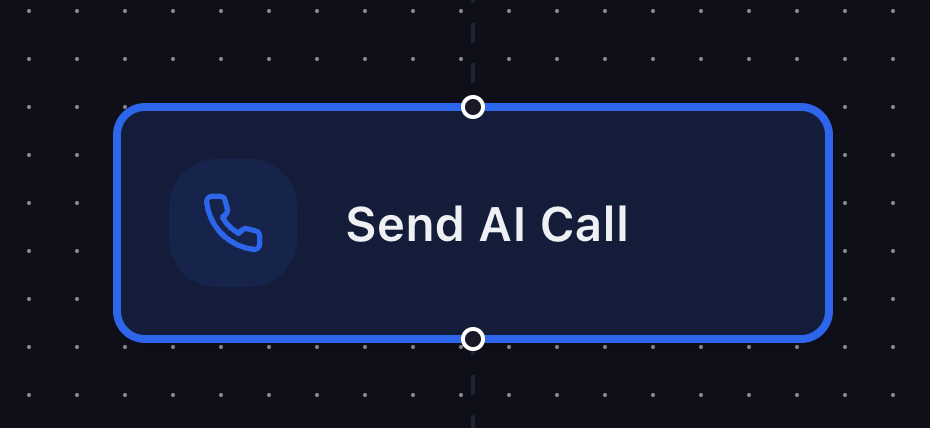
Actions are the steps your workflow takes after being triggered. You can chain multiple actions together to create complex automation sequences.Send AI Call
Place an outbound AI call to a contact using one of your voice agents. Configuration:- Agent – Select which voice agent to use for the call
- From Number – Choose the phone number to call from
- First Message – Set the opening line for the call
Wait
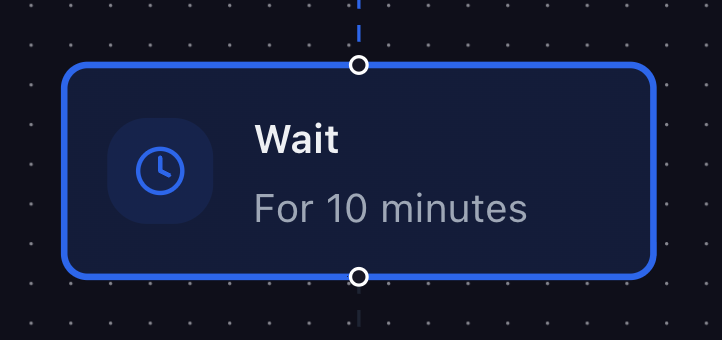
Add a delay between workflow actions. This allows you to space out follow-up actions and create natural conversation timing. Configuration:- Duration – Set how long to wait (seconds, minutes, hours, or days)
- For call to end - Wait until a call ends so that you can activate different actions based on the results of the call.
- Wait 24 hours before sending a follow-up call
- Space out multi-touch campaigns (call → wait 2 days → SMS)
- Wait until call ends, if no answer, send SMS
- AI Call Completed → Status: No Answer
- Wait 4 hours
- Send AI Call (retry attempt)
Drip Mode
Enable drip mode to automatically space out actions over time, creating a natural follow-up cadence. Configuration:- Drip Interval – Time between each action (e.g., every 2 days)
- Batch Size - The amount of contacts you want to push through at a time
- Throttling campaigns that run through a few thousand contacts at a time.
Send SMS
Send a text message to the contact’s phone number. Configuration:- Message Content – Write the SMS message
- From Number – Select the phone number to send from
- Follow up after calls with additional information
- Send links or resources mentioned during the call
- Quick check-ins for leads that didn’t answer
Send Email
Send an email to the contact using your configured email provider. Configuration:- From Email – Select the email address to send from
- Subject – Set the email subject line
- Body – Write the email body content
- Custom Email List (Optional) – Select a custom email list to send to
- Send detailed information after a call
- Follow up with resources, pricing, or documentation
- Appointment confirmations with calendar invites
- Nurture sequences for long-term leads
- Keep subject lines concise and relevant
- Personalize content using contact variables
- Include clear call-to-action buttons
- Test email rendering across different clients
Outbound Webhook
Send an HTTP request to any URL you control—ideal for notifying external systems, Zapier/Make, or your own API when a workflow step runs. Configuration:- URL – Endpoint to call (often POST)
- Method / headers – Match what your receiver expects
- Body – JSON or text; use contact and workflow variables where supported
- Push lead or call outcomes into a data warehouse
- Trigger a process in another product the moment a workflow runs
- Mirror Outbox events into your internal tools
Assign Chat Agent
Hand the contact’s conversation to a specific chat agent as part of the workflow. Use this when a call, form, or webhook should change who handles ongoing SMS, DMs, web chat, or email threads. Use cases:- Route Meta leads to a dedicated sales chat agent
- Escalate from a lightweight bot to a specialist agent after qualification
- Align chat ownership with tags or workflow branches
Interrupt Chat Agent
Stop the active chat agent for a contact so automation pauses—useful when a human needs to take over or when you want to halt AI replies until something else happens. Use cases:- Pause AI after a high-value event until your team responds
- Prevent duplicate automated messages when a workflow also assigns manual follow-up
- Coordinate with Interrupt Mode and human handoff in the CRM
Create Opportunity
Creates a new opportunity in a pipeline for the contact, with the stage and fields you configure in the action. Use cases:- Log a deal when a Meta lead form triggers a workflow
- Open an opportunity after a high-score AI call or webhook event
- Start a sales track before a rep assigns ownership manually
Update Opportunity
Updates an existing opportunity—typically moving a stage or refreshing fields after an automated step. Use cases:- Advance a deal after a successful follow-up SMS or email step
- Sync pipeline status when a branch condition (score, tag, etc.) fires
- Close or disqualify opportunities from automated sequences
Add to Workflow
Add the contact to another workflow, allowing you to chain workflows together or move contacts between sequences. Configuration:- Target Workflow – Select which workflow to add the contact to
- Move qualified leads from general nurture to sales sequence
- Transfer contacts between different campaign types
- Create workflow hierarchies (parent → child workflows)
- Route contacts based on call outcomes
Contacts can be in multiple workflows simultaneously. Use this action to add
them to additional sequences without removing them from the current workflow.
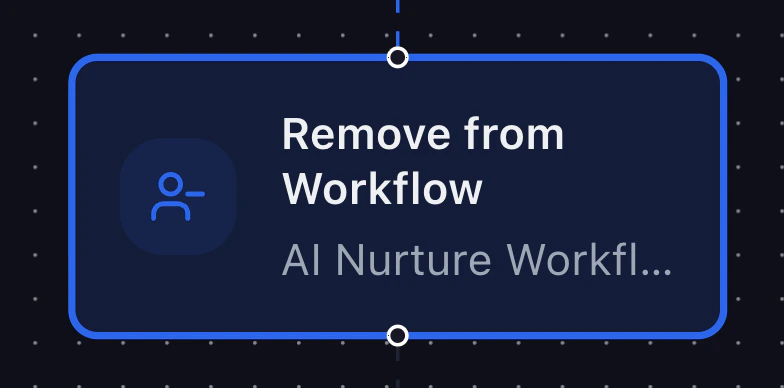
Remove from Workflow
Remove the contact from a workflow, stopping further automation for that contact in that specific sequence. Configuration:- Target Workflow – Select which workflow to remove the contact from
- Stop automation when contact converts or opts out
- Remove contacts who have been handled manually
- Clean up workflows by removing unqualified contacts
- Prevent duplicate automation when contacts are in multiple workflows
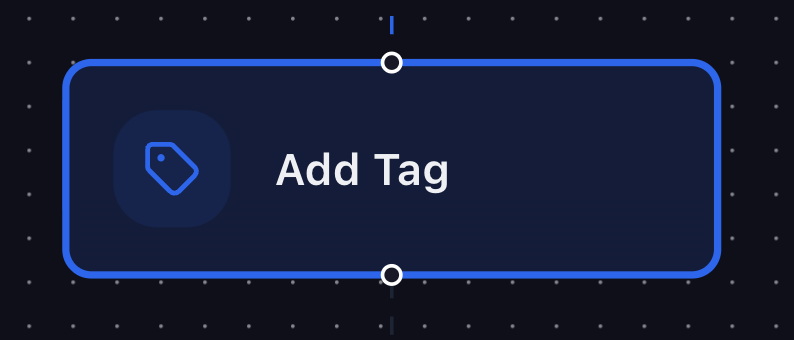
Add Contact Tag
Add a tag to the contact for organization, segmentation, and filtering. Configuration:- Tags – Add multiple tags at once
- Tag contacts based on call outcomes (“Hot Lead”, “Follow Up Needed”)
- Segment contacts by score (“High Score”, “Low Score”)
- Mark contacts for specific campaigns (“Solar Interest”, “Appointment Booked”)
- Organize contacts by status (“Qualified”, “Unqualified”)
hot-lead,warm-lead,cold-leadappointment-booked,callback-requestedno-answer,voicemail-lefthigh-score,qualified,unqualified
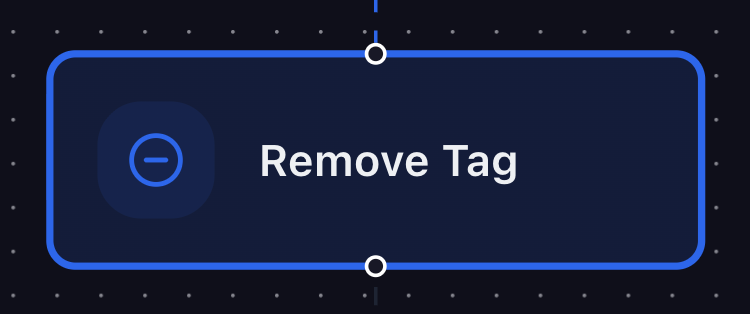
Remove Contact Tag
Remove a tag from the contact, useful for cleaning up tags or updating contact status. Configuration:- Tags – Remove multiple tags at once
- Remove outdated tags when contact status changes
- Clean up tags when contacts move between stages
- Remove temporary tags used for filtering
- Update contact segmentation
- AI Call Completed → Score > 80
- Remove Tag: “Cold Lead”
- Add Tag: “Hot Lead”
If/Else
Create conditional branches in your workflow based on call status or score. This allows you to route contacts down different paths depending on call outcomes. Configuration:- Condition Type – Choose “Call Status” or “Score”
- Condition Logic – Set the comparison (equals, greater than, less than, etc.)
- If Path – Actions to execute if condition is true
- Else Path – Actions to execute if condition is false
- Equals: Completed, Forwarded, Voicemail, No Answer, Error, Unqualified
- Not Equals: Any status except the specified one
- Greater Than: Score is above X
- Less Than: Score is below X
- Equals: Score equals exactly X
- Between: Score is within a range

Building Your First Workflow
Follow these steps to create your first automated campaign:1
Define Your Goal
What do you want to achieve? (e.g., “Follow up on no-answer calls within 4
hours”)
2
Set the Trigger
Add “AI Call Completed” trigger and configure filters (e.g., Status = “No
Answer”)
3
Add Actions
Add the actions you want to execute (e.g., Wait 4 hours → Send AI Call)
4
Test the Workflow
Test with a single contact to ensure it works as expected
5
Activate
Enable the workflow and monitor results

Common Workflow Patterns
Pattern 1: No-Answer Retry Sequence
Goal: Retry calls that didn’t get answered Workflow:- Trigger: AI Call Completed → Filter: Status = “No Answer”
- Wait: 4 hours
- Send AI Call: Retry with different first message
- If/Else: Score > 70 → Add Tag “Engaged”, Else → Add Tag “Low Interest”
Pattern 2: High-Score Immediate Follow-Up
Goal: Immediately follow up on highly qualified leads Workflow:- Trigger: AI Call Completed → Filter: Score > 80
- Add Tag: “Hot Lead”
- Send Email: “High Priority Follow-Up” (immediately)
- Send SMS: “Quick follow-up” (wait 1 hour)
- Add to Workflow: “Sales Sequence”
Pattern 3: Drip Nurture Campaign
Goal: Maintain contact with leads over time Workflow:- Trigger: AI Call Completed → Filter: Status = “Completed”
- Enable Drip Mode: Every 3 days, max 4 actions
- Action 1: Send Email (Day 0)
- Action 2: Send SMS (Day 3)
- Action 3: Send AI Call (Day 6)
- Action 4: Send Email (Day 9)
Pattern 4: Multi-Channel Follow-Up
Goal: Follow up across multiple channels Workflow:- Trigger: AI Call Completed → Filter: Status = “Completed”
- Send Email: “Thank you for your time” (immediately)
- Wait: 1 day
- Send SMS: “Quick question” (Day 1)
- Wait: 2 days
- Send AI Call: “Follow-up call” (Day 3)
Best Practices
Start Simple
Start Simple
Begin with basic workflows and add complexity gradually. A simple workflow that works is better than a complex one that breaks.
Test Before Scaling
Test Before Scaling
Always test workflows with a small group before rolling out to all contacts.
Monitor results and adjust as needed.
Respect Contact Preferences
Respect Contact Preferences
Use Wait actions to space out communications. Don’t overwhelm contacts with
too many messages in a short time.
Monitor Performance
Monitor Performance
Track which workflows perform best. Review call logs, conversion rates, and
engagement metrics regularly.
Clean Up Regularly
Clean Up Regularly
Remove contacts from workflows when they convert, opt out, or become unqualified. Keep your workflows clean and efficient.
Troubleshooting
Workflow Not Triggering
Workflow Not Triggering
Problem: Workflow isn’t executing when expected.Solutions:
- Check that filters aren’t too restrictive
- Verify the trigger conditions match your call outcomes
- Ensure the workflow is enabled/active
- Check that contacts meet all filter criteria
- Review call logs to confirm call status matches filters
Actions Not Executing
Actions Not Executing
Problem: Some actions in the workflow aren’t running. Solutions: -
Verify action configuration is correct - Check for errors in action settings
(invalid phone numbers, email addresses, etc.) - Ensure Wait actions aren’t
blocking subsequent steps - Review action logs for error messages - Test each
action individually
Too Many Follow-Ups
Too Many Follow-Ups
Problem: Contacts are receiving too many messages. Solutions: - Add
Wait actions between communications - Use If/Else to prevent duplicate actions
- Remove contacts from workflows when they respond - Review your workflow timing and spacing - Consider using Drip Mode for better pacing
Contacts Stuck in Workflow
Contacts Stuck in Workflow
Problem: Contacts remain in workflows when they shouldn’t.Solutions:
- Add “Remove from Workflow” actions for conversion/opt-out scenarios
- Use If/Else branches to handle different outcomes
- Regularly review and clean up workflow members
- Set up automatic removal conditions
Next Steps
Voice Agents
Learn how to create the AI agents that power your workflows
Prompting Guide
Master prompt writing to improve call outcomes
Tool Library
Explore tools that can enhance your workflows
Opportunities
Pipelines, stages, and opportunity tools
GoHighLevel Integration
Integrate workflows with your CRM